How Can I Connect Ipad To Wifi With These Simple Steps
Connecting your iPad to wifi is quick and easy when you follow the right steps. Whether you have an ipad air, ipad mini, or ipad pro, this guide walks you through the entire process. You will learn how to find networks, enter passwords, and fix common connection problems.
Key Takeaways
- Connecting your iPad to wifi is simple: Just go to Settings, tap Wi-Fi, and select your network.
- Your wifi password and network name are essential: Make sure you have both before starting the setup.
- Troubleshooting is easy: Restarting your iPad or router often fixes connection issues.
- You can switch between 2.4GHz and 5GHz bands: This helps with speed and range depending on your needs.
- Public wifi networks work differently: You may need to agree to terms or log in through a browser.
- A strong wifi signal matters: Position your router close to your iPad for the best performance.
- You can extend your wifi range: Use a mesh router or wifi extender if your signal is weak in certain areas.
📑 Table of Contents
- How Can I Connect Ipad To Wifi In Just a Few Minutes
- Step-by-Step Guide To Connect Your iPad To Wifi
- Common Problems When Connecting Ipad To Wifi And How To Fix Them
- How To Connect To Public Wi-Fi Networks On Your Ipad
- Tips To Improve Your Wi-Fi Connection On Ipad
- Can You Connect Ipad To Iphone Hotspot
- Expert Tips For Managing Multiple Wi-Fi Connections
- How To Forget A Wi-Fi Network On Your Ipad
- Conclusion
How Can I Connect Ipad To Wifi In Just a Few Minutes
So you just got a new iPad and want to get online. Maybe you are setting it up for the first time, or perhaps your wifi stopped working out of nowhere. Either way, you are in the right place. Connecting your iPad to wifi does not have to be complicated. In fact, it takes less than two minutes once you know where to look.
This guide covers everything you need. We will walk through the basic steps first. Then we will tackle troubleshooting, public networks, and pro tips that most guides skip. By the end, you will be a wifi wizard on your iPad.
Before we dive in, let us quickly cover what you need. You will want your wifi network name and wifi password handy. These are usually printed on a sticker on your router. If you do not have them, check with whoever set up your internet at home.
Now let us get your iPad connected to wifi the right way.
Step-by-Step Guide To Connect Your iPad To Wifi
Step 1: Open Your iPad Settings
First, unlock your iPad. Look for the Settings app on your home screen. It looks like a gray gear icon. Tap on it to open.
If you cannot find the Settings app, swipe down from the middle of your home screen. Type “Settings” in the search bar. Tap the app when it appears. This works on every iPad model, from the ipad mini to the full-size ipad pro.
Step 2: Tap On The Wi-Fi Menu
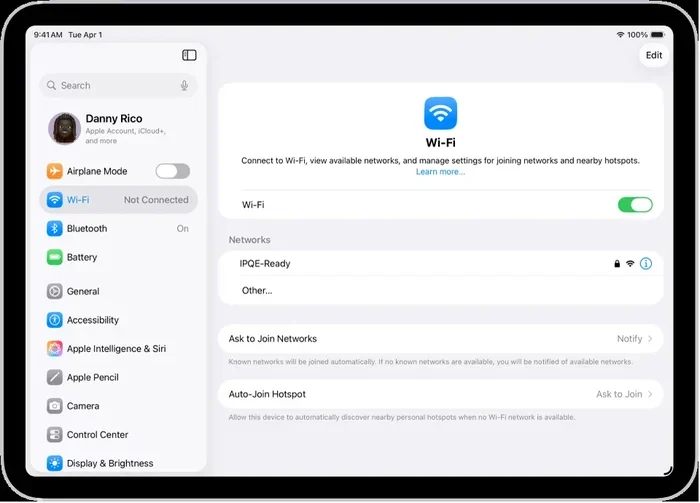
Inside Settings, you will see a list of options on the left side. Look for Wi-Fi. It has a little fan-shaped icon next to it. Tap on it.
Once you tap Wi-Fi, you will see a toggle switch at the top. Make sure it is turned ON. The switch should be green. When it is on, your iPad starts scanning for nearby wireless networks.
You will see a list of available networks appear below the toggle. These are the wifi networks within range of your iPad.
Step 3: Select Your Network
Look through the list of available networks. Find the name of your home network. This is your SSID, or network name. It is usually something simple like “SmithFamilyWifi” or “Netgear5G.”
Tap on your network name. If the network is secured, you will see a password field appear. Type in your wifi password carefully. Passwords are case-sensitive, so watch for uppercase and lowercase letters.
After entering the password, tap “Join” in the top right corner. Your iPad will connect to the network. You should see a checkmark next to the network name once the connection is successful.
Step 4: Confirm Your Connection
To make sure everything is working, open a web browser. Try visiting any website. If the page loads, you are connected to the internet through your wireless network.
You can also check the top right corner of your screen. A small wifi icon should appear there. The more bars it has, the stronger your wifi signal is.
If you see the wifi icon but pages will not load, do not worry. We will cover troubleshooting in a later section.
Common Problems When Connecting Ipad To Wifi And How To Fix Them
Sometimes things do not go smoothly. Ipad wifi not connecting is one of the most common tech frustrations. But most problems have simple fixes. Let us go through them one by one.
Your iPad Will Not Find Any Networks
If your iPad shows no available networks, the first thing to try is turning Wi-Fi off and back on. Go to Settings, tap the Wi-Fi toggle to OFF, wait five seconds, then tap it back to ON.
Another quick fix is to restart your iPad. Hold down the power button and the volume button together. Slide to power off. Wait a few seconds, then turn it back on. This clears temporary glitches that can block wifi discovery.
Also check your router. Make sure it is powered on and the lights are blinking normally. If your router has been off for a while, unplug it, wait 30 seconds, and plug it back in.
The Password Keeps Getting Rejected
Getting a wrong password error is super annoying. But it happens more often than you think. Double-check that your caps lock is off. Passwords are case-sensitive on all Apple devices.
If you are sure the password is correct, try forgetting the network. Go to Settings > Wi-Fi, tap the “i” icon next to your network name, and select “Forget This Network.” Then reconnect from scratch by entering the password again.
Sometimes the password on the router sticker has been changed but not updated. If someone in your household changed the wireless password, ask them for the new one.
Your iPad Connects But Has No Internet
This is a tricky one. Your iPad shows it is connected to the network, but nothing loads online. This usually means the problem is with your router or internet service, not your iPad.
Try opening a website on another device, like your phone or laptop. If that device also cannot connect, the issue is with your internet connection, not your iPad.
In this case, restart your router first. If that does not work, contact your internet service provider. They can check if there is an outage in your area.
How To Connect To Public Wi-Fi Networks On Your Ipad
Public wireless networks are everywhere. Coffee shops, airports, hotels, and libraries all offer free wifi. Connecting to them on your iPad is just as easy as connecting at home. But there are a few things you should know.
When you are in a public place, open your iPad Settings and tap Wi-Fi. You will see a list of available networks. Look for the network name the business provides. It might say something like “Starbucks_Guest” or “Airport_Free_Wifi.”
Tap on the network. Many public networks will open a login page automatically. This page asks you to agree to terms, enter a room number, or watch a short ad before giving you access.
If no login page opens, open your browser and try visiting any website. The login page should pop up then. Follow the instructions to get connected.
Be careful with public wifi. Avoid entering sensitive information like bank details when connected to a public network. If you need to check your email or browse casually, you are fine. But for anything important, use your mobile data or a VPN.
Also, remember to forget the network after you leave. Go to Settings > Wi-Fi, tap the “i” icon, and select “Forget This Network.” This keeps your iPad settings clean and secure.
Tips To Improve Your Wi-Fi Connection On Ipad
Once you know how to connect, you want a great experience every time. Here are some practical tips that make a real difference.
Position Your Router Smartly
Your router placement affects your wifi signal strength a lot. Keep your router in a central location in your home. Avoid hiding it in a closet or behind a TV. Walls and furniture block wifi signals.
If your iPad is far from the router, try moving closer. Even a few feet can make a difference. If your router is in the basement and you are upstairs, the signal may be weak.
For larger homes, consider using a mesh router or wifi extender. These devices boost your signal to reach every corner of your house. You can even extend your wifi to 200 feet away with the right equipment.
Switch Between 2.4GHz and 5GHz Bands
Most modern routers broadcast on two frequency bands: 2.4GHz and 5GHz. Each has its own strengths.
The 2.4GHz band has a longer range but slower speeds. The 5GHz band is faster but has a shorter range. If your iPad is close to the router, use 5GHz for the best speed. If you are far away, 2.4GHz works better.
You can change your wifi from 5GHz to 2.4GHz easily through your router settings. This simple switch can solve many connection problems.
Keep Your iPad Software Updated
Apple releases software updates regularly. These updates often include fixes for wifi connectivity issues. Keeping your iPad updated ensures the best performance.
Go to Settings > General > Software Update to check for updates. If an update is available, download and install it. Your iPad will restart to complete the process.
Reset Network Settings When Nothing Else Works
If you have tried everything and your iPad wifi still not working, resetting network settings can help. Go to Settings > General > Transfer or Reset iPad > Reset > Reset Network Settings.
This will erase all saved wifi networks and passwords. You will need to reconnect to your home network. But it clears out any deep glitches that standard fixes cannot reach.
After resetting, go back to Settings > Wi-Fi, turn it on, and reconnect. Enter your password and you should be good to go.
Can You Connect Ipad To Iphone Hotspot
Yes, you can use your iPhone as a personal hotspot for your iPad. This is handy when you are away from home and do not have access to a wireless network.
First, make sure your iPhone has cellular data. Go to Settings > Personal Hotspot on your iPhone and turn it on. Set a password for the hotspot.
On your iPad, go to Settings > Wi-Fi. Your iPhone hotspot should appear in the list of available networks. Tap on it, enter the password, and your iPad will connect to the internet through your phone.
This method works great for travel or when you are at a location without wifi. You can also get unlimited hotspot data plans from your carrier if you use this feature often.
Expert Tips For Managing Multiple Wi-Fi Connections
If you have multiple devices at home, managing wifi connections can get tricky. Here are some expert tips to keep things running smoothly.
Use Separate Network Names For Each Band
Many routers let you create separate network names for 2.4GHz and 5GHz bands. For example, you might name one “HomeWifi_2G” and the other “HomeWifi_5G.” This makes it easy to choose the right band for each device.
Your iPad can connect to either one. For streaming videos or downloading apps, use the 5GHz network. For basic browsing, the 2.4GHz network is fine.
Limit The Number Of Connected Devices
Every device connected to your router shares the available bandwidth. If too many devices are connected, your iPad might experience slow speeds.
Check your router settings to see how many devices are connected. Disconnect any devices you are not using. This frees up bandwidth for your iPad and other priority devices.
You can also add an antenna to your wifi router to improve signal strength and range. This is a simple upgrade that makes a big difference in larger homes.
Secure Your Network Properly
Always use WPA3 or WPA2 encryption on your router. This keeps unauthorized users from accessing your network. Go to your router settings and check the security options.
Change your default router password too. Many routers come with generic passwords like “admin” or “password.” These are easy targets for hackers. A strong, unique password keeps your network safe.
How To Forget A Wi-Fi Network On Your Ipad
There are times when you need to remove a saved network from your iPad. Maybe you moved to a new house, or the network is causing problems. Forgetting a network is simple.
Go to Settings > Wi-Fi. Tap the blue “i” icon next to the network you want to remove. Scroll down and tap “Forget This Network.” Confirm your choice.
The network will disappear from your saved list. You will need to reconnect from scratch next time you want to use it. This is also a great fix if a saved network is causing connection conflicts on your iPad.
After forgetting a network, restart your iPad before trying to connect to a new one. This ensures your iPad starts fresh and does not carry over any lingering issues.
Conclusion
Connecting your iPad to wifi is straightforward once you know the steps. Open Settings, tap Wi-Fi, select your network, and enter your password. That is all it takes for most situations.
When problems come up, the fixes are usually simple too. Restart your iPad, check your router, or reset your network settings. These steps solve the vast majority of wifi connection issues.
Remember to keep your software updated and your router in a good location. These small habits make a big difference in your daily wifi experience. With the tips in this guide, you will be able to connect your iPad to any network with confidence.
Now go ahead and get your iPad online. You have got this!
Frequently Asked Questions
Why won’t my iPad connect to wifi?
There are several reasons your iPad might not connect to wifi. First, make sure Wi-Fi is turned on in Settings. Check that you are entering the correct password. Try restarting your iPad and your router. If the problem continues, try forgetting the network and reconnecting. Sometimes a simple software update fixes the issue too.
How do I find my wifi password on my iPad?
If you have already connected to a network before, you can find the password in your iPad settings. Go to Settings > Wi-Fi, tap the “i” icon next to the network, and look for the router details. However, the password is usually hidden for security. Check the sticker on your router or ask the network administrator for the password.
Can I connect my iPad to a 5GHz wifi network?
Yes, most modern iPads support 5GHz wifi networks. Look for a network name that includes “5G” or “5GHz” in the name. The 5GHz band offers faster speeds but has a shorter range than 2.4GHz. Make sure your router is broadcasting on 5GHz for your iPad to connect to it.
What should I do if my iPad keeps disconnecting from wifi?
Frequent disconnections are usually caused by a weak signal or router issues. Move your iPad closer to the router and see if that helps. Restart your router by unplugging it for 30 seconds. You can also reset your iPad’s network settings. If the problem persists, update your iPad software and router firmware.
How do I connect my iPad to a hidden wifi network?
To connect to a hidden network, go to Settings > Wi-Fi and tap “Other” at the bottom of the network list. Enter the network name, select the security type, and enter the password. Tap “Join.” Hidden networks do not broadcast their name, so you must type the exact network name manually.
Is it safe to connect my iPad to public wifi?
Public wifi is convenient but not always secure. Avoid entering passwords, bank details, or sensitive information when using public networks. If you need to do something important, use your cellular data instead. You can also use a VPN app to encrypt your connection on public networks for extra safety.