How Can I Enable Network Adapter On My Windows 11 PC
Enabling your network adapter on Windows 11 is quick and straightforward once you know where to look. This guide walks you through every method, from Device Manager to command-line tools, so you can restore your Wi-Fi connectivity in minutes. Whether your adapter is disabled by accident or a driver issue, we have you covered.
Your Windows 11 PC suddenly cannot connect to the internet. The Wi-Fi icon shows a warning symbol, or your ethernet connection just vanishes. Before you panic, take a breath. The culprit is often a disabled network adapter, and fixing it is simpler than you think.
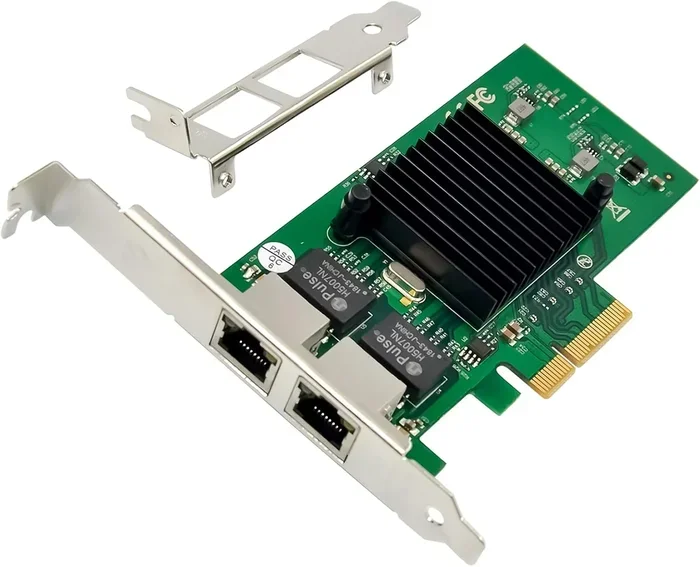
A network adapter is the hardware component that lets your computer talk to a network. It can be built into your motherboard or added as a USB device. When it gets turned off, either by accident or through a software glitch, your internet access disappears. This guide shows you exactly how to enable network adapter on your Windows 11 PC and get back online fast.
We will cover every method you need, from the simplest GUI approach to advanced command-line fixes. You will also learn how to spot the root cause so the same problem does not come back. Let us dive in and get your connection working again.
Key Takeaways
- Device Manager is the fastest way to enable a disabled network adapter on Windows 11.
- Network Troubleshooter can automatically detect and fix adapter issues without manual steps.
- Updating or rolling back drivers often resolves hidden adapter problems that prevent connectivity.
- Command-line tools like netsh offer a powerful alternative when the GUI method fails.
- Hardware issues can mimic software problems, so always check your physical connection first.
- BIOS settings can sometimes block your adapter, and a quick toggle may solve the problem.
📑 Table of Contents
- What Is a Network Adapter and Why Does It Get Disabled?
- How to Enable Network Adapter Using Device Manager
- Using Windows Settings to Fix Network Adapter Issues
- Updating and Reinstalling Network Drivers
- Command-Line Fixes for Stubborn Adapters
- Checking BIOS and Hardware Connections
- Preventing Future Adapter Problems
- Conclusion
What Is a Network Adapter and Why Does It Get Disabled?
A network adapter is the piece of hardware that connects your PC to a network. It comes in two main forms. The first is a wireless adapter that handles Wi-Fi connections. The second is an ethernet adapter that works with a cable. Most modern laptops have both built in.
So why does an adapter get disabled in the first place? Several common reasons can cause this:
- Accidental toggle: A quick tap on a function key or a setting change can turn it off without you noticing.
- Driver conflicts: After a Windows update, drivers can become incompatible or corrupt.
- Power management: Windows sometimes turns off adapters to save energy, which can backfire.
- Hardware switch: Some laptops have a physical switch or button that disables the wireless radio.
- BIOS settings: The adapter can be turned off at the firmware level before Windows even starts.
Understanding the cause helps you pick the right fix. If your adapter was working yesterday and stopped today, a driver issue or accidental toggle is the most likely reason.
How to Enable Network Adapter Using Device Manager
Device Manager is the go-to tool for managing hardware on Windows 11. It gives you direct control over every device connected to your system, including your network adapter. This method works for both wireless and ethernet adapters.
Step-by-Step Guide
Follow these steps carefully. Each one takes just a few seconds.
- Right-click the Start button on your taskbar and select Device Manager from the menu.
- Expand the Network adapters category by clicking the arrow next to it.
- Look for your adapter in the list. It might be named something like Intel Wireless or Realtek PCIe GBE.
- Right-click the adapter and choose Enable device from the context menu.
- Wait a few seconds. Windows will activate the adapter and you should see your connection return.
If the Enable option is grayed out, do not worry. This usually means the adapter is already enabled but has a driver problem. Move on to the driver section below for help.
What If You Do Not See Your Adapter?
Sometimes the adapter does not appear in Device Manager at all. This can happen for a few reasons:
- Hidden devices: Click View in the menu bar and check Show hidden devices. The adapter might be listed there.
- Uninstalled driver: The driver may have been removed during a cleanup or update. You will need to reinstall it.
- Hardware failure: The adapter itself may be damaged. This is less common but possible.
If your adapter is missing and you are using a USB dongle, try plugging it into a different port. A loose connection can trick Windows into thinking the device is not there.
Using Windows Settings to Fix Network Adapter Issues
Windows 11 has a dedicated network settings page that lets you manage connections and troubleshoot problems. This method is great if you prefer a more visual approach.
Network Settings Path
- Open Settings by pressing Windows + I on your keyboard.
- Click Network & internet in the left sidebar.
- Select your connection type from the top options, such as Wi-Fi or Ethernet.
- Toggle the connection off and back on. This simple reset often re-enables a sleeping adapter.
- Click the network troubleshooter if the toggle does not work. Windows will scan for issues and apply fixes automatically.
The built-in troubleshooter is surprisingly effective. It can detect disabled adapters, driver problems, and configuration errors. It is always worth running before trying more advanced methods.
When Settings Do Not Work
If the Settings app does not show your adapter or the toggle is missing, the issue is likely deeper. You may need to use Device Manager or command-line tools. Do not keep clicking around randomly. Stick with the methods in order, from simplest to most advanced.
Sometimes your Wi-Fi connectivity issues are caused by a missing driver rather than a disabled adapter. If you have recently upgraded to Windows 11, this is especially common. Head to your PC manufacturer’s website and download the latest wireless driver for your model.
Updating and Reinstalling Network Drivers
A corrupted or outdated driver is one of the top reasons an adapter stays disabled even after you try to enable it. Drivers are the software that lets Windows communicate with hardware. When they break, the hardware stops working.
How to Update Your Driver
- Open Device Manager (right-click Start, then Device Manager).
- Expand Network adapters.
- Right-click your adapter and select Update driver.
- Choose Search automatically for drivers. Windows will look online for the latest version.
- Restart your PC after the update completes.
How to Reinstall a Driver
If updating does not help, a clean reinstall often does the trick.
- Right-click the adapter in Device Manager and select Uninstall device.
- Check the box that says Delete the driver software for this device.
- Click Uninstall.
- Restart your PC. Windows will automatically reinstall a fresh driver during boot.
This method clears out any corrupted driver files that might be causing the problem. It is safe and does not affect your other settings.
Manual Driver Downloads
Windows Update does not always have the newest driver. For the best results, download directly from the manufacturer. Intel, Realtek, and Qualcomm all maintain driver download pages on their websites. Find your exact adapter model in Device Manager, then search for the driver on the manufacturer’s site.
Some users also find success with driver update tools, but be cautious. Stick with reputable sources and avoid free tools that bundle extra software.
Command-Line Fixes for Stubborn Adapters
When the graphical tools fail, the command line can save the day. Windows includes powerful networking commands that can reset, enable, and diagnose adapters at a deep level. Do not let the black screen scare you. The commands are simple and safe.
Using netsh to Reset Your Network
The netsh command is a built-in tool that manages network settings from the command prompt. It can reset your entire network stack, which often fixes adapter issues.
- Open Command Prompt as Administrator. Search for cmd in the Start menu, right-click, and choose Run as administrator.
- Type the following command and press Enter:
netsh winsock reset
- Restart your PC. This resets the network socket catalog and clears many connection problems.
Using PowerShell to Enable an Adapter
PowerShell offers even more control. You can use it to find and enable a disabled adapter directly.
- Open PowerShell as Administrator. Search for PowerShell in the Start menu and choose Run as administrator.
- Type this command to list all network adapters:
Get-NetAdapter
- Look for your adapter in the output. Note its name.
- Type this command to enable it:
Enable-NetAdapter -Name “Your Adapter Name” -Confirm:$false
- Replace “Your Adapter Name” with the actual name you saw in the previous step.
This method bypasses the GUI entirely and forces the adapter to activate. It works even when Device Manager gives you trouble.
Checking BIOS and Hardware Connections
If none of the software methods work, the problem might be at the hardware level. Before you assume the worst, check a few simple things that are easy to overlook.
Physical Switches and Buttons
Many laptops have a physical switch or button that turns the wireless radio on and off. Look along the edges of your laptop, near the hinge or on the sides. Some models also use a function key combination, like Fn + F2, to toggle the wireless adapter.
BIOS Settings
Your PC’s BIOS can control whether the network adapter is active. To check:
- Restart your PC and press the BIOS key during boot. This is usually F2, F10, or Del.
- Look for a Network or Integrated Peripherals section.
- Find the wireless or LAN adapter setting and make sure it is enabled.
- Save and exit.
USB Network Adapters
If you use a USB Wi-Fi dongle, the adapter itself might be faulty or not getting enough power. Try these steps:
- Unplug the dongle and plug it into a different USB port.
- Try a USB hub with its own power supply if you are using one.
- Test the dongle on another PC to rule out a hardware failure.
Sometimes a simple USB port issue mimics a disabled adapter. Always rule out the easy stuff first.
Preventing Future Adapter Problems
Once you get your adapter working again, you want to keep it that way. A few simple habits can prevent most common issues.
- Keep Windows updated. Updates often include driver fixes and security patches that protect your network stack.
- Avoid aggressive driver cleaner tools. They can remove drivers that Windows needs to function properly.
- Use a surge protector. Power spikes can damage network hardware over time.
- Check your adapter settings periodically. A quick look in Device Manager once a month can catch problems early.
If you have a setup where you rely on Wi-Fi and ethernet together, make sure both adapters are enabled and configured correctly. Some users run into issues when both are active at the same time, causing Windows to route traffic unpredictably.
For users who travel or work remotely, maintaining a strong connection is essential. If you find yourself in situations where your usual Wi-Fi network is unavailable, knowing how to troubleshoot your adapter gives you confidence. You can quickly adapt and stay productive no matter where you are. If you want to learn more about extending your Wi-Fi range, check out our guide on Can I Get A Extension On My Wi Fi for helpful tips.
Those who work from vehicles or remote locations may also want to explore mobile hotspot options. Our article on Can I Get Hotspot Without Phone Service covers how to stay connected without a traditional phone plan. And if you are curious about getting Wi-Fi without a router, we have a dedicated guide for that too.
For users dealing with hardware upgrades, you might wonder whether your current setup supports wireless connectivity. Our guide on Can I Add Wi Fi To A Non Wi Fi Motherboard explains your options if your desktop lacks built-in wireless capabilities.
Conclusion
Enabling your network adapter on Windows 11 does not have to be stressful. You now have multiple methods at your fingertips, from the simple Device Manager approach to the powerful command-line tools. Start with the easiest fix and work your way down the list if needed.
Most of the time, a quick toggle in Device Manager or a driver update is all it takes. The key is to stay patient and follow each step carefully. Your network adapter is a reliable piece of hardware, and with the right care, it will keep your PC connected for years to come.
Now that you know how to fix a disabled adapter, you can handle the problem yourself the next time it comes up. No need to call tech support or spend money on repairs. You have the knowledge and the tools. Get back online and get back to what matters.
Frequently Asked Questions
Why is my network adapter greyed out in Device Manager?
A greyed-out adapter usually means it is already enabled but has a driver issue. Try updating the driver first. If that does not work, uninstall the driver and restart your PC. Windows will reinstall a fresh driver automatically.
Can I enable my network adapter without admin rights?
No. Enabling or disabling a network adapter requires administrator privileges. If you are on a shared or work computer, you will need to contact your IT administrator for help.
How do I know if my network adapter is hardware or software problem?
Open Device Manager and look for your adapter. If it appears and you can enable it, it is likely a software issue. If it does not appear at all, or shows a yellow warning triangle, it could be a driver or hardware problem. Try a different USB port or test on another PC to narrow it down.
Does disabling a network adapter save battery?
Yes, disabling your wireless adapter when you do not need it can save battery life. However, Windows 11 has a power management feature that can automatically turn off the adapter to save energy. You can adjust this in Device Manager under the adapter’s Power Management tab.
What should I do if my adapter keeps getting disabled after a restart?
This is often caused by a power management setting or a conflicting driver. Go to Device Manager, open your adapter properties, and uncheck Allow the computer to turn off this device to save power. Also make sure your network drivers are up to date.
Is it safe to use command-line tools to fix network adapters?
Yes, the commands mentioned in this guide are safe and built into Windows. They do not modify system files or delete personal data. Always run Command Prompt or PowerShell as Administrator to ensure the commands work correctly.