How Can I Improve My T Mobile Home Internet Connection
Improving your T-Mobile home internet is easier than you think. You can boost speed, fix dead zones, and get better performance with a few simple changes to your setup, settings, and plan. This guide walks you through every step, from router placement to network tweaks, so you can enjoy a faster, more reliable T-Mobile home internet connection today.
Slow internet at home is frustrating. You are trying to stream a movie, join a video call, or just browse the web, and everything crawls. If you use T-Mobile home internet, you are not alone in dealing with these headaches. The good news is that you do not need to be a tech expert to get better results. A few smart changes can make a huge difference in your T-Mobile home internet connection. This guide covers every practical step you can take right now to speed up your internet, fix weak signals, and get the most out of your T-Mobile 5G home service.
Whether your internet slows down at night, drops in certain rooms, or just never feels as fast as you expected, this article has you covered. We will walk through simple fixes, account settings, equipment upgrades, and advanced tips. Each step is easy to follow and does not require expensive tools or professional help. By the end, you will know exactly how to improve your T-Mobile home internet and keep it running smoothly for months to come.
Key Takeaways
- Router placement matters a lot: Moving your router to a central, open location can dramatically improve your T-Mobile home internet signal and speed.
- Update your equipment regularly: Using the latest T-Mobile gateway or a compatible router ensures you get the best speeds possible.
- Switch frequency bands for better coverage: Using the 2.4GHz band reaches farther, while 5GHz offers faster speeds closer to the router.
- Check your plan and data limits: Your T-Mobile internet plan may have speed caps or data limits that affect performance during peak hours.
- Reduce network congestion at home: Disconnect unused devices and limit background apps to free up bandwidth for the devices that matter most.
- Use a mesh system or Wi-Fi extender: These tools eliminate dead zones and extend your T-Mobile home internet to every corner of your house.
- Contact T-Mobile support when needed: Sometimes the issue is on their end, and a simple account adjustment or network fix solves everything.
📑 Table of Contents
Understanding Your T-Mobile Home Internet Setup
Before you start fixing things, it helps to understand how your T-Mobile home internet actually works. T-Mobile uses its 5G network to deliver internet to your home through a gateway device. This gateway acts as both a modem and a router. It connects to the T-Mobile 5G cell tower and then broadcasts a Wi-Fi signal throughout your home. The quality of your internet depends on several factors, and knowing what they are puts you in control.
How T-Mobile 5G Home Internet Works
T-Mobile 5G home internet uses cellular towers to send data to your home. The gateway device in your house picks up this signal and turns it into a Wi-Fi network. Unlike traditional fiber or cable internet, your T-Mobile home internet relies on wireless signals from nearby towers. This means your speed and reliability can change based on how close you are to a tower, what buildings or trees are in the way, and how many people are using the network at the same time.
T-Mobile offers different tiers of service depending on your area. Some homes get very fast 5G speeds, while others may rely on LTE or extended-range signals. Understanding which type of signal your home receives helps you set realistic expectations and choose the right fixes. You can check your signal strength in the T-Mobile app or by running a simple internet speed test at different times of the day.
What Affects Your T-Mobile Internet Speed
Several things can slow down your T-Mobile home internet connection. The most common culprits include distance from the cell tower, physical obstructions like walls and trees, network congestion during peak hours, and outdated equipment. Even the placement of your gateway inside your home plays a big role. If your router sits in a basement or closet, the signal has to travel through walls and furniture before reaching your devices.
Another factor is the number of devices connected to your network. Every phone, tablet, smart TV, and smart home device uses bandwidth. If too many devices are active at once, everyone suffers from slower speeds. This is especially true in the evening when families are streaming, gaming, and browsing all at the same time.
Simple Fixes To Boost Your T-Mobile Home Internet
You do not need expensive gear or a technician to get better speeds. Start with these easy fixes that make an immediate difference. Most of these take less than five minutes and cost nothing.
Optimize Your Router Placement
Where you put your T-Mobile gateway matters more than most people realize. The best spot is a central location in your home, up off the floor, and away from walls. Avoid placing it behind a TV, inside a cabinet, or in a corner. The more open space your router has around it, the better the signal spreads throughout your home.
Think of your Wi-Fi signal like light from a lamp. If you put the lamp in a closet, the light does not reach the rest of the room. The same idea applies to your T-Mobile home internet gateway. Move it to a high shelf or a table in a central room. You will likely notice stronger signals in bedrooms and bathrooms that were previously weak.
Restart Your Gateway Regularly
Restarting your T-Mobile gateway clears out temporary glitches and refreshes your connection to the nearest cell tower. Make it a habit to unplug the gateway for 30 seconds, then plug it back in. This simple step fixes many common issues like slow speeds, dropped connections, and devices that will not connect at all.
Try restarting your gateway once a week. You can set a reminder on your phone to make it automatic. Over time, you will notice more stable performance and fewer interruptions. Many users report that regular restarts alone solved their T-Mobile home internet speed problems.
Update Your Equipment
T-Mobile provides a gateway device to its home internet customers. While this device works well for most homes, older models may not support the fastest 5G speeds. Check with T-Mobile to see if a newer gateway is available for your account. Upgrading your equipment is often free or available at a low monthly cost.
If you have an older gateway, you might also consider using your own compatible router behind it. A modern router with better antennas and faster processors can improve your overall T-Mobile home internet experience. Just make sure the router is compatible with T-Mobile’s network setup to avoid connectivity issues.
Network Settings That Make A Big Difference
Your gateway and router have settings that you can adjust to get better performance. These changes take a few minutes but can significantly improve your T-Mobile home internet experience.
Switch Between 2.4GHz and 5GHz Bands
Most T-Mobile gateways broadcast two Wi-Fi bands: 2.4GHz and 5GHz. The 5GHz band is faster but has a shorter range. The 2.4GHz band is slower but travels farther and passes through walls better. If you are close to your router, use the 5GHz band for streaming and gaming. If you are in another room or far from the gateway, switch to the 2.4GHz band for a more stable connection.
Many devices automatically choose the best band, but sometimes manual switching helps. You can also check Can I Force My Phone To Use 2 4 Ghz Wifi for tips on controlling which band your phone uses. This is especially helpful if your phone keeps jumping between bands and causing interruptions.
Change Your Wi-Fi Channel
Wi-Fi channels are like lanes on a highway. If too many networks use the same channel, there is congestion and slowdowns. Your T-Mobile gateway usually picks a channel automatically, but sometimes it chooses a crowded one. You can log into your gateway settings and manually select a less crowded channel for better performance.
Use a free Wi-Fi analyzer app on your phone to see which channels are least used in your area. Then go into your gateway settings and switch to that channel. This simple change can reduce interference and boost your T-Mobile home internet speed, especially in apartment buildings or neighborhoods with many nearby networks.
Change Your Network Name and Password
Customizing your network name (SSID) and password is a good security practice and can also help with performance. A unique network name makes it easier to identify your T-Mobile network and avoid accidentally connecting to a neighbor’s network. You can learn more about managing your network name in this guide on Can I Change The Ssid On My Router.
Use a strong, unique password to prevent neighbors from leeching off your network. When too many unauthorized devices use your connection, your speeds drop for everyone. A strong password keeps your network fast and secure.
T-Mobile Account And Plan Adjustments
Sometimes the problem is not your equipment or setup. It is your T-Mobile account or plan. A few account-level changes can improve your internet experience significantly.
Check Your Data Plan And Speed Tier
T-Mobile home internet plans come with different speed tiers and data policies. Some plans offer prioritized data, which means your speeds stay fast even during busy times. Other plans may slow down after you use a certain amount of data or during peak hours when the network is congested.
Log into your T-Mobile account or call customer service to check which plan you are on. Ask if there is a higher-tier option available in your area. Upgrading your plan might be the simplest way to get better T-Mobile home internet speeds without changing any equipment. The cost difference is often small compared to the improvement you feel.
Check For Network Outages And Congestion
T-Mobile occasionally experiences network outages or congestion in certain areas. These issues can make your home internet slow or completely unavailable. Before troubleshooting your equipment, check the T-Mobile outage map on their website or app. You can also visit community forums to see if other T-Mobile users in your area are experiencing the same problems.
If there is a known outage in your area, there is not much you can do except wait. T-Mobile usually resolves these issues within a few hours. In the meantime, you can use your phone as a mobile hotspot to keep your devices connected. Knowing about outages also helps you understand that slow speeds are not always your fault.
Advanced Tips For Power Users
If the basic fixes did not solve your problem, it is time to level up. These advanced tips are for users who want maximum performance from their T-Mobile home internet setup.
Use A Wi-Fi Extender Or Mesh System
A Wi-Fi extender or mesh system can eliminate dead zones in your home. These devices pick up your T-Mobile gateway’s signal and rebroadcast it to areas that are too far away. Mesh systems are especially effective because they create a single, seamless network throughout your home. You can walk from room to room without losing connection.
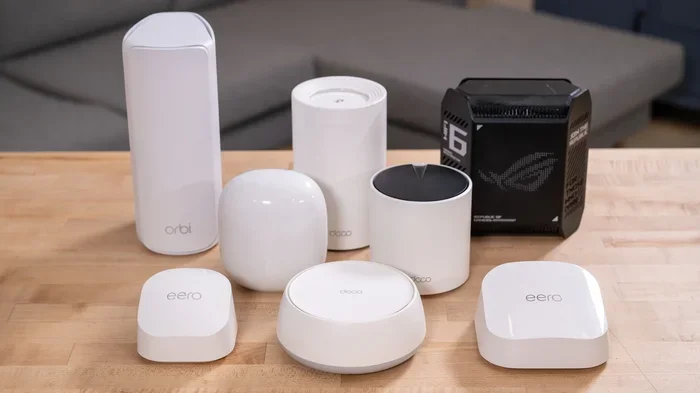
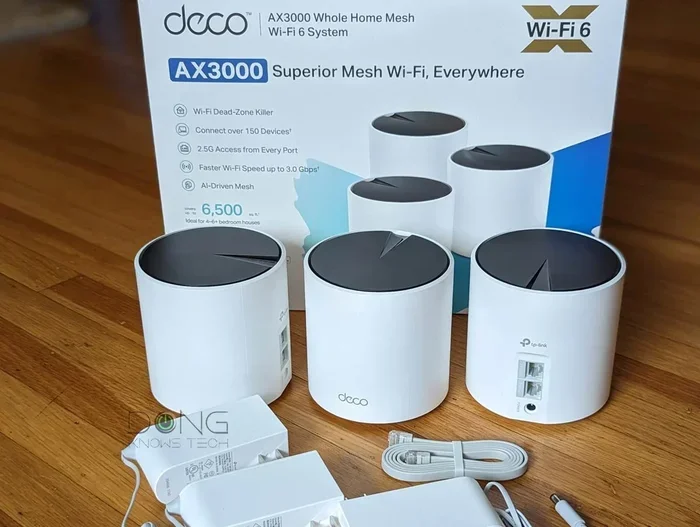
Popular mesh systems like Google Nest Wi-Fi, Eero, and TP-Link Deco work well with T-Mobile gateways. You can learn more about extending your wireless range in this guide on Can I Extend My Wi Fi To 200 Feet Away. These tools are especially useful for larger homes or homes with thick walls that block the signal.
When choosing an extender or mesh system, look for one that supports the same Wi-Fi standards as your T-Mobile gateway. This ensures the best compatibility and the fastest speeds. Place the extender or mesh node halfway between your gateway and the weak spot in your home for the best results.
Reduce Network Congestion At Home
Every device connected to your network uses bandwidth, even when you are not actively using it. Smart home devices, phones, tablets, laptops, and smart TVs all compete for the same internet connection. The more devices on your network, the slower it gets for everyone.
Start by disconnecting devices you are not using. Turn off Wi-Fi on devices that do not need a constant connection. You can also set up a guest network for visitors so your main network stays fast. Some T-Mobile gateways let you prioritize certain devices, giving more bandwidth to your TV or work laptop while limiting less important devices.
Boost Your Upload Speed
Download speed gets all the attention, but upload speed matters too. If you video conference for work, upload large files, or stream live content, your upload speed directly affects your experience. T-Mobile home internet speeds vary, and upload speeds are sometimes slower than download speeds.
You can learn specific strategies to improve your upload performance by reading this guide on Can I Boost My Upload Speed. Simple steps like closing background apps, using a wired connection for uploads, and adjusting your router’s QoS settings can all help boost your upload speed on T-Mobile home internet.
Run Regular Speed Tests And Track Performance
How do you know if your changes are working? Run a speed test regularly and track the results over time. Use free tools like Speedtest.net or the T-Mobile Speed Check app. Test at different times of the day to see if your speeds change during peak hours.
Keep a simple log of your results. If you notice consistent slowdowns at certain times, it might be a network congestion issue that T-Mobile needs to address. If your speeds are always slow, the problem is likely with your equipment or setup. Tracking your performance helps you make informed decisions about when to contact T-Mobile support or upgrade your plan.
When To Contact T-Mobile Support
Sometimes, no matter what you try, your T-Mobile home internet still does not perform as expected. That is when it is time to reach out to T-Mobile support. They have access to tools and information that can diagnose issues on their end. You should contact support if you experience persistent slow speeds, frequent disconnections, or if your gateway keeps restarting on its own.
Before calling, gather your account information and run a speed test so you can share the results with the support agent. Be clear about the steps you have already tried. This saves time and shows the agent that you have done your homework. T-Mobile support can sometimes remotely refresh your connection, adjust your account settings, or send a replacement gateway if your equipment is faulty.
You can reach T-Mobile support through their app, website chat, or by phone. Many users find that the app chat is the fastest option. Keep in mind that support wait times can vary, so try calling during off-peak hours for shorter wait times. Being polite and patient goes a long way in getting a quick resolution.
Conclusion
Improving your T-Mobile home internet connection does not have to be complicated. You can start with simple, free steps like optimizing your router placement, restarting your gateway, and adjusting your network settings. If those do not work, move on to account changes, equipment upgrades, and advanced tips like mesh systems and upload speed optimization. Every home and network is different, so it may take a few tries to find the combination that works best for you.
The key is to be patient and systematic. Try one change at a time, test the results, and build from there. With the right approach, you can enjoy faster, more reliable T-Mobile home internet that meets your needs. Do not let slow internet hold you back from the activities you love. Start making these changes today and feel the difference in your daily internet use.
Frequently Asked Questions
Why Is My T-Mobile Home Internet So Slow?
Slow T-Mobile home internet can be caused by several factors, including poor gateway placement, network congestion during peak hours, outdated equipment, or a weak signal from the nearest cell tower. Start by restarting your gateway and moving it to a central location in your home. If speeds do not improve, run a speed test and contact T-Mobile support to check for network issues in your area.
Can I Use My Own Router With T-Mobile Home Internet?
Yes, you can use your own compatible router with T-Mobile home internet. Simply connect your router to the T-Mobile gateway and configure it through your router’s admin panel. Make sure your router supports the same Wi-Fi standards as your gateway for the best performance. Using a modern router can sometimes improve your T-Mobile home internet speeds and range compared to the default gateway alone.
How Do I Know If T-Mobile Is Having A Network Outage In My Area?
You can check for T-Mobile outages by visiting the T-Mobile website, using the T-Mobile app, or checking community forums and social media for reports from other users in your area. If there is a known outage, T-Mobile typically works to resolve it within a few hours. You can also use your phone as a mobile hotspot during an outage to keep your devices connected until service is restored.
Does A Wi-Fi Extender Really Help T-Mobile Home Internet?
Yes, a Wi-Fi extender or mesh system can significantly improve coverage in homes with dead zones or weak signals far from the gateway. These devices rebroadcast your T-Mobile signal to areas that the gateway alone cannot reach effectively. For best results, place the extender halfway between your gateway and the weak spot, and choose a model that supports the latest Wi-Fi standards.
What Is The Difference Between 2.4GHz And 5GHz On T-Mobile Home Internet?
The 2.4GHz band offers slower speeds but covers a wider area and passes through walls better. The 5GHz band is faster but has a shorter range and struggles more with obstacles. For the best experience, use the 5GHz band for devices close to the gateway and the 2.4GHz band for devices farther away. This simple split can improve your overall T-Mobile home internet performance throughout your home.
How Often Should I Restart My T-Mobile Gateway?
Restarting your T-Mobile gateway once a week is a good habit. This clears temporary glitches, refreshes your connection to the cell tower, and often resolves slow speeds or connection drops. If you notice persistent issues, try restarting more frequently. You can also set your gateway to restart automatically during off-peak hours if your model supports scheduled reboots.