Can You Share Wi Fi Connection From Iphone With Ease
Yes, you can share Wi-Fi connection from iPhone using built-in tools like Personal Hotspot, Bluetooth, and USB tethering. This guide walks you through every method step by step, so you can get other devices online fast. You will also learn how to manage data usage, secure your connection, and avoid common mistakes.
Have you ever been in a situation where your laptop, iPad, or friend’s phone needed internet, but there was no Wi-Fi around? Your iPhone can solve that problem. You can share Wi-Fi connection from iPhone using a few simple built-in tools. This process is called tethering, and it works like a charm.
Sharing your iPhone’s internet connection is easier than most people think. Whether you need to connect a laptop for work or let a buddy browse the web, your iPhone acts as a mobile hotspot. In this guide, we will walk you through every method, tip, and trick to make it happen smoothly.
By the end of this article, you will know exactly how to set up a Wi-Fi hotspot from iPhone, use Bluetooth tethering, and even share via USB. We will also cover data management, security tips, and common pitfalls. Let us dive in and get your devices connected.
Key Takeaways
- Personal Hotspot is the easiest way to share your iPhone’s Wi-Fi connection with other devices.
- You can use Bluetooth or USB tethering as alternative methods for sharing internet.
- Setting a strong Wi-Fi password keeps your shared connection safe from unauthorized users.
- Monitor your data usage to avoid unexpected charges from your carrier.
- Carrier restrictions may apply, so check with your provider before tethering.
- iOS hotspot features work on all modern iPhones running updated software.
- Quick Tips and Common Mistakes sections help you troubleshoot issues fast.
📑 Table of Contents
- Can You Share Wi-Fi Connection From iPhone Using Personal Hotspot
- Sharing Internet From iPhone via Bluetooth
- Sharing iPhone Internet via USB Connection
- Comparing iPhone Hotspot Methods
- Managing Data Usage When Sharing Your Connection
- Securing Your iPhone Hotspot Connection
- Common Issues and How to Fix Them
- Quick Tips for Sharing Wi-Fi From iPhone
- Expert Insights on iPhone Hotspot Sharing
- Key Takeaways
- Conclusion
Can You Share Wi-Fi Connection From iPhone Using Personal Hotspot
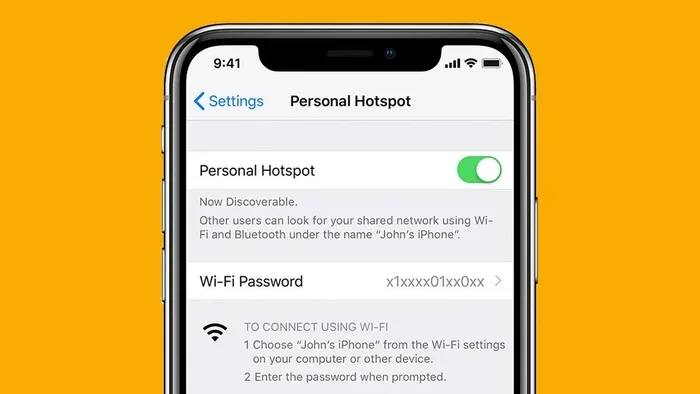
The Personal Hotspot feature is the most popular way to share your iPhone’s internet. It turns your phone into a wireless router. Other devices can then connect to it just like they would connect to any Wi-Fi network.
How to Enable Personal Hotspot on iPhone
Follow these simple steps to turn on your iPhone hotspot:
- Open the Settings app on your iPhone.
- Tap on Personal Hotspot or go to Cellular > Personal Hotspot.
- Toggle Allow Others to Join to ON.
- Set a strong Wi-Fi password for security.
That is it. Your iPhone is now broadcasting a wireless network name. Other devices can find it in their Wi-Fi settings and connect using the password you set.
What You Need to Know About Hotspot Passwords
Your iPhone generates a default Wi-Fi password when you first enable hotspot. It is usually a mix of letters and numbers. However, you can change it to something easier to remember. Just tap on the password field and enter your own.
Make sure your password is at least eight characters long. Use a mix of uppercase letters, lowercase letters, numbers, and symbols. This keeps your shared internet connection safe from strangers.
Sharing Internet From iPhone via Bluetooth
Not everyone wants to use Wi-Fi for internet sharing. Bluetooth tethering is a great alternative. It uses less battery and works well when Wi-Fi is not an option.
How to Tether iPhone Internet via Bluetooth
Here is how you can share internet from iPhone using Bluetooth:
- Go to Settings > Bluetooth on your iPhone.
- Turn Bluetooth ON and make your iPhone discoverable.
- On the other device, go to Bluetooth settings and pair with your iPhone.
- Once paired, go to iPhone Settings > Personal Hotspot.
- Toggle Bluetooth PAN to ON.
The other device will now use your iPhone’s cellular data through a Bluetooth connection. The speed is slower than Wi-Fi, but it is perfect for basic browsing and emails.
When Should You Use Bluetooth Tethering
Bluetooth tethering works best in situations where you need a quick connection and do not want to drain your battery fast. It is also useful in crowded areas where many Wi-Fi networks might cause interference.
Sharing iPhone Internet via USB Connection
USB tethering gives you the most stable connection. You plug your iPhone into a computer using a cable, and the computer shares your iPhone’s network connection. This method is ideal for tasks that need a steady and fast connection.
How to Share iPhone Internet via USB
Follow these steps for USB tethering from iPhone:
- Plug your iPhone into your computer using a Lightning or USB-C cable.
- Unlock your iPhone and tap Trust This Computer if prompted.
- On your computer, go to network settings.
- Your iPhone should appear as a network interface.
- Select it and your computer will use the iPhone’s data connection.
USB tethering is especially useful for laptop users who need a reliable connection for video calls or large downloads. The wired connection is more stable than wireless options.
Comparing iPhone Hotspot Methods
Each method of sharing Wi-Fi from iPhone has its own strengths. Here is a quick comparison to help you choose the best one for your needs.
| Feature | Wi-Fi Hotspot | Bluetooth | USB Tethering |
|---|---|---|---|
| Speed | Fast | Moderate | Fast |
| Battery Usage | High | Low | Low |
| Range | Up to 30 feet | Up to 30 feet | Cable length only |
| Stability | Good | Moderate | Excellent |
| Number of Devices | Up to 5 | 1 device | 1 device |
| Setup Difficulty | Easy | Medium | Easy |
As you can see, Wi-Fi hotspot is the most versatile option. It lets multiple devices connect at once. But if battery life is a concern, Bluetooth or USB might be the better choice.
Managing Data Usage When Sharing Your Connection
When you share internet from iPhone, your cellular data gets used by all connected devices. This can add up quickly. It is important to keep an eye on your data usage to avoid surprises on your bill.
How to Check Data Usage on iPhone
You can monitor your data usage right from your iPhone settings:
- Go to Settings > Cellular.
- Scroll down to see how much data each app has used.
- Look at the Current Period total at the top.
If you notice your data is running low, consider disconnecting devices that are not in use. You can also turn off background app refresh to save data.
Tips to Reduce Data Usage While Tethering
Here are some smart ways to conserve data when sharing your Wi-Fi connection:
- Stream in lower quality. Watch videos at 480p instead of 1080p.
- Disable automatic updates. Turn off app updates on connected devices.
- Use data-saving browsers. Browsers like Opera Mini compress data.
- Turn off cloud sync. Pause Dropbox, Google Drive, or iCloud sync on connected devices.
- Limit large downloads. Save big file downloads for when you have Wi-Fi access.
These small changes can make a big difference. Your mobile hotspot will last much longer when you are mindful of data consumption.
Securing Your iPhone Hotspot Connection
Security is very important when you share Wi-Fi connection from iPhone. You do not want strangers using your data or accessing your personal information. Here are some essential steps to keep your connection safe.
Use a Strong Password
Never leave your hotspot password as the default. Change it to something unique and hard to guess. A strong password should have at least 12 characters with a mix of letters, numbers, and symbols.
Turn Off Hotspot When Not in Use
Always turn off your Personal Hotspot when you are done sharing. This prevents unauthorized devices from connecting and using your data. It also saves battery life.
Limit the Number of Connected Devices
Your iPhone allows up to five devices to connect to the hotspot at once. Only connect devices you trust. If you notice an unknown device, change your password immediately.
Keep Your iPhone Software Updated
Apple regularly releases iOS updates that fix security vulnerabilities. Keep your iPhone updated to ensure your hotspot connection stays secure. Go to Settings > General > Software Update to check for updates.
Common Issues and How to Fix Them
Sometimes things do not go as planned when you try to share internet from iPhone. Here are the most common problems and how to solve them.
Hotspot Not Showing Up on Other Devices
If other devices cannot find your iPhone Wi-Fi hotspot, try these fixes:
- Restart your iPhone and the other device.
- Make sure Personal Hotspot is turned ON.
- Check that Bluetooth or Wi-Fi is enabled on the other device.
- Reset network settings by going to Settings > General > Transfer or Reset iPhone > Reset > Reset Network Settings.
Slow Connection Speeds
If your shared connection is slow, try these steps:
- Move closer to your iPhone.
- Switch from Bluetooth to Wi-Fi for better speeds.
- Check your cellular signal strength.
- Disconnect devices you are not using.
Connected but No Internet Access
This issue usually happens when your cellular data is off or your carrier blocks tethering. Make sure cellular data is turned on in Settings. If the problem persists, contact your carrier to confirm they support data tethering.
Quick Tips for Sharing Wi-Fi From iPhone
Here are some quick tips to make your hotspot experience smoother:
- Use Wi-Fi Assist. This iPhone feature automatically switches to cellular data when Wi-Fi is weak. Go to Settings > Cellular > Wi-Fi Assist to enable it.
- Name your hotspot. You can customize your hotspot name in Settings to make it easy to identify.
- Use a VPN. A virtual private network adds an extra layer of security when sharing your connection.
- Charge your iPhone. Tethering drains battery fast. Keep your phone plugged in while sharing.
- Set a data limit. Some carriers let you set a data cap for hotspot usage. Check with your provider.
Expert Insights on iPhone Hotspot Sharing
According to networking experts, iPhone hotspot technology has improved significantly over the years. Modern iPhones handle multiple connected devices with ease. The iOS network stack is designed to prioritize stable connections and efficient data distribution.
However, experts also warn about carrier restrictions. Some mobile plans limit or charge extra for tethering. Always check your plan details before using your iPhone as a portable router. Most major carriers now offer plans that include hotspot data, but older plans may still have limits.
Another expert tip is to use DNS settings on connected devices for faster browsing. Changing your DNS to services like Google DNS or Cloudflare DNS can improve speed and reliability when using a shared connection.
Key Takeaways
- Personal Hotspot is the easiest way to share your iPhone’s Wi-Fi connection with other devices.
- You can use Bluetooth or USB tethering as alternative methods for sharing internet.
- Setting a strong Wi-Fi password keeps your shared connection safe from unauthorized users.
- Monitor your data usage to avoid unexpected charges from your carrier.
- Carrier restrictions may apply, so check with your provider before tethering.
- iOS hotspot features work on all modern iPhones running updated software.
- Quick Tips and Common Mistakes sections help you troubleshoot issues fast.
Conclusion
Can you share Wi-Fi connection from iPhone? Absolutely yes. Your iPhone is a powerful tool for internet sharing. Whether you use Personal Hotspot, Bluetooth, or USB tethering, you can get any device online in minutes. The process is simple, fast, and built right into iOS.
Remember to keep your connection secure with a strong password. Watch your data usage to avoid extra charges. And always update your iPhone to get the best performance. With these tips, you will be able to share Wi-Fi from iPhone with confidence and ease.
Now that you know how it all works, go ahead and try it out. Connect your laptop, help a friend, or set up a quick network for a small gathering. Your iPhone has got you covered. Happy sharing!
Frequently Asked Questions
Can I share Wi-Fi connection from iPhone to another iPhone?
Yes, you can share your iPhone’s internet connection with another iPhone using Personal Hotspot. The other iPhone connects to your hotspot just like it would connect to any Wi-Fi network. Just make sure both devices are running updated iOS versions for the best experience.
Does sharing Wi-Fi from iPhone use a lot of data?
It depends on what the connected devices are doing. Streaming videos or downloading large files uses a lot of data. Basic browsing and emails use much less. You can check your data usage in Settings > Cellular to monitor how much data your hotspot is consuming.
Why can’t other devices find my iPhone hotspot?
This usually happens when Personal Hotspot is turned off or your iPhone is not broadcasting the network. Try restarting your iPhone and toggling the hotspot feature off and on. Also make sure the other device has Wi-Fi or Bluetooth turned on.
Can I share my iPhone’s Wi-Fi connection without using Personal Hotspot?
Yes, you can use Bluetooth tethering or USB tethering as alternatives. Bluetooth uses less battery but offers slower speeds. USB tethering gives you a stable wired connection. Both methods do not require you to set up a Wi-Fi hotspot.
Is it safe to share Wi-Fi from my iPhone?
It is safe as long as you take proper precautions. Always use a strong password, limit the number of connected devices, and turn off the hotspot when you are not using it. Keeping your iPhone updated also helps maintain a secure connection.
Do all carriers support iPhone hotspot tethering?
Most carriers support tethering, but some older or budget plans may restrict it. Check with your carrier to confirm your plan includes hotspot usage. Some carriers may charge an extra fee or require a specific add-on for data tethering.