Can You Reset A Wifi Modem And Restore Your Connection
Yes, you can reset a wifi modem to fix most internet problems. A simple reset clears glitches and restores your connection fast. Whether your network is slow or completely down, rebooting the device often solves the issue, and this guide shows you exactly how.
Losing your internet connection is super frustrating. You are trying to work, watch a movie, or just browse the web. Suddenly, nothing loads. The screen sits there with that dreaded spinning wheel. It happens to everyone at some point. So, what do you do next? Many people reach for the power cord right away. But can you reset a wifi modem, and will it actually fix the problem?
The short answer is yes. Resetting your modem is one of the easiest and most effective ways to bring your internet back to life. Whether you have a slow connection or no connection at all, a reset can clear out the digital junk that builds up over time. It is like giving your device a fresh start. In this guide, we will walk you through exactly how to do it. You will learn about the different types of resets. We will also share common mistakes to avoid. By the end, you will know how to restore your connection fast and keep your network running smoothly. Let us get started.
Key Takeaways
- Power Cycling Works: Unplugging and replugging your modem often fixes temporary connection drops.
- Two Reset Types: Know the difference between a soft reboot and a factory reset.
- Check the Lights: Modem indicator lights tell you a lot about your network health.
- Contact Your ISP: If a reset fails, your Internet Service Provider might need to push a new signal.
- Backup Settings: Always write down custom network names and passwords before a factory reset.
- Patience is Key: Give your modem a few minutes to fully reconnect after a reset.
📑 Table of Contents
Can You Reset A Wifi Modem And What Happens Next
Before you unplug anything, it helps to understand what a reset actually does. Your modem is the box that connects your home to the internet. It talks to your Internet Service Provider, or ISP, to get a signal. Over time, the modem stores a lot of temporary data. This data helps it run, but too much of it can cause slowdowns. Resetting clears this stored data and refreshes the system.
Think of your modem like a busy kitchen. The chef cooks many meals every day. Pots and pans pile up in the sink. If the chef never washes the dishes, the kitchen gets messy. Cooking slows down. Resetting your modem is like washing all those dishes. It clears the sink so the chef can work fast again. This simple process can solve many common network settings issues and keep your throughput running high.
The Soft Reboot Explained
A soft reboot is the simplest type of reset. You just turn the device off and back on again. This does not erase any of your settings. Your network name and password stay exactly the same. The modem simply refreshes its connection to your ISP. It clears out the short-term memory, which is called the RAM. Think of it like closing a stuck app on your phone. The app is still there, but it runs better when you open it fresh.
A soft reboot is perfect for daily use. It takes less than a minute. You do not need any special tools. Just unplug the power cord and plug it back in. This is the first thing you should try when your wireless signal drops. It fixes the majority of minor connection dropped issues. Many people call this a power cycle. It is a very common troubleshooting step for home networks. It also helps reduce latency, which is the delay before data starts moving. Lower latency means smoother video calls and faster gaming.
The Factory Reset Explained
A factory reset goes much deeper. This type of reset wipes the modem back to its original settings. You will lose any custom changes you made. For example, your custom network name will disappear. You will have to set it up again from scratch. You will also need your default admin password. A factory reset is only needed for serious problems. It fixes deep software glitches that a soft reboot cannot fix.
You should only use a factory reset when all other options fail. It clears out stubborn speed issues that linger after a soft reboot. It also helps if your modem has been infected by a network error that will not go away. Before you do this, make sure you write down your current settings. You do not want to lose important information. A factory reset gives your device a completely clean slate. It resets the DHCP settings and wipes the default gateway cache. This forces the modem to request a new IP address from your provider.
Quick Tips Before You Start
Before you touch that power button, keep a few things in mind. First, write down your current network name and password. You do not want to get locked out of your own Wi-Fi. Second, make sure you know your ISP customer service number. If things go wrong, you will need to call them. Finally, give yourself about ten minutes. A full reset takes a little time to complete properly. Here are a few more quick tips to keep in mind.
- Find your modem model number: This helps you look up the right reset method online.
- Check the indicator lights: The lights tell you the current status of your connection.
- Have your ISP login ready: You might need this to reconnect after a reset.
- Use a surge protector: This protects your modem from future power surges.
- Update your firmware: After a reset, check if a new firmware update is available.
How To Reset A Wifi Modem Step By Step
Now that you know what a reset does, let us get into the steps. The process is very simple. You do not need to be a tech expert to do this. Just follow along, and you will have your internet back in no time. Whether you are dealing with a slow internet connection or a total internet outage, these steps apply to most modems from brands like Netgear, Motorola, or Arris.
Before you begin, make sure you are standing near your modem. You will need physical access to the power cord. If your modem is in a hard-to-reach place, consider moving it temporarily. This makes the process much easier and safer. You should also make sure your phone or computer is nearby so you can test the connection right away.
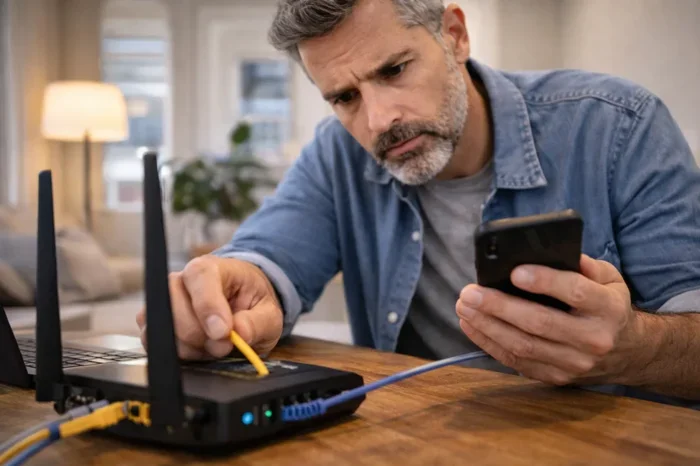
- Find The Power Cord: Look at the back of your modem. Find the power cable. This is the cord that plugs into the wall outlet. It usually has a barrel-shaped plug. Do not unplug the ethernet or coaxial cables yet.
- Unplug The Power: Gently pull the power cord out of the modem. Do not yank it. Just pull it straight out. If the cord is tight, wiggle it gently while pulling. Unplugging the power is the key to a successful router reboot.
- Wait For The Lights To Die: This is the most important step. Wait at least thirty seconds. The lights on the front of the modem should turn completely off. This lets the device clear its memory fully. Do not skip this waiting period. The modem needs time to discharge any remaining electricity.
- Plug It Back In: Push the power cord firmly back into the modem. Wait for the lights to turn on again. You will see different lights flash as the modem starts up. The WAN light will usually blink while it searches for a signal.
- Check The Connection: Wait about two minutes. The modem needs time to reconnect to your ISP. Once the lights are steady, try browsing the web on your phone or computer. Test both Wi-Fi and a wired connection if possible.
That is it! You have just performed a soft reboot. If your internet is still not working, you may need to try a factory reset. We will cover that in the next section. For now, celebrate if your connection dropped issue is fixed. A simple router reboot can work wonders for your daily browsing.
Soft Reset vs Factory Reset: Which One Should You Choose?
Knowing which reset to choose can be tricky. People often use the terms soft reset and factory reset interchangeably. But they are very different. Choosing the right one saves you a lot of time and hassle. Understanding the difference helps you fix your network settings quickly and efficiently.
A soft reset is like taking a nap. You wake up refreshed, but nothing has changed. A factory reset is like moving into a new house. Everything is brand new, and you have to set it all up again. Let us look at the key differences between these two options so you can pick the right one.
| Feature | Soft Reset | Factory Reset |
|---|---|---|
| What It Does | Restarts the device | Wipes all custom settings |
| Erases Data | No | Yes |
| Time Needed | 2 minutes | 15 to 30 minutes |
| Best For | Slow speeds or drops | Cannot connect at all |
| Passwords | Keeps your passwords | Resets to defaults |
When To Use A Soft Reset
A soft reset is your go-to fix for everyday problems. If your internet feels slow, a reboot often speeds it up. If your connection drops once in a while, a restart can stabilize it. This is the first thing you should try when your network acts up. It takes almost no effort and fixes the majority of issues. Make it a habit to power cycle your modem once a month. This keeps the memory clear and the connection strong.
You should also use a soft reset after a minor power outage. Even if the lights come back on, your modem might be confused. A quick restart helps it re-establish the link with your ISP provider. This is a great way to maintain your wireless signal health over time. It also helps clear out old bandwidth allocations that might be stuck. Your throughput will improve after a simple power cycle.
When To Use A Factory Reset
Use a factory reset only for major problems. If your modem will not connect to the internet at all, a factory reset might help. If you forgot your admin password and are locked out, this is the fix. It also helps if your modem has been acting very strangely for a long time. Just remember, you will have to set everything up again after this reset. Have your ISP settings ready before you start.
Sometimes, a network error is so deep that a soft reboot cannot reach it. The software might be corrupted. A factory reset wipes the corrupted software clean. It gives the modem a fresh start. This is your last resort before calling for professional help. It restores the default password and wipes the LAN and WAN configurations back to factory standards.
Why Does Your Modem Need A Reset?
You might wonder why a modem needs a reset at all. It is just a box, right? Well, modems work hard 24 hours a day. They handle tons of data every single day. Over time, this hard work can cause problems. Understanding why resets are needed helps you prevent future issues and keep your home network running strong.
Memory Overflow And Slow Speeds
Think of your modem like a computer. It has a brain that processes information. When it processes too much data, its brain gets full. This is called a memory overflow. When the memory is full, the modem slows down. Your internet speeds drop. Pages take forever to load. A reset clears the brain. It wipes the slate clean so the modem can work fast again.
Every device that connects to your modem uses a small piece of its memory. Smart TVs, phones, laptops, and smart home gadgets all add up. If you have many devices, your modem works even harder. A regular reset prevents this memory overflow. It keeps your speed issues under control. Your internet connection will stay fast and reliable. You will notice less lag when streaming your favorite shows.
Connection Drops And ISP Issues
Sometimes, your modem loses its handshake with your ISP provider. The ISP provider is the company that gives you internet access. If the handshake fails, you lose your connection. A reset forces the modem to ask for a new handshake. This often fixes connection drops. It also helps after a big storm or power surge. These events can confuse the network settings on your device and cause an internet outage.
Your ISP provider might also push updates to your modem. Sometimes these updates cause glitches. A reset helps the modem apply those updates properly. It clears out any old data that might conflict with the new update. This keeps your troubleshooting steps simple and effective. A fresh start ensures the modem talks to the ISP correctly.
Expert Insights
Networking experts recommend restarting your modem regularly. They say a monthly reboot keeps the device healthy. It prevents small issues from turning into big problems. Think of it like restarting your car engine. It keeps everything running smooth and quiet. Many IT professionals also suggest keeping your modem in a cool, dry place. Heat can cause the modem to overheat and drop connections. A cool modem is a happy modem that delivers strong wireless signal strength to every corner of your home.
Common Mistakes To Avoid When Resetting
Resetting a modem is easy, but people still make mistakes. Avoiding these common errors ensures your reset goes smoothly. Learning from others saves you time and frustration. You will avoid the headaches that many people experience.
Holding The Reset Button Too Long
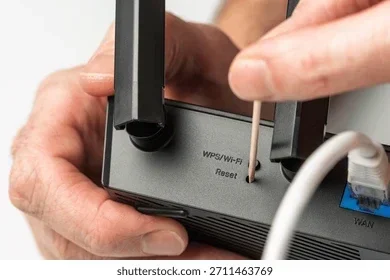
Many modems have a tiny reset button on the back. Some people hold it for too long. If you hold it for more than ten seconds, you might trigger a factory reset by accident. A quick press of five seconds is usually enough for a soft reboot. Always check your modem manual for the exact time. You do not want to wipe your settings when you just wanted a quick restart.
If you accidentally do a factory reset, do not panic. You can set up the modem again. Just follow the instructions in the manual. Have your ISP login details ready. This is a common mistake, so do not feel bad if it happens to you. Just take your time and set it up again carefully.
Forgetting Your Passwords
As mentioned before, a factory reset wipes your passwords. If you have a custom admin password, you will lose it. You will have to use the default password printed on the modem label. Make sure you write down your new passwords after the reset. This saves you a lot of frustration later. It also keeps your network secure from strangers.
Many people use the same password for their modem and their Wi-Fi. If you reset the modem, you lose both. Use a password manager to keep track of these important logins. This is a great habit for all your tech devices. It ensures you never get locked out of your own network settings again.
Not Waiting Long Enough
Patience is very important when resetting a modem. Some people plug the power back in and immediately try to go online. The modem needs time to find your ISP and establish a connection. If you rush this step, you will think the reset did not work. Always wait at least two full minutes before testing your internet.
Watch the lights on the front of the modem. Wait until the modem lights show a steady green or white. Blinking lights mean the modem is still trying to connect. Once the lights are steady, your wireless signal should be strong and ready to use. Rushing this step is the number one reason people think a reset failed.
When A Reset Is Not Enough
Sometimes, resetting the modem does not fix the problem. If you try both types of resets and still have no internet, do not panic. There are other things to check. The issue might be outside your modem. It could be a problem with your cables or your ISP provider. Do not give up just yet.
Calling Your ISP Provider
If your modem lights are still red or blinking after a reset, call your ISP provider. There might be an outage in your area. The ISP might need to send a new signal to your modem. They can also check if your account is active. Sometimes, the problem is on their end, not yours. A quick phone call can save you hours of troubleshooting.
Your ISP provider can also push a fresh configuration to your modem. This is called a remote reset. You do not have to touch the physical device. The ISP sends the signal from their end. This is very helpful if you cannot access the modem in person. Always have your account number ready when you call. They can also check if your bandwidth is being limited on their side.
Checking Your Cables And Hardware
Loose cables are a hidden cause of internet problems. Check the ethernet cable that connects your modem to the wall jack. Make sure it is pushed in tightly. Also, look at the coaxial cable. If the cable is damaged, your internet will not work. You can also try a different power outlet. A bad outlet can stop your modem from turning on properly.
Inspect all cables for fraying or bending. A damaged cable can cause speed issues and connection dropped problems. Replace old cables with new ones. They are very cheap and can solve big problems. You can also try connecting a device directly to the modem with an ethernet cable. This bypasses the Wi-Fi and tells you if the modem itself is working or if the issue is with your router.
Upgrading Old Equipment
If your modem is more than five years old, it might be time for an upgrade. Old hardware struggles to handle modern internet speeds. Newer modems have better processors and more memory. They rarely need resets. If you find yourself resetting your modem every week, consider buying a new one. Talk to your ISP about renting or buying a newer model.
New modems also have better security features. They protect your network settings from the latest threats. An upgrade is a great long-term solution. It saves you the hassle of constant resets. Your internet will be faster and more reliable. You will enjoy a much better throughput and lower latency on your new device.
Conclusion
Resetting your modem is a simple but powerful fix. It can solve slow speeds, connection drops, and total outages. You now know the difference between a soft reboot and a factory reset. You also know the exact steps to follow. Remember to always wait for the lights to die before plugging back in. Avoid common mistakes like holding the reset button too long. If a reset does not work, contact your ISP provider or check your cables.
Keeping your network settings healthy is easy. A quick power cycle once a month keeps your wireless signal strong. Do not let a slow internet connection ruin your day. Take a few minutes to reset your device. You will be surprised how often this simple trick works. Your router reboot might be all you need to restore your internet outage fix and get back online fast. Now you know exactly what to do when the internet goes down. You are fully equipped to handle any network error that comes your way.
Frequently Asked Questions
Can I reset my wifi modem without losing my password?
Yes, if you only do a soft reboot. A soft reboot simply restarts the modem and does not erase any settings. Your Wi-Fi password and network name will remain exactly the same. However, if you perform a factory reset, all custom settings are wiped, and you will need to set up your password again.
How long should I wait before plugging my modem back in?
You should wait at least thirty seconds after unplugging the power cord. This waiting period allows the modem to fully discharge its memory. It clears out any temporary data that might be causing issues. Plugging it back in too soon might not fix the problem, so patience is very important.
What is the difference between resetting a modem and a router?
A modem connects your home to the internet, while a router distributes that connection to your devices. Resetting a modem refreshes its link to your ISP. Resetting a router refreshes the local Wi-Fi network. Often, you need to reset both to fully restore your internet access and wireless signal.
Why does my internet keep dropping even after a reset?
If your connection keeps dropping after a reset, the problem might be outside your modem. It could be an issue with your ISP provider or a faulty cable. Check all cables for damage and ensure they are plugged in tightly. If the problem continues, contact your ISP for further troubleshooting.