How Can I Make My Unifi Wifi Faster and Much Stronger
Making your Unifi WiFi faster is easier than you think. With a few simple settings changes, smart placement tips, and hardware upgrades, you can significantly improve your wireless network performance. This guide covers everything from optimizing your Unifi gateway to reducing interference and boosting your signal strength.
Slow WiFi is one of the most frustrating things in daily life. You are trying to stream a movie, join a video call, or game online, and your connection just crawls. If you use a Unifi WiFi system, you have more tools at your disposal than most people realize. This guide shows you exactly how to make your Unifi WiFi faster and much stronger.
Whether you have a single Unifi gateway or a full mesh setup, the steps in this article will help. We cover router settings, placement strategies, interference fixes, and hardware upgrades. You do not need to be a tech expert to follow along. Let us get your network running at full speed.
The good news is that most speed issues come from simple causes. A bad channel setting, poor router placement, or outdated firmware can all slow things down. By the end of this guide, you will know exactly what to check and what to fix. Let us dive in.
Key Takeaways
- Optimize router settings: Tweaking QoS, channel width, and band settings can make a big difference.
- Placement matters: Where you put your Unifi router affects speed and coverage more than you think.
- Reduce interference: Neighboring networks and physical obstacles slow down your WiFi.
- Firmware updates keep things fast: Always run the latest Unifi firmware for best performance.
- Hardware upgrades help: Adding antennas or upgrading to newer Unifi gear can dramatically improve speed.
- Test regularly: Use speed tests to track improvements and spot problems early.
📑 Table of Contents
Understanding Your Unifi WiFi Setup
Before you can speed things up, you need to understand what you are working with. Unifi makes several types of WiFi equipment. Each one has different strengths and settings you can adjust.
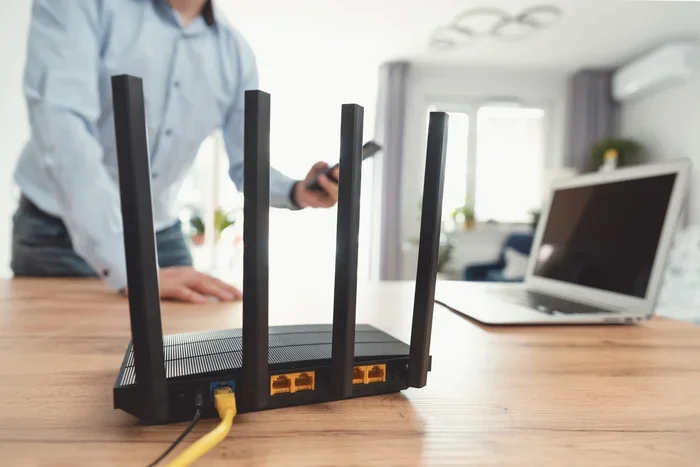
Your Unifi gateway is the main device that connects your home to the internet. It handles routing, WiFi broadcasting, and sometimes even phone service. If you have a more advanced setup, you might use a separate Unifi router paired with Unifi access points. Both setups give you ways to boost speed.
Most Unifi devices support dual band WiFi. This means they broadcast on both the 2.4GHz and 5GHz bands. The 2.4GHz band covers more distance but is slower. The 5GHz band is faster but has a shorter range. Understanding this difference is the first step toward a faster network.
Check Your Current Speed First
Before making any changes, run a speed test. Go to a speed test website on your phone or computer. Write down your download and upload numbers. Then make your changes and test again. This way, you can see exactly what improved and by how much.
Also check your WiFi signal strength in different rooms. A signal that drops quickly as you move away from the router is a common cause of slow speeds. Knowing where your signal is weak helps you decide what to fix first.
Optimize Your Unifi Router Settings
The fastest way to improve your WiFi speed is to tweak your router settings. Unifi devices come with many options that most people never touch. A few small changes can lead to big speed gains.
Change Your WiFi Channel
Your WiFi router broadcasts on a specific channel. If your neighbors are using the same channel, your signal gets crowded. This is like trying to have a conversation at a loud party. Everyone is talking, and nobody can hear clearly.
Go to your Unifi controller or gateway settings and look at the WiFi channel options. Try switching to a less crowded channel. The Unifi system often auto-selects a channel, but it does not always pick the best one. Manually choosing a channel can reduce interference and boost your wireless network performance.
Adjust Channel Width
Channel width affects how much data your WiFi can carry at once. A wider channel means more speed. Most Unifi devices let you set channel width to 20MHz, 40MHz, or 80MHz.
For the 5GHz band, set the channel width to 80MHz for the fastest speeds. For the 2.4GHz band, stick with 20MHz or 40MHz. Wider channels on 2.4GHz can sometimes cause more interference, so test both options and see what works best in your home.
Enable QoS Settings
QoS stands for Quality of Service. This setting lets you prioritize certain types of traffic on your network. For example, you can make video calls and gaming get priority over background downloads.
In your Unifi settings, look for the QoS or traffic management section. Enable it and set rules for the devices and activities that matter most to you. This is especially helpful when multiple people are using the same network at the same time.
If you want to boost upload speed, QoS settings can help by making sure your uploads are not being slowed down by heavy downloads elsewhere on the network.
Separate Your 2.4GHz and 5GHz Networks
By default, many Unifi devices broadcast both bands under the same network name. While this is convenient, it can cause your devices to connect to the wrong band. Older devices might stick to 2.4GHz even when 5GHz is available.
Consider giving each band a unique name. For example, use “MyHome” for 2.4GHz and “MyHome_5G” for 5GHz. This way, you can manually connect fast devices to the 5GHz band. It gives you more control over your WiFi optimization.
Improve WiFi Signal Strength
Even with perfect settings, a poorly placed router will give you weak signals and slow speeds. Signal strength is one of the biggest factors in how fast your WiFi feels.
Place Your Router in a Central Location
The best place for your Unifi router is in the center of your home. WiFi signals spread outward in all directions. If your router is in a corner or against an exterior wall, half your signal goes outside where you do not need it.
Try to put your router on a high shelf or mount it on a wall. Signals travel downward better than upward. Avoid hiding your router inside a closet or behind furniture. Walls, doors, and appliances all block WiFi signals.
Keep Your Router Away From Interference Sources
Many household devices can interfere with your WiFi signal. Microwaves, baby monitors, cordless phones, and Bluetooth devices all operate on similar frequencies. When these devices are close to your router, they can slow things down.
Keep your Unifi router at least a few feet away from these devices. If you notice slow speeds in a specific area, check what electronic devices are nearby. Moving your router even a few inches can sometimes make a noticeable difference.
If you are still having trouble getting a strong signal to every room, you might want to increase WiFi signal by adding a Unifi access point or mesh node. These devices extend your coverage and maintain strong speeds throughout your home.
Use a WiFi Extender for Hard-to-Reach Areas
Some homes have areas where the WiFi signal just does not reach well. Basements, garages, and rooms far from the router are common problem spots.
A WiFi extender can help fill in these dead zones. You can also extend your WiFi to 200 feet away with the right equipment and placement. Just remember that extenders work best when placed where they still get a strong signal from the main router. Placing an extender too far away will only repeat a weak signal.
Reduce WiFi Interference
Interference is one of the sneaky causes of slow WiFi. It comes from both other networks and physical objects in your home. Reducing interference can make a big difference in your speeds.
Scan for Neighboring Networks
Use a WiFi analyzer app on your phone to see what networks are around you. These apps show you which channels are crowded and which are clear. If all your neighbors are on channel 6, for example, switching to channel 1 or 11 can reduce congestion.
This is especially important in apartments and dense housing areas where dozens of networks overlap. A few minutes with a WiFi analyzer can save you hours of frustration.
Minimize Physical Obstacles
Walls, floors, and large metal objects block WiFi signals. The more obstacles between your router and your devices, the slower your connection will be.
Glass and thin walls are not as big of a problem. But concrete walls, brick, and metal studs can severely weaken your signal. If you can, keep the path between your router and your most-used devices as clear as possible.
Water also blocks WiFi signals. Large fish tanks, water heaters, and even indoor fountains can interfere. Keep your router away from these items.
Reduce Bandwidth Hogs
Sometimes slow WiFi is not about signal strength at all. It is about too many devices using too much bandwidth. Streaming services, large downloads, and cloud backups can all eat up your internet speed.
Check which devices are using the most data on your network. Many Unifi gateways have built-in traffic monitoring. If you find a device that is using too much bandwidth, you can set limits or schedule heavy downloads for off-hours.
Also consider whether you need bandwidth management tools. Unifi controllers let you set speed limits for individual devices. This ensures no single device can slow down everyone else.
Upgrade Your Unifi Hardware
Sometimes software tweaks are not enough. If your Unifi equipment is older, upgrading to newer hardware can give you a major speed boost.
Update Your Firmware
This is the easiest and most overlooked fix. Unifi regularly releases firmware updates that improve performance, fix bugs, and add new features. Keeping your devices updated ensures you always have the best speed and stability.
Open your Unifi controller and check for firmware updates. Apply any that are available. Your devices will restart, and you should notice a smoother, faster connection afterward.
Add an Antenna to Your Router
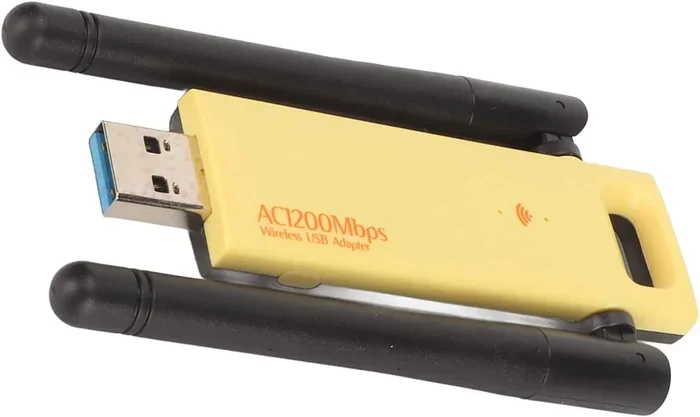
If your Unifi router has removable antennas, you can upgrade them. Better antennas can significantly improve your signal strength and range. Look for high-gain antennas that are compatible with your specific Unifi model.
You can also add an antenna to your WiFi router if your model supports it. Even a simple antenna upgrade can help you get stronger signals in rooms that were previously weak spots. This is a cheap and easy way to improve your network without buying new equipment.
Consider a Unifi Mesh System
If your home is large or has multiple floors, a single router might not be enough. A Unifi mesh system uses multiple access points to blanket your entire home with strong WiFi.
Mesh systems automatically route your devices to the nearest and fastest access point. This means you get strong speeds no matter where you are in your home. If you have been struggling with dead zones, a mesh setup is one of the best long-term solutions.
Mesh systems also make it easier to get WiFi without a router in some configurations, since the access points handle most of the wireless work while the main gateway manages your internet connection.
Use a Wired Connection When Possible
WiFi is convenient, but a wired connection is always faster and more stable. If you have a device that stays in one place, like a desktop computer or a smart TV, plug it in with an Ethernet cable.
This frees up WiFi bandwidth for your mobile devices and laptops. It also reduces latency, which is great for gaming and video calls. Even running one or two cables can make a big difference in your overall network performance.
Advanced Tips for Maximum Speed
Once you have covered the basics, these advanced tips can help you squeeze out every last bit of speed from your Unifi network.
Enable Fast Roaming (802.11r)
If you have multiple Unifi access points, enabling fast roaming helps your devices switch between them quickly. Without fast roaming, your phone or laptop might stick to a weak access point even when a stronger one is nearby.
Go to your Unifi settings and look for the fast roaming option. Turn it on for both the 2.4GHz and 5GHz bands. You will notice smoother transitions as you move around your home.
Adjust the Beacon Interval
The beacon interval controls how often your router sends out a signal to announce its presence. A lower beacon interval means faster roaming but slightly more overhead. A higher interval means less overhead but slower device switching.
The default is usually fine, but if you have a large mesh setup, lowering the beacon interval to around 50 or 75 milliseconds can improve performance. Test different values and see what works best for your home.
Use the Latest WiFi Standards
Make sure your Unifi devices support the latest WiFi standards. WiFi 5 (802.11ac) and WiFi 6 (802.11ax) offer much faster speeds than older standards. If your devices and router both support WiFi 6, make sure it is enabled in your settings.
Upgrading to newer Unifi gear that supports WiFi 6 can be a game changer. You get faster speeds, better handling of multiple devices, and lower latency. It is especially worth it if you have many devices connected at once.
Monitor Your Network Regularly
Once you have your Unifi network running at peak speed, keep it that way. Regular monitoring helps you catch problems before they become serious.
Check your Unifi controller for connected devices, traffic patterns, and signal strength reports. If you notice a sudden drop in speed, run a speed test and check for new devices or interference sources. Staying on top of your network keeps it fast and reliable.
You can also connect your phone to your Unifi network while traveling and test speeds from different locations. This helps you understand your coverage map and find any remaining weak spots to address.
Conclusion
Making your Unifi WiFi faster does not require expensive equipment or technical expertise. Start with the basics: optimize your settings, improve your placement, and reduce interference. Then move on to firmware updates, antenna upgrades, and hardware improvements if needed.
Every home and network is different, so some tips will help you more than others. The key is to test, adjust, and keep learning what works for your setup. With the right approach, you can enjoy fast, reliable WiFi in every room of your home.
Take action today. Pick one or two tips from this guide and try them now. You will be surprised how much faster your Unifi WiFi can be with just a few small changes. Your streaming, gaming, and browsing will thank you.
Frequently Asked Questions
Why is my Unifi WiFi so slow all of a sudden?
Sudden slowdowns are often caused by firmware issues, channel congestion, or a device hogging bandwidth. Start by running a speed test and checking your Unifi controller for any alerts. Rebooting your gateway can also fix temporary glitches that slow things down.
Does changing the WiFi channel really make a difference?
Yes, it can make a big difference if your neighbors are using the same channel. Switching to a less crowded channel reduces interference and can noticeably improve your speed. Use a WiFi analyzer app to find the best channel for your setup.
Should I use 2.4GHz or 5GHz for my Unifi WiFi?
Use 5GHz for speed and 2.4GHz for range. The 5GHz band is faster and less crowded, but it does not reach as far. The 2.4GHz band covers more distance but is slower. For the best experience, connect fast devices to 5GHz and leave 2.4GHz for devices that are farther away.
How often should I update my Unifi firmware?
Check for firmware updates at least once a month. Unifi releases updates regularly to fix bugs and improve performance. Keeping your devices updated ensures you get the best speed and security. You can set automatic updates in your Unifi controller if you prefer not to check manually.
Can a WiFi extender really boost my Unifi speed?
A WiFi extender can help fill in dead zones, but it works best when placed where it still gets a strong signal from your main router. If you place an extender too far away, it will repeat a weak signal and slow things down. For the best results, use Unifi access points that connect via Ethernet for a stronger, faster extension.
What is the best Unifi setup for a large home?
A Unifi mesh system with multiple access points is the best setup for large homes. It blankets your entire property with strong WiFi and automatically routes your devices to the fastest access point. Combine this with wired backhaul for the absolute best performance and reliability.