How Do I Change My Wifi Password With Xfinity Easily
Changing your Xfinity WiFi password is a simple process that keeps your home network safe from unauthorized users. You can update your wireless network password directly through the Xfinity app or by logging into your router’s admin panel. This guide walks you through every step so you can secure your Xfinity home network in just a few minutes.
Your home wireless network is the backbone of your digital life. Every smart device in your house relies on it. From streaming movies to working from home, a stable and secure connection matters. But many people overlook one critical detail: their WiFi password. If you have not changed your default Xfinity password in a while, now is the time. This guide shows you exactly how to do it.
Whether you are tech-savvy or a complete beginner, you can follow these steps. No special tools are needed. No technical degree required. Just a few minutes of your time. Let us walk through the entire process together.
Key Takeaways
- Easy Access: You can change your Xfinity WiFi password using the Xfinity app or by logging into your router’s admin page.
- Two Methods Available: Use the Xfinity xFi gateway app for a quick change, or access the router admin panel for more control.
- Strong Passwords Matter: A unique, complex password prevents unauthorized users from accessing your home network.
- Multiple Devices Affected: Changing your password will disconnect all currently connected devices, so have your new credentials ready.
- Security Best Practices: Combine your password change with updating your network name and encryption settings for maximum protection.
📑 Table of Contents
- Why You Should Change Your Xfinity WiFi Password Regularly
- How To Access Your Xfinity Router Settings
- Step-by-Step Guide To Changing Your Xfinity WiFi Password
- Tips For Creating A Strong WiFi Password
- What To Do If You Forget Your New Xfinity WiFi Password
- Common Mistakes People Make When Changing Their WiFi Password
- How To Check If Your Network Is Secure After Changing the Password
- Conclusion
Why You Should Change Your Xfinity WiFi Password Regularly
Most people set up their internet once and forget about it. That is a mistake. Your Xfinity WiFi password is the first line of defense for your home network. A weak or unchanged password leaves your network vulnerable. Here is why regular password changes matter.
Protecting Your Personal Data
Every device connected to your network can be a potential entry point. Smart TVs, phones, laptops, and even smart home devices all share the same connection. If someone gains access to your wireless network, they can potentially see your browsing activity. They might intercept sensitive information. Changing your password regularly reduces this risk significantly.
Preventing Unauthorized Users
Have you ever noticed your internet slowing down for no reason? It could be a neighbor using your network. An unchanged default password makes it easy for outsiders to connect. They use your bandwidth. They slow down your connection. Worse, they could access shared files on your devices. A strong, updated network password keeps unwanted users out.
Staying Ahead of Security Threats
Hackers constantly develop new ways to breach home networks. Manufacturers release firmware updates to address these threats. But your password is the simplest and most effective tool you have. Changing it every few months is a small habit that pays off big. Think of it like locking your front door every night.
How To Access Your Xfinity Router Settings
Before you can change your password, you need to access your router settings. Xfinity provides two main ways to do this. You can use the xFi app on your phone or log into the router admin page through a web browser. Both methods work well. Choose the one that feels most comfortable.
Method 1: Using the Xfinity xFi App
The xFi app is the easiest way to manage your Xfinity network. It gives you a user-friendly interface to view and update your settings. Here is how to get started.
- Open the xFi app on your phone or tablet.
- Log in using your Xfinity account credentials.
- Tap on the “Network” or “Gateway” section.
- Look for the WiFi settings option.
- Select the network you want to update.
- Choose the option to change your password.
This method is perfect for most users. It takes just a few minutes. You do not need to remember any IP addresses or admin logins. Everything is built right into the app. If you have trouble accessing the app, make sure your device is connected to the Xfinity network first.
Method 2: Logging Into the Router Admin Page
If you prefer a more hands-on approach, the router admin page gives you full control. This method works well if you want to adjust other settings too, like your network name or encryption type.
- Connect a device to your Xfinity network.
- Open a web browser on that device.
- Type 10.0.0.1 into the address bar.
- Press Enter to load the login page.
- Enter your admin username and password.
- Navigate to the WiFi or Wireless Settings section.
The default admin username is usually “admin.” The default password is often printed on a sticker on the back of your Xfinity gateway. If you have already changed these credentials and forgot them, you may need to reset the router to factory settings.
Step-by-Step Guide To Changing Your Xfinity WiFi Password
Now that you know how to access your settings, let us walk through the actual password change. Follow these steps carefully to make sure everything goes smoothly.
Step 1: Gather Your Current Login Information
Before you begin, make sure you know your current Xfinity admin credentials. You also need to know which WiFi network you want to update. If you have multiple networks (one for 2.4 GHz and one for 5 GHz), you will need to change the password for each one separately.
Step 2: Navigate to the Wireless Settings
Once you are logged into the xFi app or router admin page, find the wireless settings section. This is usually labeled “WiFi,” “Wireless,” or “Network Settings.” Look for the option that says “Change Password” or “Set New Password.”
Step 3: Create a Strong New Password
This is the most important step. Your new password should be long, unique, and hard to guess. Avoid using birthdays, pet names, or simple sequences like “12345678.” Instead, use a mix of uppercase letters, lowercase letters, numbers, and special characters. A password like Xfinity#Secure2024! is much harder to crack than “password123.”
Step 4: Save Your New Settings
After entering your new password, click Save or Apply. The router will take a moment to update. Once the settings are saved, your network will restart with the new password. All previously connected devices will be disconnected. You will need to reconnect each device using the new credentials.
Step 5: Reconnect All Your Devices
Go through each device in your home and reconnect it to the WiFi network. Use the new password you just created. Start with your most important devices first, like your phone and laptop. Then move on to smart home devices, streaming boxes, and tablets. This ensures nothing gets left behind.
Tips For Creating A Strong WiFi Password
A strong password is your best defense against unauthorized access. Here are some tips to help you create one that works.
Use a Passphrase Instead of a Single Word
Instead of a short, complex password, consider using a passphrase. A passphrase is a series of words strung together. For example, “BlueCoffeeTree42!” is easier to remember than “Xk9#mP2!” but just as secure. The longer the password, the harder it is to crack.
Avoid Common Patterns
Do not use keyboard patterns like “qwerty” or “asdfgh.” Avoid sequences like “abcdef” or “111111.” Hackers use automated tools that guess these patterns in seconds. Make your password unpredictable.
Use a Password Manager
If you worry about forgetting your new password, use a password manager. Apps like LastPass or Bitwarden store your passwords securely. You only need to remember one master password. This way, you can create long, complex passwords without the stress of memorizing them.
Change Your Password Every 3 to 6 Months
Set a reminder on your phone to update your Xfinity WiFi password regularly. Every 3 to 6 months is a good schedule. If you suspect someone has accessed your network, change it immediately. Regular updates keep your home network fresh and secure.
What To Do If You Forget Your New Xfinity WiFi Password
Forgetting a password happens to everyone. Do not panic. You have several options to regain access to your network.
Check the Sticker on Your Gateway
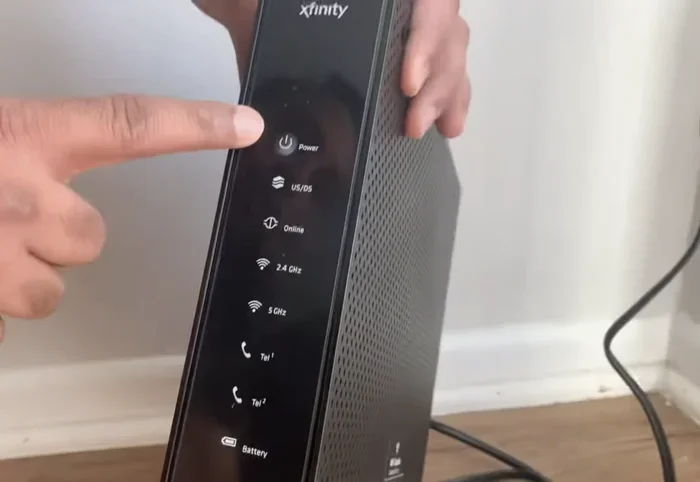
Most Xfinity gateways have a sticker on the bottom or back. This sticker lists the default WiFi network name and password. If you never changed the password, this is your backup. However, if you did change it, this will not help.
Reset the Router to Factory Settings
You can reset your Xfinity gateway to factory settings as a last resort. Look for a small reset button on the back of the device. Use a paperclip to press and hold it for about 10 seconds. The router will restart and revert to its default settings. Keep in mind that this erases all custom configurations, including your network name and any port forwarding rules.
Contact Xfinity Support
If resetting the router does not solve the problem, reach out to Xfinity customer support. They can help you regain access to your account and router settings. You can call them, chat online, or visit a local Xfinity store. Having your account information ready will speed up the process.
Common Mistakes People Make When Changing Their WiFi Password
Even with the best intentions, people make mistakes when updating their network password. Here are the most common ones and how to avoid them.
Using a Password That Is Too Short
Short passwords are easy to crack. Aim for at least 12 characters. The longer, the better. Each additional character makes your password exponentially harder to guess.
Reusing Old Passwords
Do not just change one character and call it a day. If your old password was “Home2023!”, do not change it to “Home2024!” Use a completely new combination. This prevents someone who previously knew your old password from guessing the new one.
Forgetting to Update All Devices
After changing your password, every device needs the new credentials. Do not forget smart speakers, security cameras, and gaming consoles. These devices often reconnect automatically once you update the password in their settings.
Ignoring the 2.4 GHz and 5 GHz Networks
Xfinity gateways broadcast two WiFi networks by default. One operates on 2.4 GHz and the other on 5 GHz. Both have their own passwords. If you only change one, your devices may still connect using the old password on the other band. Update both for complete security.
How To Check If Your Network Is Secure After Changing the Password
Once you have changed your password and reconnected all devices, it is smart to verify that your network is secure. You can do a few quick checks to make sure everything is working properly.
First, try connecting a new device to your network using the new password. If it connects without issues, your password change was successful. Second, check your connected devices list in the xFi app. Look for any devices you do not recognize. If you see something unfamiliar, it might be time to change your password again and enable additional security features.
You can also check your encryption type while you are in the settings. WPA3 is the most secure option available today. If your Xfinity gateway supports WPA3, switch to it. If not, WPA2 is still a solid choice. Avoid using WEP, as it is outdated and easily compromised.
Another good practice is to disable WPS (WiFi Protected Setup). WPS makes it easier to connect devices, but it also creates a security vulnerability. Hackers can exploit WPS to gain access to your network. Turning it off adds another layer of protection to your home setup.
Finally, consider updating your router firmware. Xfinity gateways usually update automatically, but it is worth checking. Updated firmware includes security patches that protect against the latest threats. Keeping your firmware current works hand in hand with a strong password to keep your network safe.
Remember, your home network security is an ongoing process. Changing your Xfinity WiFi password regularly is just one piece of the puzzle. Combine it with strong encryption, updated firmware, and good browsing habits for the best results.
For more tips on managing your home network, check out how to change your router SSID or learn how to boost your WiFi signal for better coverage throughout your home.
If you ever need to see your current WiFi password on a device you are already connected to, you can find it easily. On Android, check out how to view your WiFi password on Android, or learn how to find your WiFi password on iPhone for quick reference.
Conclusion
Changing your Xfinity WiFi password does not have to be complicated. With the xFi app or the router admin page, you can update your network security in just a few minutes. The key is to do it regularly and use a strong, unique password every time. Your home network holds a lot of personal data. Protecting it should be a priority, not an afterthought.
Follow the steps in this guide and you will have a secure, updated network in no time. Share this article with family and friends who might need help with their own Xfinity WiFi setup. A little effort today saves a lot of headaches tomorrow.
Frequently Asked Questions
How do I find my Xfinity WiFi password?
You can find your Xfinity WiFi password in the xFi app or by logging into your router admin page at 10.0.0.1. The default password is also printed on a sticker on the back of your Xfinity gateway. If you have already changed it, you will need to check the device you are currently connected to for the updated password.
How often should I change my Xfinity WiFi password?
Experts recommend changing your WiFi password every 3 to 6 months. You should also change it immediately if you suspect someone unauthorized has accessed your network. Regular updates help maintain strong network security and protect your personal data.
Will changing my Xfinity WiFi password disconnect all my devices?
Yes, changing your WiFi password will disconnect all currently connected devices. You will need to reconnect each device using the new password. Make sure you have your new password written down or saved in a secure place before making the change.
Can I change my Xfinity WiFi password without the app?
Yes, you can change your password through the router admin page by typing 10.0.0.1 into a web browser. You will need your admin username and password to log in. If you have not changed these credentials, check the sticker on your gateway for the defaults.
What is the difference between the 2.4 GHz and 5 GHz WiFi passwords on Xfinity?
Xfinity gateways broadcast two separate WiFi networks: one on 2.4 GHz and one on 5 GHz. Each network has its own password. For complete security, you should update the password for both networks. The 2.4 GHz band offers longer range, while the 5 GHz band provides faster speeds.
Why can’t I save my new Xfinity WiFi password?
If you cannot save your new password, try clearing your browser cache or using a different browser. Make sure your device is connected to the Xfinity network. If the issue persists, try resetting your gateway to factory settings and attempting the change again. Contact Xfinity support if the problem continues.