Can I Use Laptop Camera Instead Of A Regular Webcam
Yes, you can absolutely use your laptop camera instead of a regular webcam for video calls, streaming, and recording. Most modern laptops come with a built-in HD camera that handles basic video conferencing tasks well. However, there are some key differences in video quality, features, and flexibility you should know about before deciding.
Key Takeaways
- Built-in cameras work fine for everyday video calls on Zoom, Skype, and Teams.
- Video quality on laptop cameras is improving but still trails behind premium external webcams.
- Webcam software and settings give you more control with an external USB webcam.
- Laptop cameras are limited by fixed positioning and lack of adjustable angles.
- An external webcam is still the better choice for streaming, recording, and professional use.
- Privacy matters — always use a privacy cover on your built-in camera.
📑 Table of Contents
- Can I Use Laptop Camera Instead Of A Regular Webcam?
- Why You Might Want to Use Your Laptop Camera
- How to Use Your Laptop Camera Instead of a Webcam
- Comparing Laptop Camera vs External Webcam
- Best Practices for Using Your Laptop Camera
- Troubleshooting Common Issues
- When You Should Still Use an External Webcam
- Expert Insights and Quick Tips
- Conclusion
Can I Use Laptop Camera Instead Of A Regular Webcam?
The short answer is yes. You can definitely use your laptop camera instead of a regular external webcam. Whether you are hopping on a quick video call with friends or joining a work meeting, your built-in camera has you covered. Most laptops made in the last decade come with a built-in camera that works right out of the box.
But here is the thing. Just because you can use it does not always mean you should. The video quality, angle, and features you get from a laptop camera are quite different from what an external webcam offers. Your choice really depends on what you need it for.
In this article, we will break down everything you need to know. We will compare both options, walk you through setup tips, and help you decide when a dedicated USB webcam still makes sense. Let us get into it.
Why You Might Want to Use Your Laptop Camera
There are several reasons why using your built-in camera is a perfectly solid choice for many people. Let us look at the biggest advantages.
It Is Already Built In
Your laptop camera is always there, ready to go. There is no extra gear to buy, no cable to plug in, and no driver to install. You simply open your camera app or join a video call, and you are good. This convenience is a huge plus, especially if you are always on the move.
It Saves Desk Space
If you have a small workspace, every inch counts. An external webcam takes up valuable real estate on your desk. Using your laptop camera means one less peripheral device cluttering things up. Your setup stays clean and minimal.
Good Enough for Everyday Use
Modern laptop cameras have come a long way. Many newer models feature HD camera sensors with 720p or even 1080p resolution. For casual video conferencing, family chats, or quick screen recording sessions, the quality is more than acceptable. You will look perfectly fine to other people.
No Extra Cost
Let us be real — a good external webcam can cost anywhere from $30 to $200 or more. If you are on a tight budget, using what you already have is a smart move. Why spend money when your laptop already has what you need for basic tasks?
How to Use Your Laptop Camera Instead of a Webcam
Switching to your laptop camera is usually very simple. Most of the time, your system already knows how to use it. But there are a few things worth checking to make sure everything runs smoothly.
Check Your Camera Settings
Before joining any video call, take a moment to verify your webcam settings. On Windows, go to Settings, then Privacy, and make sure Camera access is turned on. On Mac, go to System Preferences, then Security and Privacy, and allow apps to access your camera.
Also, open your preferred video app — like Zoom, Skype, or Microsoft Teams — and check which camera it is using. Sometimes the app defaults to an external device even when it is not connected. Switch it to your built-in camera manually.
Test Your Video Before the Call
Nothing is worse than joining a meeting only to realize your video is not working. Use the camera app on your laptop to do a quick test. Look at the video quality, check the lighting on your face, and make sure the laptop microphone is picking up your voice clearly.
Most platforms also have a “Test My Video” feature before joining a call. Take advantage of it.
Position Your Laptop Properly
Where you place your laptop matters a lot. The built-in camera sits at the top of your screen, which means it looks down at you unless you raise the laptop. This can create unflattering angles.
Here are some quick positioning tips:
- Raise your laptop so the camera is at or near eye level.
- Place the laptop slightly behind your face, not directly in front.
- Avoid backlighting from windows or bright lamps behind you.
- Sit at a comfortable distance — about arm’s length away.
Use Webcam Software for Extra Features
Your laptop camera works fine on its own, but you can enhance it with webcam software. Apps like OBS Studio, XSplit, or even built-in tools like Windows Camera let you adjust settings, apply filters, or record streaming content. These tools give you much more control over how you appear on screen.
Comparing Laptop Camera vs External Webcam
So how do these two options really stack up? Let us break it down side by side.
| Feature | Laptop Camera | External Webcam |
|---|---|---|
| Video Quality | 720p to 1080p (varies by model) | Up to 4K (premium models) |
| Positioning | Fixed at top of screen | Adjustable, mountable anywhere |
| Microphone | Built-in laptop mic | Often has dedicated stereo mic |
| Low Light Performance | Generally average | Better sensors in premium models |
| Portability | Always with your laptop | Requires separate carrying |
| Price | Free (built in) | $30 to $200+ |
| Setup Time | Instant | Plug and play, minor setup |
As you can see, the laptop camera wins on convenience and cost. But the external USB webcam wins on video quality, flexibility, and features. Your best choice depends entirely on your needs.
When Video Quality Really Matters
If you do professional streaming, record video content, or host frequent meetings where you want to look your absolute best, an external webcam is hard to beat. Higher-end models offer better resolution, improved low light performance, and wider dynamic range. Your laptop camera simply cannot match that level of detail.
When the Laptop Camera Is Just Fine
For daily video calls, quick check-ins, online classes, or casual chats, your built-in camera does a great job. You do not need to invest in extra gear unless your usage demands it. The HD camera on most modern laptops is perfectly adequate for these situations.
Best Practices for Using Your Laptop Camera
Want to look your best even with a built-in camera? Follow these simple tips to boost your video quality and overall experience.
1. Mind Your Lighting
Lighting is the single biggest factor in how good you look on camera. Natural light from a window is your best friend. Face the window so the light falls evenly on your face. Avoid sitting with a bright light source behind you, as it will cast your face in shadow.
If natural light is not available, a simple ring light or desk lamp positioned in front of you can make a world of difference. Even a $15 light can dramatically improve how your built-in camera captures your face.
2. Clean Your Camera Lens
This is something most people overlook. Your laptop camera lens collects dust, fingerprints, and smudges over time. A quick wipe with a soft microfiber cloth can immediately sharpen your video quality. Do not use harsh chemicals — just a gentle dry cloth works perfectly.
3. Use a Background That Looks Professional
Your background matters just as much as your face. A cluttered or messy background can distract from your message. Keep it clean and simple. If your webcam settings or video app supports a virtual background, you can use that too — but a real tidy background always looks more natural.
4. Adjust Your Screen Height
We mentioned this earlier, but it deserves its own emphasis. A laptop sitting flat on a desk forces the camera to look up your nose. That is not a flattering angle for anyone. Use a laptop stand or a stack of books to raise the screen closer to eye level. This small change makes a huge difference in how you appear during video conferencing.
5. Close Unnecessary Background Apps
Running too many apps can slow down your system and affect video quality during calls. Close anything you do not need before joining a video call. This frees up processing power and helps your laptop microphone and camera work more efficiently.
6. Add a Privacy Cover
This is a must-have tip. Whenever you are not using your built-in camera, put a physical privacy cover over the lens. It is a tiny piece of plastic that slides right over the camera. It costs almost nothing and gives you peace of mind against potential hacking or unwanted surveillance. Never underestimate webcam privacy.
Troubleshooting Common Issues
Sometimes things do not go smoothly. Here are the most common problems people face when relying on a laptop camera instead of an external webcam, along with easy fixes.
Camera Not Detected
If your video app cannot find your camera, restart the app first. If that does not work, restart your laptop. Make sure no other app is using the camera at the same time. On Windows, check your privacy settings to confirm camera access is enabled.
Poor Video Quality
Low resolution or blurry video often comes down to lighting and positioning. Improve your lighting, clean the lens, and make sure no apps are hogging your system resources. Also check your internet connection — a slow connection will degrade video quality regardless of how good your camera is.
Audio and Video Not Synced
This is a common issue during video calls. It usually happens because of network lag or heavy system load. Try closing background apps and connecting to a stronger Wi-Fi network. Using your laptop microphone instead of a headset can sometimes help reduce sync issues.
Flickering or Unstable Image
If your image flickers or stutters, your laptop might be overheating. Close heavy programs and give your system a break. Also, check if your camera app or video software needs an update. Outdated software can cause all sorts of glitches.
When You Should Still Use an External Webcam
Even though your laptop camera works well for many tasks, there are clear situations where an external webcam is the better choice. Let us talk about those.
Professional Streaming and Content Creation
If you stream on Twitch, create YouTube videos, or do professional screen recording, an external webcam gives you the resolution, frame rate, and manual controls you need. The built-in camera simply does not offer enough flexibility for serious content creation.
Large or Frequent Video Meetings
When you are on long calls all day or meeting with important clients, you want to look sharp and professional. A quality USB webcam with a dedicated laptop microphone or audio setup delivers consistently better results under pressure.
When You Need Adjustable Angles
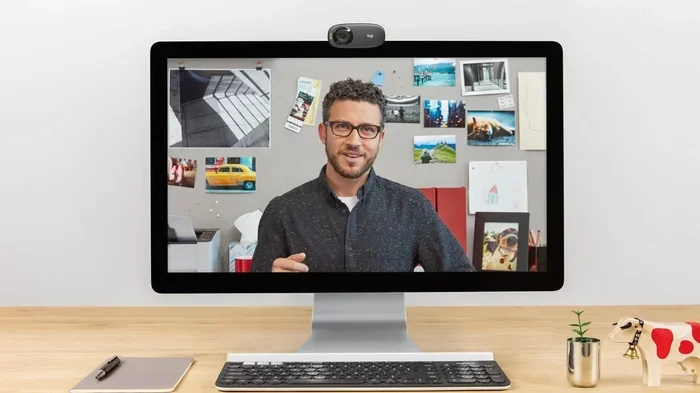
Your laptop camera is stuck in one position. If you want to show your hands, your desk, or a product while still showing your face, an external webcam on a flexible mount gives you that freedom. This is especially useful for tutorials and product demos.
Gaming and Special Effects
Gamers and streamers often use webcams that support fun overlays, green screen effects, and real-time filters. While some laptop cameras support basic effects through webcam software, the results are far more polished with a dedicated device.
Expert Insights and Quick Tips
Here are some bonus tips from people who know their way around cameras and video setups.
Quick Tips
- Always update your laptop drivers. Updated drivers improve video quality and fix bugs.
- Use a secondary monitor if you can. It lets you position the laptop camera at a better angle.
- Invest in a good headset. A dedicated laptop microphone and headset combo sounds much better than the built-in mic alone.
- Try different webcam settings in your video app. Small tweaks to brightness and contrast can help a lot.
- If your job depends on video presence, consider a mid-range external webcam as a smart long-term investment.
Common Mistakes to Avoid
- Do not skip testing your camera before an important call.
- Do not sit too far from the camera. Close-up shots look much better on a built-in camera.
- Do not ignore audio quality. People forgive average video but will leave over bad audio fast.
- Do not forget to close the laptop lid if you are using an external monitor with a built-in camera on the display.
Conclusion
So, can you use your laptop camera instead of a regular webcam? Absolutely. For everyday video conferencing, casual chats, online classes, and quick meetings, your built-in camera does a more than capable job. It is convenient, free, and always ready to go.
But if you need top-tier video quality, adjustable angles, professional streaming capabilities, or advanced webcam settings, an external USB webcam is still the better investment. The two options serve different needs, and neither one is universally superior.
The best advice is to start with what you have. Use your laptop camera, follow the tips in this guide, and see how it performs. If it meets your needs, there is no reason to spend extra money. But if you find yourself wanting more, picking up a quality webcam will take your video experience to the next level.
Whatever you choose, remember that good lighting, proper positioning, and a clean setup matter more than the camera itself. A little effort goes a long way in making you look and sound great on any call.
Frequently Asked Questions
Can I use my laptop camera for Zoom meetings?
Yes, your laptop camera works perfectly with Zoom. Simply open Zoom, go to Settings, select Video, and choose your built-in camera. Most users find the quality completely fine for standard work meetings and casual calls.
Is a laptop camera as good as an external webcam?
Not quite. While laptop cameras have improved significantly, an external webcam typically offers better resolution, low-light performance, and manual controls. For basic use, your laptop camera is more than adequate, but professionals may prefer an external device.
How can I improve the video quality of my laptop camera?
You can improve quality by ensuring good lighting, cleaning the lens, raising the laptop to eye level, closing background apps, and adjusting settings in your video app. These simple steps make a noticeable difference without any extra cost.
Do laptop cameras have built-in microphones?
Yes, almost all laptops come with a built-in microphone that works alongside the camera. While it is fine for casual calls, a dedicated headset or external mic will give you much clearer audio for professional meetings.
Can I use an external webcam with my laptop at the same time?
Yes, you can plug in a USB webcam and use it alongside your laptop camera. Your system will detect both devices, and you can switch between them in your video app settings. This lets you compare and choose whichever looks better.
Is it safe to use a laptop camera for video calls?
It is generally safe, but you should always use a physical privacy cover when the camera is not in use. Keep your operating system and apps updated, and only grant camera access to trusted applications. A little caution goes a long way in staying secure.