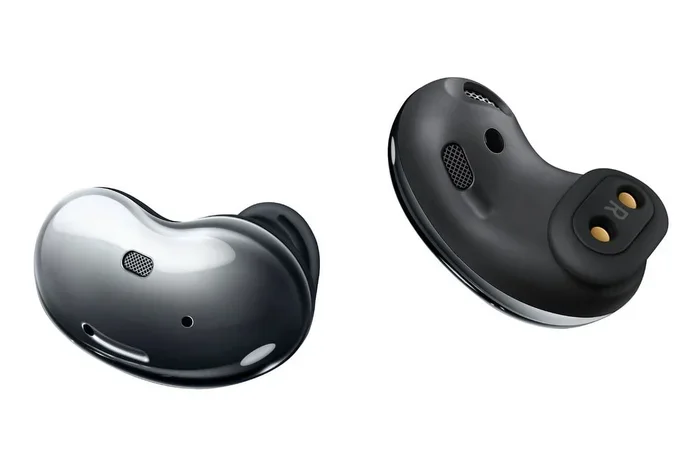
Can Any Earbuds Work With Samsung Phone And More Details
Can Any Earbuds Work With Samsung Phone is a common question, and the answer is yes—most earbuds connect via Bluetooth. Whether you use wireless earbuds, wired earphones, or Samsung Galaxy Buds, compatibility depends on Bluetooth profiles and audio codecs. This guide covers everything from Bluetooth pairing to audio latency and Samsung audio settings.
Can Any Earbuds Work With Samsung Phone? The short answer is yes. Almost any pair of earbuds can connect to a Samsung smartphone. Whether you own a top-tier wireless earbud or a simple wired pair, the Samsung phone can handle it. But the real question is deeper. It is about sound quality, latency, microphone performance, and the special features you unlock. This guide walks you through every detail. You will learn what matters and how to get the best experience.
Many people buy earbuds for Samsung without checking compatibility. They assume all Bluetooth earbuds work the same. That is not true. A Samsung Galaxy Buds offers features that generic wireless earbuds may lack. Likewise, a cheap pair of wired earphones might cause audio issues if you do not use the right adapter. I will break down the differences. You will understand Bluetooth pairing, audio codecs, and Samsung audio settings. By the end, you will know exactly which earbuds to choose.
Key Takeaways
- Universal Bluetooth Compatibility: Most earbuds can connect to Samsung phones via standard Bluetooth protocols.
- Audio Codecs Matter: Samsung supports AAC and aptX, which affect sound quality.
- Wired Earbuds Work Too: You can use wired earphones with a USB-C or 3.5mm adapter.
- Samsung Galaxy Buds Offer the Best Integration: They unlock features like Ambient Sound and ANC.
- Connection Issues Are Common: Try resetting Bluetooth and updating your phone’s software.
- Check for Multipoint Support: Some earbuds can pair with two devices simultaneously.
📑 Table of Contents
How Bluetooth Compatibility Works with Samsung Devices
Samsung phones use Bluetooth to talk to wireless earbuds. The connection relies on profiles and codecs. A profile is a set of rules. The most common one is the Hands-Free Profile (HFP) for calls and the Advanced Audio Distribution Profile (A2DP) for music. Both are standard. So any Bluetooth earbuds that support these profiles will connect. The magic happens in the audio codec. A codec compresses and sends audio data. Samsung phones support several codecs. The most common is AAC. Some newer Samsung models also support aptX and LDAC. These codecs deliver better sound quality when both the phone and the earbuds support them.
Understanding Bluetooth Profiles and Pairing
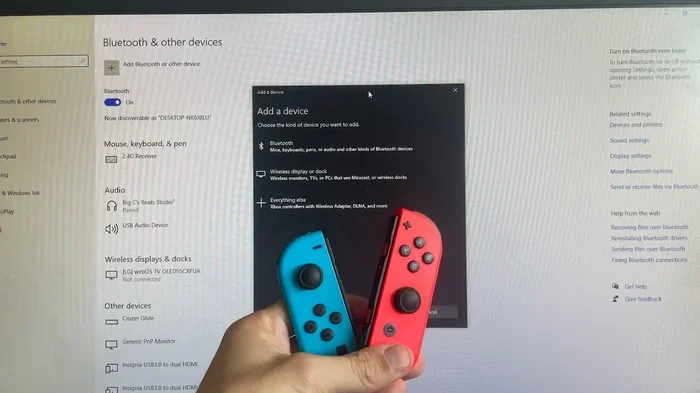
Bluetooth pairing is the first step. You put your earbuds in pairing mode. Then you go to Settings > Connections > Bluetooth on your Samsung phone. The phone scans for devices. You tap the name of your earbuds. A pairing request appears. You accept it. That is it. The Bluetooth version matters too. Bluetooth 5.3 offers better range and lower audio latency than older versions. If your Samsung phone has Bluetooth 5.0 or higher, it will work with most modern earbuds. Low latency mode is great for gaming and video watching. It reduces the delay between the video and the audio.
Audio Codecs: AAC, aptX, and LDAC
An audio codec is like a language for sound. Your Samsung phone and your earbuds must speak the same language to get the best sound quality. Samsung phones natively support AAC. This codec works well with Apple earbuds and many Android earbuds. If you use Samsung Galaxy Buds, they support AAC and SAMRC (Samsung’s own codec). Some third-party earbuds support aptX or aptX HD. This gives you richer bass and clearer highs. LDAC is a Sony codec that streams high-resolution audio. It is not native on Samsung phones, but some earbuds can use it with third-party apps. The takeaway? Check the codec list before you buy earbuds for Samsung. Better codec support means better sound quality.
Wired vs Wireless Earbuds for Samsung Phones
You have two main choices: wired earbuds and wireless earbuds. Both can work with a Samsung phone. The experience differs. Wireless earbuds use Bluetooth. They give you freedom of movement. Wired earbuds plug into the headphone jack or USB-C port. They do not need batteries. Let us compare them side by side.
| Feature | Wired Earbuds | Wireless Earbuds |
|---|---|---|
| Connection | 3.5mm jack or USB-C | Bluetooth 5.0+ |
| Battery Needed | No | Yes (5–15 hours) |
| Sound Quality | Potentially higher (no compression) | Good (depends on codec) |
| Convenience | Tangled wires | Truly wireless |
| Latency | Near zero | Low to medium (varies) |
| Cost | Usually lower | Wider range |
Using Wired Earbuds with a Samsung Phone
Older Samsung phones had a 3.5mm headphone jack. Newer models, like the Samsung Galaxy S24 and S23, removed the jack. You need a USB-C adapter or USB-C earbuds. A USB-C earphone plugs directly into the charging port. It draws power from the phone. This is the simplest wired option. Some people use a 3.5mm to USB-C adapter. This works, but cheap adapters can cause audio latency or static. I recommend buying a high-quality adapter from a trusted brand. Wired earbuds are great for calls because they have no audio latency. The sound is instant. They also do not need charging, which is a big plus.
Wireless Earbuds and Bluetooth Connectivity
Wireless earbuds use Bluetooth. They connect to your Samsung phone automatically if you have paired them before. Most wireless earbuds support multipoint connection. This means they can connect to two devices at once. For example, your earbuds can stay connected to your Samsung phone and your laptop. When a call comes in on the phone, the earbuds switch to it. This is a killer feature for work-from-home users. Wireless earbuds also offer noise cancellation and ambient sound modes. These features are controlled through the Samsung Galaxy Wearable app or the earbuds’ own app.
Quick Tips for Wired and Wireless Use
- Always use a high-quality USB-C adapter if your wired earbuds have a 3.5mm plug.
- Keep your Bluetooth turned on even when you are not using wireless earbuds to save pairing time.
- Clean the USB-C port on your Samsung phone regularly to avoid connection issues.
- For the lowest audio latency, use wired earbuds or a USB-C earphone with a gaming mode.
Best Earbuds to Pair with Samsung Phones
Not all earbuds are created equal. Some work perfectly with Samsung phones and unlock special features. Others work but leave you without certain perks. Let us look at the best options.
Samsung Galaxy Buds Series
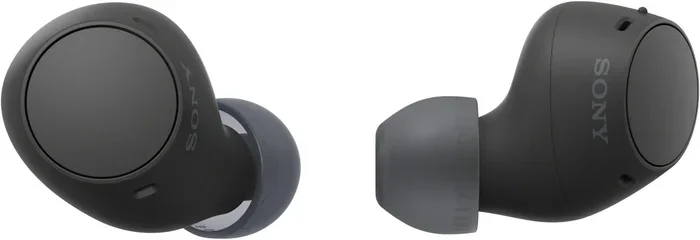
The Samsung Galaxy Buds are the natural choice. The Buds2 Pro, Buds2, and Buds FE all work beautifully with Samsung Galaxy phones. They use the Samsung Galaxy Wearable app. This app lets you update firmware, adjust EQ settings, and switch between noise cancellation and ambient sound. The Galaxy Buds2 Pro supports 24-bit audio and 360 Audio. This creates a surround-sound effect. The earbud drivers are tuned by AKG, a trusted audio brand. Battery life is solid. You get up to 5 hours with noise cancellation on. The ear tip fit test helps you find the right size for a snug seal. A good seal means better sound quality and better noise cancellation.
Top Third-Party Earbuds That Shine with Samsung
You are not limited to Samsung Galaxy Buds. Many third-party earbuds work great. Sony’s WF-1000XM5 supports LDAC and excellent noise cancellation. It does not use the Samsung Galaxy Wearable app, but the Sony Headphones Connect app works well. Jabra Elite 8 Active offers great microphone quality and multipoint connection. Bose QuietComfort Earbuds II deliver top-tier noise cancellation. All these earbuds connect via Bluetooth and work with Samsung phones. They just may not support Samsung-specific features like 360 Audio or seamless audio sharing between Samsung devices.
Common Mistakes When Choosing Earbuds for Samsung
- Buying earbuds just because they look good. Always check codec support.
- Ignoring ear tip fit. A bad fit ruins sound quality and noise cancellation.
- Assuming all wireless earbuds support multipoint. Always read the specs.
- Forgetting about water resistance. If you sweat a lot, look for an IP rating like IPX4 or IPX7.
Step-by-Step: How to Connect Any Earbuds to a Samsung Phone
Connecting earbuds to a Samsung phone is simple. I will walk you through it. Follow these steps for Bluetooth earbuds and wired earphones.
Bluetooth Pairing Steps
- Turn on your earbuds and put them in pairing mode. Usually, you hold down the button on the case until the LED flashes white or blue.
- On your Samsung phone, go to Settings > Connections > Bluetooth.
- Make sure Bluetooth is toggled on.
- Tap the Search for devices or Scan button.
- Your earbuds name will appear in the list. Tap it.
- A pairing request may appear. Tap Pair or Connect.
- You will see a confirmation. Your earbuds are now connected.
Once paired, the earbuds will automatically connect when you open the case. This is called auto-connect. It works because the Samsung phone remembers the device. You can also check the Bluetooth version in the Bluetooth settings. Newer versions reduce audio latency and improve range.
Troubleshooting Common Connection Issues
Sometimes earbuds will not connect. Do not panic. Try these fixes. First, toggle Bluetooth off and on. Second, restart your Samsung phone. Third, forget the device. Go to Bluetooth settings, find your earbuds, tap the gear icon, and select Unpair. Then try pairing again. Fourth, check for software updates. Go to Settings > Software update. A pending update can fix Bluetooth bugs. Fifth, reset your earbuds. Check the manual for the reset procedure. Most earbuds have a reset button or a specific hold sequence. These steps solve 90% of connection issues.
Expert Insight: Why Your Earbuds Might Sound Muffled
If your earbuds sound muffled after connecting to a Samsung phone, check the sound profile. Go to Settings > Sounds and vibration > Sound quality and effects. Here you can adjust the EQ settings. A boosted bass can muddy the sound. Try the Adaptive sound feature. It adjusts the sound quality based on your environment. Also, make sure your earbuds are clean. Earwax on the earbud drivers can block sound and make it sound muffled.
Advanced Features and Settings for Samsung Earbuds
Once your earbuds are connected, you can unlock advanced features. Samsung phones offer deep integration with certain earbuds. These features improve your daily routine.
Samsung’s Audio Enhancements and EQ
Go to Settings > Sounds and vibration > Sound quality and effects. Here you will find several tools. Adaptive sound uses the phone’s microphone to analyze your environment. It then adjusts the sound profile to make music and calls clearer. Sound assistant lets you fine-tune the EQ settings. You can boost vocals, increase bass, or sharpen treble. Mono audio is helpful if you have hearing issues in one ear. It combines both channels into one. These tools work with any earbuds connected to your Samsung phone. They are not limited to Samsung Galaxy Buds.
Dual Audio and Multipoint Connection
Dual Audio is a Samsung Phone Feature. It lets you stream music to two pairs of Bluetooth earbuds or speakers at the same time. You can share your music with a friend. Both pairs connect to the same Samsung phone. Multipoint connection is different. It allows one pair of earbuds to connect to two source devices. For example, your earbuds stay connected to your Samsung phone and your Windows PC. When a call comes in on the phone, the earbuds switch to the phone automatically. Not all earbuds support multipoint. Check the product specs before you buy.
Quick Tips to Enhance Your Audio Experience
- Enable Dual Audio in Settings > Connections > Bluetooth > Advanced.
- Use the Samsung Galaxy Wearable app for Galaxy Buds to access 360 Audio and head tracking.
- Turn on Low latency mode in Bluetooth settings if you experience audio lag during gaming.
- Update the Samsung Galaxy Wearable app regularly for the latest firmware and bug fixes.
Common Problems and How to Fix Them
Even with the best earbuds, you may run into issues. Here are the most common ones and their solutions.
Audio Lag and Latency Issues
Audio latency is a delay between the video and the sound. It is annoying when you watch a movie or play a game. Bluetooth earbuds can have higher latency than wired earbuds. To reduce audio latency on a Samsung phone, go to Settings > Connections > Bluetooth. Find your earbuds in the list. Tap the gear icon. Look for Low latency mode or Gaming mode. Enable it. This prioritizes audio speed over sound quality. If your earbuds do not have this option, try a wired USB-C earphone. Wired connections have near-zero latency. Also, make sure your Samsung phone and earbuds are close together. Walls and distance increase audio latency.
Microphone Not Working on Calls
If your microphone is not working, the other person cannot hear you. First, check the earbud drivers. Make sure they are not blocked by earwax. Second, go to Settings > Sounds and vibration >> Sound quality and effects. Ensure the microphone is not muted. Third, check the Bluetooth settings. Some earbuds have a setting for microphone priority. Switch it to your Samsung phone if needed. Fourth, try a different app. If the microphone works in one app but not another, the issue is with the app, not the earbuds. Finally, restart both devices. This fixes many temporary software glitches.
Expert Insight: The Role of Ear Tip Fit in Sound Quality
Ear tip fit is often overlooked. A loose fit lets sound leak out. It also lets outside noise enter. This ruins your sound quality and noise cancellation. Most wireless earbuds come with multiple ear tip sizes. Try all of them. The Samsung Galaxy Wearable app has an ear tip fit test. It plays a tone and measures the seal. A good seal means better bass and clearer mids. I always recommend spending two minutes on the ear tip fit test before judging your earbuds.
Conclusion
Can Any Earbuds Work With Samsung Phone? Yes, they can. Whether you choose wireless earbuds, wired earphones, or Samsung Galaxy Buds, the connection is straightforward. The key is understanding Bluetooth pairing, audio codecs, and Samsung audio settings. A good earbud gives you great sound quality, low audio latency, and reliable microphone quality. Do not settle for less. Check the codec support, read the water resistance rating, and test the ear tip fit. With the right pair of earbuds, your Samsung phone becomes a powerful audio hub. Enjoy your music, calls, and podcasts with confidence. The perfect match is out there for you.
Frequently Asked Questions
Do all wireless earbuds work with Samsung phones?
Yes, almost all wireless earbuds that use Bluetooth will work with a Samsung phone. They just need to support the A2DP and HFP profiles. Some earbuds may not unlock Samsung-specific features like 360 Audio, but basic playback and calls will work fine.
Why do my Samsung earbuds disconnect randomly?
Random disconnects often happen due to Bluetooth interference or a low battery. Make sure your earbuds are fully charged. Also, move away from Wi-Fi routers and other Bluetooth devices. Updating the Samsung Galaxy Wearable app and your phone’s software can fix this too.
Can I use wired earbuds with a Samsung phone that has no headphone jack?
Yes. You need a USB-C to 3.5mm adapter or a pair of USB-C earbuds. A high-quality adapter ensures no audio latency or static. Cheap adapters can cause sound issues, so invest in a reliable brand.
What is the best audio codec for Samsung phones?
Samsung phones natively support AAC. If your earbuds also support AAC, you will get the best sound quality without extra apps. Some Samsung models support aptX. For high-resolution audio, look for earbuds that support LDAC and use a third-party player app.
How can I reduce audio lag with Bluetooth earbuds on my Samsung phone?
Enable Low latency mode in your Bluetooth settings. Go to Settings > Connections > Bluetooth, tap the gear icon next to your earbuds, and look for the Gaming mode or Low latency option. Also, keep the phone and earbuds close together to minimize delay.
Are Samsung Galaxy Buds worth buying for non-Samsung users?
Yes. Samsung Galaxy Buds work with any Android phone and even iPhones. You will lose some Samsung-exclusive features like 360 Audio and seamless audio sharing. But the sound quality, noise cancellation, and ear tip fit are excellent on any device.