Can I Use Hdmi On Displayport A Complete Guide For You
Yes, you can use HDMI on a DisplayPort connection with the right adapter or cable. This guide explains how HDMI and DisplayPort work together, which adapters you need, and common mistakes to avoid. You will learn about active vs passive adapters, resolution support, and audio compatibility.
Have you ever plugged in a cable and realized it just does not fit? That frustrating moment happens more often than you think. Many people ask, Can I Use Hdmi On Displayport when setting up a new monitor or home theater system. The short answer is yes, but the full answer is a bit more detailed. You need the right adapter, the right type, and a clear understanding of how these two different ports talk to each other.
DisplayPort and HDMI are both digital display interfaces, but they work differently under the hood. HDMI is one of the most common connectors you will find on TVs, gaming consoles, and laptops. DisplayPort is popular on PC monitors and professional displays. When you want to bridge the gap between them, you need a proper conversion solution. This guide walks you through everything you need to know about using HDMI on a DisplayPort connection.
Key Takeaways
- HDMI and DisplayPort are different connectors: You need an adapter or active converter to connect HDMI devices to DisplayPort ports.
- Active adapters work best: They convert the signal properly and support higher resolutions and refresh rates.
- Passive adapters have limits: They only work in specific scenarios and may not support 4K or high refresh rates.
- Audio may not always transfer: Check your adapter specs to ensure audio signal passes through correctly.
- Check your devices first: Always verify port versions and cable specifications before buying an adapter.
- Gaming and 4K setups need quality adapters: Cheap adapters can cause signal loss or reduced performance.
📑 Table of Contents
- Understanding HDMI and DisplayPort Basics
- Can I Use HDMI On DisplayPort Directly?
- How to Connect HDMI to DisplayPort
- Common Uses for HDMI to DisplayPort Adapters
- Audio Considerations When Using HDMI on DisplayPort
- Common Mistakes and How to Avoid Them
- Expert Tips for the Best Experience
- How Display Connectivity Has Evolved
- Final Thoughts on Using HDMI with DisplayPort
Understanding HDMI and DisplayPort Basics
Before you buy any adapter, it helps to understand what each port does. Both HDMI and DisplayPort carry digital video and audio signals. But they have different designs, different specs, and different strengths. Knowing these basics makes the whole process much easier.
What Is HDMI?
HDMI stands for High Definition Multimedia Interface. It is the go-to connector for most consumer electronics. You will find HDMI ports on almost every TV, Blu-ray player, streaming stick, and game console. The standard HDMI cable carries both video and audio through a single cable. This makes it very convenient for home entertainment setups.
HDMI has gone through several versions over the years. HDMI 1.4 supports 4K at 30Hz. HDMI 2.0 handles 4K at 60Hz. The latest HDMI 2.1 standard supports up to 10K resolution and refresh rates as high as 120Hz or even 240Hz for gaming. Each new version brings better bandwidth and more features.
What Is DisplayPort?
DisplayPort is a digital display interface developed by VESA. It is the favorite connector for PC monitors and workstation displays. DisplayPort offers high bandwidth and supports daisy-chaining multiple monitors from a single port. This feature is called Multi-Stream Transport or MST. It is a big reason why professionals love DisplayPort for multi-monitor setups.
DisplayPort 1.2 supports 4K at 60Hz. DisplayPort 1.4 adds support for HDR and higher color depths. DisplayPort 2.0 is the newest standard and offers massive bandwidth improvements. It can handle 8K and even 16K resolutions with ease. The connector also comes in a smaller form factor called Mini DisplayPort, which Apple used for years.
One key difference is that DisplayPort uses a packet-based signaling method. HDMI uses a different approach called TMDS. This difference matters when you try to convert between the two. It is also why a simple cable swap will not work. You need an active conversion device to bridge the gap.
Can I Use HDMI On DisplayPort Directly?
The honest answer is no, not directly. You cannot plug an HDMI cable into a DisplayPort port and expect it to work. The connectors have different pin layouts and different signaling methods. HDMI has 19 pins arranged in a specific way. DisplayPort has 20 pins in a different configuration. They are physically incompatible without an adapter.
Some people think they can just use a passive cable that has HDMI on one end and DisplayPort on the other. These cables exist, but they do not work as simple signal pass-through. The HDMI signal needs to be actively converted to DisplayPort signaling. This is where active adapters come into play.
Why Direct Connection Does Not Work
The core issue is signal conversion. HDMI and DisplayPort use different protocols to transmit data. HDMI uses TMDS (Transition Minimized Differential Signaling). DisplayPort uses a packet-based protocol similar to PCI Express. These are fundamentally different ways of moving data. A passive cable cannot translate between them.
Think of it like trying to plug a US electrical plug into a European outlet. The shape is different. The voltage is different. You need a converter. The same logic applies here. You need an active device that understands both protocols and converts the signal in real time.
How to Connect HDMI to DisplayPort
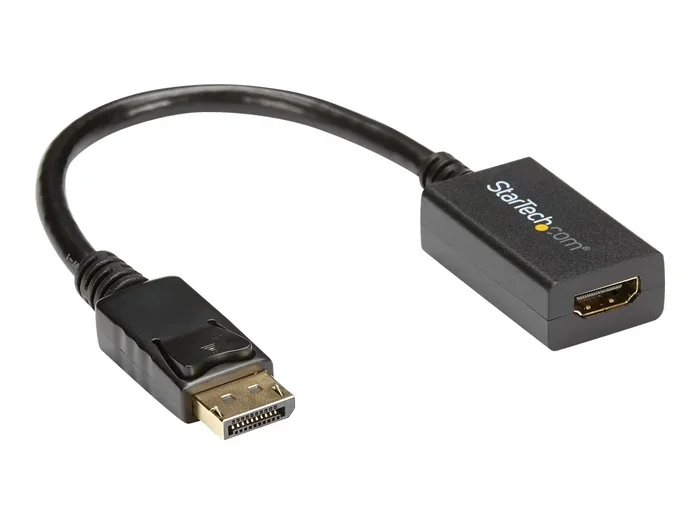
So how do you actually make this work? You need an HDMI to DisplayPort adapter or converter. These devices take the HDMI signal and convert it into a DisplayPort signal that your monitor can understand. But not all adapters are created equal. Choosing the right one is critical.
Active vs Passive Adapters
This is the most important distinction you need to understand. Active adapters contain a chip that converts the signal from HDMI to DisplayPort. Passive adapters do not contain any conversion chip. They simply reroute pins. Because of the protocol differences, passive adapters will not work for HDMI to DisplayPort connections.
Always look for an active HDMI to DisplayPort adapter. The chip inside does the heavy lifting of translating the signal. Without it, you will get no picture at all. Some cheap adapters on the market claim to be passive but include a small chip. Always check the product description carefully.
When shopping, look for adapters that explicitly state they support active conversion. The best adapters also support the resolution and refresh rate you need. If you want 4K at 60Hz, make sure the adapter supports that. Lower quality adapters may only support 1080p or 4K at 30Hz.
Choosing the Right Adapter
Not all adapters are the same. Here are the key factors to consider when picking one:
- Resolution support: Make sure the adapter supports your desired resolution. For 4K gaming, you need an adapter rated for 4K at 60Hz or higher.
- Refresh rate: Gamers should look for adapters that support high refresh rates like 144Hz or 165Hz at their target resolution.
- Audio support: Check if the adapter passes through audio. Some adapters only handle video and leave the audio channel unused.
- HDR compatibility: If you use HDR content, make sure the adapter supports HDR10 or Dolby Vision.
- Build quality: Metal-bodied adapters tend to perform better and last longer than plastic ones. Look for adapters with good heat dissipation.
- Driver requirements: Some active adapters need special drivers on your computer. Check the manufacturer’s website for software support.
Step-by-Step Connection Process
Setting up an HDMI to DisplayPort connection is straightforward. Follow these steps for a smooth setup:
- Turn off both your source device and your monitor.
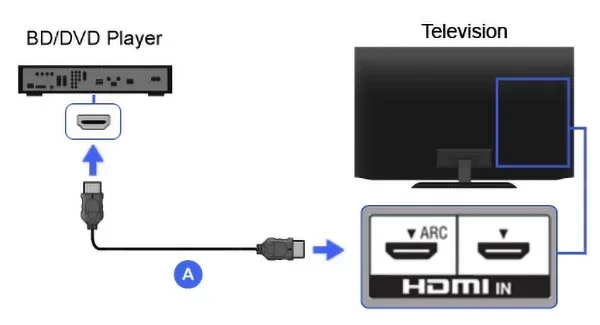
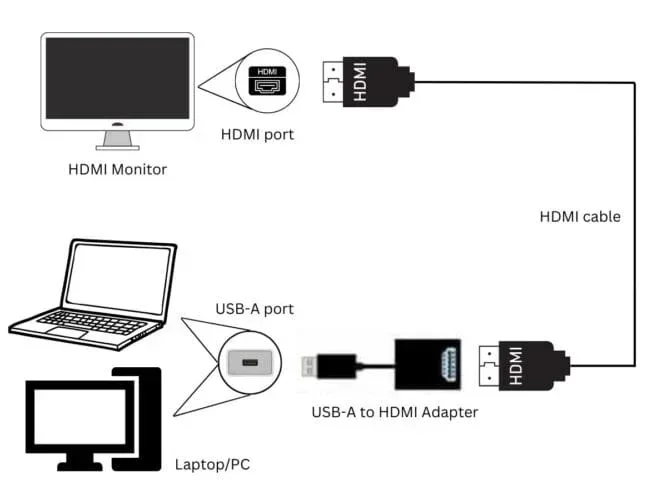
- Connect the HDMI cable from your source device to the HDMI input of the adapter.
- Connect the DisplayPort cable from the adapter to your monitor’s DisplayPort input.
- Plug in the adapter’s USB power cable if required. Some adapters draw power from the HDMI connection, but others need external power.
- Turn on your source device and monitor.
- Select the correct DisplayPort input on your monitor using the monitor’s menu or button controls.
- Check your computer’s display settings to make sure it recognizes the monitor.
If you do not get a signal, try unplugging and replugging the cables. Sometimes the adapter needs a full power cycle to recognize the new connection. Also make sure your DisplayPort cable is fully seated in both the adapter and the monitor.
Common Uses for HDMI to DisplayPort Adapters
Why would someone need to connect HDMI to DisplayPort? There are several common scenarios where this comes up. Understanding these use cases helps you pick the right adapter.
Gaming Setups
Many gaming consoles use HDMI output. If you have a PC gaming monitor with only DisplayPort inputs, you need an adapter to connect your console. This is very common for gamers who want to use their high-refresh-rate monitor for both PC and console gaming. An active adapter lets you plug your Xbox, PlayStation, or Nintendo Switch into a DisplayPort monitor.
For the best gaming experience, choose an adapter that supports the highest resolution and refresh rate your monitor offers. Cheap adapters can introduce input lag or reduce the refresh rate. This defeats the purpose of having a high-performance gaming monitor.
Professional and Office Work
Many office monitors use DisplayPort connections. If your laptop only has HDMI output, you need an adapter for your daily work setup. This is especially common with modern laptops that have moved away from HDMI ports. A reliable adapter ensures you can connect to any monitor in the office without compatibility issues.
For office use, you do not need the highest-end adapter. A basic active HDMI to DisplayPort adapter that supports 1080p or 4K at 60Hz will work perfectly. Focus on reliability and build quality rather than extreme performance specs.
Multi-Monitor Setups
Some people run mixed monitor setups with different input types. You might have one monitor with HDMI and another with DisplayPort. If your graphics card has limited HDMI outputs, you can use an HDMI to DisplayPort adapter to connect additional monitors. This gives you more flexibility in how you arrange your workspace.
Multi-monitor adapters can sometimes cause issues with extended desktop mode. Make sure your graphics card drivers are up to date. Also check that your adapter supports the resolution you want on each display simultaneously.
Audio Considerations When Using HDMI on DisplayPort
One question that comes up often is about audio. HDMI carries both video and audio in one cable. DisplayPort also carries both. But when you use an adapter, does the audio still work?
The answer depends on the adapter. Most quality active HDMI to DisplayPort adapters do pass through audio. The audio signal gets converted along with the video signal. However, some cheaper adapters only handle video and ignore the audio channel entirely.
If audio is important to your setup, check the product specifications before buying. Look for adapters that explicitly mention audio support. Some adapters even support surround sound formats like 5.1 or 7.1 audio. For a home theater setup, this can make a big difference.
Sometimes audio issues happen even with a good adapter. If you do not get sound, check your computer’s audio output settings. Make sure the DisplayPort output is selected as the default audio device. On Windows, you can do this by right-clicking the speaker icon in the taskbar and selecting the correct output device.
On macOS, go to System Settings and look for Sound output. Select your DisplayPort monitor from the list of available output devices. Some adapters also work better with certain operating systems, so check compatibility notes from the manufacturer.
Common Mistakes and How to Avoid Them
Many people run into problems when setting up HDMI to DisplayPort connections. Most of these issues are easy to avoid with a little knowledge.
Buying the Wrong Type of Adapter
The most common mistake is buying a passive adapter or the wrong type of active adapter. Remember, you need an active HDMI to DisplayPort adapter. A passive HDMI to DisplayPort cable will not work. Always double-check the product listing before purchasing.
Another mistake is buying a DisplayPort to HDMI adapter when you need the opposite direction. These are not always reversible. Check which direction the adapter converts. HDMI to DisplayPort is not the same as DisplayPort to HDMI, even though they look similar.
Ignoring Resolution and Refresh Rate Limits
Not all adapters support the same resolutions. A budget adapter might only handle 1080p. If you try to push 4K through it, you will get no signal or a degraded image. Always match your adapter to your display’s capabilities.
Refresh rate is another factor. If you have a 144Hz monitor and your adapter only supports 60Hz, you will be stuck at 60Hz. This is a common frustration for gamers. Check the adapter specifications carefully for both resolution and refresh rate support at your target settings.
Forgetting About Power Requirements
Some active adapters need external USB power to work properly. If you skip the USB power cable, the adapter might not function at all or might only work at lower resolutions. Always include the power cable in your setup if the adapter requires it.
Using Low-Quality Cables
The adapter is only as good as the cables you use with it. A cheap HDMI cable or a low-quality DisplayPort cable can cause signal issues. Use cables that are rated for the resolution and bandwidth you need. For 4K at 60Hz, you need an HDMI 2.0 or higher cable and a DisplayPort 1.2 or higher cable.
Expert Tips for the Best Experience
Here are some pro tips that can make your HDMI to DisplayPort setup work flawlessly. These tips come from real-world experience with display connectivity.
- Firmware updates matter: Some monitors and adapters receive firmware updates that improve compatibility. Check the manufacturer’s website for updates before troubleshooting.
- Try a different port: If your monitor has multiple DisplayPort inputs, try a different one. Some ports may be linked to specific HDMI inputs on the adapter.
- Keep cables short: Longer cables can signal degradation. Keep your HDMI and DisplayPort cables as short as practical for the best signal quality.
- Update your graphics drivers: Outdated drivers can cause detection issues with adapters. Always keep your GPU drivers current.
- Test with another device: If you are having trouble, try the adapter with a different source device. This helps isolate whether the problem is with the adapter, the cable, or the source device.
These small tips can save you hours of frustration. Display connectivity can be finicky, but with the right setup, it works reliably every time.
How Display Connectivity Has Evolved
The world of display connectivity has changed a lot over the years. Older monitors used VGA and DVI connections. These were analog and did not carry audio. HDMI came along and changed everything by combining video and audio in one digital cable. DisplayPort followed with even higher bandwidth and features like daisy-chaining.
Today, USB-C and Thunderbolt have become the new standard for many laptops and devices. These ports can carry DisplayPort signals through Alt Mode. This adds even more flexibility to how you connect displays. But HDMI and DisplayPort remain the most common dedicated video connectors for monitors and TVs.
Understanding these different port types helps you make better decisions about adapters and cables. The more you know about how signals work, the easier it is to troubleshoot any issues that come up. If you are curious about other components on your motherboard that handle these connections, check out this guide on 5 Components That Are Found On The Motherboard to learn more about the hardware inside your computer.
The bottom line is that connecting HDMI devices to DisplayPort monitors is very doable. You just need the right active adapter and a little patience during setup. Once you get it working, you will not even think about the connection again. It just works.
Final Thoughts on Using HDMI with DisplayPort
So, can you use HDMI on DisplayPort? Absolutely. With the right active adapter, the right cables, and a little know-how, you can connect any HDMI source to any DisplayPort monitor. The key is understanding the difference between active and passive adapters and choosing one that matches your resolution and refresh rate needs.
Do not let the different port types intimidate you. Display connectivity has come a long way. Adapters are affordable and widely available. Whether you are a gamer, a professional, or just someone setting up a home theater, the right adapter makes everything seamless. Take your time, check the specs, and enjoy your new setup.
Remember to check your audio settings if sound is not working right away. And always buy from reputable brands to avoid compatibility headaches. With these tips in mind, you are fully equipped to connect HDMI devices to DisplayPort monitors like a pro.
Frequently Asked Questions
Can I plug an HDMI cable directly into a DisplayPort monitor?
No, you cannot plug an HDMI cable directly into a DisplayPort monitor. The connectors have different pin layouts and use different signaling protocols. You need an active HDMI to DisplayPort adapter to convert the signal properly.
Do I need an active or passive adapter for HDMI to DisplayPort?
You need an active adapter. Active adapters contain a conversion chip that translates the HDMI signal into DisplayPort signaling. Passive adapters do not have this chip and will not work for this connection type.
Will my audio work with an HDMI to DisplayPort adapter?
Most quality active adapters do pass through audio along with video. However, some budget adapters only handle video. Always check the product specifications to confirm audio support before purchasing.
Can I get 4K resolution with an HDMI to DisplayPort adapter?
Yes, you can get 4K resolution, but only with a high-quality active adapter that supports 4K. Make sure the adapter is rated for 4K at your desired refresh rate, such as 4K at 60Hz or higher.
Why is there no signal when I connect my HDMI device to DisplayPort?
This usually happens because you are using a passive adapter instead of an active one. It can also be caused by an unpowered adapter, outdated drivers, or an incompatible cable. Try using a powered active adapter and update your graphics drivers.
Are HDMI to DisplayPort adapters expensive?
Good quality adapters are reasonably priced and widely available. Basic models that support 1080p or 4K at 60Hz are very affordable. Higher-end adapters that support 4K at 120Hz or 144Hz cost more but are worth it for gaming and professional use.