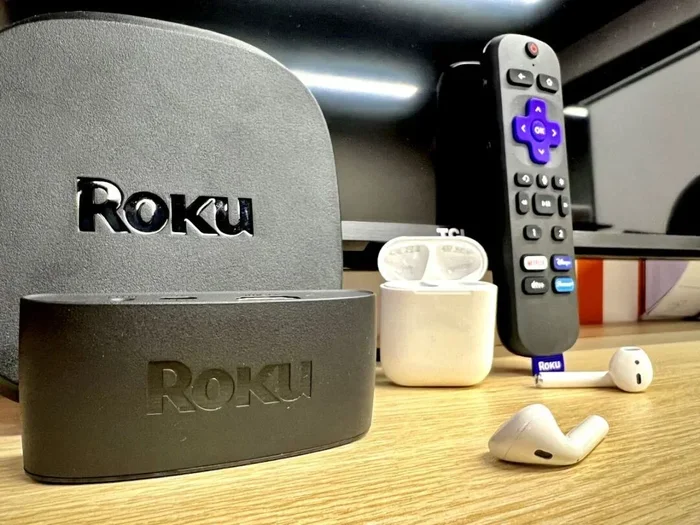
Can Roku Connect To Airpods And What You Need To Know
Can Roku Connect To Airpods? Yes, but not directly through Bluetooth. You need the Roku mobile app or a compatible Roku device with private listening to route audio to your AirPods. This guide covers every method, supported models, and troubleshooting tips so you can enjoy wireless audio on your Roku TV without any hassle.
Can Roku Connect To Airpods? If you have been searching for this answer, you are not alone. Many Roku users want to enjoy their favorite shows and movies with wireless headphones. AirPods are popular, and Roku is one of the most widely used streaming platforms. The good news is that you can make this work. But the process is not as simple as pressing a pair button.
In this article, we will walk you through every method to connect your AirPods to a Roku device. We will cover supported models, step-by-step instructions, common problems, and expert tips. Whether you own AirPods Pro, AirPods Max, or the standard AirPods, this guide has you covered. Let us dive in and get you listening wirelessly in no time.
Key Takeaways
- Roku does not support direct Bluetooth pairing with AirPods, but you can still connect them using the Roku mobile app.
- Private listening mode in the Roku app lets you stream audio to your AirPods through your phone.
- Certain Roku models like the Roku Ultra and Roku Streaming Stick+ offer better compatibility options.
- Third-party Bluetooth transmitters can bridge the gap if you want a direct connection.
- Audio latency and connection drops are common issues, but simple fixes can resolve them.
- AirPods Pro, AirPods Max, and standard AirPods all work with Roku through the right method.
- Setting up is easy and takes just a few minutes once you know the steps.
📑 Table of Contents
- Can Roku Connect To Airpods Directly Through Bluetooth
- How To Connect AirPods To Roku Using The Mobile App
- Which Roku Models Work Best With AirPods
- Troubleshooting Common Connection Problems
- Alternative Methods To Connect AirPods To Roku
- Expert Tips For The Best AirPod And Roku Experience
- Key Takeaways
- Conclusion
Can Roku Connect To Airpods Directly Through Bluetooth
The short answer is no. Roku devices do not have native Bluetooth support for connecting wireless headphones like AirPods directly. This surprises many people. Roku is a streaming device, and its primary focus has always been on video output rather than audio input or Bluetooth connectivity.
When you buy a Roku device, you expect it to work seamlessly with all your accessories. But Bluetooth audio is a different story. Roku has intentionally kept Bluetooth limited to its own Roku Wireless Speakers and Roku Soundbar products. This means you cannot go into your Roku settings and pair your AirPods the same way you would pair a Bluetooth speaker or a Bluetooth headset with your phone.
So what does this mean for you? It means you need a workaround. And the good news is that there are several reliable workarounds available. Let us explore them one by one.
Why Roku Does Not Support Direct Bluetooth Headphones
Roku has a specific reason for not supporting direct Bluetooth audio connections. The company wants to ensure that audio and video stay perfectly in sync. When you use Bluetooth headphones, there is often a slight delay between the video and audio. This is called audio latency. Roku wants to avoid this problem for the best user experience.
Another reason is that Roku makes its own wireless audio products. The Roku Wireless Speakers and Roku Soundbar are designed to work flawlessly with Roku devices. By keeping Bluetooth audio limited, Roku encourages users to buy its own accessories. This is a smart business strategy, but it can be frustrating for AirPods users.
Despite these limitations, you can still connect your AirPods to Roku. You just need to use one of the methods we will cover below.
How To Connect AirPods To Roku Using The Mobile App
The most popular and easiest method is using the Roku mobile app. The app turns your smartphone into a remote control for your Roku device. But it also has a hidden feature called private listening. This feature lets you listen to your Roku audio through your phone’s headphone jack or Bluetooth connection. Since AirPods connect to your phone via Bluetooth, this creates a bridge between your Roku and your AirPods.
Here is how it works step by step.
Step-by-Step Guide To Using Private Listening
- Download the Roku app on your iPhone or Android phone. It is free and available on the App Store and Google Play.
- Connect your phone to the same Wi-Fi network as your Roku device. This is essential for the app to find your Roku.
- Open the Roku app and tap the remote icon at the bottom of the screen.
- Start playing content on your Roku device. You can use the app as a remote to select a movie or show.
- Tap the headphone icon in the bottom right corner of the app screen. This activates private listening mode.
- Put your AirPods in your ears and make sure they are connected to your phone via Bluetooth.
- Adjust the volume on your phone. The audio will now stream to your AirPods.
That is it. You are now listening to your Roku content through your AirPods without disturbing anyone else in the room. This method works with all Roku models and all AirPod variants.
Tips For The Best Private Listening Experience
- Use a stable Wi-Fi connection. A weak signal can cause buffering or audio drops.
- Keep your phone close to your Roku device. This helps maintain a strong connection.
- Lower the volume on your Roku TV and raise the volume on your phone for better control.
- Turn off other Bluetooth devices on your phone to avoid connection conflicts.
- Use the Roku app’s volume slider instead of your phone’s volume buttons for finer control.
Which Roku Models Work Best With AirPods
Not all Roku devices are created equal when it comes to connecting with AirPods. While the mobile app method works with all Roku models, some Roku devices offer additional features that make the experience better. Let us look at the different models and what they offer.
| Roku Model | Private Listening Support | Additional Audio Features |
|---|---|---|
| Roku Ultra | Yes, via mobile app | Headphone jack on remote, Ethernet, voice search |
| Roku Streaming Stick+ | Yes, via mobile app | Long range wireless, HD streaming |
| Roku Express | Yes, via mobile app | Basic streaming, HDMI connection |
| Roku Premiere | Yes, via mobile app | 4K HDR streaming, compact design |
| Roku TV (Built-in) | Yes, via mobile app | Varies by brand, private listening supported |
| Roku Soundbar | Yes, via mobile app | Built-in Bluetooth, wireless subwoofer |
The Roku Ultra: Best Overall For AirPod Users
If you are serious about audio flexibility, the Roku Ultra is the best choice. It comes with a headphone jack built into the remote control. This means you can plug in wired headphones directly. But for AirPods users, the Roku Ultra also supports the private listening feature through the app. It has the strongest Wi-Fi antenna in the Roku lineup, which means fewer audio drops and better sync.
Roku Streaming Stick+ For Simple Setups
The Roku Streaming Stick+ is a great option for those who want a compact device. It plugs directly into your TV’s HDMI port and supports private listening through the Roku app. It also has a longer wireless range than the standard Roku Stick, which helps reduce audio interruptions.
Roku Express: Budget-Friendly Option
The Roku Express is the most affordable Roku device. It does not have fancy features, but it fully supports private listening through the mobile app. If you are on a budget and want to use your AirPods with Roku, the Express gets the job done.
Troubleshooting Common Connection Problems
Even though connecting AirPods to Roku is straightforward, you might run into some issues. Audio delays, connection drops, and volume problems are the most common complaints. Here is how to fix them.
Audio And Video Are Out Of Sync
This is the most common problem with private listening. You hear the audio a fraction of a second after you see the action on screen. This happens because your phone has to receive the audio from Roku over Wi-Fi, process it, and then send it to your AirPods via Bluetooth. That creates a slight delay.
To fix this, try these steps:
- Restart your Roku device and your phone. This clears temporary glitches.
- Move closer to your Wi-Fi router. A stronger signal reduces processing delay.
- Close other apps on your phone. Background apps can slow down audio processing.
- Reduce the Wi-Fi network congestion. If too many devices are using the same network, it can slow things down.
AirPods Keep Disconnecting
If your AirPods keep dropping the connection, the problem is usually with your phone’s Bluetooth signal. Here are some fixes:
- Turn Bluetooth off and back on in your phone settings.
- Remove your AirPods from your phone’s Bluetooth list and re-pair them.
- Make sure your AirPods are fully charged. Low battery can cause connection issues.
- Move closer to your phone. AirPods have a limited Bluetooth range of about 30 feet.
Volume Is Too Low Or Too Loud
Volume control can be tricky when using the private listening feature. The Roku app controls the volume, not your TV. If the volume feels off, try adjusting it within the app. Also, check that your phone is not on silent or vibrate mode. Some users also find that turning off volume leveling in the Roku app helps maintain consistent audio levels.
Audio Cuts Out During Loud Scenes
This happens when the Roku device struggles to stream high-quality audio over Wi-Fi. Action scenes with lots of bass and surround effects require more bandwidth. To fix this, try lowering the audio quality settings in the Roku app or reducing the resolution of the content you are streaming.
Alternative Methods To Connect AirPods To Roku
The Roku mobile app is the most popular method, but it is not the only way. If you want a more direct connection or if the app method does not work for you, there are alternatives worth considering.
Using A Bluetooth Transmitter
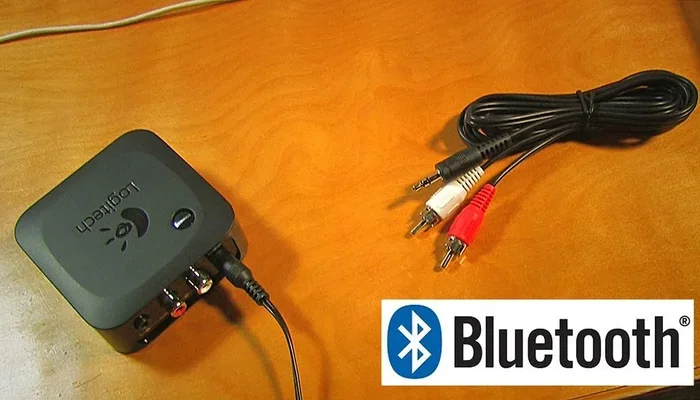
A Bluetooth transmitter is a small device that plugs into your TV’s audio output. It converts the audio signal into a Bluetooth signal that your AirPods can pick up directly. This creates a direct connection between your Roku TV and your AirPods without needing your phone as a middleman.
Here is how it works:
- Buy a Bluetooth transmitter. Look for one with aptX or aptX Low Latency support for better audio quality and less delay.
- Plug the transmitter into your TV’s audio output. This could be a 3.5mm headphone jack, optical output, or RCA output depending on your TV.
- Put your AirPods in pairing mode.
- Pair the transmitter with your AirPods just like you would pair any Bluetooth device.
- Set the transmitter as the audio output on your TV.
This method works well, but it has one downside. You need to manually switch your TV’s audio output to the transmitter every time you want to use your AirPods. Also, audio latency can still be an issue with cheaper transmitters.
Using Roku Wireless Speakers Or Soundbar
If you are willing to invest in Roku’s own audio products, the Roku Wireless Speakers and Roku Soundbar offer a seamless experience. These devices connect to your Roku TV wirelessly and support Bluetooth audio input. You can pair your AirPods to the Roku Soundbar using its built-in Bluetooth feature.
This method gives you the best audio quality because the Roku Soundbar processes the audio before sending it to your AirPods. It also reduces audio latency compared to the mobile app method.
Using The Roku TV’s Built-In Bluetooth
Some Roku TV models from brands like TCL, Hisense, and Sharp have built-in Bluetooth support. If your Roku TV has this feature, you can pair your AirPods directly to the TV without any additional devices or apps. Check your TV’s settings menu for a Bluetooth option. If it is there, you are in luck.
Expert Tips For The Best AirPod And Roku Experience
After testing multiple methods and devices, here are some expert tips that will help you get the most out of your AirPods and Roku setup.
Keep Your Devices Updated
Roku regularly releases firmware updates that improve audio performance and fix bugs. Make sure your Roku device is running the latest software. Similarly, keep your AirPods firmware updated through your iPhone or iPad. Updated software means fewer connection problems and better sound quality.
Use The Right AirPods For Your Needs
Not all AirPods are the same. AirPods Pro and AirPods Max have active noise cancellation, which can help you focus on your content without distractions. Standard AirPods are lighter and more comfortable for long viewing sessions. Choose the model that fits your lifestyle and listening preferences.
Consider Your Viewing Environment
If you are watching TV late at night, the private listening feature is a lifesaver. But if you are watching during the day and do not mind some background noise, you might not need AirPods at all. Use the Roku mobile app’s private listening feature when you need it and switch back to your TV speakers when you do not.
Optimize Your Wi-Fi Network
A strong Wi-Fi connection is the backbone of a smooth Roku experience. Place your router close to your TV and Roku device. Use a dual-band router that supports both 2.4GHz and 5GHz frequencies. The 5GHz band offers faster speeds and less interference, which helps reduce audio delays.
Key Takeaways
- Roku does not support direct Bluetooth pairing with AirPods, but you can still connect them using the Roku mobile app.
- Private listening mode in the Roku app lets you stream audio to your AirPods through your phone.
- Certain Roku models like the Roku Ultra and Roku Streaming Stick+ offer better compatibility options.
- Third-party Bluetooth transmitters can bridge the gap if you want a direct connection.
- Audio latency and connection drops are common issues, but simple fixes can resolve them.
- AirPods Pro, AirPods Max, and standard AirPods all work with Roku through the right method.
- Setting up is easy and takes just a few minutes once you know the steps.
Conclusion
So, can Roku connect to AirPods? Yes, absolutely. While Roku does not offer direct Bluetooth support for AirPods, the Roku mobile app with its private listening feature makes it easy to stream audio to your AirPods wirelessly. You can also use a Bluetooth transmitter or a Roku Soundbar for a more direct connection. Each method has its pros and cons, but they all get the job done.
The key is to choose the method that fits your setup and needs. If you want simplicity, the Roku mobile app is the way to go. If you want better audio quality and lower latency, a Bluetooth transmitter or Roku Soundbar is worth the investment. No matter which method you choose, you will be able to enjoy your favorite Roku content through your AirPods without disturbing anyone around you.
Now that you know how to connect your AirPods to your Roku device, it is time to try it out. Follow the steps in this guide, troubleshoot any issues you encounter, and enjoy a better, more private viewing experience. Happy streaming.
Frequently Asked Questions
Can I Connect AirPods Directly To A Roku Device?
No, Roku devices do not support direct Bluetooth connections to AirPods or any other wireless headphones. You need to use the Roku mobile app with private listening mode, a Bluetooth transmitter, or a Roku Soundbar to route audio to your AirPods.
Does The Roku Mobile App Work With All AirPod Models?
Yes, the Roku mobile app works with all AirPod models including AirPods, AirPods Pro, and AirPods Max. As long as your AirPods are connected to your phone via Bluetooth, the private listening feature will stream Roku audio to them.
Why Is There A Delay Between Video And Audio When Using AirPods With Roku?
The delay happens because audio travels from your Roku device to your phone over Wi-Fi, and then from your phone to your AirPods over Bluetooth. This two-step process creates a slight audio latency. Using a Bluetooth transmitter or Roku Soundbar can reduce this delay significantly.
Can I Use AirPods With A Roku TV Without The Mobile App?
Some Roku TV models have built-in Bluetooth that allows direct AirPod pairing. Check your TV’s settings menu for a Bluetooth option. If your Roku TV does not have built-in Bluetooth, you will need the mobile app or a Bluetooth transmitter.
Is Private Listening On The Roku App Free To Use?
Yes, the private listening feature is completely free and built into the Roku mobile app. There are no extra charges or subscriptions required. Just download the app, connect to the same Wi-Fi network as your Roku, and start listening.
What Is The Best Roku Model For Use With AirPods?
The Roku Ultra is the best model for AirPod users because it supports private listening through the app and has a headphone jack on the remote. The Roku Streaming Stick+ is also an excellent choice for its compact size and strong wireless performance.