Can You Connect A PC Via HDMI Everything You Should Know
Yes, you can connect a PC via HDMI easily and it is one of the simplest ways to get high-quality audio and video on your monitor or TV. This guide walks you through everything from picking the right cable to fixing common problems. Whether you are gaming, working, or streaming, understanding HDMI will save you time and frustration.
H2: What Is HDMI and Why Does It Matter for PC Connections
H3: The Basics of HDMI
HDMI stands for High-Definition Multimedia Interface. It is a digital connection standard that sends both video and audio through one cable. If you have ever plugged something into a TV or monitor and seen a picture come on instantly, there is a good chance it was HDMI.
This technology has been around since the early 2000s. Today, it is the most common way to connect a PC to a display. Whether you use a desktop, a laptop, or even a compact mini PC, HDMI is almost always an option.
H3: Why HDMI Is So Popular for PC Use
HDMI is popular for a few key reasons. First, it is simple. One cable handles everything. You do not need separate cables for video and sound. Second, it is universal. Most monitors, TVs, and projectors have HDMI inputs. Third, it supports high resolutions. Modern HDMI versions can handle 4K and even 8K content.
When you connect a PC via HDMI, you get a clean, digital signal. This means no quality loss. The picture stays sharp and the colors stay vibrant. For gamers and content creators, this matters a lot.
H2: How to Connect Your PC to an HDMI Display
H3: Step-by-Step Connection Guide
Connecting your PC to a display via HDMI is straightforward. Follow these steps and you will be up and running in minutes.
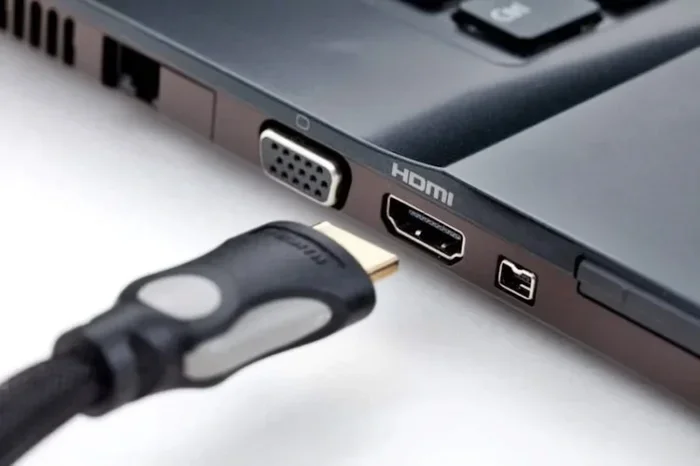
1. Check your PC for an HDMI port. Look at the back of your desktop or the side of your laptop. The port is rectangular with a slight taper on one side.
2. Get the right HDMI cable. Most people use a standard HDMI Type A cable. If you have a newer device, you might need a Mini or Micro HDMI cable.
3. Plug one end into your PC. Push the connector in gently until it clicks.
4. Plug the other end into your monitor or TV. Make sure it fits snugly.
5. Turn on both devices. Your PC should automatically detect the display.
6. Adjust display settings if needed. Right-click on your desktop and select Display Settings. From there, you can choose to mirror or extend your screen.
H3: What If Your PC Does Not Have an HDMI Port
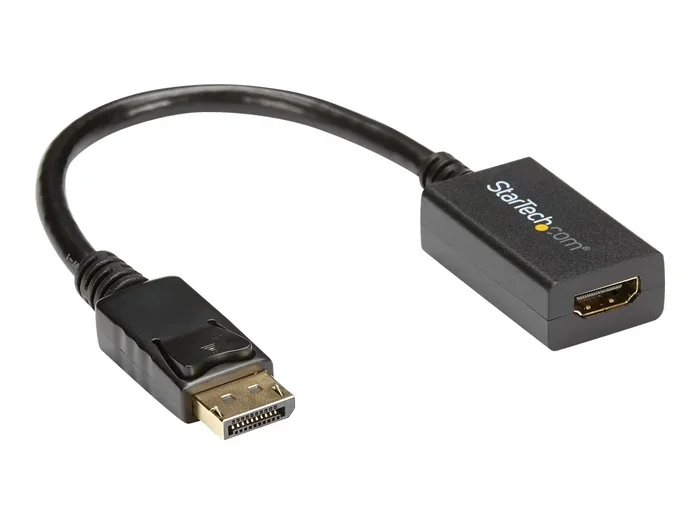
Some PCs, especially older models or certain compact builds, may not have an HDMI port. This is where adapters come in handy. A DisplayPort to HDMI adapter is a popular choice. You plug the adapter into your DisplayPort and then connect an HDMI cable to the other end.
Another option is a USB-C to HDMI adapter. Many modern laptops use USB-C ports. These adapters are small, affordable, and work great. They convert the USB-C signal into an HDMI output so you can use any standard HDMI display.
H3: Setting Up the Display After Connection
Once connected, your PC should recognize the display automatically. But sometimes you need to tweak things. Here are some quick tips.
– Go to Display Settings to choose between mirror and extend mode.
– Adjust the resolution to match your monitor’s native resolution.
– Check audio output settings if you want sound through the HDMI connection.
– Use the refresh rate settings in your graphics card control panel for smoother visuals.
H2: Understanding HDMI Versions and What They Mean for Your Setup
H3: HDMI Version History
Not all HDMI cables are created equal. Different versions support different features. Here is a quick breakdown.
- HDMI 1.4: Supports 1080p and 4K at 30Hz. Good for basic use.
- HDMI 2.0: Supports 4K at 60Hz. Great for gaming and streaming.
- HDMI 2.1: Supports up to 10K and 4K at 120Hz or even 240Hz. Ideal for high-end gaming.
H3: Why HDMI Version Matters
The version of HDMI you use directly affects your display quality. If you have a 4K monitor and an HDMI 1.4 cable, you will only get 30Hz refresh rates. That can feel laggy. To get the full 4K experience at 60Hz, you need an HDMI 2.0 cable or higher.
When shopping for cables, look for the version number on the packaging or the cable itself. Premium cables often state their version clearly. If you are unsure, an HDMI 2.1 cable is backward compatible and works with any HDMI port.
H3: Bandwidth and Resolution Explained
Bandwidth is the amount of data a cable can carry per second. Higher bandwidth means higher resolution and refresh rates. HDMI 2.0 offers 18 Gbps of bandwidth. HDMI 2.1 jumps to 48 Gbps. This huge increase allows for smoother motion and sharper images.
For most everyday tasks like browsing and office work, HDMI 1.4 or 2.0 is plenty. But if you are into gaming or video editing, investing in an HDMI 2.1 cable is worth it.
H2: Common HDMI Connection Problems and How to Fix Them
H3: No Signal on the Display
The most common issue is connecting your PC and getting a black screen. Do not panic. This happens more often than you think.
First, check the cable. Make sure both ends are firmly plugged in. A loose connection is the easiest fix. Second, try a different HDMI port on your monitor or TV. Sometimes the port you chose is not working. Third, check your display settings. Your PC might be set to show output on a different display.
If none of that works, try a different HDMI cable. Cables can fail over time. A new cable often solves the problem instantly.
H3: No Audio Through HDMI
HDMI carries both video and audio. But sometimes the sound does not come through. This is usually a settings issue.
Right-click the speaker icon in your taskbar. Select Open Sound Settings. Under Output, choose your HDMI display. The audio should start playing through your monitor or TV speakers.
If you still get no sound, update your audio drivers. Go to Device Manager, find your sound card, and click Update Driver. This simple step fixes the problem for many users.
H3: Flickering or Distorted Image
A flickering screen can be annoying. It is often caused by a bad cable or an incompatible resolution. Try lowering the resolution in your display settings. If that does not help, replace the HDMI cable. Cheap cables sometimes cannot handle high resolutions and cause interference.
Also, make sure your graphics card drivers are up to date. Outdated drivers can cause all sorts of display issues including flickering and artifacts.
H2: Best Practices for Optimal HDMI Performance
H3: Choose the Right Cable Length
Longer HDMI cables can sometimes lose signal quality. For most setups, a cable under 6 feet works perfectly. If you need a longer run, consider an active HDMI cable or a signal booster. These devices amplify the signal and keep your picture crisp.
H3: Keep Your Drivers Updated
Your graphics card driver plays a big role in HDMI performance. Nvidia, AMD, and Intel all release regular driver updates. These updates often include fixes for display issues and improvements to HDMI output.
Set a reminder to check for driver updates once a month. It takes just a few minutes and can prevent a lot of headaches.
H3: Use High-Quality Cables and Ports
Not all HDMI cables are built the same. Cheap cables may work at first but degrade over time. Look for cables that are certified and rated for the bandwidth you need. Brands like Belkin, Cable Matters, and AmazonBasics offer reliable options.
Also, avoid bending or pinching your HDMI cables. Physical damage is one of the leading causes of HDMI failure. Keep cables neat and avoid sharp bends.
H3: Consider Your Operating System and HDMI Compatibility
Your operating system plays a role in how well HDMI works with your PC. Most modern systems handle HDMI seamlessly. But if you are using a proprietary operating system, you may run into quirks. Some custom or niche operating systems do not fully support all HDMI features out of the box.
If you are using a non-standard OS, check for HDMI drivers and support documents from the manufacturer. Staying informed helps you avoid surprises.
H2: HDMI vs Other Connection Types
H3: HDMI vs DisplayPort
DisplayPort is another popular PC connection. It offers higher bandwidth than HDMI in some cases. DisplayPort is often preferred by gamers and professionals who need high refresh rates at high resolutions. However, HDMI is more universal. Most TVs and monitors have HDMI inputs, while DisplayPort is more common on PC monitors.
H3: HDMI vs USB-C
USB-C is becoming the new standard for laptops and slim devices. It can carry video, audio, and data through a single cable. USB-C with DisplayPort Alt Mode or Thunderbolt can match or even exceed HDMI performance. But HDMI remains the go-to for desktop PCs and home entertainment setups.
H3: HDMI vs VGA and DVI
VGA and DVI are older connection types. VGA is analog and does not support audio. DVI is digital but lacks audio support too. HDMI is superior in almost every way. It is digital, carries audio, and supports much higher resolutions. If you have a choice, always pick HDMI over VGA or DVI.
H3: Quick Comparison Table
| Feature | HDMI | DisplayPort | USB-C | VGA |
|---|---|---|---|---|
| Carries Audio | Yes | Yes | Yes | No |
| Max Resolution (common) | 4K or 8K | 4K or 8K | 4K or higher | 1080p |
| Common on PCs | Yes | Yes | Yes | Rare |
| Common on TVs | Yes | No | Rare | No |
| Ease of Use | Very Easy | Easy | Easy | Easy |
H2: Expert Tips for Getting the Most Out of Your HDMI Setup
H3: Use HDMI for Gaming
If you game on PC, HDMI is a great choice. Modern HDMI 2.1 cables support high refresh rates and low input lag. Make sure your graphics card and monitor both support the same HDMI version for the best results. Check your monitor specs before buying a cable.
H3: Use HDMI for Home Theater and Streaming
HDMI is perfect for connecting your PC to a TV for streaming. You get high-quality video and sound through one cable. This setup is ideal for movie nights and casual gaming from the couch.
If you are streaming content from your PC, consider how your value-added network setup affects your connection. A stable network and a quality HDMI cable together give you the best streaming experience.
H3: Label Your Cables
This is a small tip that saves a lot of time. Label your HDMI cables with tape or tags. Note which cable goes to which device. When troubleshooting, you will know exactly which cable to test first. It is a simple habit that makes life easier.
H3: Keep Spare Cables Handy
HDMI cables are cheap. Keep a few spares in your desk drawer or tech bag. When something goes wrong, swapping a cable is the fastest fix. You will thank yourself later.
H2: Conclusion
Connecting a PC via HDMI is one of the easiest and most reliable ways to get great picture and sound on any display. Whether you are setting up a home office, a gaming rig, or a home theater, HDMI has you covered.
Remember to choose the right HDMI version for your needs. Keep your drivers updated. And do not be afraid to troubleshoot when issues arise. Most HDMI problems have simple solutions.
With the right cable, the right settings, and a little know-how, your PC-to-HDMI setup will work flawlessly every time. Start with the steps in this guide and enjoy a seamless display experience today.
Key Takeaways
- HDMI is the standard way to connect a PC to a display: It carries both audio and video through a single cable.
- You need the right HDMI port and cable: Not all HDMI cables are the same, and version matters for resolution.
- Most modern PCs support HDMI output: Desktops and laptops from the last decade usually have HDMI ports built in.
- Common issues are easy to fix: Driver updates, cable swaps, and display settings solve most HDMI problems.
- 4K and high refresh rates need specific HDMI versions: HDMI 2.0 or higher is required for 4K at 60Hz.
- Adapters work when your PC lacks HDMI: DisplayPort to HDMI adapters are affordable and reliable.
Frequently Asked Questions
Can I connect any PC to any HDMI display?
Yes, as long as your PC has an HDMI output or you use an adapter. Most modern PCs support HDMI natively. If your PC uses a different port like DisplayPort or USB-C, a simple adapter solves the problem. Just make sure the adapter matches your port type.
Do I need a special HDMI cable for 4K?
You need an HDMI cable rated for the bandwidth 4K requires. HDMI 2.0 cables handle 4K at 60Hz. HDMI 2.1 cables support 4K at 120Hz or higher. Any standard HDMI cable will work for 4K at 30Hz but may feel sluggish for fast content.
Why is there no sound when I connect via HDMI?
This is usually a settings issue. Go to your sound settings and select the HDMI output as your default audio device. If that does not work, update your audio drivers. A restart after changing settings often helps too.
Can I use HDMI to connect a laptop to a TV?
Absolutely. Most laptops have an HDMI port or support a USB-C to HDMI adapter. Plug the cable in, switch your TV to the HDMI input, and your laptop screen should appear on the TV. Adjust display settings to mirror or extend as needed.
What is the maximum HDMI cable length without signal loss?
A standard HDMI cable works well up to about 15 feet. Beyond that, signal quality can degrade. For longer runs, use an active HDMI cable or add a signal booster. These solutions keep your picture and sound clear over longer distances.
Does HDMI support HDR content?
Yes, HDMI 2.0 and later support HDR (High Dynamic Range). HDR provides brighter highlights, deeper blacks, and more vivid colors. Make sure both your PC graphics card and your display support HDR for the best results. You may need to enable HDR in your display settings after connecting.
=== CONCLUSION ===
Now you know everything about connecting a PC via HDMI. From picking the right cable to fixing common issues, you are fully equipped. HDMI remains the simplest and most versatile connection for PC displays. It delivers excellent video and audio through a single cable. Keep your setup updated, use quality cables, and enjoy a seamless viewing experience every day.