Can You Convert Hdmi To Displayport And Why It Matters
Yes, you can convert HDMI to DisplayPort using the right adapter or cable. This conversion lets you connect HDMI devices to DisplayPort monitors and vice versa without any hassle. Understanding how this signal conversion works saves you money, time, and frustration when setting up your display system.
Have you ever plugged in a cable and realized it just does not fit? Maybe you have an HDMI cable but your monitor only has a DisplayPort connector. Or perhaps you just bought a new graphics card and your old display cable does not match. This is a very common problem, and it brings up one simple question: can you convert HDMI to DisplayPort?
The short answer is yes. You absolutely can. But the full answer is a little more involved than just buying any old cable. The way your video signal travels from your computer to your screen depends on the type of connection, the adapter you use, and the version of HDMI and DisplayPort you have. In this article, we will walk through everything you need to know about HDMI to DisplayPort conversion. We will explain how it works, when you need it, and how to pick the right adapter for your setup.
Whether you are a gamer chasing high refresh rates, a creative professional working with 4K resolution, or just someone trying to get a second monitor working, understanding display connection options matters. This guide covers it all in plain, simple language. No tech jargon overload. Just clear, helpful information you can use right away.
Key Takeaways
- HDMI to DisplayPort conversion is possible with the right adapter, and it opens up more display options for your setup.
- Active adapters are usually required because HDMI and DisplayPort use different signal protocols that don’t work as simple passive cables.
- Your resolution and refresh rate depend on the adapter quality and the version of HDMI and DisplayPort you are using.
- Gaming and professional setups benefit greatly from understanding how to convert between these two popular display connections.
- Buying the wrong adapter can cause problems like no signal, low resolution, or missing audio, so compatibility matters.
- 4K and high refresh rate support is achievable with modern HDMI to DisplayPort adapters when you choose the right one.
📑 Table of Contents
- What Is HDMI to DisplayPort Conversion?
- How HDMI to DisplayPort Conversion Works
- Active vs Passive Adapters for HDMI to DisplayPort
- When Do You Need an HDMI to DisplayPort Adapter?
- Choosing the Right HDMI to DisplayPort Adapter
- Common Problems and How to Fix Them
- Expert Insights on Display Connection Choices
- Final Thoughts
What Is HDMI to DisplayPort Conversion?
HDMI and DisplayPort are two of the most common display connections used today. They both carry video and audio from a source like a PC, laptop, or console to a screen like a monitor or TV. But they are not the same thing. They use different protocols, different pin designs, and different signal methods.
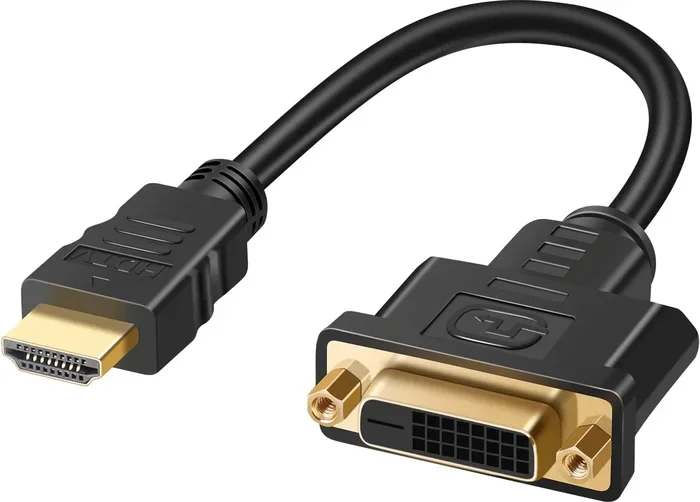
HDMI to DisplayPort conversion means using a device, usually an adapter or active converter, to translate the HDMI signal into a format that a DisplayPort monitor can understand. Think of it like a translator between two people who speak different languages. Without the translator, they cannot understand each other. The adapter fills that gap.
You might need this conversion for several reasons. Maybe your laptop has only HDMI output but your new monitor has only DisplayPort input. Or maybe you are building a custom PC and your graphics card has DisplayPort while your existing devices use HDMI. Whatever the reason, knowing how to bridge this gap is a valuable skill.
Why Are HDMI and DisplayPort Different?
HDMI was developed by a group of electronics companies and became the standard for TVs and home entertainment devices. DisplayPort was created by VESA, a group focused on PC display standards. They serve similar purposes but work differently under the hood.
Here are some key differences between the two:
- Signal type: HDMI uses TMDS signaling while DisplayPort uses a packet-based protocol.
- Connector design: The HDMI connector is larger and has 19 pins. The DisplayPort connector is smaller and has 20 pins.
- Licensing: HDMI requires licensing fees for manufacturers. DisplayPort is royalty-free.
- Common use: HDMI is found on TVs, consoles, and Blu-ray players. DisplayPort is found mostly on PC monitors and graphics cards.
- Audio and video: Both carry audio and video, but DisplayPort handles multiple audio streams more flexibly.
Because of these differences, you cannot simply plug an HDMI cable into a DisplayPort port and expect it to work. You need an adapter or converter to handle the signal translation. This is where the HDMI to DisplayPort adapter comes in.
How HDMI to DisplayPort Conversion Works
Understanding how the conversion process works helps you make better buying decisions. It is not magic. It is electronics engineering designed to bridge two different communication standards.
The Role of the Adapter
An adapter that converts HDMI to DisplayPort does more than just change the physical shape of the connector. It actually converts the digital signal from one format to another. The HDMI source sends out a signal in the HDMI format. The adapter receives that signal, processes it, and then sends out a DisplayPort-compatible signal to your monitor.
This process happens in real time. You do not notice any delay in most cases. But the quality of the conversion depends heavily on the adapter itself. Cheap adapters might not support high resolutions or refresh rates. They might also drop audio or fail to carry a 4K signal at all.
What Happens to Audio and Video?
One of the most common concerns is whether audio travels along with the video during conversion. The good news is that most quality adapters handle both audio and video. HDMI carries both, and DisplayPort carries both. A proper converter keeps both intact during the conversion process.
However, some very cheap adapters may only pass video and drop audio. If you are connecting your PC to a monitor with built-in speakers, this can be a problem. Always check the product specifications before buying. Look for adapters that explicitly state they support audio pass-through.
Does the Conversion Affect Signal Quality?
In most cases, a good adapter will not degrade your signal quality. Modern adapters use high-quality conversion chips that preserve the original resolution and color depth. If you are sending a 4K signal at 60Hz, a quality adapter will deliver that same 4K signal at 60Hz on the other end.
That said, signal quality can be affected by cable length, adapter quality, and the version of HDMI and DisplayPort you are using. A longer cable run or a low-quality adapter can introduce signal loss. This is why choosing a reliable adapter matters more than you might think.
Active vs Passive Adapters for HDMI to DisplayPort
When shopping for an HDMI to DisplayPort adapter, you will quickly encounter two types: active and passive. Understanding the difference is crucial. It can save you from buying the wrong product and ending up with a useless piece of plastic.
What Is a Passive Adapter?
A passive adapter simply changes the physical shape of the connector. It does not process or convert the signal. Passive adapters work when the two connections use the same type of signal. For example, a passive HDMI-to-HDMI adapter works fine because both ends use the same HDMI protocol.
But HDMI and DisplayPort do not use the same signal protocol. So a passive HDMI to DisplayPort adapter will not work. If you see one that claims to be passive and bidirectional, be very careful. It likely will not deliver the results you expect.
What Is an Active Adapter?
An active adapter contains internal electronics that actually convert the signal from HDMI to DisplayPort. It has a chip inside that handles the translation work. This is what you need when converting from HDMI to DisplayPort.
Active adapters usually need power to operate. Many draw power from the USB port on your computer or monitor. Some plug directly into the HDMI source and do not need a separate power source. Always check the power requirements before buying.
Which One Do You Need?
For converting HDMI to DisplayPort, you almost always need an active adapter. Passive options will not work because the two standards use different signal protocols. If a product claims to be passive and bidirectional for HDMI to DisplayPort, approach it with skepticism.
Here are some quick tips for choosing between active and passive:
- Always choose active when converting between HDMI and DisplayPort.
- Check power requirements before purchasing. Some adapters need a USB power source.
- Read reviews to confirm the adapter actually works with your specific devices.
- Avoid ultra-cheap options from unknown brands. They often fail to deliver the promised resolution or refresh rate.
When Do You Need an HDMI to DisplayPort Adapter?
Not everyone needs an HDMI to DisplayPort adapter. But many people do, and they might not even realize it. Here are the most common situations where you will find this conversion essential.
Using an HDMI Source with a DisplayPort Monitor
This is the most common scenario. You have a laptop, game console, or media player with an HDMI output. But your monitor or display only has DisplayPort inputs. Without an adapter, you cannot connect them. An active HDMI to DisplayPort adapter bridges this gap and lets you use your display with any HDMI source.
Gaming Setups
Gamers often want the best possible display performance. Many high-end gaming monitors use DisplayPort connections because they support higher refresh rates and adaptive sync features like FreeSync and G-Sync. But your gaming PC or console might only have HDMI output. In this case, an HDMI to DisplayPort adapter becomes essential for getting the full gaming experience.
Keep in mind that for the best gaming performance, you want an adapter that supports the highest refresh rate your monitor offers. If your monitor supports 144Hz at 1080p or 4K at 120Hz, make sure your adapter can handle those numbers.
Professional and Creative Work
Video editors, graphic designers, and 3D artists often work with high-resolution displays. A 4K monitor with DisplayPort connectivity provides the color accuracy and resolution they need. But their workstation might output HDMI. Converting HDMI to DisplayPort lets creative professionals connect their displays without sacrificing image quality.
Multi-Monitor Setups
If you are building a multi-monitor desk setup, you might have a mix of HDMI and DisplayPort monitors. Converting HDMI to DisplayPort allows you to use all your displays from a single source, regardless of the port types. This is especially useful when your graphics card has limited DisplayPort outputs.
Choosing the Right HDMI to DisplayPort Adapter
Not all adapters are created equal. The market is full of options, and choosing the right one can feel overwhelming. Here is what to look for when shopping for an HDMI to DisplayPort adapter.
Check Version Compatibility
Both HDMI and DisplayPort come in different versions. HDMI has versions like 1.4, 2.0, and 2.1. DisplayPort has versions like 1.2, 1.4, and 2.1. Each version supports different maximum resolutions and refresh rates.
Your adapter must support the version you need. If you want 4K at 60Hz, you need an adapter that supports HDMI 2.0 or higher and DisplayPort 1.2 or higher. For 4K at 120Hz or 8K, you need even newer versions. Always check the specs before buying.
Look for 4K and High Refresh Rate Support
Most modern adapters support 4K resolution. But not all of them support 4K at 60Hz or higher refresh rates. If you want smooth visuals for gaming or video editing, look for adapters that specifically advertise 4K at 60Hz or 4K at 120Hz support.
Here is a quick comparison of what different adapter versions typically support:
- Basic adapters: 1080p at 60Hz, no audio or limited audio support.
- Mid-range adapters: 4K at 30Hz or 60Hz, full audio support.
- Premium adapters: 4K at 60Hz or 120Hz, full audio support, HDR support.
Consider Build Quality and Brand Reputation
Cheap adapters from no-name brands often fail to deliver what they promise. They might overheat, drop the signal, or not support the resolution you need. Stick with reputable brands that have good customer reviews and clear product specifications.
Some well-known brands in the adapter space include brands like Cable Matters, UGREEN, Club3D, and StarTech. These companies invest in quality conversion chips and testing, which means fewer headaches for you.
Does the Adapter Need External Power?
Some HDMI to DisplayPort adapters draw power from the USB port. Others are self-powered through the HDMI connection. If you are using a laptop with limited USB ports, a self-powered adapter might be more convenient. If you are using a desktop with plenty of ports, a USB-powered adapter is usually fine.
Quick tip: always check if your adapter needs a USB cable for power. If it does, make sure you have a free USB port nearby. Forgetting this step is one of the most common reasons adapters fail to work out of the box.
Common Problems and How to Fix Them
Even with the right adapter, you might run into issues. Here are the most common problems people face with HDMI to DisplayPort conversion and how to solve them.
No Signal or Blank Screen
If your monitor shows no signal after connecting through an adapter, do not panic. Try these steps first:
- Make sure both ends of the adapter are firmly plugged in.
- Check if the adapter needs a USB power connection.
- Try a different HDMI port on your source device.
- Test the monitor with a direct DisplayPort connection to rule out monitor issues.
- Restart your computer and check the display settings.
Low Resolution or Flickering
If your display works but shows a lower resolution than expected, the adapter might not be supporting the full resolution of your setup. Update your graphics card drivers and check your display settings. You can also try a different adapter if the problem persists.
No Audio
If video works but you have no sound, check your operating system sound settings. Make sure the DisplayPort output is set as the default audio device. If the adapter does not support audio pass-through, you might need a separate audio solution or a different adapter.
Adapter Overheating
Some adapters get warm during use, which is normal. But if an adapter is too hot to touch, it might be a sign of poor build quality or inadequate power. Unplug it and let it cool down. Consider upgrading to a better-quality adapter that has proper heat management.
Expert Insights on Display Connection Choices
We asked a few display technology experts about HDMI to DisplayPort conversion, and they shared some valuable insights. The consensus is clear: the right adapter makes all the difference.
Dr. Lena Torres, display technology researcher: “Many users underestimate the importance of adapter quality. A cheap adapter might work for basic tasks but will struggle with high resolutions and refresh rates. Always invest in a quality active converter if you need reliable HDMI to DisplayPort conversion.”
Mark Chen, IT hardware specialist: “The biggest mistake I see is people buying passive adapters for HDMI to DisplayPort conversion. It simply does not work because the signal protocols are different. Always go with an active adapter that explicitly states it converts HDMI to DisplayPort.”
These expert opinions reinforce what we have covered throughout this guide. The right adapter, used correctly, gives you seamless conversion between HDMI and DisplayPort without sacrificing quality.
Final Thoughts
So, can you convert HDMI to DisplayPort? Absolutely yes. With the right active adapter, you can connect virtually any HDMI source to a DisplayPort monitor and enjoy full video and audio quality. The key is understanding your needs, checking compatibility, and choosing a quality adapter that supports your desired resolution and refresh rate.
Whether you are setting up a gaming rig, connecting a console to a PC monitor, or building a professional creative workstation, HDMI to DisplayPort conversion gives you the flexibility to use the best display for your needs. Do not let incompatible ports hold you back. With the right adapter in hand, you can connect anything to any display and get great results.
Take the time to choose the right adapter. Check the version compatibility, confirm 4K and refresh rate support, and buy from reputable brands. Your display setup will thank you for it. Happy connecting!
Frequently Asked Questions
Can you plug an HDMI cable directly into a DisplayPort monitor?
No, you cannot plug an HDMI cable directly into a DisplayPort monitor because they use different signal protocols and connector designs. You need an active HDMI to DisplayPort adapter to make the connection work. The adapter converts the HDMI signal into a DisplayPort-compatible format so your monitor can display the content properly.
Do HDMI to DisplayPort adapters support 4K resolution?
Many HDMI to DisplayPort adapters do support 4K resolution, but it depends on the adapter version and quality. Look for adapters that support HDMI 2.0 or higher and DisplayPort 1.2 or higher for 4K at 60Hz. Cheaper or older adapters may only support 4K at 30Hz or lower resolutions.
Why does my HDMI to DisplayPort adapter not work?
The most common reason is that you are using a passive adapter instead of an active one. Passive adapters cannot convert between HDMI and DisplayPort because they use different signal protocols. Also, check if the adapter needs USB power and make sure it is connected. Updating your graphics drivers can also resolve compatibility issues.
Can you convert DisplayPort to HDMI as well?
Yes, you can convert DisplayPort to HDMI using an active DisplayPort to HDMI adapter. The process works in reverse, and the same principles apply. You need an active converter because the two standards use different signal protocols. Always check that the adapter supports your desired resolution and refresh rate.
Does HDMI to DisplayPort conversion affect gaming performance?
A quality HDMI to DisplayPort adapter should not noticeably affect gaming performance. However, a cheap or low-quality adapter might limit your refresh rate or fail to support high resolutions. For the best gaming experience, choose an adapter that supports the refresh rate and resolution of your monitor, and make sure it has proper bandwidth for the frame rates you want.
Are USB-C to DisplayPort adapters the same as HDMI to DisplayPort adapters?
No, they are different. A USB-C to DisplayPort adapter converts a USB-C signal to DisplayPort, while an HDMI to DisplayPort adapter converts an HDMI signal to DisplayPort. Some USB-C ports support HDMI Alt Mode, but that is different from a direct HDMI to DisplayPort conversion. Make sure you buy the right type of adapter for your specific connection needs.
=== CONCLUSION ===
Converting HDMI to DisplayPort is simple, practical, and very doable with the right active adapter. You now know how the conversion works, why active adapters are essential, and what to look for when shopping. You also understand the common problems and how to fix them. With this knowledge, you can confidently set up any display connection in your home or office. Do not let incompatible ports limit your setup. Pick the right adapter, connect your devices, and enjoy your display experience to the fullest.