Can You Mirror Phone Screen Through Usb Without Apps
Yes, you can mirror phone screen through USB without apps. Wired screen mirroring lets you display your phone on a TV, monitor, or projector using a simple cable and adapter. This method works for both Android and iPhone devices and offers a stable, lag-free connection.
Have you ever wanted to show your phone screen on a bigger display without dealing with complicated setups? Can you mirror phone screen through USB without apps? The short answer is yes. You can connect your phone to a TV, monitor, or projector using a simple cable and adapter. No downloads. No subscriptions. Just a direct wired connection that works.
USB screen mirroring is one of the most reliable ways to share your phone display. Whether you are giving a presentation, watching videos, or gaming, a wired connection delivers a smooth and stable experience. Many people do not even realize this is possible without installing extra software.
In this guide, we will walk you through everything you need to know. You will learn how wired mirroring works, which cables and adapters you need, and how to set it up step by step. We will also cover common problems and compare USB mirroring to wireless options. By the end, you will have all the information you need to mirror your phone screen through USB without any apps.
Key Takeaways
- USB screen mirroring works without apps: You can cast your phone display to a larger screen using just a cable and adapter.
- Both Android and iPhone support wired mirroring: Different cables and adapters are needed depending on your device.
- No extra software is required: Built-in features and simple hardware do the job without downloading anything.
- Wired mirroring is more stable: USB connections offer less lag and fewer drops than wireless methods.
- Multiple adapter options exist: HDMI adapters, USB-C hubs, and MHL cables are popular choices.
- Common issues are easy to fix: Most problems with USB mirroring have simple solutions.
- USB mirroring is great for presentations: It is a reliable option for work, school, and home use.
📑 Table of Contents
What Is USB Screen Mirroring?
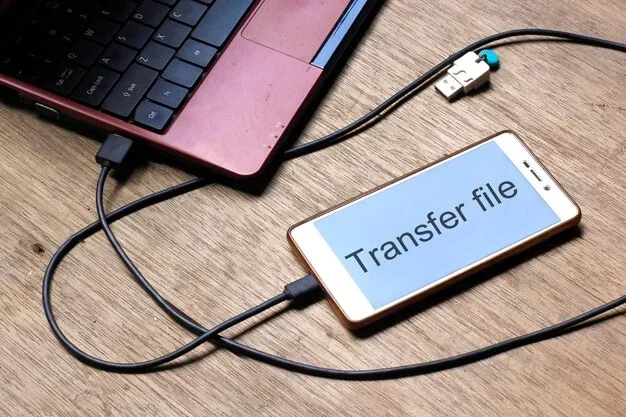
USB screen mirroring means displaying your phone screen on another device using a USB cable. Instead of going wireless through Wi-Fi or Bluetooth, the connection is physical. This direct link sends your phone display to a TV, monitor, or projector in real time.
The process relies on your phone’s ability to output video through its USB port. Many modern phones support this feature natively. You simply plug in the right cable or adapter, and your phone screen appears on the larger display.
How Does Wired Screen Mirroring Work?
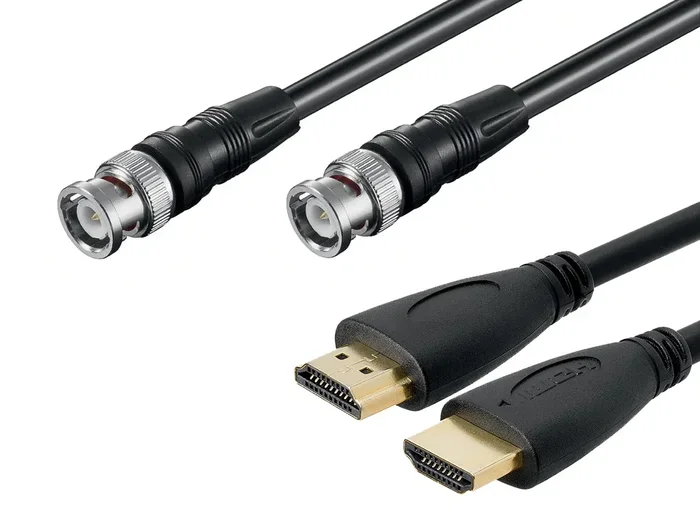
When you connect your phone to a display via USB, the phone sends its screen signal through the cable. The adapter or dock converts this signal into a format the display can understand, usually HDMI. The TV or monitor then shows exactly what is on your phone screen.
This is different from screen casting, which often requires an app or a smart TV with built-in casting features. USB mirroring bypasses all of that. It is a direct, hardware-based connection that works with almost any display that has an HDMI input.
Why Choose USB Over Wireless Mirroring?
There are several reasons to choose a wired connection over wireless methods. First, USB mirroring has almost zero lag. You see exactly what is on your phone in real time. This matters for gaming, presentations, and video calls.
Second, wired connections are more stable. Wi-Fi-based screen sharing can drop, freeze, or lag, especially when the network is busy. A USB cable does not depend on your router or internet speed. It just works.
Third, USB mirroring does not require any apps. You do not need to install anything on your phone or the receiving device. This makes it simple, secure, and free of extra software.
How to Mirror Phone Screen Through USB Without Apps
Setting up USB screen mirroring is straightforward. The exact steps depend on your phone type and the adapter you use. Below, we break down the process for both Android and iPhone devices.
Mirroring Android Phones via USB
Most Android phones support wired screen mirroring through USB. The method you use depends on your phone model and port type. Here is how to do it.
Step 1: Get the right adapter. If your phone has a USB-C port, you need a USB-C to HDMI adapter. If your phone has a micro-USB port, look for a micro-USB to HDMI adapter. Some phones also support MHL technology, which uses a special MHL cable or adapter.
Step 2: Connect the cable. Plug the adapter into your phone. Then connect an HDMI cable from the adapter to your TV or monitor.
Step 3: Switch the display input. On your TV or monitor, change the input source to the correct HDMI port. You should see your phone screen appear on the display.
Step 4: Enable screen output (if needed). Some Android phones require you to enable screen mirroring in the settings. Go to Settings, then look for Display, Cast, or Screen Output. Turn it on if prompted.
Quick Tip: Samsung phones have a built-in feature called Samsung DeX that works great with USB-C to HDMI adapters. It gives you a desktop-like experience on your TV or monitor without any apps.
Mirroring iPhones via USB
iPhone users can also mirror their screen through USB, but the process is slightly different. Apple uses its own connection standards, so the setup requires specific cables and adapters.
Step 1: Get a Lightning to HDMI adapter. Apple sells its own Lightning Digital AV Adapter, which works perfectly for wired screen mirroring. You can also use third-party adapters that are MFi certified.
Step 2: Connect the adapter and cable. Plug the Lightning adapter into your iPhone. Then connect an HDMI cable from the adapter to your TV or monitor.
Step 3: Switch the TV input. Change your TV input to the HDMI port connected to the adapter. Your iPhone screen should appear on the display.
Quick Tip: iPhones do not always show the full screen through USB mirroring. Sometimes only certain apps support video output. If you see a black screen, try opening a video or photo app to test the connection.
Using a USB Hub for Multi-Device Setup
If you want to connect more than one device or use other USB devices while mirroring, a USB hub can help. A USB-C hub with HDMI output lets you plug in your phone, a keyboard, and a flash drive all at once. This is great for presentations or work setups where you need multiple connections.
Look for a powered USB hub to ensure stable performance. A hub that does not have its own power source may struggle with charging and data transfer at the same time.
Best Cables and Adapters for USB Screen Mirroring
Choosing the right cable and adapter is key to a smooth mirroring experience. Not all adapters are the same, and using the wrong one can cause problems. Here are the best options available.
USB-C to HDMI Adapters
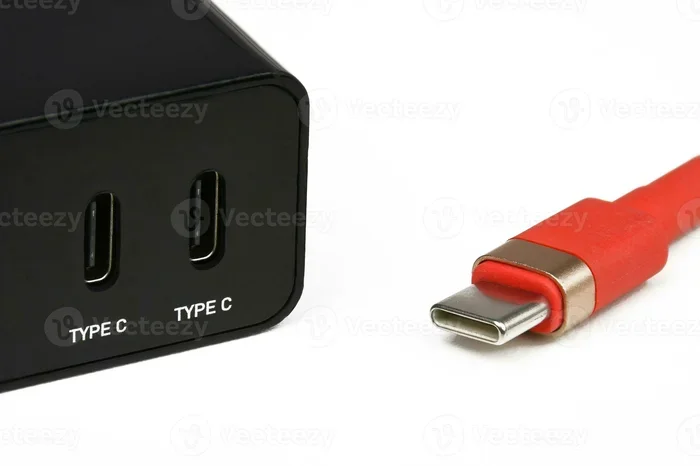
USB-C to HDMI adapters are the most popular choice for modern phones. They work with most Android devices released in the last few years. Look for adapters that support DisplayPort Alt Mode, which ensures full video output through USB-C.
Popular brands include Anker, Belkin, and Cable Matters. These adapters are affordable and reliable. Most cost between $10 and $25.
Lightning to HDMI Adapters
For iPhone users, a Lightning to HDMI adapter is essential. Apple’s official adapter works flawlessly but costs around $50. Third-party options from brands like Belkin and Amazon Basics are cheaper and still work well.
Make sure any third-party adapter is MFi certified. This means Apple has approved it for use with iPhones. Non-certified adapters may not work or could cause connection issues.
MHL Cables and Adapters
MHL, or Mobile High-Definition Link, is an older standard for wired screen mirroring. It was popular before USB-C became common. Many older Android phones support MHL through a special MHL-enabled HDMI adapter or cable.
Check if your phone supports MHL before buying an MHL adapter. You can usually find this information in your phone’s specifications or on the manufacturer’s website.
USB-C Hubs with HDMI Output
A USB-C hub is a versatile option if you need more than just screen mirroring. These hubs often include HDMI output, USB ports, SD card slots, and charging ports. They are perfect for people who want a one-stop solution for their connectivity needs.
When choosing a USB-C hub, look for one that supports 4K video output. This ensures your mirrored screen looks sharp and clear on your TV or monitor.
Common Problems and How to Fix Them
USB screen mirroring is generally reliable, but you may run into issues from time to time. Here are the most common problems and how to solve them.
No Signal on the TV or Monitor
If your TV shows no signal, start by checking your connections. Make sure the HDMI cable is firmly plugged in at both ends. Try a different HDMI cable if the current one seems damaged.
Also, check that your TV is set to the correct HDMI input. Sometimes the TV defaults to the wrong port, especially if you have multiple devices connected.
Black Screen or Flickering Display
A black screen or flickering can happen for several reasons. First, make sure your phone is unlocked and awake. Some phones stop sending video output when the screen is off or locked.
Second, try a different adapter. Faulty adapters are a common cause of display issues. If you are using a third-party adapter, it may not be fully compatible with your phone.
Third, restart both your phone and the TV. A simple reboot can fix many connection problems.
Audio Not Working
If the video shows but there is no sound, check your TV audio settings. Make sure the TV is set to receive audio through HDMI, not through its internal speakers or a connected Bluetooth device.
On your phone, go to Settings, then Sound, and make sure media audio is turned on. Some phones have a separate audio output setting that lets you choose where sound plays.
Lag or Delay in the Display
USB mirroring is usually very responsive, but lag can happen. This is more common with longer HDMI cables or low-quality adapters. Use a short, high-quality HDMI cable for the best results.
If you are using a USB hub, make sure it is powered. Unpowered hubs can cause slowdowns because they share power between connected devices.
Phone Does Not Support USB Video Output
Not all phones support video output through USB. Older or budget phones may lack this feature. Check your phone’s specifications online to confirm support before buying an adapter.
If your phone does not support wired mirroring, you can still use wireless methods like Chromecast, AirPlay, or Miracast. These do not require a USB connection but do need a Wi-Fi network.
USB Mirroring vs Wireless Mirroring
Both USB and wireless mirroring have their strengths. Understanding the differences helps you choose the right method for your needs.
Stability and Reliability
USB mirroring wins when it comes to stability. A wired connection does not depend on Wi-Fi signal strength or network congestion. You get a consistent, uninterrupted connection every time.
Wireless mirroring can be affected by distance from the router, interference from other devices, and network traffic. In busy environments like offices or apartments, wireless connections may drop or lag.
Video Quality
USB mirroring supports high-quality video output, including 1080p and 4K resolution. The video quality depends on your adapter and cable, but wired connections generally deliver sharper and more detailed images.
Wireless mirroring quality varies based on your Wi-Fi speed and the casting protocol used. Some wireless methods compress the video signal, which can reduce image quality slightly.
Convenience and Portability
Wireless mirroring is more convenient because it does not require cables or adapters. You can cast from anywhere in your Wi-Fi range. This makes it ideal for casual use at home.
USB mirroring requires you to be physically connected to the display. This limits mobility but provides a more reliable and professional setup. For presentations or work environments, USB mirroring is often the better choice.
Cost Comparison
USB mirroring requires a one-time purchase of an adapter or cable. These typically cost between $10 and $50. There are no recurring fees or subscriptions.
Wireless mirroring is usually free if you already have a smart TV or casting device. However, dedicated casting devices like Chromecast or Apple TV cost money upfront. Some wireless apps also offer premium features for a fee.
| Feature | USB Mirroring | Wireless Mirroring |
|---|---|---|
| Connection Type | Wired (cable + adapter) | Wi-Fi or Bluetooth |
| Stability | Very stable | Can fluctuate |
| Lag | Minimal to none | Varies with network |
| Video Quality | Up to 4K | Up to 1080p typically |
| Mobility | Limited by cable length | Free movement within range |
| Setup Complexity | Simple plug-and-play | May require app setup |
| Cost | One-time adapter cost | Free or device cost |
| App Required | No | Sometimes |
Is USB Screen Mirroring Worth It?
USB screen mirroring without apps is a practical and reliable solution for many situations. It is especially useful for people who need a stable, high-quality connection for presentations, gaming, or media playback.
The biggest advantage is simplicity. You plug in a cable, and your phone screen appears on the TV. No apps to download, no accounts to create, no subscriptions to pay. It works with the hardware you already have.
For Android users, USB-C to HDMI adapters are affordable and widely available. For iPhone users, Lightning to HDMI adapters are easy to find and set up. Both options deliver excellent results without any software.
If you value stability and quality over convenience, USB mirroring is absolutely worth it. It may not be as flexible as wireless casting, but it beats wireless in reliability and performance every time.
Consider USB screen mirroring if you frequently give presentations, share content with a group, or want a secondary display for your phone. It is a simple, effective, and app-free solution that works with almost any phone and display.
In short, yes, you can mirror phone screen through USB without apps. The method is straightforward, affordable, and delivers a premium viewing experience. Whether you are at home, at work, or on the go, a wired connection gives you a dependable way to share your phone screen with the world.
Frequently Asked Questions
Can you mirror phone screen through USB without apps on any TV?
Most TVs with an HDMI input support USB screen mirroring. You just need the right adapter for your phone. Simply connect the adapter to your phone, plug in an HDMI cable, and switch your TV to the correct input. The setup works on virtually any TV with an available HDMI port.
Do I need a special cable to mirror my phone screen through USB?
Yes, you need the correct adapter for your phone model. Android phones typically require a USB-C to HDMI adapter, while iPhones need a Lightning to HDMI adapter. These adapters are inexpensive and widely available online and in electronics stores.
Is USB screen mirroring better than wireless mirroring?
USB mirroring is more stable and has less lag than wireless methods. It does not depend on Wi-Fi signal strength or network congestion. However, wireless mirroring offers more freedom of movement. For presentations and professional use, USB mirroring is usually the better choice.
Does USB mirroring work with all Android phones?
Most modern Android phones support USB video output, but some older or budget models may not. Check your phone’s specifications to confirm it supports DisplayPort Alt Mode or MHL. If your phone does not support wired output, wireless mirroring is a good alternative.
Can I charge my phone while mirroring through USB?
Yes, many USB-C to HDMI adapters include a pass-through charging port. This lets you plug in a charging cable while your phone is mirrored. If your adapter does not have this feature, your phone battery may drain faster during extended mirroring sessions.
Why is my USB screen mirroring showing a black screen?
A black screen usually means the connection is not working properly. Try unplugging and replugging the adapter and cable. Make sure your phone is unlocked and the screen is awake. Switching to a different HDMI cable or adapter often fixes the issue. Restarting both your phone and the TV can also help.
=== CONCLUSION ===
Can you mirror phone screen through USB without apps? Absolutely. Wired screen mirroring is a simple, reliable, and app-free way to display your phone on a larger screen. Whether you use an Android phone or an iPhone, the right adapter and cable make it easy to get started.
USB mirroring offers stable connections, high-quality video, and no need for extra software. It works with most TVs and monitors that have HDMI inputs. The setup takes just a few minutes, and the results are impressive.
If you want a dependable way to share your phone screen for work, school, or entertainment, USB mirroring is a great option. Grab the right adapter, plug in your cable, and start displaying your phone on the big screen today.