Can You Get An Ethernet To Hdmi Adapter For Your Setup
Yes, you can get an ethernet to HDMI adapter to connect a network-enabled device directly to your display. These adapters convert a network signal into a high-quality HDMI output for streaming, presentations, and media playback. Whether you need a simple plug-and-play solution or a more advanced converter, the right adapter depends on your devices and setup goals.
Have you ever stared at a device with an ethernet port and a TV with only an HDMI input? You are not alone. Many people run into this problem when setting up a home office, a media center, or a digital signage display. The good news is that you can get an ethernet to HDMI adapter to bridge that gap. This guide breaks down everything you need to know about making this connection work.
We will walk through how these adapters function, what types exist, and how to pick the right one for your needs. You will also find practical setup tips and answers to the most common questions. By the end, you will feel confident about adding this connectivity solution to your setup.
Key Takeaways
- Ethernet to HDMI adapters exist: They convert a network signal into a display-ready HDMI output for TVs, monitors, and projectors.
- Two main types are available: Active converters and built-in adapters, each serving different needs and budgets.
- Compatibility matters: Check your device’s HDMI version, Ethernet support, and resolution requirements before buying.
- Setup is straightforward: Most adapters plug in and configure in minutes with no special software needed.
- Common issues are fixable: Problems like no signal or poor quality often stem from cable quality or settings.
- Use cases are diverse: From home theater setups to office presentations, these adapters solve real connectivity gaps.
- Buy from reputable brands: Quality adapters ensure stable signal and long-term reliability.
📑 Table of Contents
What Is an Ethernet to HDMI Adapter?
An ethernet to HDMI adapter is a small device that takes a network signal and converts it into an HDMI output. This allows you to send video and audio from a network-connected device to a display that only has HDMI inputs. Think of it as a translator between two different types of connections.
These adapters come in various shapes and sizes. Some are compact dongles that plug directly into a port. Others are larger boxes that sit between your devices. The core job remains the same, though: turning a network data stream into a visible image and sound on your screen.
How Does the Conversion Work?
Here is the simple version. A device sends video and audio data over a network cable using a protocol like IP or UPnP. The adapter receives this data and decodes it. Then it pushes the decoded signal out through the HDMI port to your TV or monitor. The entire process happens in real time, so you see smooth playback with minimal delay.
Some adapters handle decoding internally. Others rely on the source device to do the heavy lifting and just pass along the HDMI signal. This distinction matters when you are choosing a product, as we will cover later.
Why You Might Need an Ethernet to HDMI Adapter
You might wonder why someone would need this kind of adapter in the first place. The answer is simpler than you think. Many modern devices connect to networks but lack a direct HDMI output. Or sometimes, the HDMI port on your display is already in use for another source. An adapter solves both of these problems elegantly.
Common Use Cases
Here are some real-world situations where an ethernet to HDMI adapter makes a big difference:
- Digital signage in offices or retail spaces: You can push content from a server to multiple screens over the network without running long HDMI cables.
- Home theater setups: A media player or streaming box that only has network output can feed content to your TV through an adapter.
- Conference rooms: Presenters can share content from a laptop connected to the room network and display it on a large HDMI monitor.
- Classroom technology: Teachers can stream educational content from a network source to a classroom projector or display.
- Legacy equipment integration: Older displays with HDMI inputs can work with newer network-based media sources through a converter.
Each of these scenarios highlights a genuine need for converting a network signal into a display-ready format. Without the adapter, you would need extra hardware or complicated workarounds.
Types of Ethernet to HDMI Adapters
Not all adapters are created equal. There are two broad categories to understand before you make a purchase. Knowing the difference helps you avoid buying the wrong product.
Active Converters
Active converters do the heavy lifting of decoding the network signal themselves. They contain processing chips that translate the data into HDMI output. These tend to be more versatile and work with a wider range of source devices. You will often find them in the form of external boxes or powered dongles.
Active converters usually support higher resolutions and better audio formats. They are ideal for setups where picture quality and reliability matter most. The trade-off is that they sometimes need external power, which adds a small amount of bulk to your setup.
Built-in Adapters
Some devices come with built-in ethernet to HDMI capability. Certain smart TVs, media players, and display systems include network input options natively. You do not need a separate adapter in these cases. Instead, you simply connect the network cable to the device and configure the settings.
Built-in solutions are convenient because they require no extra hardware. However, they limit your choices to devices that already have this feature. If your display or source device does not support it, you will need an external adapter instead.
HDMI Extenders with Ethernet Support
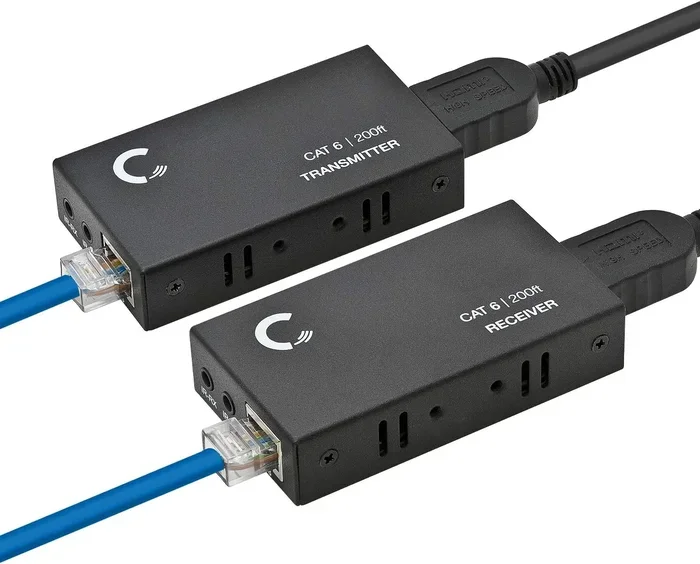
Another related product is the HDMI extender that uses ethernet cabling. These are not exactly adapters but serve a similar purpose. They send HDMI signals over long distances using network cables. This is especially useful when your display sits far away from your source device.
While an HDMI extender does not convert a network data stream into HDMI, it leverages ethernet infrastructure to extend the reach of an existing HDMI connection. This distinction matters when you are shopping for the right solution.
How to Choose the Right Adapter
Picking the right adapter involves checking a few key factors. Do not just grab the cheapest option. Take a moment to match the adapter to your specific needs.
Key Features to Look For
- Resolution support: Make sure the adapter supports the resolution of your display. Look for 1080p or 4K depending on your setup.
- Audio compatibility: Check if the adapter supports the audio formats you need, such as stereo, 5.1 surround, or Dolby Digital.
- HDMI version: Match the adapter’s HDMI version to your display. HDMI 2.0 and HDMI 2.1 offer better bandwidth for high-resolution content.
- Network protocol support: Confirm the adapter works with the network protocol your source device uses, such as UPnP or RTSP.
- Build quality: Go for adapters with solid construction and good heat management, especially if you plan to run them for hours.
- Ease of setup: Look for plug-and-play designs that do not require complex configuration or additional software.
Quick Comparison Table
| Feature | Active Converter | Built-in Adapter | HDMI Extender |
|---|---|---|---|
| Signal Conversion | Yes (network to HDMI) | Native | No (extends HDMI over ethernet) |
| Resolution Support | Up to 4K on good models | Depends on device | Up to 1080p or 4K |
| External Power Needed | Often yes | No | Usually yes |
| Setup Complexity | Low to medium | Very low | Low |
| Price Range | Moderate to high | Included with device | Low to moderate |
| Best For | Versatile setups | Native device support | Long cable runs |
This table gives you a quick visual reference. Keep it handy when you are comparing products online or in a store.
Step-by-Step Setup Guide
Setting up an ethernet to HDMI adapter is usually simple. Follow these steps to get your display up and running quickly.
- Unbox the adapter: Take it out of the packaging and check that all parts are included. Most adapters come with the unit, a power cable, and an HDMI cable.
- Connect the network cable: Plug one end of your ethernet cable into the adapter’s network port and the other end into your router or network switch.
- Connect the HDMI cable: Run an HDMI cable from the adapter’s HDMI output to your TV or monitor’s HDMI input.
- Power the adapter: If the adapter needs external power, plug in the power adapter and switch it on. Some passive dongles draw power directly from the source device.
- Switch your display input: On your TV or monitor, switch to the correct HDMI input channel using the remote or on-screen menu.
- Configure the source device: On the device sending the network signal, go to its settings and enable display output or screen mirroring over the network.
- Test the connection: Play a video or image to confirm that the picture and sound are coming through clearly on your display.
That is it. Most setups take less than five minutes. If something does not work right away, do not worry. We will cover troubleshooting next.
Common Problems and How to Fix Them
Even with the best adapter, you might run into hiccups. Here are the most common issues and their fixes.
No Signal on the Display
If your screen shows no signal, start by checking the HDMI cable connections. Make sure both ends are firmly plugged in. Then verify that your TV or monitor is on the correct input channel. A loose cable or wrong input is the culprit in most cases.
Next, check the network connection. Ensure the ethernet cable is securely connected to both the adapter and the router. A blinking network light on the adapter usually means data is flowing.
Poor Picture Quality
Blurry or pixelated video often means the adapter or cable does not support your display’s resolution. Try lowering the output resolution on your source device to see if the picture improves. Also, make sure you are using a high-quality HDMI cable rated for the resolution you need.
No Audio
If you have video but no sound, check your display’s audio settings. Make sure the HDMI input is set as the audio source. You may also need to adjust the audio output settings on your source device to route sound through HDMI instead of other outputs.
Lag or Delay
A slight delay is normal with some network-based adapters. If the lag is noticeable, try reducing the resolution or frame rate on the source device. Also, make sure your network is not overloaded with heavy traffic, as this can slow down the data stream.
Expert Tips for Best Performance
A few small adjustments can make a big difference in how well your adapter works. Here are some tips from people who use these setups every day.
- Use a short ethernet cable: Keep the network cable as short as possible to reduce signal loss and interference.
- Choose a dedicated network port: If your router has multiple ports, plug the adapter into a port that is not shared with heavy traffic.
- Update firmware when available: Some adapters receive firmware updates that improve performance and fix bugs. Check the manufacturer’s website periodically.
- Use a powered USB hub: If your adapter draws power from a USB port, use a powered hub to ensure a stable power supply.
- Keep the adapter ventilated: Do not place the adapter in a closed cabinet. Good airflow prevents overheating, which can cause dropped signals.
These tips are easy to follow and cost nothing extra. They can extend the life of your adapter and keep your display running smoothly.
Frequently Asked Questions
Can any TV work with an ethernet to HDMI adapter?
Most TVs with an HDMI input will work with an ethernet to HDMI adapter. You just need to make sure the adapter’s output matches your TV’s HDMI version. Check your TV’s specs for the HDMI version it supports, and choose an adapter that matches or exceeds it. Almost all modern TVs from the last decade have HDMI ports that work with these adapters.
Do I need special software to use an ethernet to HDMI adapter?
Most adapters work without any special software. They are plug-and-play devices that handle the conversion automatically. Some advanced models may come with a companion app for configuration, but this is not common. Check the product description before buying if you want a completely software-free setup.
Can I use an ethernet to HDMI adapter for gaming?
It depends on the adapter and the game. For casual gaming or streaming cloud games over the network, these adapters work well. However, for fast-paced competitive gaming, the slight input delay from network conversion may be noticeable. If you are a serious gamer, a direct HDMI connection is always better for response time.
What is the difference between an ethernet to HDMI adapter and an HDMI extender?
An ethernet to HDMI adapter converts a network data signal into an HDMI output. An HDMI extender sends an existing HDMI signal over an ethernet cable to reach a distant display. They serve different purposes. The adapter creates a new HDMI signal from network data, while the extender simply lengthens an existing one.
Are expensive adapters worth the money?
Generally, yes. More expensive adapters tend to offer better build quality, higher resolution support, and more reliable performance. They also often come with warranties and customer support. However, you do not always need the most expensive option. A mid-range adapter from a reputable brand usually handles most home and office setups just fine.
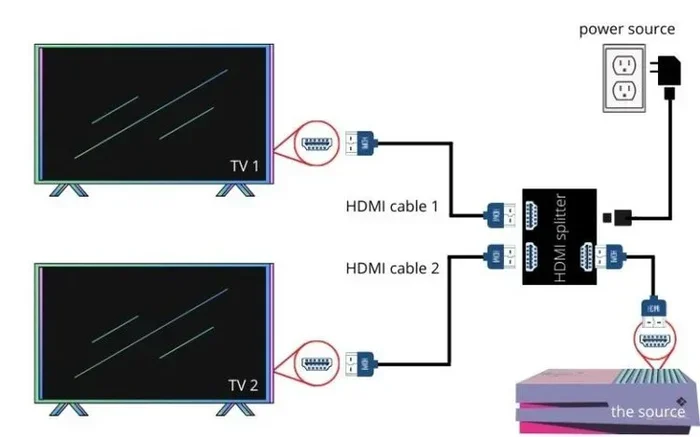
Can I connect multiple displays to one adapter?
Most single adapters support only one display output. If you need to connect multiple screens, look for adapters or systems designed for multi-display setups. Some network-based digital signage solutions allow one source to feed multiple adapters, each connected to a separate display. Check the product specifications to confirm multi-display support before purchasing.
Final Thoughts
So, can you get an ethernet to HDMI adapter for your setup? Absolutely. Whether you need to connect a network device to a TV, set up a digital signage display, or solve a connectivity problem in your office, the right adapter makes it possible. These small devices pack a lot of convenience into a compact package.
Start by identifying what you need from your setup. Consider the resolution, audio quality, and ease of use. Pick an adapter that matches your requirements and budget. Follow the setup steps we covered, and you will be up and running in minutes. If you run into any issues, the troubleshooting tips above should help you get back on track quickly.
An ethernet to HDMI adapter is a simple yet powerful tool that fills a real connectivity gap. It opens up new possibilities for how you use your displays and network devices. With the right choice and a little patience, your setup will work exactly the way you want it to.