Can You Replace A VGA Port With HDMI And Why It Matters
Yes, you can replace a VGA port with HDMI using adapters, converters, or by upgrading your graphics card. This switch brings sharper resolution, digital audio, and better signal quality to your setup. Understanding the process helps you make the right choice for your display needs.
You plug in your old monitor and notice the fuzzy, blurry image. The VGA cable looks worn out, and you wonder if there is a better way to connect. Can you replace a VGA port with HDMI? The short answer is yes, and the reasons why it matters go far beyond just a cleaner picture. Switching from VGA to HDMI changes how your device communicates with your display, and it opens the door to higher resolution, digital audio, and a more reliable connection.
Many people still use devices with VGA ports. Old desktop computers, projectors, and legacy monitors rely on this decades-old connector. But technology has moved on. HDMI offers a digital signal that carries both video and audio through one cable. If you want better image quality and fewer cable messes, making the switch is worth your time.
Key Takeaways
- VGA is analog: Older VGA ports send a degraded analog signal that limits resolution and clarity.
- HDMI is digital: Switching to HDMI delivers crisper visuals and built-in audio through a single cable.
- Adapters work: You can use a VGA to HDMI converter to bridge older devices with modern displays.
- Hardware upgrades are an option: Replacing your graphics card or motherboard can add native HDMI support.
- Signal quality matters: Cheap adapters can introduce lag, ghosting, and resolution loss.
- Legacy systems need care: Older machines running proprietary operating systems may need extra drivers for HDMI compatibility.
📑 Table of Contents
- What Is a VGA Port and Why Is It Outdated?
- What Is HDMI and Why Does It Matter?
- Can You Physically Replace a VGA Port with HDMI?
- How to Convert VGA to HDMI Step by Step
- Why Switching from VGA to HDMI Makes a Real Difference
- Common Mistakes When Replacing VGA with HDMI
- Expert Tips for a Smooth Transition
- Quick Tips Summary
- Final Thoughts
What Is a VGA Port and Why Is It Outdated?
A VGA port is an analog video connection that dates back to 1987. IBM introduced it with their PS/2 computers, and it became the standard for connecting monitors to desktops and laptops. The connector has 15 pins arranged in three rows. It carries only video signals, not audio. Over the years, the limitations of VGA became more obvious.
How VGA Signal Works
VGA sends an analog signal from your computer to your display. The graphics card converts digital data into an analog waveform. The monitor then converts it back to digital. This double conversion causes signal loss. You may notice ghosting, blurriness, or color shifts, especially at higher resolutions. The cable also picks up electromagnetic interference from nearby electronics.
The maximum practical resolution for VGA is around 2048 x 1536. But even at that level, the image quality drops compared to digital connections. Longer VGA cables make the problem worse. Signal degradation increases with distance, and you lose clarity fast.
Why VGA Still Exists
Despite being outdated, VGA persists for a few reasons. Many older machines run proprietary operating systems that only support VGA output. Industrial equipment, medical devices, and legacy point-of-sale systems often rely on VGA because replacing the hardware is expensive. Some projectors in classrooms and conference rooms still use VGA because upgrading the entire setup costs too much. But for most home and office users, the time has come to move on.
What Is HDMI and Why Does It Matter?
HDMI stands for High-Definition Multimedia Interface. It launched in 2003 and quickly became the standard for audio and video connections. Unlike VGA, HDMI carries a fully digital signal. This means no conversion losses. The image stays sharp from your graphics card to your screen.
Key Benefits of HDMI Over VGA
- Digital signal quality: HDMI sends data without converting it to analog first. The picture stays crisp and clear.
- Audio support: HDMI carries both video and audio in one cable. You do not need a separate audio connection.
- Higher resolutions: HDMI supports 4K, 8K, and even higher resolutions depending on the version. VGA simply cannot compete.
- Better color depth: HDMI supports deeper color ranges, including HDR and expanded color gamuts.
- Smaller connectors: HDMI connectors are more compact than the bulky VGA port. This helps with cable management.
- CEC support: HDMI allows Consumer Electronics Control, which lets you control multiple devices with one remote.
These benefits make HDMI the clear choice for modern setups. If you are asking whether you can replace a VGA port with HDMI, the answer is a strong yes, and the improvements in display quality alone justify the effort.
Can You Physically Replace a VGA Port with HDMI?
This is where things get interesting. You have a few options depending on your situation. Let us break them down.
Option 1: Use a VGA to HDMI Adapter
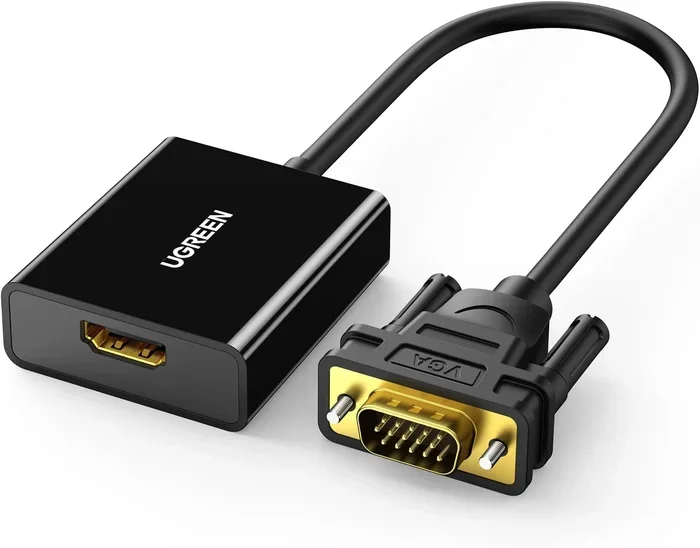
The easiest and most affordable way to connect a VGA output to an HDMI display is with a converter. A VGA to HDMI adapter takes the analog signal from your VGA port, converts it to digital, and outputs it through an HDMI cable. These adapters are widely available and cost between $10 and $40.
Here is what you need to know about adapters:
- They work best for one-way connections from VGA to HDMI.
- Some models include a 3.5mm audio jack for sound.
- Cheap adapters may introduce signal lag or lower the resolution.
- You need to install drivers on some systems for the converter to work properly.
Keep in mind that an adapter does not replace the VGA port itself. It sits between your device and the display. If you want a permanent solution, you need to look at hardware upgrades.
Option 2: Upgrade Your Graphics Card
If your desktop computer has a VGA-only output, you can replace the graphics card. Most modern graphics cards come with multiple HDMI ports, DisplayPort connections, and sometimes DVI. Swapping out an old card takes a few minutes and instantly gives you digital video output.
Here is a simple process to follow:
- Turn off your computer and unplug it.
- Open the case and locate the graphics card.
- Unscrew the bracket and release the card from the PCIe slot.
- Install the new graphics card and secure it.
- Close the case, plug in the power, and install drivers.
- Connect your HDMI cable to the new port.
This option works well for desktop PCs. Laptops are trickier because the graphics chip is usually soldered to the motherboard. In most cases, you cannot replace the GPU in a laptop.
Option 3: Replace the Motherboard
On some older computers, the VGA port is built into the motherboard. If the graphics card is integrated, you may need to replace the entire motherboard to get HDMI support. This is the most expensive option and usually only makes sense if the rest of the system also needs an upgrade.
Before going this route, consider whether a VGA to HDMI adapter solves your problem. In most cases, it does. Replacing a motherboard is a last resort for most users.
How to Convert VGA to HDMI Step by Step
Converting your connection is straightforward if you follow the right steps. Here is a practical guide to get you from VGA to HDMI without headaches.
Step 1: Check Your Current Setup
Look at the back of your computer or device. Do you see a VGA port? It is usually blue and has 15 pin holes. Now check your monitor or TV. Does it have an HDMI input? Most modern displays do. If both devices have the right ports, you are ready to buy a converter.
Step 2: Choose the Right Converter
Not all VGA to HDMI converters are the same. Look for one that supports your desired resolution. If you want 1080p output, make sure the adapter handles at least that. Some converters only go up to 720p, which looks blurry on larger screens.
Consider these factors when choosing:
- Resolution support: Pick one that matches or exceeds your display’s native resolution.
- Audio capability: If you need sound, choose a converter with a built-in 3.5mm audio output.
- Build quality: Metal housings tend to perform better than plastic ones. They also last longer.
- Driver compatibility: Check if the converter needs specific drivers for your operating system.
Step 3: Connect and Configure
Once you have your converter, plug the VGA cable into your computer. Connect the HDMI cable from the converter to your display. If the converter has an audio jack, plug in a 3.5mm cable to your speakers or headphones. Then go into your display settings and configure the output resolution.
On Windows, right-click the desktop and select Display Settings. On macOS, go to System Settings and click Displays. Set the resolution to match your monitor’s native capability. This step ensures the best possible image quality.
Step 4: Test and Troubleshoot
After connecting everything, test the display. Check for a clear image, proper colors, and audio output if applicable. If the picture looks fuzzy, try shortening the VGA cable or using a higher-quality converter. If there is no signal, make sure the converter is powered on (some models need USB power) and that you have installed any required drivers.
Why Switching from VGA to HDMI Makes a Real Difference
The difference between VGA and HDMI is not just technical jargon. You can see and hear it every time you turn on your display. Here is why making the switch matters in real-world use.
Image Clarity
HDMI delivers a pixel-perfect image because it sends a digital signal. VGA tries to replicate that same image using analog waves, and it never quite gets it right. Text looks sharper on HDMI. Colors are more vibrant. Edges are cleaner. If you do any work with images, video editing, or graphic design, the difference is immediately noticeable.
Audio Integration
With VGA, you need a separate audio cable or connection. HDMI bundles video and audio into one signal. This means fewer cables, less clutter, and a simpler setup. It also means your audio sync stays perfect because both signals travel together.
Future-Proofing Your Setup
VGA technology stopped evolving years ago. HDMI continues to improve with each new version. HDMI 2.1 supports 4K at 120Hz and 8K at 60Hz. By switching to HDMI now, you prepare your setup for future devices and higher standards. You do not want to be stuck with a VGA-only connection when new hardware arrives.
It is also worth noting that modern digital communication standards have evolved significantly, and older analog methods like VGA simply cannot keep up with the demands of today’s high-bandwidth content delivery. Even in enterprise environments where value-added networks for electronic commerce communication are used, digital video standards play a supporting role in overall infrastructure modernization.
Common Mistakes When Replacing VGA with HDMI
Many people run into problems when switching from VGA to HDMI. Here are the most common mistakes and how to avoid them.
Buying a Cheap, Low-Quality Converter
A $5 converter from an unknown brand might seem like a deal. But these often fail to convert the signal properly. You get a blurry image, no audio, or intermittent connection. Invest in a reputable brand with good reviews. The extra $10 to $20 is worth the reliability.
Ignoring Driver Installation
Some VGA to HDMI converters need specific drivers to work. If you plug everything in and get no signal, check the manufacturer’s website for software. Installing the correct driver often fixes the problem instantly.
Using the Wrong Cable Length
Longer cables weaken the signal. Keep your HDMI cable under 15 feet for the best results. If you need a longer run, use an HDMI signal booster or switch to fiber optic HDMI cables.
Forgetting to Set the Correct Resolution
After connecting, always check your display settings. If the resolution is set too high or too low, the image will look wrong. Match the output to your monitor’s native resolution for the clearest picture.
Assuming All HDMI Ports Are the Same
Not all HDMI ports support the same features. An HDMI 1.4 port handles 4K at 30Hz. An HDMI 2.0 port handles 4K at 60Hz. An HDMI 2.1 port handles 4K at 120Hz. Check your port version before buying a converter or cable to make sure you get the performance you expect.
Expert Tips for a Smooth Transition
Here are some practical tips from people who have made the switch from VGA to HDMI many times over.
- Test before you commit: Try the adapter for a day before making any permanent hardware changes. This saves time and money.
- Keep your old VGA cable: You may need it for older devices that do not have HDMI. Keeping both options gives you flexibility.
- Label your cables: Once you switch, label your HDMI cables so you do not accidentally grab the wrong one later.
- Update your graphics drivers: Fresh drivers improve HDMI compatibility and often fix display issues right away.
- Consider a docking station: If you use a laptop, a USB-C docking station with HDMI output gives you a clean, single-cable solution for modern displays.
Making the switch from VGA to HDMI is one of the simplest upgrades you can do. It costs little, takes minutes, and delivers a noticeable improvement in every aspect of your display experience.
Quick Tips Summary
- Always check compatibility: Make sure your converter supports your desired resolution and has audio if you need it.
- Invest in quality: A well-built adapter from a trusted brand outperforms a cheap no-name alternative every time.
- Keep cables short: Shorter HDMI cables deliver stronger signals and fewer problems.
- Update drivers: Fresh graphics drivers solve most HDMI connection issues.
- Know your HDMI version: Different HDMI versions support different features and resolutions.
Final Thoughts
The answer to can you replace a VGA port with HDMI is a clear and confident yes. Whether you use an adapter, upgrade your graphics card, or replace your motherboard, the path to digital video is open. The benefits are real: sharper images, built-in audio, higher resolutions, and a future-proof setup.
VGA served us well for decades. But it is time to let it go. HDMI offers everything VGA cannot. Better quality, simpler connections, and room to grow with new technology. If you still have devices with VGA outputs, now is the perfect time to make the switch. Your eyes will thank you every time you turn on your display.
Take a look at your setup today. Identify which devices still use VGA. Decide whether an adapter or a hardware upgrade makes more sense. Make the change and enjoy the difference that a modern digital connection brings to your daily computing experience.
Frequently Asked Questions
Can I connect a VGA device to an HDMI monitor without an adapter?
No, you cannot connect VGA and HDMI directly. The two connectors use different signal types. VGA is analog and HDMI is digital. You need a VGA to HDMI converter or adapter to bridge the gap between them.
Will a VGA to HDMI adapter support 4K resolution?
Most VGA to HDMI adapters max out at 1080p or 720p. VGA itself was never designed for 4K output. If you need 4K resolution, you will need a device with a native digital output like DisplayPort or HDMI.
Can I get audio through a VGA to HDMI adapter?
Some adapters include a 3.5mm audio output that you can connect to speakers or headphones. However, VGA itself does not carry audio. The adapter handles the audio conversion separately from the video signal.
Is it better to upgrade my graphics card or buy an adapter?
An adapter is cheaper and easier. It works well for occasional use or temporary setups. A graphics card upgrade gives you permanent HDMI support and better overall performance. Choose based on your budget and how often you need the connection.
Why does my VGA image look blurry compared to HDMI?
VGA sends an analog signal that loses quality through conversion. The analog-to-digital and digital-to-analog processes introduce noise and blur. HDMI sends a clean digital signal that preserves every pixel exactly as intended.
Can I replace a VGA port on my motherboard with an HDMI port?
Replacing a port on a motherboard is extremely difficult and not recommended. It is better to use an adapter or upgrade your graphics card. Motherboard-level port replacement requires soldering skills and specialized equipment.
=== CONCLUSION ===
Switching from VGA to HDMI is one of the most worthwhile upgrades you can make to your display setup. The process is simple, affordable, and delivers immediate improvements in image quality, audio integration, and overall reliability. Whether you choose a converter adapter or invest in a new graphics card, you are choosing a better visual experience and a more modern connection standard.
Do not let outdated technology hold you back. Make the switch today and see the difference that HDMI brings to your screen. Once you go digital, you will never want to go back to fuzzy analog signals again.