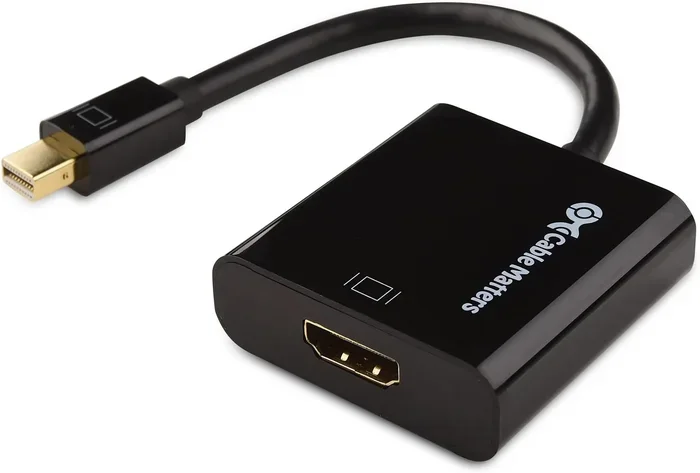
Can You Run Displayport To Hdmi Everything You Need To Know
Yes, you can run Displayport to HDMI using an adapter or converter. This guide covers everything about signal conversion, compatibility, resolution support, and common issues you may face. You will learn which adapter type works best for your setup and how to avoid costly mistakes.
Can You Run Displayport To Hdmi? The short answer is yes. You can absolutely connect a Displayport source to an HDMI display. But the process is not always as simple as plugging in a cable. You need the right adapter, the right type, and a basic understanding of how signal conversion works.
Whether you are hooking up a gaming monitor, a home theater setup, or a workstation with a Displayport output, this guide has you covered. We will walk through every step of the process. You will learn about active and passive adapters, resolution limits, audio support, and the common mistakes that trip people up. By the end, you will know exactly what to buy and how to set it up.
The world of display connections can feel confusing. There are different connector types, signal standards, and compatibility rules to keep track of. But do not worry. We will break it all down in plain language. No jargon. No fluff. Just clear, practical advice that helps you get your display working the right way, the first time.
Key Takeaways
- You can connect Displayport to HDMI: You need either an active or passive adapter depending on your hardware and resolution needs.
- Active adapters are essential for 4K: Passive adapters only work with dual-mode Displayport outputs and lower resolutions.
- Audio pass-through is usually supported: Most modern adapters carry both audio and video signals through a single cable.
- Check HDCP compliance: If you want to stream protected content like Netflix or Blu-ray, your adapter must be HDCP compliant.
- Not all adapters are equal: Cheap adapters may cause flickering, signal loss, or reduced refresh rates.
- Cable length matters: Keep your display cable under 6 feet for the best signal quality without a booster.
- Match your connector types: Displayport comes in full-size, Mini Displayport, and USB-C forms, so choose the right adapter for your port.
📑 Table of Contents
- What Is Displayport to HDMI?
- Can You Run Displayport to HDMI Directly?
- Active vs Passive Adapters: What Is the Difference?
- Resolution and Refresh Rate: What Can You Expect?
- Common Problems When Running Displayport to HDMI
- Best Displayport to HDMI Adapters and Converters
- Expert Tips for a Seamless Setup
- Final Verdict
What Is Displayport to HDMI?
Displayport to HDMI refers to the process of converting a Displayport video signal into an HDMI signal. This allows you to connect a device with a Displayport output to a monitor or TV that only has an HDMI input. The conversion happens through an adapter or a converter box.
Displayport is a digital display interface developed by VESA. It is commonly found on graphics cards, laptops, and docking stations. HDMI is the most popular connection for TVs, monitors, and home theater equipment. Both carry digital audio and video, but they use different connector shapes and signaling protocols.
The key thing to understand is that Displayport and HDMI are not the same. They use different voltage levels and data formats. So you cannot just plug a Displayport cable into an HDMI port and expect it to work. You need a conversion device in between. That device handles the signal translation.
Why Do People Need This Connection?
There are several reasons you might need to run Displayport to HDMI. Your GPU or laptop may only have Displayport outputs. Your monitor or TV may only accept HDMI inputs. This mismatch is very common. It happens with older monitors, newer laptops, and many home theater setups.
Another reason is convenience. HDMI cables are everywhere. Most people already have a few lying around. Using an adapter lets you reuse your existing HDMI cables instead of buying new Displayport cables. It also makes switching between devices easier.
Can You Run Displayport to HDMI Directly?
Here is where things get interesting. You cannot always run Displayport to HDMI directly. It depends on the type of Displayport output your device has. Some devices support something called dual-mode Displayport, also known as Displayport Plus or DP++.
Dual-mode Displayport can output both Displayport and HDMI signals. If your device has dual-mode support, a simple passive adapter will work. The adapter just changes the connector shape. It does not need to convert the signal. This makes passive adapters cheap and easy to use.
However, many modern devices do not support dual-mode. Apple laptops, for example, often use Mini Displayport or USB-C with Displayport Alt Mode. These require an active adapter. An active adapter has built-in chips that actually convert the signal from Displayport to HDMI. This is more expensive but much more reliable.
How to Check If Your Device Supports Dual-Mode
Look for a Displayport logo with a “D” or “DP++” label near the port. Check your device manual or the manufacturer’s website. If you are not sure, try a passive adapter first. If it works, you are good. If the screen stays black, you need an active adapter instead.
Quick Tip: Always check your graphics card or laptop specs before buying an adapter. This saves time and money. You do not want to buy the wrong type.
Active vs Passive Adapters: What Is the Difference?
This is the most important distinction to understand. Active and passive adapters do very different things. Choosing the wrong one is the most common mistake people make.
A passive adapter is simple. It changes the physical connector shape but does not alter the signal. It works only with dual-mode Displayport outputs. Passive adapters are small, cheap, and require no power. They are great for basic setups with 1080p or 1440p resolution.
An active adapter contains internal electronics. It actively converts the Displayport signal into an HDMI signal. Active adapters work with any Displayport source, even single-mode outputs. They usually need USB power or draw power from the Displayport connection itself. They cost more but offer much wider compatibility.
When to Use a Passive Adapter
Use a passive adapter when your device has dual-mode Displayport support and you are running 1080p or 1440p at standard refresh rates. Passive adapters work well for office monitors, basic gaming setups, and everyday use. They are also great for budget builds where you do not need advanced features.
When to Use an Active Adapter
Use an active adapter when you need 4K resolution, high refresh rates, or when your device does not support dual-mode. Active adapters are essential for Apple MacBook Pros, many modern laptops, and any setup where you want the best picture quality. They also support audio pass-through reliably.
| Feature | Passive Adapter | Active Adapter |
|---|---|---|
| Signal Conversion | No conversion needed | Converts Displayport to HDMI |
| Dual-Mode Required | Yes | No |
| Max Resolution | Usually 4K at 30Hz or 1080p at 144Hz | 4K at 60Hz or higher |
| POWER Required | No | Yes (USB or Displayport power) |
| Price Range | $5 to $15 | $15 to $60 |
| Audio Support | Yes (if dual-mode) | Yes (most models) |
| Best For | Basic setups, office use | 4K monitors, gaming, MacBooks |
Resolution and Refresh Rate: What Can You Expect?
Resolution and refresh rate depend heavily on the adapter type and the version of Displayport and HDMI you are working with. Not all adapters support the same capabilities. This is where many people get disappointed.
With a passive adapter, you can usually reach 1080p at 144Hz or 1440p at 75Hz. Some passive adapters support 4K, but only at 30Hz. That is fine for movies and static images. But it is not good for gaming or smooth scrolling on a desktop.
With an active adapter, you can reach 4K at 60Hz over HDMI 2.0. Some premium active adapters support 4K at 120Hz or even 8K. The key is to check the adapter specs carefully. Look for HDMI version support and bandwidth ratings.
Understanding HDMI Versions
HDMI comes in different versions. HDMI 1.4 supports 4K at 30Hz. HDMI 2.0 supports 4K at 60Hz. HDMI 2.1 supports 4K at 120Hz and even 8K at 60Hz. Your adapter must support the HDMI version you need. Most modern adapters are HDMI 2.0, which is fine for most users.
Understanding Displayport Versions
Displayport 1.2 supports 4K at 60Hz. Displayport 1.4 supports 4K at 120Hz and 8K at 60Hz. Displayport 2.0 and 2.1 push even higher. The adapter must be able to handle the bandwidth of your Displayport version. If it cannot, you will get lower resolution or refresh rate than expected.
Expert Insight: Always match your adapter to the lowest version in your chain. If your graphics card supports Displayport 1.4 but your adapter only supports HDMI 1.4, you are capped at 4K 30Hz. Check every link in the chain.
Common Problems When Running Displayport to HDMI
Even with the right adapter, you may run into issues. These are common and usually easy to fix. Knowing what to look for saves a lot of frustration.
No signal or black screen: This usually means the adapter is not compatible with your device. Try a different adapter. Make sure the adapter is fully seated in both ports. Try a different Displayport cable if needed.
Flickering or intermittent display: This often points to a cheap or faulty adapter. It can also be a cable length issue. Long cables without proper shielding cause signal degradation. Keep your cables under 6 feet for best results.
No audio: Some adapters do not carry audio. Make sure your adapter supports audio pass-through. Check your HDMI device settings to make sure it is set to accept audio over HDMI. Sometimes Windows or macOS defaults to the wrong audio output.
Reduced resolution or refresh rate: Your adapter may not support the resolution you are trying to use. Check the specs and lower the resolution in your display settings. Update your graphics card drivers. Outdated drivers can cause compatibility issues.
Quick Tips to Avoid Problems
- Buy from reputable brands: Avoid no-name adapters from unknown sellers. They often use low-quality chips that cause issues.
- Update your drivers: Graphics card drivers affect display compatibility. Always keep them up to date.
- Check HDCP compliance: If you are streaming protected content, your adapter must support HDCP. Otherwise, you will get a blank screen.
- Use short cables: Shorter cables mean better signal quality. Avoid runs longer than 6 feet without an active booster.
- Test with another device: If you have issues, test the adapter with a different source. This helps isolate the problem.
Best Displayport to HDMI Adapters and Converters
Not all adapters are created equal. Some are built with quality components and reliable chips. Others are cheap knockoffs that fail after a few weeks. Here are some things to look for when choosing your adapter.
Build quality matters: Look for adapters with metal housings. They dissipate heat better and last longer. Plastic adapters can overheat and fail, especially in 4K setups that run hot.
Check for audio support: If you need sound along with video, make sure the adapter explicitly lists audio pass-through. Not all adapters carry audio, even if they claim to.
Look for HDCP support: HDCP is a copy protection standard. If you plan to watch Netflix, Disney+, or Blu-ray content, you need HDCP-compliant hardware. Without it, you will get a black screen when playing protected content.
Consider your connector types: Displayport comes in full-size, Mini Displayport, and USB-C with Displayport Alt Mode. Make sure the adapter matches your device’s port type. Some adapters have a Displayport input on one end and a standard HDMI output on the other. Others are designed for specific connector combinations.
Popular Adapter Types
- Displayport to HDMI dongle: Small, portable, and affordable. Great for travel and quick connections.
- Displayport to HDMI cable: Combines the cable and adapter in one piece. Reduces cable clutter but is less flexible.
- USB-C to HDMI adapter: Works with laptops that use USB-C with Displayport Alt Mode. Very versatile and widely compatible.
- Displayport to HDMI converter box: Larger but offers the most features. Often includes additional HDMI ports, audio inputs, and better signal processing.
Expert Tips for a Seamless Setup
Getting the best experience from your Displayport to HDMI setup is not just about buying the right adapter. A few extra steps make a big difference.
Power your active adapter properly: Many active adapters need USB power. Use a USB port on your monitor or a powered USB hub. If the adapter does not get enough power, it may not work or may cause flickering.
Set the correct resolution in your OS: After connecting, go to your display settings and manually set the resolution. Let Windows or macOS auto-detect first, then adjust if needed. Sometimes auto-detection picks the wrong refresh rate.
Use a docking station for complex setups: If you need multiple displays or several connections, a docking station with Displayport to HDMI conversion is a better choice than multiple standalone adapters. Docking stations provide stable power and better signal integrity.
Beware of cable length: Signal quality drops with longer cables. For Displayport cables, keep them under 6 feet. For HDMI cables, stay under 15 feet without a booster. Beyond those lengths, consider an active cable or a signal repeater.
Check for firmware updates: Some adapters and docking stations receive firmware updates that fix compatibility issues. Check the manufacturer’s website for updates after purchase.
Common Mistakes to Avoid
- Buying a passive adapter for a single-mode Displayport source: This will not work. Always verify your device supports dual-mode first.
- Ignoring HDCP requirements: You will not be able to watch protected content without HDCP support.
- Using a cheap no-name adapter: These often fail within weeks. Spend a little more on a reputable brand.
- Assuming all adapters support 4K: Many budget adapters only support 1080p or 4K at 30Hz. Read the fine print.
- Not checking audio support: If you need sound, verify the adapter carries audio before you buy.
Final Verdict
So, can you run Displayport to HDMI? Absolutely. The key is choosing the right type of adapter for your setup. If your device supports dual-mode Displayport, a passive adapter is all you need for basic connections. If you want 4K, high refresh rates, or have a single-mode Displayport source, invest in a quality active adapter.
Always check compatibility before you buy. Verify your device’s Displayport version, your monitor’s HDMI version, and the adapter’s supported resolutions. Pay attention to audio support and HDCP compliance if you plan to stream protected content.
With the right adapter and a little patience, you can connect any Displayport source to any HDMI display. The process is straightforward once you understand the basics. Follow the tips in this guide, avoid the common mistakes, and you will have a reliable, high-quality display connection in no time.
Do not let connector confusion stop you from using the best display for your needs. Displayport to HDMI conversion is simple, affordable, and works beautifully when done right. Pick the right adapter, follow the setup steps, and enjoy your screen.
Frequently Asked Questions
Do I need an active or passive adapter to run Displayport to HDMI?
If your device supports dual-mode Displayport (DP++), a passive adapter will work for most setups. If your device does not support dual-mode or you need 4K resolution at 60Hz, you need an active adapter with built-in conversion chips. Check your device specs to be sure.
Can I get audio through a Displayport to HDMI adapter?
Yes, most modern adapters support audio pass-through. Both passive and active adapters can carry audio along with video. However, some very cheap or older adapters may not support audio. Always check the product specs if audio is important to you.
Why does my 4K monitor only show 30Hz when connected through an adapter?
This usually happens because you are using a passive adapter or an HDMI 1.4 connection. Passive adapters and older HDMI versions limit 4K to 30Hz. To get 4K at 60Hz, you need an active adapter with HDMI 2.0 support and a Displayport 1.2 or higher source.
Can I use a Displayport to HDMI adapter with a Mac?
Yes, but most Macs require an active adapter because they do not support dual-mode Displayport. Apple devices with USB-C or Mini Displayport outputs need an active adapter to connect to HDMI monitors. Make sure the adapter is compatible with macOS.
Does cable length affect Displayport to HDMI performance?
Yes, cable length can affect signal quality. Keep Displayport and HDMI cables under 6 feet for the best results with passive adapters. For longer runs, use active cables or signal boosters. Longer cables without proper shielding can cause flickering or signal loss.
Is HDCP important for a Displayport to HDMI adapter?
Yes, if you plan to watch protected content like Netflix, Amazon Prime Video, or Blu-ray discs, your adapter must be HDCP compliant. Without HDCP support, you will see a black screen or error message when trying to play protected content.
=== CONCLUSION ===
Running Displayport to HDMI is simple once you know the basics. You need the right adapter type, the right specs, and a little patience. Whether you are setting up a gaming rig, a home theater, or a professional workstation, the right adapter makes all the difference.
Remember to check if your device supports dual-mode Displayport. Choose active adapters for 4K and high refresh rates. Always verify audio and HDCP support if you need them. And invest in quality adapters from reputable brands to avoid frustrating compatibility issues.
With the right setup, your Displayport source and HDMI display will work together seamlessly. You will enjoy crisp video, clear audio, and a reliable connection every time. Follow the tips in this guide and you will get the best possible experience from your Displayport to HDMI connection.