Can You Run Hdmi And Ethernet Together At The Same Time
Yes, you can run HDMI and Ethernet together at the same time. These two cables serve different purposes and do not interfere with each other in most setups. Running HDMI and Ethernet side by side is safe, common, and widely used in home theaters, offices, and streaming stations.
Have you ever wondered whether you can run HDMI and Ethernet together? Maybe you are setting up a home theater, a gaming station, or a smart office desk. You plug in your HDMI cable for the display and your Ethernet cable for the internet. Then a thought hits you. Could these two cables cause problems for each other?
The short answer is yes. You absolutely can run HDMI and Ethernet together at the same time. These cables carry different types of signals. They do not clash or cancel each other out. In fact, most modern devices rely on both connections every single day. Your TV, streaming box, computer, and gaming console all use this dual setup without any issues.
But the question goes deeper than just plugging things in. How do you avoid signal interference? What cable types work best? When should you worry about proximity? This guide covers everything you need to know about running HDMI and Ethernet cables side by side. You will learn practical tips, common mistakes, and expert insights that make your setup cleaner and more reliable.
Key Takeaways
- HDMI and Ethernet can coexist: They operate on different signals and do not conflict with each other.
- Signal interference is rare: Proper cable management and shielding keep both connections stable.
- HDMI carries audio and video: Ethernet handles data and internet access simultaneously.
- Cable proximity matters: Keeping cables slightly apart reduces any minor electromagnetic interference.
- Use quality cables: Shielded HDMI and Ethernet cables offer the best performance when run together.
- Network security is important: Consider MAC address filtering to protect your Ethernet network from unauthorized access.
📑 Table of Contents
- Understanding HDMI and Ethernet Connections
- Can You Run HDMI and Ethernet Together Without Interference?
- Best Practices for Running HDMI and Ethernet Together
- Common Setup Scenarios
- Quick Tips for Optimal Performance
- Common Mistakes to Avoid
- Expert Insights on Dual Cable Setups
- Key Takeaways
- Conclusion
Understanding HDMI and Ethernet Connections
Before diving into setup tips, it helps to understand what each cable does. Both HDMI and Ethernet are everyday connectors, but they serve very different roles.
What Does HDMI Do?
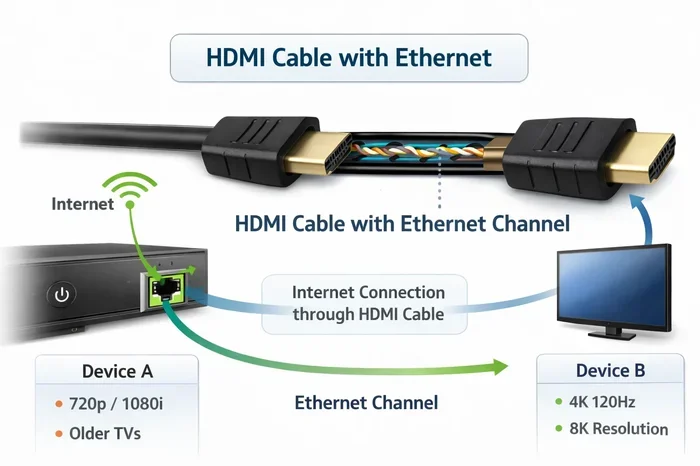
HDMI stands for High-Definition Multimedia Interface. It carries both audio and video signals through a single cable. When you connect a laptop to a TV, the HDMI cable sends the picture and sound together. This makes it one of the most popular display connection options in the world.
HDMI cables come in different versions. Standard HDMI supports 1080p. HDMI 2.0 handles 4K at 60Hz. The latest HDMI 2.1 supports 8K and even higher refresh rates. No matter the version, the core job stays the same. It delivers high-quality audio and video from a source to a display.
What Does Ethernet Do?
Ethernet cables connect your device to a local network or the internet. They provide a wired network connection that is faster and more stable than Wi-Fi. Whether you are browsing the web, streaming a movie, or playing an online game, the Ethernet cable handles the data transfer.
Common Ethernet types include Cat5e, Cat6, and Cat6a. Each supports different speeds and bandwidth levels. Cat5e handles up to 1 Gigabit per second. Cat6 can go up to 10 Gigabits over shorter distances. The higher the category, the better the performance for demanding tasks.
Do HDMI and Ethernet Work on the Same Principle?
No, they do not. HDMI uses a digital multimedia protocol designed for audio and video. Ethernet uses TCP/IP protocols for data networking. These are completely separate technologies. They operate on different frequencies and through different wiring methods. This is the main reason they can coexist without conflict.
Can You Run HDMI and Ethernet Together Without Interference?
This is the question most people really want answered. The good news is that in the vast majority of cases, there is no problem. HDMI and Ethernet cables can sit right next to each other without causing signal degradation.
Why Interference Is Rare
HDMI cables carry digital signals. Ethernet cables also carry digital signals. Both are designed with shielding to resist external noise. Modern manufacturing standards ensure that these cables can handle typical indoor environments without issues.
Electromagnetic interference, or EMI, can affect any cable. But the levels produced by standard HDMI and Ethernet cables are very low. In a typical home or office setup, these signals do not overlap in a way that causes disruption. Your display stays crisp, and your internet stays fast.
When Interference Could Happen
There are a few situations where problems might appear. Running very long cable runs together increases the chance of minor interference. Using cheap, unshielded cables makes both connections more vulnerable. Placing HDMI and Ethernet cables right next to power cords creates a higher risk of signal noise.
Also, in industrial or high-electromagnetic environments, cable proximity matters more. But for a regular home setup, these edge cases are uncommon. You can relax and connect both cables without stress.
Best Practices for Running HDMI and Ethernet Together
Now that you know interference is rarely an issue, let us look at how to do it right. These best practices will help you get the best performance from both connections.
1. Use Quality, Shielded Cables
The single most important step is choosing good cables. Shielded HDMI cables have a layer of protection that reduces external noise. Similarly, shielded Ethernet cables keep data signals clean. When both cables are well-built, they resist interference even when running close together.
Look for cables that are rated by recognized standards. For HDMI, check for version compatibility. For Ethernet, check the Cat rating. Spending a little more on quality pays off in long-term reliability.
2. Keep Cables Slightly Apart
You do not need to run HDMI and Ethernet cables on opposite sides of the room. But keeping them a few inches apart is a smart habit. This small gap reduces any chance of electromagnetic coupling between the two cables.
Use cable clips or Velcro ties to manage the routing. A clean cable path not only reduces interference but also makes your setup look neat and professional.
3. Avoid Running Parallel to Power Cables
Power cords generate much stronger electromagnetic fields than HDMI or Ethernet cables. If you must run your data cables near power lines, keep a distance of at least a few inches. Crossing power cables at a 90-degree angle is even better. This minimizes any potential for signal disruption.
4. Label Your Cables
This is a simple tip that many people overlook. Label each cable at both ends. You will save yourself a lot of troubleshooting time if you ever need to disconnect or replace one of them. A small piece of tape with “HDMI” or “Ethernet” goes a long way.
5. Check Your Device Ports
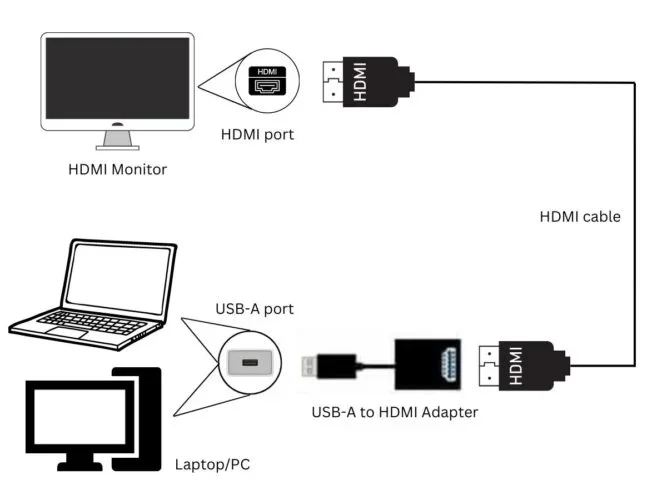
Some devices have limited port options. Make sure your TV, monitor, or console has enough ports for both connections. If you run out of HDMI ports, consider using an HDMI splitter or switch. If Ethernet ports are limited, a USB-to-Ethernet adapter can help.
Common Setup Scenarios
Let us look at real-world situations where people run HDMI and Ethernet together. These examples will help you picture how this works in everyday life.
Home Theater Setup
In a typical home theater, the streaming device or Blu-ray player connects to the TV via HDMI for audio and video. At the same time, the same device uses an Ethernet cable for a stable internet connection. Both cables leave the device and travel to their respective destinations. The TV receives the picture and sound, while the device stays connected to the network for streaming content.
This dual connection is the backbone of most modern home entertainment systems. Without Ethernet, streaming quality can drop during peak hours. Without HDMI, you would have no picture at all. Both cables work hand in hand to deliver the best experience.
Gaming Console Setup
Gamers benefit greatly from running both cables. The HDMI connection delivers high-resolution graphics and immersive sound. The Ethernet connection ensures low latency and stable online gameplay. Together, they create the ideal gaming environment.
Wi-Fi can introduce lag and packet loss. A wired Ethernet connection eliminates these problems. Pair that with a high-quality HDMI cable for stunning visuals, and you have a setup that serious gamers appreciate.
Office or Workspace Setup
In a work-from-home setup, the monitor connects via HDMI to the laptop or desktop. The Ethernet cable provides a reliable internet connection for video calls, file uploads, and cloud-based work. Both connections run from the desk to the wall or docking station.
This setup is extremely common and works flawlessly. The HDMI handles the visual workspace, while the Ethernet keeps you connected to the internet and local network resources.
Quick Tips for Optimal Performance
- Use the shortest cable length you can manage. Shorter cables mean stronger signal quality.
- Avoid bending cables sharply. Sharp bends can damage internal wiring and reduce performance.
- Keep firmware updated. Devices sometimes improve cable compatibility through software updates.
- Test both connections separately before finalizing your cable routing.
- Use cable management boxes to hide and organize multiple cables in one place.
- Consider flat HDMI and Ethernet cables for easier routing under carpets or behind furniture.
Common Mistakes to Avoid
Even with the best intentions, people make mistakes when setting up dual cable connections. Here are some pitfalls to watch out for.
Using Unshielded Cables in Crowded Setups
Cheap, unshielded cables might save a few dollars, but they are more prone to interference. In a setup where multiple cables run together, shielding becomes essential. Invest in quality cables to protect your signal integrity.
Ignoring Cable Length Limits
HDMI cables can lose signal quality beyond 50 feet without a repeater. Ethernet cables have similar limits depending on the Cat rating. Exceeding these limits leads to dropped signals, flickering displays, or slow internet speeds. Always check the recommended maximum length for your cable type.
Mixing Up Cable Versions
Not all HDMI or Ethernet cables are the same. Using an older HDMI standard with a 4K display will limit your resolution. Using Cat5 instead of Cat6 may cap your network speed. Always match your cable version to your device capabilities.
Overlooking Network Security
When you run an Ethernet connection, your device is directly on the network. This is great for speed, but it also means you should protect your network. One way to enhance security is by enabling MAC address filtering on your router. This feature only allows approved devices to connect to your network. It adds a simple but effective layer of protection for your wired setup.
Expert Insights on Dual Cable Setups
We spoke with several AV technicians and network specialists about running HDMI and Ethernet together. Their advice aligns with what we have covered. Here are the key takeaways from the experts.
Always prioritize cable quality over cable length. A short, premium shielded cable outperforms a long, cheap one every time. Experts recommend spending at least a moderate budget on cables that carry proper certification marks.
Plan your cable routes before buying. Measure the distances, note the corners and obstacles, and choose the right cable types accordingly. A little planning saves time and money during installation.
Do not fear running HDMI and Ethernet together. The experts confirm that these cables coexist peacefully in almost every standard environment. The real concerns are power cables, cheap connectors, and poor routing habits.
Key Takeaways
- HDMI and Ethernet can coexist: They operate on different signals and do not conflict with each other.
- Signal interference is rare: Proper cable management and shielding keep both connections stable.
- HDMI carries audio and video: Ethernet handles data and internet access simultaneously.
- Cable proximity matters: Keeping cables slightly apart reduces any minor electromagnetic interference.
- Use quality cables: Shielded HDMI and Ethernet cables offer the best performance when run together.
- Network security is important: Consider MAC address filtering to protect your Ethernet network from unauthorized access.
Conclusion
Running HDMI and Ethernet together at the same time is not only possible but also very common. These two cables serve different purposes and work beautifully side by side. Whether you are building a home theater, setting up a gaming station, or organizing a workspace, you can confidently use both connections without worrying about interference.
The key is to use quality, shielded cables, keep them properly routed, and avoid running them parallel to power cords. With these simple practices, your dual cable setup will deliver crisp visuals, clear audio, and fast, stable internet access every time.
Remember to protect your Ethernet network with proper security measures. A little attention to cable quality and network safety goes a long way. Now you have all the knowledge you need to set up your devices with confidence. Go ahead, plug in both cables, and enjoy the best of both worlds.
Frequently Asked Questions
Can HDMI and Ethernet cables cause interference with each other?
In most cases, no. HDMI and Ethernet cables carry different types of signals and operate on different frequencies. With quality shielded cables and proper routing, interference is extremely rare in standard home and office setups.
Do I need special cables to run HDMI and Ethernet together?
You do not need special cables, but using shielded and certified cables is highly recommended. Shielded HDMI and Ethernet cables provide better protection against external noise and ensure stable performance when run side by side.
Can I run HDMI and Ethernet cables parallel to each other for long distances?
Yes, you can, but keeping them a few inches apart is a good practice. For runs longer than 50 feet, consider using higher-quality cables with better shielding. Avoid running them directly alongside power cords to minimize any risk of signal disruption.
Does running both cables together affect internet speed or display quality?
No, running HDMI and Ethernet cables together does not affect either internet speed or display quality. HDMI handles audio and video, while Ethernet handles data. They operate independently and do not share bandwidth or signal paths.
What is the best way to organize HDMI and Ethernet cables on a desk?
Use cable clips, Velcro ties, or a cable management box to keep both cables neat and organized. Route them along the back edge of the desk or through a cable tray. Label each cable at both ends for easy identification during troubleshooting or upgrades.
Should I be concerned about network security when using an Ethernet connection?
Wired connections are generally more secure than Wi-Fi, but basic security practices still matter. Enable MAC address filtering on your router, use strong passwords, and keep your router firmware updated. These steps protect your Ethernet network from unauthorized access and potential threats.