Simple Steps To Get Bluetooth On My Pc Up And Running
Getting Bluetooth on your PC is easier than you think. Whether you want to connect wireless headphones, a speaker, or a mouse, this guide walks you through every step. You will learn how to check if your PC has Bluetooth, add a Bluetooth adapter if needed, and troubleshoot common issues.
Getting Bluetooth on my PC opens up a world of wireless convenience. You can connect headphones, speakers, keyboards, and even your phone without any cables. This guide shows you exactly how to do it, step by step. Whether your PC already has Bluetooth or you need to add it, you will find clear instructions here.
Wireless technology has changed how we use our computers. No more tangled cords or limited movement. With Bluetooth, you can move freely around your room while listening to music or taking calls. It is one of the simplest upgrades you can make to your setup.
So, let us get started. By the end of this guide, you will know everything you need about Bluetooth on my PC. You will be able to connect all your favorite wireless devices in no time.
Key Takeaways
- Check first: Many newer PCs already have Bluetooth built in. You just need to enable it in your settings.
- Add an adapter if needed: A USB Bluetooth adapter is the easiest and cheapest way to add wireless capability to any PC.
- Pairing is simple: Once Bluetooth is on, connecting devices like headphones and speakers takes just a few clicks.
- Troubleshoot common issues: Driver updates and repositioning your adapter can fix most Bluetooth problems.
- Keep it updated: Regular driver and software updates keep your Bluetooth running smoothly and securely.
📑 Table of Contents
Do You Need Bluetooth On My PC?
Before you jump into setup, it helps to understand what Bluetooth does and whether you actually need it. Bluetooth is a short-range wireless technology. It lets devices talk to each other without cables. The range is usually about 30 feet, which is plenty for a home or office setup.
Most people want Bluetooth on their PC for a few common reasons. You might want to use Bluetooth headphones for music or calls. Maybe you want to connect a Bluetooth speaker for better sound. Some people use it for wireless keyboards and mice. Others need it to transfer files between devices.
If you have ever tried to use wireless headphones with a PC that does not support Bluetooth, you know how frustrating it can be. You end up stuck with wires or buying expensive wireless alternatives. Adding Bluetooth solves this problem easily and affordably.
Think about what devices you want to connect. Make a quick list. This will help you decide what kind of Bluetooth solution you need. For example, if you only need to connect one device at a time, a basic USB adapter works great. But if you plan to connect many devices often, you might want a stronger adapter.
The good news is that getting Bluetooth on my PC does not have to be expensive or complicated. There are options for every budget and skill level. Let us look at how to check if your PC already has it.
How To Check If Your PC Has Bluetooth
The first step is simple. Check whether your PC already supports Bluetooth. Many modern computers come with it built in. You just need to know where to look.
Check Your Device Manager
On Windows, right-click the Start button and select Device Manager. Look for a section called Bluetooth. If you see it, your PC has Bluetooth hardware. You might also see your Bluetooth adapter listed there with its name.
If you do not see a Bluetooth section, do not worry. Your PC might still be able to support it. You may just need to add a Bluetooth adapter. This is a very common situation, and it is easy to fix.
Check Your Settings
Another way to check is through your Windows Settings. Click the Start button, then go to Settings, then Devices, and then Bluetooth & other devices. If you see a toggle switch for Bluetooth, your PC supports it. You can also check the Action Center in your taskbar for quick Bluetooth options.
You can also try searching for Bluetooth in the Windows search bar. This will show you all Bluetooth-related settings and options on your PC. If nothing comes up, your PC likely does not have built-in Bluetooth.
If you are on a Mac, click the Apple menu, then System Preferences, then Bluetooth. Mac computers have had Bluetooth built in for many years, so most Macs support it already.
For users wondering whether they can download Bluetooth on my PC as a software-only solution, the answer is no. Bluetooth requires hardware support. You either have it built in, or you need to add a physical adapter.
How To Add Bluetooth To A PC Without It
If your PC does not have Bluetooth, do not worry. Adding it is straightforward and affordable. There are a few different options to choose from. Each one works well for different needs and budgets.
USB Bluetooth Adapter
A USB Bluetooth adapter is the most popular option. It is a small dongle that plugs into a USB port. It is cheap, easy to use, and works with almost any PC. You plug it in, install the driver, and you are ready to go.
Most USB adapters cost between $10 and $40. They are available at any electronics store or online. Some adapters even come with a USB extension cable, which helps if your USB ports are hard to reach.
When choosing a USB adapter, look for one that supports Bluetooth 4.0 or higher. Newer versions offer better range and faster connections. Bluetooth 5.0 is the latest standard and provides the best performance.
PCIe Bluetooth Card
If you have a desktop PC with a free expansion slot, you can install a PCIe Bluetooth card. These cards offer better performance than USB adapters. They also free up your USB ports for other devices.
PCIe cards are a bit more advanced to install. You need to open your PC case and plug the card into a slot on your motherboard. If you are comfortable doing this, it is a great option. The cards usually cost between $20 and $60.
Some users prefer PCIe cards because they provide a more stable connection. They are less likely to lose signal compared to USB adapters. This makes them ideal for gaming or professional use.
Comparison: Bluetooth Options For PC
| Option | Price Range | Ease of Setup | Performance | Best For |
|---|---|---|---|---|
| Built-in Bluetooth | Free | Very Easy | Excellent | New PCs |
| USB Bluetooth Adapter | $10 – $40 | Easy | Good | Most users |
| PCIe Bluetooth Card | $20 – $60 | Moderate | Excellent | Desktop PCs |
Choosing The Right Bluetooth Adapter
Not all Bluetooth adapters are the same. Here are a few things to consider when shopping.
- Bluetooth version: Look for version 4.0 or higher. Version 5.0 is the best for speed and range.
- USB port type: Make sure the adapter fits your USB ports. Some PCs only have USB-C now.
- Range: Most adapters work up to 30 feet. Some premium models offer longer range.
- Brand reputation: Stick with well-known brands like TP-Link, ASUS, or Intel for reliability.
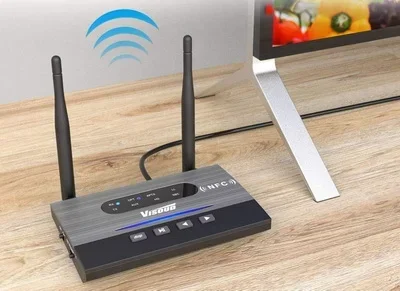
Once you have your adapter, you can also use it with other devices like your TV or stereo. A single adapter can serve multiple devices in your home.
Installing Your Bluetooth Adapter
Installing a USB Bluetooth adapter is very simple. Plug it into an available USB port. Windows should recognize it automatically and start installing the driver. This usually takes less than a minute.
If Windows does not install the driver automatically, you can visit the manufacturer’s website. Download the latest driver for your specific adapter model. Run the installer and follow the on-screen instructions.
After the driver is installed, you should see the Bluetooth icon in your system tray. Click it to open Bluetooth settings. You are now ready to pair devices.
Pairing Bluetooth Devices To Your PC
Now that you have Bluetooth working, it is time to connect your devices. The process is similar for most devices, whether you are connecting Bluetooth headphones, speakers, or other peripherals.
Pairing Bluetooth Headphones
Putting your headphones in pairing mode is the first step. Most headphones have a dedicated button or switch for this. Refer to your headphone manual if you are not sure how to do it.
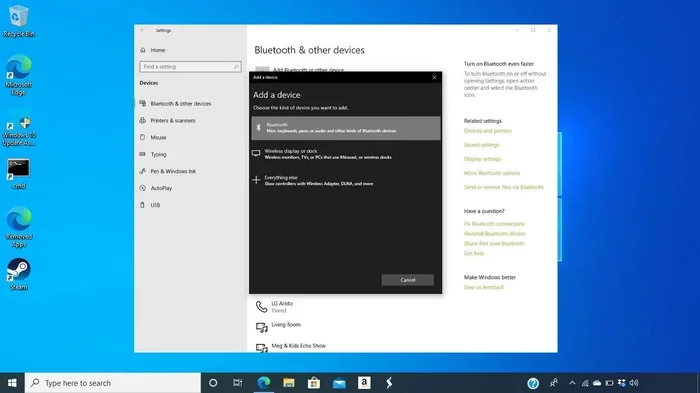
On your PC, go to Settings, then Devices, then Bluetooth & other devices. Make sure Bluetooth is turned on. Click Add Bluetooth or other device. Select Bluetooth from the list. Your PC will search for nearby devices.
When your headphones appear in the list, click on them. Your PC will connect them automatically. You should hear a confirmation sound or see a message on your screen. That is it. Your headphones are now connected wirelessly.
If you want to use your headphones for calls or music on your PC, you might also need to set them as the default audio device. Go to Settings, then System, then Sound. Under Output, select your Bluetooth headphones.
Pairing Speakers And Other Devices
The process for speakers is almost the same. Put your speaker in pairing mode. Go to your PC Bluetooth settings and click Add device. Your speaker should appear in the search results.
You can also connect other devices this way. Wireless keyboards and mice work the same way. Some printers even support Bluetooth connectivity. For example, if you have a Brother printer with Bluetooth, you can pair it directly to your PC for wireless printing.
For users who want to connect their phone to a PC via Bluetooth, the process is similar. Make sure both devices are discoverable. Select your phone from the Bluetooth device list on your PC. You can then transfer files or use your phone as a modem.
Quick Tips For Successful Pairing
- Keep your devices close together during the first pairing. About 3 to 5 feet apart is ideal.
- Make sure your device is in pairing mode. Most devices have a flashing light when ready.
- Restart both devices if pairing fails. A simple reboot often fixes connection issues.
- Remove old pairings if your device is full. Most devices can only remember a set number of connections.
- Check that your Bluetooth adapter has the latest driver installed.
Troubleshooting Bluetooth Problems On Your PC
Bluetooth does not always work perfectly the first time. Sometimes you run into issues. Do not worry. Most problems are easy to fix.
Bluetooth Not Showing Up
If Bluetooth is not showing in your settings, the first thing to check is your hardware. Make sure your adapter is plugged in properly. Try a different USB port if the first one is not working.
Next, check your drivers. Open Device Manager and look for any yellow warning signs. These indicate driver problems. Right-click the Bluetooth device and select Update driver. Windows will search for the latest driver online.
Sometimes you need to restart the Bluetooth service. Press Windows key + R, type services.msc, and press Enter. Find the Bluetooth Support Service in the list. Right-click it and select Restart. This often fixes issues where Bluetooth is missing entirely.
If you have tried everything and Bluetooth still does not work, you might consider uninstalling Bluetooth drivers and reinstalling them fresh. This can resolve conflicts caused by outdated or corrupted driver files.
Connection Drops And Interference
Bluetooth connections can drop if there is interference. Other wireless devices, USB 3.0 ports, and even microwaves can cause interference. Try moving your adapter away from these sources.
If you use a USB extension cable for your adapter, place it closer to your Bluetooth device. The further away the adapter is, the weaker the signal can become.
Updating your Bluetooth adapter driver can also help. Manufacturers often release updates that improve connection stability. Check the manufacturer website for the latest driver version.
Another common fix is to remove the device from your Bluetooth list and pair it again. This refreshes the connection and often resolves stubborn issues.
Tips To Keep Your Bluetooth Running Smoothly
Once your Bluetooth is working, a little maintenance goes a long way. Here are some tips to keep everything running well.
- Update your drivers regularly: Check for driver updates once a month. This keeps your connection fast and stable.
- Turn off Bluetooth when not in use: This saves battery and reduces interference with other devices.
- Keep your adapter in a good spot: Avoid hiding it behind your monitor or in a closed drawer. Good placement means better signal.
- Limit the number of connected devices: Too many devices can slow down your Bluetooth connection.
- Restart your PC occasionally: A simple restart clears up minor software glitches that can affect Bluetooth.
Following these tips will keep your Bluetooth on my PC running smoothly for years. You will enjoy seamless wireless connections every day.
If you are also interested in using Bluetooth outside your home, you might wonder if you can use Bluetooth in your car. Many of the same principles apply. You can add Bluetooth to your car radio or use a transmitter to make your existing radio wireless. The convenience is similar to what you get on your PC.
Remember, Bluetooth technology continues to improve with each version. Newer standards offer better range, faster speeds, and lower power consumption. Keeping your adapter and drivers up to date ensures you get the best experience possible.
Conclusion
Getting Bluetooth on my PC is a simple process that anyone can do. You can check if your PC already has it, add an adapter if needed, and connect your favorite wireless devices in minutes. The steps are straightforward and the results are worth it.
Wireless connectivity makes your PC more flexible and convenient. You can move freely, connect multiple devices, and say goodbye to cable clutter. Whether you are listening to music, taking calls, or transferring files, Bluetooth makes it all easier.
Start with the steps in this guide. You will be surprised how quickly you can get everything working. Once you experience the freedom of wireless connections, you will not want to go back to cables. Enjoy your new Bluetooth setup!
Frequently Asked Questions
Can I add Bluetooth to any PC?
Yes, almost any PC can get Bluetooth. You just need a USB Bluetooth adapter or a PCIe card. Even older computers can be upgraded with a simple plug-and-play adapter. The process is quick and does not require technical expertise.
Why is my Bluetooth not showing up on Windows 10?
This usually means your Bluetooth driver is missing or outdated. Check Device Manager for any issues. You can also try restarting the Bluetooth Support Service. If those steps do not work, try updating Windows or reinstalling the Bluetooth driver from the manufacturer’s website.
How do I know which Bluetooth adapter to buy?
Look for Bluetooth 5.0 or higher for the best performance. Check that it is compatible with your PC’s USB ports. USB-C adapters are great for newer laptops. For most users, a simple USB Bluetooth 5.0 adapter from a reputable brand will work perfectly.
Can I connect multiple Bluetooth devices at once?
Yes, you can connect multiple devices at the same time. Most PCs support several Bluetooth connections simultaneously. However, keep in mind that too many devices can slow down your connection. For best results, connect only the devices you are actively using.
Is Bluetooth safe to use on my PC?
Yes, Bluetooth is very safe. It uses low-power radio waves that are not harmful. Modern Bluetooth versions also include built-in security features like encryption. Just make sure to keep your devices paired only with trusted devices and update your drivers regularly.
Can I use Bluetooth on my laptop without Wi-Fi?
Yes, Bluetooth works independently of Wi-Fi. They are two different wireless technologies. You can use Bluetooth to connect headphones, keyboards, and other devices even if your laptop is not connected to Wi-Fi or the internet.