Does A Tv Have A Displayport And How To Connect It
Not all TVs come with a DisplayPort, but many modern models do offer this versatile video output. If your tv lacks a native DisplayPort, you can use simple adapters to connect your devices. This guide walks you through everything you need to know about displayport connection options, compatible cables, and step-by-step setup instructions.
Have you ever stood in front of your tv wondering how to hook up your computer or gaming setup? You may have heard about DisplayPort and wondered if your tv even supports it. The short answer is that some TVs do have a DisplayPort, but most rely on HDMI instead. In this guide, we will break down everything you need to know about whether your tv has a displayport and how to make it work for you.
Understanding your tv ports can save you time, money, and frustration. Whether you want to connect a PC, a laptop, or a streaming device, knowing what cables and adapters to use makes all the difference. We will cover the basics, the best adapters, common problems, and quick fixes so you can get your screen up and running fast.
Key Takeaways
- Not every tv has a displayport: Most TVs rely on HDMI, but some monitors and smart TVs include DisplayPort inputs.
- Adapters solve the problem: You can easily convert DisplayPort to HDMI using affordable adapter cables or dongles.
- Check your tv model first: Always verify the available ports on your specific TV before buying any cables or adapters.
- USB-C to DisplayPort cables work too: Many laptops and devices support DisplayPort over USB-C, giving you more flexibility.
- Audio and video travel together: DisplayPort carries both audio and video signals in a single cable.
- 4K and high refresh rates are possible: DisplayPort supports high resolutions and smooth visuals when paired with the right equipment.
📑 Table of Contents
Does A Tv Have A Displayport?
The truth is that most standard TVs do not come with a native DisplayPort input. The vast majority of televisions use HDMI as their primary video and audio input. However, certain monitors, smart TVs, and display-focused models do include DisplayPort. It really depends on the brand, model, and intended use of the tv.
Why Most TVs Use HDMI Instead
HDMI has been the standard for tv connections for many years. It is widely supported, easy to use, and carries both audio and video through a single cable. Most tv manufacturers focus on HDMI because it is what the average consumer already has lying around. DisplayPort, on the other hand, was originally designed for computer monitors and PC use.
That said, the gap is closing. Some high-end smart TVs and home theater displays now include DisplayPort alongside HDMI. This is especially true for TVs that double as computer monitors or for setups where users want a direct PC connection without relying on adapters.
How To Check If Your Tv Has DisplayPort
The easiest way to find out is to look at the back or side of your tv. Check the label next to each port. A DisplayPort will be clearly marked with the letters “DP” or the DisplayPort logo, which looks like a “D” with a vertical line on the left side. If you do not see it, your tv likely only has HDMI, VGA, or other video inputs.
You can also check your tv manual or the manufacturer website. Search for your tv model number and look at the specifications section. This will list every available input and output option.
How To Connect A Device To Your Tv Using DisplayPort
If your tv does have a DisplayPort, connecting your device is straightforward. But if it does not, do not worry. We will cover both scenarios below.
Direct Connection When Your Tv Has DisplayPort
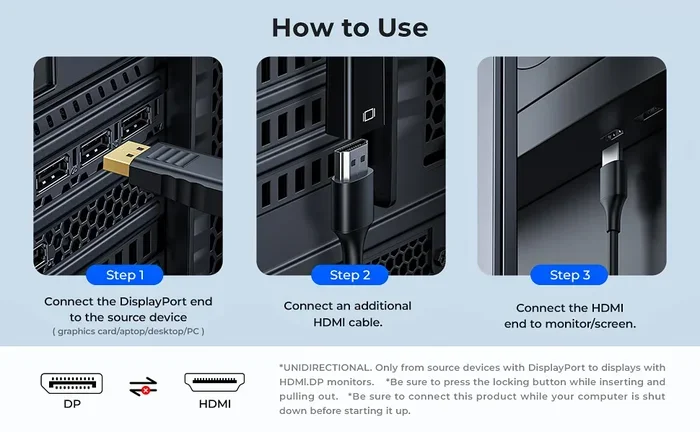
If your tv has a native DisplayPort input, you simply need a DisplayPort cable. Plug one end into your source device, such as a PC or laptop, and the other end into the tv. Here is what to do step by step:
- Turn off both your source device and your tv.
- Connect the DisplayPort cable to your PC or laptop.
- Plug the other end into the tv DisplayPort input.
- Turn on your tv and switch to the correct input source.
- Turn on your source device and adjust the display settings.
Most modern devices will auto-detect the tv and mirror or extend the display. You may need to tweak the resolution in your device settings to match your tv’s native resolution.
Using Adapters When Your Tv Lacks DisplayPort
If your tv does not have a DisplayPort, you can still use one with the right adapter. The most common setup is a DisplayPort to HDMI adapter. This lets you connect a device with a DisplayPort output to a tv that only has HDMI. These adapters are affordable and widely available online and in electronics stores.
Another popular option is a USB-C to DisplayPort cable or adapter. Many modern laptops and tablets use USB-C, and some support DisplayPort Alt Mode. This means you can send a DisplayPort signal through a USB-C cable, which you then convert to HDMI for your tv. If you want to learn more about USB-C to DisplayPort setups, check out our guide on daisy chaining USB-C to DisplayPort for helpful tips.
For older devices with VGA outputs, you can use a VGA to HDMI converter to bridge the gap. While this is not a direct DisplayPort solution, it is a useful alternative when you need to connect legacy devices to modern TVs.
DisplayPort vs HDMI On Your Tv
When comparing DisplayPort and HDMI, there are a few key differences to understand. Both cables carry video and audio, but they serve slightly different purposes and offer different features.
Resolution and Refresh Rate
DisplayPort tends to support higher resolutions and refresh rates, especially at longer cable lengths. DisplayPort 1.4 can handle 4K at 120Hz and even 8K in some cases. HDMI 2.1 also supports these high specs, but older HDMI versions may be more limited. For most tv use, HDMI is more than enough. But if you are a gamer or need top-tier visual performance, DisplayPort has the edge.
Availability and Compatibility
HDMI is everywhere. Nearly every tv, streaming box, gaming console, and Blu-ray player uses HDMI. DisplayPort is less common on TVs and more common on computer monitors. This makes HDMI the safer choice for general tv setups.
However, if you are building a dual-purpose setup where your tv also serves as a computer monitor, having a DisplayPort option can be very convenient. It gives you a direct, high-quality connection without compression or conversion.
Audio Support
Both DisplayPort and HDMI carry audio signals alongside video. You do not need a separate audio cable with either option. The tv will automatically receive and play the audio from the source device through the same cable. This makes both formats clean and simple for home theater setups.
Common DisplayPort Connection Problems And Fixes
Even with the right setup, you might run into issues when connecting a device to your tv via DisplayPort. Here are the most common problems and how to solve them.
No Signal or Blank Screen
If your tv shows a blank screen or “no signal” after connecting, try these steps:
- Check that both ends of the cable are firmly plugged in.
- Make sure your tv is set to the correct input source.
- Restart both your source device and your tv.
- Try a different DisplayPort cable to rule out a faulty cable.
- Update your graphics card drivers on your PC.
No Audio Through DisplayPort
Sometimes the video works but you get no sound. This usually happens when your PC is set to output audio through a different device. To fix this:
- Right-click the speaker icon in your taskbar.
- Select “Open Sound settings.”
- Change the output device to your tv or DisplayPort output.
- Test the audio again.
Flickering or Intermittent Signal
A flickering display often points to a loose connection or an incompatible cable. Make sure your DisplayPort cable is fully inserted. If the problem continues, try a higher-quality cable or a different adapter. Some cheap adapters do not handle high resolutions well, which can cause flickering or dropouts.
Best Adapters for DisplayPort to Tv Setup
Choosing the right adapter makes a huge difference in your viewing experience. Here are some of the best options depending on your needs.
DisplayPort to HDMI Adapters
This is the most popular adapter type. It converts a DisplayPort output to an HDMI input that your tv can read. Look for adapters that support 4K resolution and carry both audio and video. A reliable DisplayPort to HDMI adapter will give you a clean, stable connection every time.
USB-C to DisplayPort Adapters
If your laptop or device uses USB-C, this adapter lets you send a DisplayPort signal through the USB-C port. This is great for users who want a simple one-cable solution. Just plug in, switch your tv input, and you are good to go.
DisplayPort to VGA Converters
For older TVs or monitors that only have VGA inputs, a DisplayPort to VGA converter works. Keep in mind that VGA does not carry audio, so you will need a separate audio cable in this case.
Tips for Choosing the Right Adapter
- Check your tv and source device ports before buying.
- Choose adapters that support the resolution you need (1080p, 4K, etc.).
- Buy from reputable brands to avoid signal quality issues.
- Make sure the adapter supports audio if you need sound through your tv.
- Read user reviews to learn about real-world performance.
For those who are also considering a projector setup, you might find our article on using a projector instead of a tv helpful. It covers alternative display options that work well with DisplayPort and HDMI connections.
Final Thoughts on DisplayPort and Your Tv
So, does a tv have a DisplayPort? The answer is: it depends. Most standard TVs use HDMI, but some models do include DisplayPort, especially monitors and high-end displays. The good news is that even if your tv lacks a native DisplayPort, you can still use one with the right adapter or converter.
DisplayPort offers excellent video and audio quality, supports high resolutions, and works great for both gaming and everyday use. Whether you are connecting a PC, a laptop, or a streaming device, understanding your options helps you make the best choice for your setup.
Take a moment to check your tv ports, grab the right cable or adapter, and you will be watching your favorite content on the big screen in no time. A little preparation goes a long way, and now you have all the knowledge you need to get it done right.
If you are exploring other tv connection options, you might also want to read about connecting your tv to a receiver with HDMI and component cables. It covers additional ways to set up your home entertainment system with multiple input sources.
Frequently Asked Questions
Can I use a DisplayPort cable to connect my PC to any TV?
You can only use a DisplayPort cable if your TV has a DisplayPort input. Most TVs use HDMI, so you will likely need a DisplayPort to HDMI adapter. Always check your TV ports first before buying any cables or adapters.
Does DisplayPort carry audio to my TV?
Yes, DisplayPort carries both video and audio through a single cable. Your TV will receive the audio automatically when connected via DisplayPort, as long as the source device is set to output audio through the DisplayPort.
What is the difference between DisplayPort and HDMI for TV use?
DisplayPort was originally designed for PC monitors and supports very high resolutions and refresh rates. HDMI is the standard for TVs and works with most devices. Both carry audio and video, but HDMI is more widely compatible with TV setups.
Can I use a USB-C to DisplayPort cable with my TV?
Yes, if your laptop or device supports DisplayPort Alt Mode over USB-C, you can use a USB-C to DisplayPort cable. You will still need an adapter to convert the DisplayPort signal to HDMI if your TV only has HDMI inputs.
Why does my TV show no signal when I connect via DisplayPort?
This is usually caused by a loose cable, wrong input source, or outdated drivers. Try reseating the cable, switching your TV to the correct input, restarting both devices, and updating your graphics card drivers.
Do smart TVs have DisplayPort?
Most smart TVs do not include DisplayPort. They rely on HDMI for all video inputs. However, some display-focused models and monitors that double as TVs may include a DisplayPort. Always check the specifications of your specific model.