Can You Transmit Usb Over Hdmi Without Any Adapter
Many people wonder if you can transmit USB over HDMI without any adapter. The short answer is no — USB and HDMI carry different signals, and you need a conversion device to bridge them. This guide explains exactly how USB over HDMI works, what adapters you need, and how to avoid common mistakes.
Have you ever plugged a USB cable into an HDMI port and wondered what would happen? Maybe you were in a rush, or maybe you simply did not have the right cable handy. Either way, the question “Can you transmit USB over HDMI without any adapter” comes up more often than you might think.
The truth is, USB and HDMI are two very different technologies. They carry different types of signals. USB moves data. HDMI moves audio and video. You cannot just plug one into the other and expect it to work. But here is the good news. With the right adapter or cable, you can absolutely make USB and HDMI work together. Let us walk through everything you need to know.
Key Takeaways
- USB and HDMI are different signals: They carry data and video differently, so direct transmission is not possible without a converter.
- You need an active adapter: A passive cable alone cannot convert USB signals to HDMI output or vice versa.
- USB-C with Alt Mode supports HDMI: Some modern USB-C ports can output HDMI signals natively with the right cable.
- USB display adapters work well: USB-to-HDMI adapters are affordable and easy to use for most setups.
- Signal quality matters: Cheap adapters can cause lag, low resolution, or dropped signals.
- Thunderbolt ports simplify things: Thunderbolt 3 and 4 support HDMI output directly with a passive cable.
📑 Table of Contents
- What Is USB Over HDMI?
- Can You Transmit USB Over HDMI Without Any Adapter?
- Types of Adapters That Make USB Over HDMI Work
- How to Choose the Right Adapter for USB Over HDMI
- Common Mistakes People Make With USB Over HDMI
- Quick Tips for a Smooth USB Over HDMI Setup
- Expert Insights on USB Over HDMI Technology
- Frequently Asked Questions
- Conclusion
What Is USB Over HDMI?
When people talk about USB over HDMI, they usually mean one of two things. First, they might want to send a USB signal through an HDMI cable. Second, they might want to connect a USB device to an HDMI display. Both scenarios are common, but they work very differently.
HDMI stands for High-Definition Multimedia Interface. It carries high-quality audio and video from a source device to a display. Think of your laptop, game console, or streaming stick sending picture and sound to your TV or monitor. USB stands for Universal Serial Bus. It transfers data, charges devices, and connects peripherals like keyboards, mice, and external drives.
These two technologies serve different purposes. That is why you cannot just push a USB signal through an HDMI cable and expect it to reach the other end. The connectors are different. The protocols are different. The electrical signals are different. But with the right USB over HDMI adapter, you can bridge the gap between them.
How USB and HDMI Signals Work
USB signals use a packet-based protocol. Data travels in small chunks from one device to another. HDMI signals use a different method called Transition Minimized Differential Signaling, or TMDS. This method sends video and audio data as a continuous digital stream.
Because these signals work so differently, a direct connection between a USB port and an HDMI port will not produce any useful result. The HDMI port simply does not understand USB data, and the USB port cannot interpret HDMI video signals. This is where a converter or adapter becomes essential.
Can You Transmit USB Over HDMI Without Any Adapter?
The direct answer is no. You cannot transmit USB over HDMI without some kind of adapter or converter. There is no way to plug a USB cable directly into an HDMI port and have it work. The physical connectors are shaped differently. The pin configurations are different. The communication protocols do not match.
Some people think that because both cables carry digital signals, they should be interchangeable. That is a common misconception. Digital does not mean universal. Just because both USB and HDMI use digital data does not mean they speak the same language.
Here is a simple way to think about it. Imagine two people who speak different languages trying to have a conversation. They both use words, but they cannot understand each other. An adapter is like a translator. It converts the USB signal into a format the HDMI display can understand, and vice versa.
Why Direct Connection Fails
Several reasons make a direct USB-to-HDMI connection impossible:
- Different pin layouts: USB and HDMI connectors have different numbers of pins arranged in different configurations.
- Different protocols: USB uses a host-device communication model. HDMI uses a point-to-point audio-video pipeline.
- Different power delivery: USB provides power for charging and data transfer. HDMI carries no power for connected devices.
- Different bandwidths: HDMI bandwidth is designed for high-resolution video. USB bandwidth is designed for data transfer rates.
None of these differences can be overcome with a simple cable. You need an active conversion device that can translate one protocol into the other.
Types of Adapters That Make USB Over HDMI Work
Not all adapters are created equal. Different setups require different types of converters. Here is a breakdown of the most common options available for USB over HDMI connections.
USB to HDMI Adapters
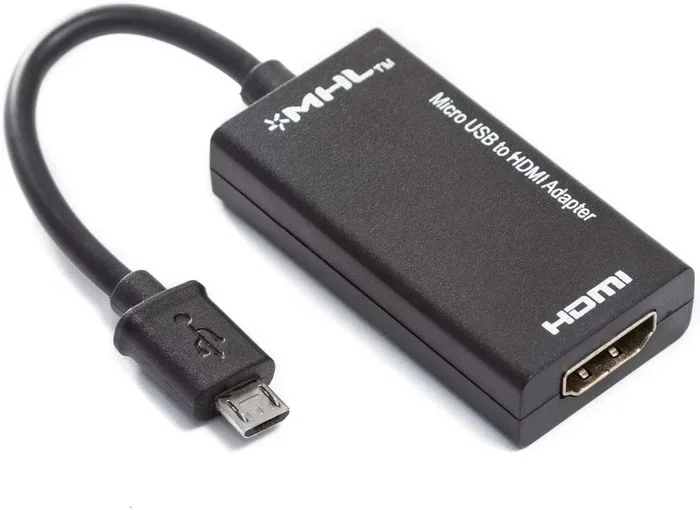
A USB to HDMI adapter is the most popular solution. It takes a USB port on your computer or laptop and converts it into an HDMI output. You plug the adapter into your USB port, then connect an HDMI cable from the adapter to your monitor or TV.
These adapters come in two main varieties. The first is a simple display adapter. It takes the video output from your USB port and converts it to HDMI. The second is a USB display adapter with its own graphics processing. This type of adapter has a small chip inside that handles the video conversion independently.
Most USB to HDMI adapters work with both USB-A and USB-C connectors. They support resolutions up to 4K in many cases. Prices range from under $15 to over $50 depending on the brand and features.
USB-C with HDMI Alt Mode
Many modern laptops and smartphones come with USB-C ports that support HDMI Alt Mode. This feature allows a USB-C port to directly output HDMI signals without any adapter. You just need a USB-C to HDMI cable.
HDMI Alt Mode is a built-in capability of the USB-C port. It does not require any active conversion hardware. The port itself can switch between USB data mode and HDMI display mode. This makes it one of the easiest ways to connect a device to an HDMI display.
Not all USB-C ports support Alt Mode, though. You need to check your device specifications. Look for terms like “DisplayPort Alt Mode” or “HDMI Alt Mode” in the product manual or on the manufacturer’s website.
Thunderbolt to HDMI Adapters
Thunderbolt ports are found on many Apple computers and high-end Windows laptops. Both Thunderbolt 3 and Thunderbolt 4 use the USB-C connector shape. They support HDMI output natively with a passive Thunderbolt to HDMI cable or adapter.
Thunderbolt offers the best of both worlds. It supports data transfer, video output, and power delivery through a single cable. When you need HDMI output from a Thunderbolt port, you can use a simple passive adapter. No active conversion is needed because Thunderbolt natively supports DisplayPort and HDMI protocols.
USB Hub with HDMI Output
If you need multiple connections, a USB hub with HDMI output is a great option. These hubs combine several USB ports with an HDMI output port in a single device. You plug the hub into your computer’s USB port, and then connect your HDMI monitor directly to the hub.
USB hubs with HDMI output are especially useful for desktop workstations. They let you connect multiple peripherals and a display through a single USB connection. Look for hubs that support 4K resolution if you need high-quality video output.
How to Choose the Right Adapter for USB Over HDMI
Choosing the right adapter depends on several factors. Not every adapter works with every device or setup. Here are the key things to consider before you buy.
Check Your Port Type
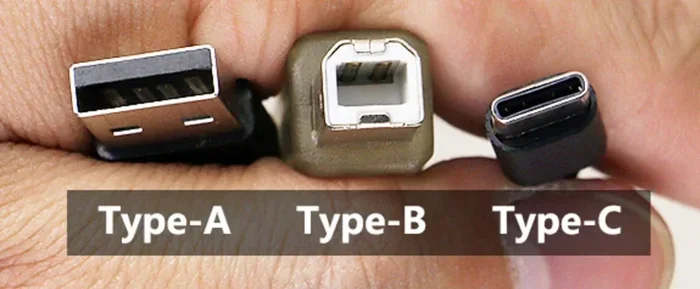
First, identify the type of USB port on your device. Do you have USB-A, USB-C, or Thunderbolt? Do you know if your USB-C port supports HDMI Alt Mode? This information determines which adapter you need.
If your device has a standard USB-A port, you need an active USB to HDMI adapter. If you have a USB-C port with Alt Mode support, a simple USB-C to HDMI cable will work. If you have Thunderbolt, a passive Thunderbolt to HDMI adapter is your best bet.
Check the Resolution You Need
Not all adapters support the same resolution. Some budget adapters max out at 1080p. Others support 4K at 60Hz. If you need high-resolution output for gaming or video editing, make sure the adapter you choose supports your desired resolution.
Look for adapters that explicitly list their supported resolutions and refresh rates in the product description. Do not assume that just because a cable is new, it supports 4K.
Check for Audio Support
Some USB to HDMI adapters carry audio along with video. Others only carry video. If you need sound to come through your HDMI display, make sure the adapter supports audio transmission.
Most modern adapters do support audio. But it is always worth double-checking before you purchase. Look for specifications that mention “audio supported” or “digital audio output.”
Consider Build Quality
Cheap adapters can cause all kinds of problems. You might experience signal drops, flickering, or no signal at all. Investing in a well-known brand can save you a lot of frustration.
Brands like UGREEN, Cable Matters, and Anker are reliable choices. They offer good build quality and solid customer support. A slightly higher price is worth the peace of mind.
Common Mistakes People Make With USB Over HDMI
Even with the right adapter, people still run into problems. Most of these issues come from simple mistakes. Here are the most common ones to avoid.
Using a Passive Cable Instead of an Active Adapter
This is the biggest mistake people make. A passive USB cable cannot convert signals. It just passes the same signal from one end to the other. Since USB and HDMI signals are different, a passive cable will not work. You need an active adapter with built-in conversion circuitry.
Not Checking for Alt Mode Support
Many people buy a USB-C to HDMI cable assuming it will work with any USB-C port. But if the port does not support HDMI Alt Mode, the cable will not output video. Always verify your port’s capabilities before buying a cable or adapter.
Using an Outdated Adapter
Older adapters may not support newer resolutions or USB standards. If your adapter is several years old, it might not work properly with a modern 4K display. Consider upgrading to a newer adapter that supports the latest standards.
Plugging the Adapter Into the Wrong Port
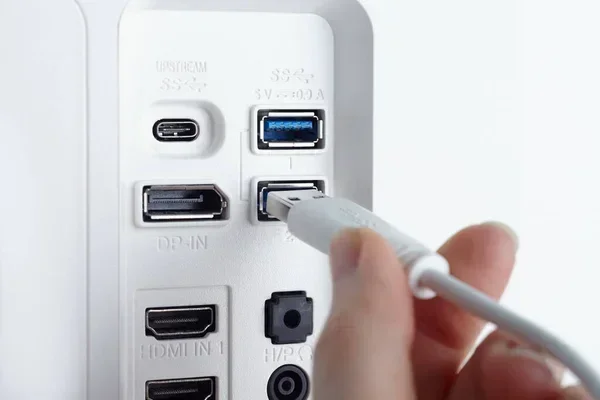
Some computers have multiple USB ports with different capabilities. A USB port on the left side of a laptop might support video output, while the one on the right side might not. Always check which USB port supports the features you need.
Quick Tips for a Smooth USB Over HDMI Setup
Setting up a USB over HDMI connection does not have to be complicated. Follow these quick tips for the best results.
- Update your display drivers before connecting a USB to HDMI adapter. Outdated drivers can cause detection issues.
- Use a short, high-quality HDMI cable between the adapter and your display. Long cables can cause signal loss.
- Plug the adapter directly into your computer rather than into a USB hub. Hub connections can reduce power and bandwidth.
- Restart your computer after connecting a new adapter. This helps the system recognize the new display properly.
- Check the adapter’s power requirements. Some active adapters need their own power source. Make sure you have a USB cable that can supply enough power.
- Test with a known working HDMI cable first. This eliminates the cable as a potential source of problems.
Expert Insights on USB Over HDMI Technology
Technology experts agree that USB over HDMI connections have come a long way. In the early days, adapters were bulky and unreliable. Today, compact active adapters deliver smooth, high-quality video output with minimal hassle.
The rise of USB-C has made things even simpler. With Alt Mode support becoming standard on most modern devices, fewer adapters are needed for everyday use. Thunderbolt technology has also raised the bar, offering seamless HDMI output through a single cable.
However, experts caution against cheap, no-name adapters. These products often use low-quality components that can damage your ports or deliver poor video quality. Spending a little more on a reputable brand is always a smart move.
For professionals who rely on external displays daily, investing in a Thunderbolt docking station is the best long-term solution. These docks provide HDMI output alongside multiple USB ports, Ethernet connectivity, and power delivery through a single connection.
Frequently Asked Questions
Can I connect a USB device directly to an HDMI display?
No, you cannot connect a USB device directly to an HDMI display without an adapter. USB and HDMI use different protocols and signals. You need a USB to HDMI adapter or a device that supports HDMI Alt Mode to make the connection work.
Does a USB-C to HDMI cable always work?
Not always. A USB-C to HDMI cable only works if your USB-C port supports HDMI Alt Mode or Thunderbolt. Check your device specifications to confirm compatibility before purchasing a cable.
Can I use a USB hub with HDMI output for gaming?
USB hubs with HDMI output can work for casual gaming, but they may not support the highest refresh rates. For competitive gaming, a dedicated graphics card or a direct HDMI connection from your device is recommended.
Do I need a driver for a USB to HDMI adapter?
Most modern USB to HDMI adapters work plug-and-play. However, some adapters require a driver installation for full functionality. Check the manufacturer’s website for the latest driver updates before setting up your adapter.
Can Thunderbolt 4 output HDMI without an adapter?
Thunderbolt 4 uses a USB-C connector and supports HDMI output, but you still need a Thunderbolt to HDMI adapter or cable. The adapter is a passive converter that translates the Thunderbolt signal to HDMI format.
Why does my USB over HDMI adapter show no signal?
No signal issues are usually caused by outdated drivers, a faulty cable, or an incompatible port. Try updating your display drivers, using a different HDMI cable, and plugging the adapter directly into your computer’s USB port.
Conclusion
The question “Can you transmit USB over HDMI without any adapter” has a clear answer. No, you cannot. USB and HDMI are fundamentally different technologies that carry different types of signals. A direct connection between the two will not work. But with the right adapter, cable, or hub, you can easily bridge the gap and connect USB devices to HDMI displays.
Whether you choose a simple USB to HDMI adapter, a USB-C to HDMI cable for a device with Alt Mode support, or a Thunderbolt docking station for a professional setup, the key is to match your adapter to your device’s capabilities. Check your port types, verify resolution support, and invest in quality products from trusted brands.
With the right setup, USB over HDMI connections are reliable, straightforward, and incredibly useful. From extending your desktop to connecting a laptop to a big-screen TV, the options are endless. Just remember to avoid the common mistakes, follow the quick tips, and you will have a smooth, hassle-free experience every time.