How Can I Make My Netgear WiFi Extender Work Better
Want to get more from your Netgear WiFi extender? This guide covers placement secrets, settings tweaks, and common mistakes that slow down your WiFi extender. You will learn how to boost WiFi coverage and speed with simple, actionable steps.
Your Netgear WiFi extender should make your internet faster and reach farther. But sometimes it just does not seem to do the job right. Maybe the signal is weak in certain rooms. Maybe your speed drops when you connect through the extender. Whatever the problem is, you are not alone.
Millions of people use WiFi extenders to cover dead spots in their homes. But many of them never learn how to get the best performance out of their device. That is where this guide comes in. You will learn how to make your Netgear WiFi extender work better with simple, proven steps.
We will cover placement, settings, common mistakes, and advanced tips. By the end, you will know exactly what to do. Let us get started.
Key Takeaways
- Placement is everything: The location of your Netgear WiFi extender determines how well it boosts your signal and eliminates dead zones.
- Update your firmware regularly: Keeping your extender’s software current fixes bugs and improves WiFi performance.
- Avoid common mistakes: Things like placing the extender too far from the router or using the wrong channel can hurt your results.
- Optimize dual-band settings: Switching between 2.4 GHz and 5 GHz can make a big difference in WiFi speed.
- Consider alternatives when needed: Sometimes a WiFi booster or better router setup solves problems an extender cannot.
📑 Table of Contents
- Why Your Netgear WiFi Extender Might Be Underperforming
- Best Placement Tips for Your Netgear WiFi Extender
- How to Optimize Your Netgear WiFi Extender Settings
- Common Mistakes That Hurt Netgear Extender Performance
- Advanced Tips to Get More From Your Netgear WiFi Extender
- When to Consider Alternatives to Your Netgear Extender
- Conclusion
Why Your Netgear WiFi Extender Might Be Underperforming
A WiFi extender works by receiving your router’s signal and rebroadcasting it. But that process is not magic. It has limits. Understanding why your extender might be underperforming is the first step toward fixing it.
Several factors can slow down your WiFi coverage. Distance, interference, and outdated firmware all play a role. Even the type of walls in your home matter. Concrete and brick block signals much more than drywall.
Another common issue is that the extender itself might be too old. Older models do not support the latest WiFi standards. If your router is WiFi 6 and your extender is WiFi 4, you will never get the full speed. This is like putting a garden hose on a fire hydrant.
Also, many people buy an extender without checking if they really need one. Sometimes a simple router repositioning fixes the problem. And other times, you might want to consider a WiFi booster instead. Know your options before you troubleshoot.
Understanding How WiFi Extenders Work
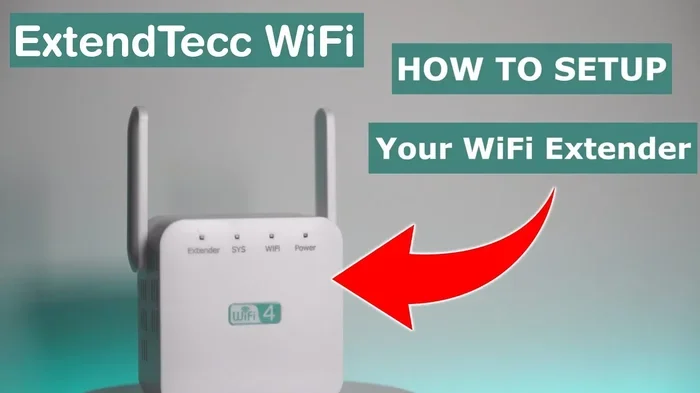
A WiFi extender connects to your router wirelessly. It then sends that signal out to areas your router cannot reach well. Think of it as a relay runner passing a baton. The baton is your internet signal. The runner is your extender.
But here is the catch. Every time the signal is rebroadcast, some speed is lost. This is called latency. The further the extender is from the router, the more signal it loses. That is why placement matters so much. You want the extender close enough to get a strong signal from the router, but far enough to cover the dead zone.
Most Netgear WiFi extenders support dual-band WiFi. This means they can work on both 2.4 GHz and 5 GHz frequencies. The 2.4 GHz band reaches farther but is slower. The 5 GHz band is faster but has a shorter range. Knowing this helps you make smart choices about your setup.
Best Placement Tips for Your Netgear WiFi Extender
Where you put your extender changes everything. Good placement can double your effective coverage. Bad placement can make things worse than having no extender at all.
Here are the rules you should follow:
- Place it halfway between your router and the dead zone. The extender needs a strong signal from the router to repeat it effectively. If it is too far away, the repeated signal will be weak.
- Keep it in the open. Do not hide it behind a TV or inside a cabinet. Walls and metal objects block signals. An open space gives the extender the best chance to work well.
- Stay away from microwaves and cordless phones. These devices operate on the same 2.4 GHz frequency. They cause serious WiFi interference that slows everything down.
- Do not place it in a corner of your home. If the extender is at the edge of your house, much of its signal goes outside where you do not need it.
- Elevate it. Place it on a shelf or table rather than the floor. WiFi signals spread outward and downward. Height helps the signal reach more evenly.
The Halfway Rule Explained
The golden rule of extender placement is the halfway point. Your extender should sit roughly halfway between your router and the area with poor coverage. This way, it gets a strong signal from the router and has enough power to push that signal into the weak zone.
If you place the extender too close to the router, it will not help the dead zone at all. If you place it too far, it will repeat a weak signal and your WiFi speed will suffer. Finding that sweet spot takes a little trial and error. Walk around your home with your phone and check signal strength in different spots.
Also keep in mind that extending WiFi to 200 feet away is possible but challenging. Walls, floors, and distance all eat into your signal. The further you need to reach, the more important good placement becomes.
How to Optimize Your Netgear WiFi Extender Settings
Once your extender is in the right spot, the next step is optimizing its settings. Default settings are rarely the best. A few small changes can make a big difference in WiFi performance.
Update Your Extender Firmware
Firmware is the software that runs your extender. Netgear releases updates regularly. These updates fix bugs, improve stability, and sometimes even boost speed. An outdated extender is like driving a car with old software. It works, but it could work so much better.
To check for updates, log into your extender’s admin panel. Look for a firmware update section. If an update is available, install it. Your extender may restart during this process. That is normal. Just wait for it to come back online.
Change the WiFi Channel
Your WiFi channel is like a lane on a highway. If too many devices use the same lane, traffic slows down. Your neighbors’ routers might be using the same channel as your extender. This causes congestion and slows your WiFi speed.
Go into your extender settings and look for the channel settings. Try switching to a less crowded channel. You can use a free app like WiFi Analyzer to see which channels are busiest in your area. Pick one with less traffic and see if your performance improves.
Set Up a Separate Network Name
By default, many extenders use the same network name (SSID) as your router. This can cause confusion. Your phone might keep switching between the router and the extender, dropping connections. Setting a separate SSID for your extender helps your devices stay connected to the strongest signal.
For example, name your main network “HomeWiFi” and your extender “HomeWiFi_Ext.” This way, you know exactly which network your device is using. It also makes WiFi troubleshooting much easier later on.
Enable QoS Settings
Quality of Service (QoS) lets you prioritize certain types of traffic. If you are streaming a movie or playing an online game, QoS can make sure those activities get the bandwidth they need. Log into your extender settings and look for QoS or traffic priority options. Enable them and set your preferences.
Common Mistakes That Hurt Netgear Extender Performance
Most people make the same few mistakes when setting up their Netgear WiFi extender. Avoiding these pitfalls can instantly improve your results.
Placing the Extender Too Far from the Router
This is the number one mistake. People place the extender in the dead zone, thinking that is where it needs to be. But the extender needs a strong signal from the router first. If it cannot hear the router well, it cannot repeat that signal effectively. Always keep the extender within good range of the router.
Using an Old Ethernet Cable
If you connect your extender to a router with an Ethernet cable, the cable matters. Old Cat5 cables limit your speed. Use at least Cat5e or Cat6 cables for the best results. A cheap cable can bottleneck your entire network without you even knowing it.
Ignoring Interference from Other Devices
Bluetooth devices, baby monitors, and even fluorescent lights can interfere with your WiFi signal. Keep your extender away from these sources. If you notice performance drops at certain times, check if a new device was turned on nearby.
Not Rebooting Regularly
Like any electronic device, your extender benefits from a fresh restart. Over time, memory leaks and software glitches can slow it down. Unplug it for 30 seconds once a week. This simple habit keeps things running smoothly.
Expecting the Extender to Match Router Speed
This is important to understand. An extender will never deliver the same speed as a direct router connection. Some speed loss is normal. If you get even 50 to 70 percent of your router’s speed through the extender, that is a good result. Do not expect miracles.
Advanced Tips to Get More From Your Netgear WiFi Extender
Once you have the basics down, these advanced tips can take your setup to the next level. These steps are for users who want to squeeze every bit of performance from their Netgear WiFi extender.
Use an Ethernet Backhaul Connection
If your extender supports it, connect it to the router with an Ethernet cable. This is called Ethernet backhaul. It eliminates the wireless signal loss that happens when the extender connects to the router wirelessly. Your extended network will be much faster and more stable.
This is especially helpful if you have a long cable run available. You can run the cable along baseboards or through door frames. The result is a near-wire-speed connection throughout your home.
Switch to the 5 GHz Band for Streaming
If you are streaming videos or video calling, use the 5 GHz band. It is faster and less crowded than the 2.4 GHz band. The trade-off is shorter range. So place your extender closer to the device you are using when you need high speed.
For general browsing and smart home devices, the 2.4 GHz band works fine. It has better range and penetrates walls more easily. Use both bands wisely to get the best of both worlds.
Add an External Antenna
Some Netgear extender models have detachable antennas. You can upgrade to a higher-gain antenna for better reach. This is a great option if you need to cover a large area. Check if your model supports external antennas before buying a replacement.
For more information on antennas, see our guide on adding an antenna to your WiFi router. The principles apply to extenders as well.
Consider a Mesh Network Instead
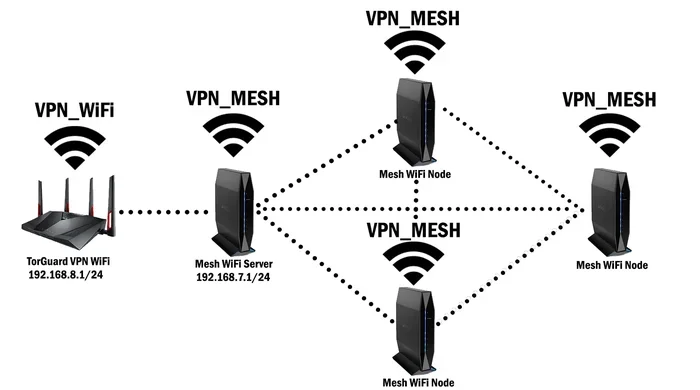
If your extender still does not deliver the coverage you need, it might be time to consider a mesh WiFi system. Mesh systems use multiple nodes to create seamless coverage throughout your home. They are more expensive than extenders but offer much better performance.
Mesh systems are especially great for larger homes or homes with many walls. They also handle the handoff between nodes more smoothly than traditional extenders. Your phone stays connected without dropping as you move from room to room.
Keep Your Extender Cool
This one sounds simple, but heat kills electronics. Do not place your extender in a closed cabinet or on top of a warm device. Good airflow keeps the internal components running at optimal temperatures. A cool extender performs better and lasts longer.
When to Consider Alternatives to Your Netgear Extender
Sometimes an extender is not the right solution. And that is okay. There are other ways to improve your home network. Knowing when to switch tactics saves you time and frustration.
If your home is very large, a mesh system might be a better investment. If your router is very old, upgrading the router might solve your coverage issues entirely. Sometimes the problem is not the extender. It is the router.
Also, if you live in an apartment or small space, you might not need an extender at all. A better router placement could solve everything. Move your router to a central location and see if that helps before buying extra equipment.
For those who want more control, you can learn how to increase your WiFi signal through router settings and positioning alone. This costs nothing and often produces surprisingly good results.
Quick Comparison: Extender vs. Mesh vs. Router Upgrade
Here is a quick look at how these options compare:
- WiFi Extender: Affordable, easy to set up, but some speed loss. Best for small dead zones.
- Mesh System: More expensive, seamless coverage, no speed loss. Best for large homes.
- Router Upgrade: Medium cost, better overall performance. Best when your current router is outdated.
Choose the option that fits your home and budget. There is no one-size-fits-all answer. The best solution is the one that solves your specific problem.
Conclusion
Making your Netgear WiFi extender work better comes down to a few key things. Get the placement right. Update your firmware. Avoid common mistakes. Optimize your settings. And know when to try something else. These steps work together to transform your WiFi coverage and speed.
You do not need to be a tech expert to get great results. Start with the basics and work your way up. Each small improvement adds up. Before long, you will have a faster, more reliable network that covers every corner of your home.
Take action today. Pick one tip from this guide and try it now. Then come back and try the next one. Small changes lead to big improvements. Your WiFi extender is capable of so much more than you might think.
Frequently Asked Questions
How do I know if my Netgear WiFi extender is working properly?
Check your WiFi signal strength in areas that used to have poor coverage. Walk around your home with your phone and compare signal bars before and after setting up the extender. You should see improvement in the dead zones. If you do not, try repositioning the extender closer to the halfway point between your router and the weak area.
Why does my WiFi speed drop when using an extender?
Speed drops are normal because the extender rebroadcasts the signal, which causes some data loss. The further the extender is from the router, the more speed you lose. Using an Ethernet backhaul connection or placing the extender closer to the router can significantly reduce this speed loss.
How often should I update my Netgear extender firmware?
Check for firmware updates at least once a month. Netgear releases updates to fix bugs and improve performance. You can enable automatic updates if your model supports it. Keeping your firmware current is one of the easiest ways to maintain good WiFi performance.
Can I use my Netgear extender with any router?
Most Netgear extenders work with any standard router, regardless of brand. They use universal WiFi standards like 802.11ac and 802.11n. However, for the best results, match your extender’s WiFi standard to your router’s. An older extender will not unlock the full speed of a modern WiFi 6 router.
What is the difference between a WiFi extender and a WiFi booster?
The terms are often used interchangeably. Both devices aim to expand your WiFi coverage. However, boosters sometimes refer to devices that amplify the existing signal more aggressively. Extenders typically rebroadcast the signal to new areas. In practice, the difference is minimal. Both can help eliminate WiFi dead zones in your home.
Should I leave my WiFi extender on all the time?
Yes, you should leave your extender on continuously. It works as part of your home network and needs to stay active to provide coverage. Turning it off and on frequently can cause connection issues. The only time you should power it down is when troubleshooting or performing a firmware update.