Can You Connect A Micro Usb To Hdmi With These Simple Steps
Yes, you can connect a Micro USB to HDMI using the right adapter or cable. This simple process lets you mirror or extend your device screen to a larger display. Whether you have a smartphone, tablet, or other gadget, this guide walks you through every step with confidence.
Have you ever wanted to show what is on your phone screen on a bigger TV or monitor? Maybe you are traveling and want to watch movies on a hotel room television. Or perhaps you need to give a presentation using your mobile device. The question Can You Connect A Micro Usb To Hdmi comes up a lot, and the answer is yes. You just need the right tool and a little guidance.
Connecting a Micro USB device to an HDMI display opens up a world of possibilities. You can share photos, play games, watch videos, or present slides on a much larger screen. This guide will walk you through every step in plain language. No tech degree required. Just simple, clear instructions that anyone can follow.
We will cover everything from choosing the right adapter to troubleshooting common problems. By the end, you will feel confident making this connection yourself. Let us dive in and make your Micro USB device HDMI-ready.
Key Takeaways
- You Need the Right Adapter: A Micro USB to HDMI adapter or cable is essential for making this connection work properly.
- Check Compatibility First: Not all Micro USB devices support video output. Verify your device specs before buying any adapter.
- MHL and SlimPort Are Key Technologies: These standards enable video transmission from Micro USB ports to HDMI displays.
- Setup Takes Minutes: The physical connection is simple and requires no technical expertise.
- Troubleshooting Is Straightforward: Most issues like no signal or poor quality have easy fixes.
- Alternative Options Exist: Wireless solutions and USB-C alternatives offer flexibility if your device does not support direct HDMI output.
📑 Table of Contents
- Understanding Micro USB and HDMI Basics
- Can You Connect A Micro Usb To Hdmi? The Short Answer
- What You Need to Get Started
- Step-by-Step Connection Guide
- Common Problems and How to Fix Them
- Alternative Solutions Worth Considering
- Expert Tips for the Best Experience
- When to Seek Professional Help
- Final Thoughts
Understanding Micro USB and HDMI Basics
Before we get into the steps, let us understand what these two connectors actually do. This knowledge makes the whole process much easier to grasp.
What Is Micro USB?
Micro USB is a standard connector used for charging and data transfer on many devices. You will find it on older smartphones, tablets, portable speakers, and various electronics. It has been around for a long time and was the go-to connector before USB-C took over.
Micro USB comes in a few shapes. The most common is the Micro USB Type-B. It is small, rectangular, and has a trapezoid-shaped top. Many people recognize it instantly because it was used in so many popular devices over the years.
The Micro USB port serves two main jobs. It charges your device and transfers data between devices. But here is the thing many people do not know. Some Micro USB ports can also carry video signals. This is the key to connecting to an HDMI display.
What Is HDMI?
HDMI stands for High-Definition Multimedia Interface. It is the standard cable for carrying both audio and video signals. Almost every TV, monitor, projector, and home theater system uses HDMI today.
HDMI cables transmit uncompressed digital signals. This means you get crisp picture quality and clear sound without any loss. The connector is wide and flat with a distinctive shape that only fits one way. You have probably plugged in an HDMI cable dozens of times without thinking about it.
Why Would You Connect These Two?
Your phone or tablet has a Micro USB port. Your TV or monitor has an HDMI port. They do not match. So you need a bridge. An adapter or a special cable acts as that bridge. It takes the video signal from the Micro USB port and converts it into a format the HDMI display can read.
This is incredibly useful for many situations. You want to share a presentation at work. You want to play mobile games on a big screen. You want to show family photos during a gathering. All of these become possible with the right connection.
Can You Connect A Micro Usb To Hdmi? The Short Answer
The short answer is yes. But the longer answer has some important details. Not every Micro USB device supports video output. Your device needs to have a feature called MHL or SlimPort support. Without this, a simple adapter will not work.
MHL stands for Mobile High-Definition Link. It is a standard that allows compatible devices to send high-definition video through their Micro USB port. SlimPort is a similar technology developed by a different company. Both serve the same purpose. They let you connect your device to an HDMI display using a Micro USB connector.
Here is a quick way to check if your device supports this. Look up your device model online and search for MHL compatibility. You can also check your device settings. Some phones have a screen mirroring or HDMI output option in the display settings. If you see it, you are good to go.
What You Need to Get Started
Getting the right equipment is the first step. Let us go through exactly what you need for a successful connection.
Option 1: Micro USB to HDMI Adapter
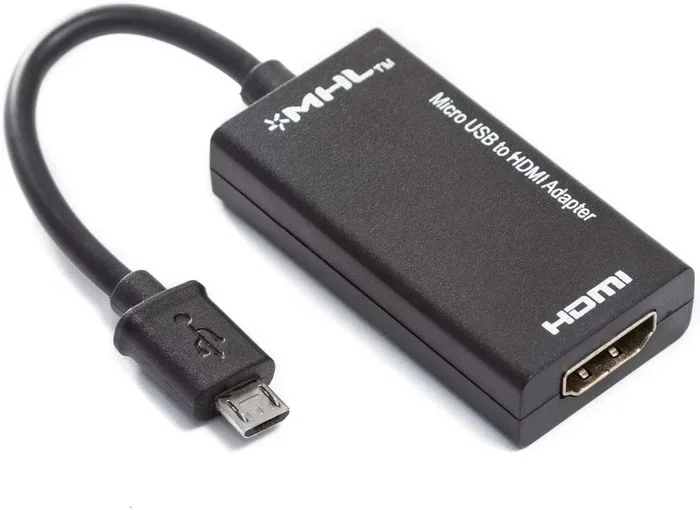
This is the most common solution. It is a small adapter that plugs into your device’s Micro USB port. On the other side, it has an HDMI female port where you connect an HDMI cable. The adapter handles the signal conversion for you.
Make sure you buy an MHL-compatible adapter if your device supports MHL. These adapters have a special chip inside that handles the video signal conversion. Generic adapters without this chip will not work for video output.
Option 2: Micro USB to HDMI Cable
This is an all-in-one solution. One end plugs into your device. The other end plugs directly into your TV or monitor. No separate adapter needed. These cables are convenient and reduce cable clutter.
However, these cables can be shorter than you might want. If your TV is mounted on a wall far from your seating area, a cable alone might not reach. An adapter plus a longer HDMI cable gives you more flexibility.
Option 3: USB OTG Adapter Plus HDMI Adapter
If you have a USB On-The-Go adapter, you can sometimes use it in combination with other adapters. This approach works for some devices but is less reliable. Stick with a dedicated Micro USB to HDMI adapter for the best results.
Quick Comparison Table
| Option | Pros | Cons |
|---|---|---|
| Micro USB to HDMI Adapter | Flexible, works with any HDMI cable | Extra piece to carry, potential for loose connections |
| Micro USB to HDMI Cable | All-in-one, simple setup | Fixed length, less flexible |
| USB OTG Plus HDMI Adapter | Uses what you may already have | Less reliable, compatibility issues |
Pro tip: Always buy from reputable brands. Cheap knockoff adapters often fail or damage your device. Spend a little more for quality and reliability. Your device is worth it.
Step-by-Step Connection Guide
Now for the part you have been waiting for. Here is exactly how to connect your Micro USB device to an HDMI display.
Step 1: Check Your Device Compatibility
Before buying anything, confirm your device supports MHL or SlimPort. Search for your specific model online. Visit the manufacturer’s website if needed. This saves you money and frustration later.
Also, check if your device is running a proprietary operating system that might have specific requirements for external display output. Some manufacturers add custom software layers that affect how video output works. Knowing this ahead of time prevents surprises.
Step 2: Purchase the Right Adapter or Cable
Buy an MHL-compatible Micro USB to HDMI adapter. Make sure it matches your device’s Micro USB port type. Most adapters work with the standard Micro USB Type-B connector.
Read reviews before purchasing. Look for adapters with good build quality and positive feedback on video output reliability. Avoid the cheapest options. They often have poor signal quality or stop working after a few uses.
Step 3: Prepare Your Devices
Charge your device fully or keep it plugged into power. Video output drains battery quickly. You do not want your phone dying mid-presentation or movie.
Also, make sure your TV or monitor is ready. Have an HDMI cable handy. Know which HDMI port on your TV you will use. If your TV has multiple HDMI ports, pick one and remember which one it is.
Step 4: Connect the Adapter to Your Device
Plug the Micro USB end of the adapter into your device. Push it in firmly until it clicks. Do not force it. If it does not fit, check the orientation. Micro USB connectors only go in one way.
Step 5: Connect the HDMI Cable
Take your HDMI cable and plug one end into the adapter. Plug the other end into your TV or monitor. Again, make sure each connection is firm and secure.
Step 6: Switch Your TV to the Correct Input
Use your TV remote to switch to the HDMI port you plugged into. Most TVs have an Input or Source button on the remote. Press it and select the correct HDMI port number.
You should see your device screen appear on the TV. If you do not, do not panic. Move on to the troubleshooting section below.
Step 7: Adjust Display Settings
Once connected, you may need to adjust the display settings on your device. Go to Settings, then Display, then look for Screen Mirroring or HDMI Output options. You can usually choose between mirroring your screen or extending it as a second display.
Adjust the resolution if needed. Some devices automatically detect the TV’s resolution. Others let you manually select the best setting for your display.
Common Problems and How to Fix Them
Even with the right equipment, things sometimes go wrong. Here are the most common issues and their solutions.
No Signal on the TV
If your TV shows no signal, try these steps. First, unplug the HDMI cable from both ends and plug them back in firmly. Second, make sure your device is awake and unlocked. Some devices stop video output when the screen is off. Third, try a different HDMI port on your TV.
Also check that your adapter is fully seated in the Micro USB port. A loose connection is the most common cause of no signal issues.
Poor Video Quality or Flickering
If the picture is blurry or flickers, the HDMI cable might be low quality. Try a different HDMI cable. Also, make sure your adapter is not damaged or worn out. Cheap adapters sometimes produce poor video output.
Another cause can be resolution mismatch. Try lowering the output resolution on your device. This often fixes flickering and display issues immediately.
Audio Does Not Work
Sometimes video comes through but no sound does. Check your TV audio settings. Make sure the TV is set to use the HDMI input for audio. Also check your device volume is turned up and not muted.
Some devices require you to enable audio output through the HDMI connection in the settings menu. Look under Sound or Audio settings on your phone or tablet.
Device Does Not Recognize the Adapter
If your device does not recognize the adapter at all, the adapter might not be compatible. Not all adapters work with all devices. Double-check that your adapter supports MHL if your device requires it.
Try cleaning the Micro USB port on your device. Dust and lint can build up and prevent a proper connection. A soft brush or compressed air works wonders here.
Alternative Solutions Worth Considering
Micro USB to HDMI is not the only way to get your device on a big screen. Let us explore some alternatives.
Wireless Screen Mirroring
If you do not want to deal with cables, wireless options are great. Technologies like Chromecast, Miracast, and AirPlay let you mirror your screen without any physical connection. You need a compatible receiver on your TV, but setup is often simpler than wired connections.
Wireless solutions work well for casual use like watching videos or sharing photos. For presentations or gaming, a wired connection usually provides better performance and less lag.
USB-C to HDMI
If your device has a USB-C port instead of Micro USB, you are in luck. USB-C to HDMI adapters are widely available and work with most modern devices. The process is similar to the Micro USB method. Just plug in the USB-C adapter, connect an HDMI cable, and you are set.
USB-C is the newer standard and offers better video quality in many cases. It also supports higher resolutions and refresh rates than Micro USB ever could. If you have a choice between devices, USB-C is the way to go for display output.
Using a Computer as a Middleman
Another option is to connect your device to a computer and then output from the computer to HDMI. This adds an extra step but works when direct connections fail. It is not the most elegant solution, but it gets the job done in a pinch.
Expert Tips for the Best Experience
Here are some insider tips that make a real difference when using your Micro USB to HDMI setup.
- Use a short HDMI cable when possible. Shorter cables maintain better signal quality and reduce the chance of interference.
- Keep your device cool. Video output generates heat. If your device gets too warm, it may throttle performance or disconnect.
- Update your device software. Manufacturers sometimes release updates that improve HDMI output compatibility and performance.
- Test before important events. Always test your setup before a presentation or movie night. Do not wait until the last minute to discover a problem.
- Consider your connectivity needs carefully. If you are setting up a display for electronic commerce communication or presentations, a reliable wired connection is far more dependable than wireless. The stability of a direct Micro USB to HDMI link ensures you never lose your connection mid-presentation.
These small preparations save you from embarrassment and frustration. A little planning goes a long way.
When to Seek Professional Help
Most Micro USB to HDMI connections work smoothly. But sometimes you need expert help. If you have tried all the troubleshooting steps and still cannot get a signal, the problem might be hardware-related.
Your device’s Micro USB port could be damaged. The adapter might be faulty. Or your TV’s HDMI port could have an issue. In these cases, it is worth visiting a repair shop or contacting the device manufacturer for support.
Do not force connections or use damaged cables. This can cause permanent damage to your devices. Gentle handling and quality equipment prevent most hardware problems.
Final Thoughts
So, can you connect a Micro USB to HDMI? Absolutely. With the right adapter or cable and a compatible device, you can turn any HDMI display into an extension of your phone or tablet. The process is simple, affordable, and incredibly useful.
Whether you want to watch movies, give presentations, share photos, or play games on a bigger screen, this connection makes it all possible. You do not need to be a tech expert. Just follow the steps in this guide and you will be up and running in minutes.
Remember to check compatibility first. Buy quality equipment. And do not be afraid to troubleshoot if something does not work right away. Most issues have simple solutions. You have got this!
The world of connectivity is vast and growing. Technologies like value-added network solutions continue to evolve how devices communicate and share data. But sometimes, the simplest connections like Micro USB to HDMI remain the most practical and reliable. Embrace the basics and enjoy the bigger screen experience today.
Frequently Asked Questions
Do all Micro USB devices support HDMI output?
No, not all Micro USB devices support HDMI output. Your device needs to have MHL or SlimPort support to transmit video through the Micro USB port. Check your device specifications online or in the user manual to confirm compatibility before purchasing any adapter.
Can I use any Micro USB to HDMI adapter?
You should not use just any adapter. Make sure the adapter is MHL-compatible if your device requires MHL support. Generic adapters without the proper chip will not convert the video signal correctly. Always check reviews and compatibility lists before buying.
Will connecting my device to HDMI drain the battery quickly?
Yes, video output through an HDMI connection drains battery faster than normal use. It is best to keep your device plugged into a power source while using it as an HDMI output. This ensures stable performance and prevents your device from shutting down mid-use.
Can I charge my device while using the Micro USB to HDMI adapter?
Some adapters have a pass-through charging port. This lets you charge your device while outputting video to an HDMI display. Check the specifications of your adapter to see if it supports this feature. It is a very convenient option for long viewing sessions.
What is the difference between MHL and SlimPort?
MHL and SlimPort are both standards for transmitting video through a Micro USB port. MHL was developed by a consortium of electronics companies and is more common in older devices. SlimPort was developed by Analogix Semiconductor and offers some advantages in resolution support. Both serve the same basic purpose but use different chips in the adapter.
Can I use this setup for gaming on a big screen?
Yes, you can use a Micro USB to HDMI connection for gaming on a larger display. The experience works well for casual and mid-level games. However, there may be a slight input lag compared to native gaming setups. For fast-paced competitive games, a wired controller connected directly to the TV might provide a smoother experience.
=== CONCLUSION ===
Connecting a Micro USB device to an HDMI display is easier than most people think. With the right adapter or cable, a compatible device, and the steps outlined in this guide, you can enjoy your favorite content on a much bigger screen. The process takes just a few minutes once you have the right equipment.
Remember to always check compatibility first. Invest in quality adapters and cables. And do not hesitate to troubleshoot if something does not work as expected. Most problems have simple solutions that anyone can handle.
Now that you know the answer to the question Can You Connect A Micro Usb To Hdmi, you are ready to try it yourself. Grab your adapter, plug in the cables, and enjoy the experience of viewing your device content on a big screen. Happy connecting!