Can You Use A Hdmi Splitter On A Tv For Multiple Screens
Yes, you can use an HDMI splitter on a TV to display the same content on multiple screens. An HDMI splitter takes a single video and audio signal and copies it across two or more display devices. This guide covers everything you need to know about choosing, setting up, and troubleshooting an HDMI splitter for your home or office.
Key Takeaways
- An HDMI splitter duplicates your TV signal: It sends the same audio and video to multiple screens simultaneously.
- Not all splitters are equal: Powered splitters offer better signal quality than passive ones, especially for 4K content.
- Check your TV’s compatibility: Make sure your TV supports the resolution and HDCP format of your splitter.
- Signal degradation can happen: Use high-quality cables and powered splitters to maintain picture quality.
- Setup is simple: Most HDMI splitters plug and play with minimal configuration needed.
📑 Table of Contents
- What Is an HDMI Splitter and How Does It Work?
- Can You Use an HDMI Splitter on Any TV?
- Benefits of Using an HDMI Splitter on Your TV
- Common Problems and How to Fix Them
- How to Choose the Right HDMI Splitter for Your TV
- Expert Tips for Setting Up Your HDMI Splitter on a TV
- Frequently Asked Questions
- Conclusion
What Is an HDMI Splitter and How Does It Work?
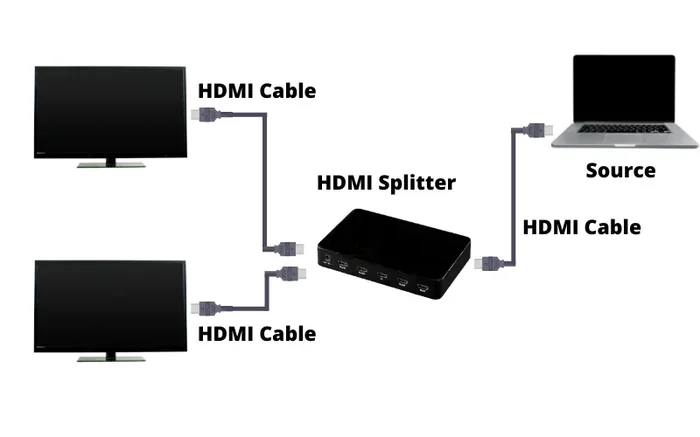
An HDMI splitter is a small device that takes one HDMI input and copies the signal to multiple outputs. Think of it as a signal copier. You plug one source into the splitter, and it sends the exact same audio and video to two, four, or even eight display devices at the same time.
The way it works is pretty straightforward. The splitter receives an audio video signal from a single source, like a Blu-ray player or a gaming console. Then it duplicates that signal and sends it out through multiple HDMI ports. Each connected screen shows the same content in real time.
There are two main types of splitter boxes you will come across. The first is a passive splitter. This type does not need external power. It simply splits the signal using internal circuitry. The second is a powered splitter. This one needs to be plugged into a wall outlet or USB port. Powered splitters actively boost the signal, which helps maintain quality over longer distances.
Most HDMI splitters also handle audio extraction. This means you can send audio to a soundbar or receiver while sending video to a TV. Some models even let you output different formats through separate ports. This flexibility makes them very useful for many setups.
Can You Use an HDMI Splitter on Any TV?
The short answer is yes. You can use an HDMI splitter on most TVs. But there are a few things you need to check before you buy one. Not every TV or splitter combination will work perfectly. Let us break down what matters most.
Compatibility Considerations
First, look at the HDMI port on your TV. Most modern TVs have at least two HDMI ports. If your TV is older, it might only have one. In that case, an HDMI splitter is a great solution. You can connect multiple devices without constantly unplugging cables.
Many modern smart TVs run on a proprietary operating system that manages how external devices connect. This software layer can sometimes affect how a splitter is recognized. Some TVs may need a few seconds to detect all outputs after you plug in a splitter. This is normal and usually not a cause for concern.
You should also check if your TV supports the same resolution support as your splitter. If your splitter can handle 4K but your TV is only 1080p, the splitter will still work. It will simply downscale the signal to match your TV’s capabilities.
Resolution and Signal Support
Not all 4K HDMI splitter models are created equal. Some budget splitters only support 1080p or even 720p. If you want to watch content in ultra HD, make sure the splitter you choose explicitly supports 4K resolution. Look for terms like “4K x 2K” or “Ultra HD” in the product description.
HDCP compliance is another critical factor. HDCP stands for High-bandwidth Digital Content Protection. It is a copy protection system used by movie studios and content creators. If your splitter is not HDCP compliant, you may see a black screen or an error message when trying to play protected content like Netflix movies or Blu-ray discs.
Here is a quick comparison of what to look for:
| Feature | Budget Splitter | Mid-Range Splitter | Premium Splitter |
|---|---|---|---|
| Max Resolution | 1080p | 4K @ 30Hz | 4K @ 60Hz |
| Powered | No | Yes | Yes |
| HDCP Support | Sometimes | Yes | Yes |
| Number of Outputs | 2 | 2 to 4 | 2 to 8 |
| Price Range | $10 – $20 | $20 – $50 | $50 – $150 |
The table above shows that investing a little more in a powered splitter often gives you better resolution support and fewer headaches down the road.
Benefits of Using an HDMI Splitter on Your TV
Using an HDMI splitter on your TV opens up a lot of possibilities. Whether you are setting up a home theater or a business display, this small device can make a big difference.
Expanding Your Display Setup
One of the biggest benefits of an HDMI splitter is video distribution. You can show the same content on multiple screens at once. This is perfect for living rooms where you want to watch a movie from different seating positions. It is also great for kitchens or bedrooms where you want to mirror what is playing on the main TV.
For gamers, an HDMI splitter can be a game changer. You can connect your console to a TV in one room and a monitor in another. Both screens show the same input output ports feed in real time. This is especially useful for streaming gameplay while playing on a bigger screen.
Simplifying Home Entertainment
An HDMI splitter helps you cut down on cable clutter. Instead of buying multiple copies of the same device, you use one source and split the signal. This saves money and reduces the number of HDMI cables you need to manage.
In a home theater setup, you can use a splitter to send audio to a surround sound system while sending video to your main display. This kind of audio extraction lets you get the best of both worlds without needing a more expensive receiver. The splitter handles the distribution while your devices focus on what they do best.
Some people also use an HDMI splitter for screen mirroring. You can mirror your laptop or phone screen onto a bigger TV. While some TVs support wireless mirroring natively, a wired splitter gives you a more stable and lag-free experience. This is especially helpful for presentations or sharing photos with a group.
Common Problems and How to Fix Them
Even though an HDMI splitter is a simple device, you might run into a few issues. Most of these are easy to fix with basic troubleshooting.
Signal Degradation Issues
The most common complaint about HDMI splitters is signal degradation. This happens when the signal weakens as it travels through the splitter and cables. You might notice a fuzzy picture, flickering screen, or no signal at all on one of the outputs.
The main cause is usually a low-quality splitter or cables that are too long. Passive splitters are especially prone to this problem because they do not boost the signal. If you experience degradation, try switching to a powered splitter. These devices actively amplify the signal, which helps maintain a clear picture on all connected screens.
Another fix is to use shorter, high-quality HDMI cables. Cheap cables with thin shielding can introduce interference. Look for cables that are rated for the resolution you need. For 4K content, make sure the cable supports HDMI 2.0 or higher.
HDCP and Copyright Protection Errors
If you see a black screen or an error message when playing protected content, HDCP is likely the culprit. This copy protection system is built into most commercial movies and streaming apps. Not all HDMI splitters support HDCP, which can cause playback issues.
To fix this, make sure your splitter is HDCP compliant. Check the product listing or the manufacturer’s website. You should also make sure all cables in your chain are HDCP compliant. This includes the cable from your source to the splitter and the cables from the splitter to each display.
Sometimes simply unplugging everything and plugging it back in solves the problem. This resets the HDCP handshake between devices. Wait about 30 seconds between disconnecting and reconnecting everything. This gives the devices time to fully reset.
How to Choose the Right HDMI Splitter for Your TV
Choosing the right HDMI splitter depends on your specific needs. Not every splitter is right for every situation. Here are the key factors to consider before you make a purchase.
Powered vs. Passive Splitters
The choice between a powered splitter and a passive splitter is the most important decision you will make. A passive splitter is cheaper and does not need a power source. It works well for simple setups where you are splitting the signal over short distances. However, it does not boost the signal, so quality may drop with longer cable runs.
A powered splitter costs a bit more but delivers much better performance. It amplifies the signal, which means clearer pictures and more reliable connections. If you are running cables longer than six feet or splitting to more than two screens, a powered splitter is almost always the better choice.
Key Features to Look For
When shopping for an HDMI splitter, keep an eye on these features:
- Resolution support: Make sure the splitter supports the resolution of your source device. For 4K content, look for 4K @ 60Hz support.
- Number of outputs: Decide how many screens you need to connect. Most splitters offer 2, 4, or 8 outputs.
- HDCP compliance: If you watch protected content, this is a must-have feature.
- Audio support: Check if the splitter supports the audio formats you need, like Dolby Atmos or DTS.
- Build quality: A well-built splitter with good heat dissipation will last longer and perform better.
Also consider whether you need an HDMI switch instead of a splitter. A switch lets you connect multiple sources to one TV, while a splitter does the opposite. It is easy to confuse the two, so make sure you know which one you need before you buy.
Expert Tips for Setting Up Your HDMI Splitter on a TV
Setting up an HDMI splitter is usually quick and painless. But a few expert tips can help you avoid common pitfalls and get the best results.
First, always connect the splitter to power before you plug in any cables. If you are using a powered splitter, this ensures the internal circuitry is ready to boost the signal from the start. Then connect your source device, like a cable box or gaming console, to the input port on the splitter.
Next, connect each display device to the output ports. Make sure each connection is firm and secure. A loose cable is one of the most common causes of no-signal errors. After all connections are made, turn on your source device first, then turn on the displays.
For businesses that need to distribute content across multiple locations, an HDMI splitter can work alongside a value added network to ensure smooth content delivery and communication between connected devices. This setup is common in retail environments, restaurants, and corporate offices where multiple screens display the same promotional content or information.
One more tip: keep your cables organized. Use cable ties or a cable management box to prevent tangling. This not only looks better but also reduces the risk of accidental disconnections. Label each cable if you have multiple outputs so you can quickly identify which one goes to which screen.
Finally, update the firmware on your source devices regularly. Some TV manufacturers release updates that improve HDMI compatibility with external devices. A simple firmware update can sometimes fix issues that seem related to the splitter but are actually caused by the source device.
Frequently Asked Questions
Can I use an HDMI splitter to connect two TVs to one cable box?
Yes, you can. An HDMI splitter takes the signal from one cable box and sends it to two or more TVs. Both TVs will show the same content at the same time. Keep in mind that you may need a powered splitter if the TVs are far apart from the cable box to avoid signal loss.
Does an HDMI splitter reduce video quality?
A good quality splitter should not noticeably reduce video quality. However, cheap passive splitters can cause some signal degradation, especially over long cable runs. Using a powered splitter and high-quality HDMI cables helps maintain the original picture quality across all connected screens.
Can I use an HDMI splitter with a 4K TV?
Yes, but you need to make sure the splitter supports 4K resolution. Look for a splitter that explicitly states it supports 4K at the refresh rate your TV uses. Most 4K TVs use 60Hz, so a splitter rated for 4K @ 60Hz is ideal for the best experience.
Do I need a powered HDMI splitter or will a passive one work?
It depends on your setup. For short cable runs and splitting to just two screens, a passive splitter usually works fine. But if you are splitting to more than two screens or running cables longer than six feet, a powered splitter is recommended. It boosts the signal and helps prevent picture or audio dropouts.
Why does my HDMI splitter show a black screen on one TV?
A black screen on one output is often caused by a few things. Check that the cable is securely connected. Make sure the TV is set to the correct HDMI input. Also verify that the splitter supports HDCP if you are playing protected content. Trying a different cable or port can also help isolate the problem.
Can I use an HDMI splitter for gaming?
Absolutely. An HDMI splitter works great for gaming setups where you want to display gameplay on multiple screens. Just make sure your splitter supports the resolution and refresh rate of your gaming console. A powered splitter is recommended for the best gaming experience, as it maintains a stable and lag-free signal across all outputs.
Conclusion
Using an HDMI splitter on a TV for multiple screens is not only possible but also very practical. Whether you want to mirror content in different rooms, set up a home theater, or create a digital signage display, the right splitter makes it easy. The key is to choose a splitter that matches your TV’s capabilities and your specific needs.
Remember to check for HDCP compliance, resolution support, and whether you need a powered or passive model. Avoid cheap, uncertified splitters if you want reliable performance. And do not forget the basics: use good quality cables and keep your connections secure.
With the right setup, an HDMI splitter can transform how you watch, play, and share content across multiple screens. It is a small investment that delivers big results. So go ahead, set up your splitter, and enjoy the same great content on every display in your home or office.