Can You Use Any Usb With Iphone And What You Need To Know
Not every USB cable works with your iPhone. The right USB cable and adapter depend on your iPhone model, the Lightning or USB-C connector, and whether the cable is MFi certified. Using the wrong cable can lead to slow charging speeds, data transfer failures, or even damage to your device.
You plug in your iPhone and nothing happens. You try another cable. Still nothing. Sound familiar? If you have ever dug through a drawer full of cables and wondered can you use any USB with iPhone, you are not alone. The short answer is no, not every USB cable works with every iPhone. But the good news is that understanding what does work is simpler than you think.
This guide breaks down everything you need to know about iPhone USB compatibility. We will cover connector types, cable certifications, charging speeds, data transfer, and the best accessories to buy. Whether you have an older iPhone or the latest model, this article will help you make smarter choices and avoid frustrating mistakes.
Key Takeaways
- Not all USB cables are compatible: iPhones use either Lightning or USB-C connectors depending on the model.
- MFi certification matters: Always choose MFi-certified cables and adapters to ensure safety and performance.
- USB-C is the future: iPhone 15 and newer models use USB-C, opening up more universal compatibility.
- Charging speed varies: The USB port type, cable quality, and power adapter all affect how fast your iPhone charges.
- Data transfer needs the right setup: Syncing your iPhone with a computer requires the correct cable and software.
- Cheap uncertified cables are risky: They may cause overheating, slow charging, or permanent port damage.
- USB hubs and adapters expand options: You can connect multiple devices to your iPhone with the right accessories.
📑 Table of Contents
- Understanding iPhone USB Connectors
- Can You Use Any USB Cable With Your iPhone
- Charging Your iPhone With Different USB Ports
- Data Transfer and Syncing With USB
- Common Mistakes People Make With iPhone USB Cables
- Best USB Cables and Accessories for iPhone
- Expert Tips for Getting the Most Out of Your iPhone USB Setup
- Key Takeaways
- Conclusion
Understanding iPhone USB Connectors
iPhones have used two main connector types over the years. Knowing which one your phone uses is the first step to finding the right USB cable.
The Lightning Connector
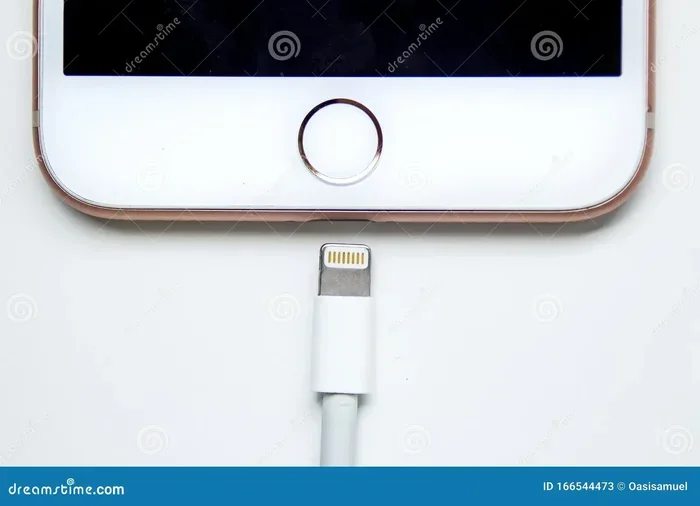
Apple introduced the Lightning connector in 2012. It replaced the older 30-pin dock connector and became the standard for iPhones for over a decade. If your iPhone was made before 2023, it almost certainly uses a Lightning port. Models like the iPhone 14, iPhone 13, iPhone 12, and all earlier iPhones from the iPhone 5 onward use Lightning.
The Lightning connector is small and reversible, which means you can plug it in either direction. This design made it much more user-friendly than the older connector. However, Lightning is an Apple proprietary design, which means you need Lightning-specific cables and adapters.
The USB-C Connector
Starting with the iPhone 15 lineup in 2023, Apple switched to USB-C. This was a major shift driven by European Union regulations requiring a universal charging standard. The iPhone 15, iPhone 15 Plus, iPhone 15 Pro, and iPhone 15 Pro Max all use USB-C.
USB-C is a universal connector used by Android phones, laptops, tablets, and many other devices. This means you can now share cables and chargers across multiple devices more easily. If you already have a USB-C cable lying around, there is a good chance it will work with your newer iPhone.
How to Check Your iPhone Model
Not sure which connector your iPhone has? Open the Settings app, tap General, then tap About. Look for the Model Name or Model Number. You can also check the back of your phone. If it says iPhone 14 or earlier, you have Lightning. If it says iPhone 15 or newer, you have USB-C.
Can You Use Any USB Cable With Your iPhone
Here is where things get tricky. The answer depends on what you mean by “any USB.” A USB cable has two ends. One end plugs into your iPhone. The other end plugs into a power source, computer, or USB hub. Both ends matter.
The iPhone-End of the Cable
The connector that plugs into your iPhone must match your phone’s port. A Lightning cable will not work with a USB-C iPhone. A USB-C cable will not work with a Lightning iPhone. This seems obvious, but it is one of the most common mistakes people make.
For example, if you buy a new iPhone 15 and grab an old Lightning cable from a drawer, it will not fit. You need a USB-C cable. The reverse is also true. If you have an iPhone 13 and try a USB-C cable, it simply will not connect.
The Other End of the Cable
The other end of the cable can be USB-A, USB-C, or even a proprietary connector. USB-A is the flat, rectangular shape you see on most computer ports and older wall chargers. USB-C is the smaller, oval-shaped connector that is becoming the universal standard.
What matters here is the cable itself, not just the end that plugs into the wall. A USB to Lightning cable has USB-A on one end and Lightning on the other. A USB-C to Lightning cable has USB-C on one end and Lightning on the other. Both can charge your iPhone, but the charging speed and compatibility may differ depending on the power source you use.
Why Cable Quality Matters
Not all cables are created equal. A cheap, uncertified cable might charge your iPhone slowly or not at all. Worse, it could damage your iPhone charging port or cause overheating. This is why Apple recommends using MFi certified cables. MFi stands for Made for iPhone, and it means the cable meets Apple’s strict quality and safety standards.
When shopping for cables, look for the MFi badge on the packaging. This small detail can save you from buying a cable that looks fine but performs poorly. A certified Lightning cable or certified USB-C cable ensures reliable charging and data transfer every time.
Charging Your iPhone With Different USB Ports
Not all USB ports deliver the same power. The port you plug into directly affects your iPhone charging speed. Understanding this can help you charge your phone faster and avoid frustration.
USB-A Ports
USB-A ports are the most common type found on older computers, wall chargers, and car adapters. These ports typically deliver 5 watts of power, which charges your iPhone slowly. If you plug your iPhone into a standard USB-A wall charger, expect a full charge to take around two to three hours.
USB-A ports are perfectly fine for overnight charging or when you are not in a rush. But if you need a quick boost before heading out, a USB-A port will not do the job fast enough.
USB-C Ports
USB-C ports can deliver much more power than USB-A. Modern USB-C chargers support USB Power Delivery, which can push up to 20 watts or more. When you use a USB-C power adapter with a USB-C iPhone, you can get significantly faster charging.
For example, an iPhone 15 Pro with a 20-watt USB-C charger can reach 50% battery in about 30 minutes. The same phone on a standard USB-A charger might take twice as long. If fast charging matters to you, USB-C is the way to go.
Computer USB Ports
Charging your iPhone through a computer USB port works, but it is usually slow. Most desktop and laptop computers have USB-A ports that deliver low power. Some newer laptops have USB-C ports that support faster charging, but the speed still depends on the specific port and computer.
If you need to sync your iPhone with a computer, a USB cable is essential. You can transfer photos, music, files, and backups using iTunes on Windows or Finder on Mac. Just make sure you are using the right cable type for your iPhone model.
Car Chargers and Portable Batteries
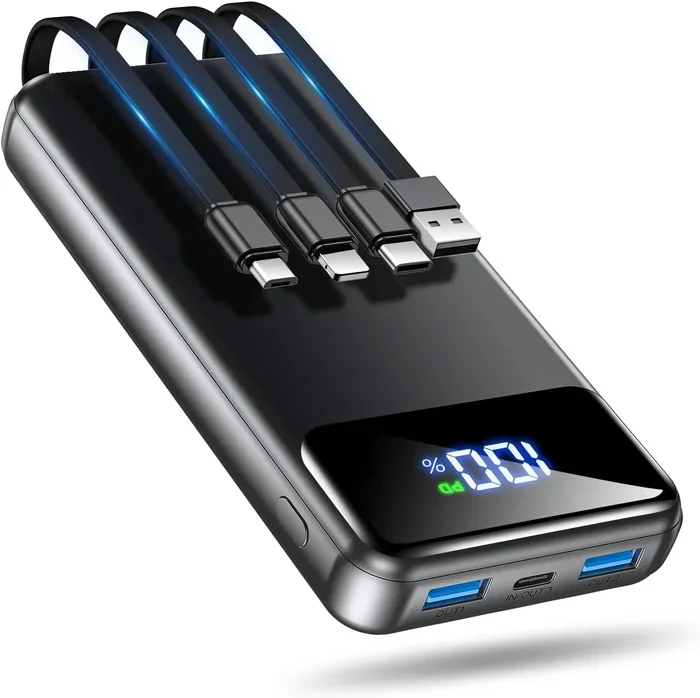
Car chargers and portable battery packs are great for keeping your iPhone powered on the go. Look for car chargers with USB-C ports if you have a newer iPhone. Many modern cars now include USB-C ports in the dashboard, which makes charging seamless.
For portable battery packs, choose one with a USB-C output and enough capacity to charge your iPhone multiple times. A 10,000mAh battery pack can typically charge an iPhone from zero to full about three times.
Data Transfer and Syncing With USB
Charging is only one part of the equation. Many people also use USB cables to transfer data between their iPhone and a computer or other devices. The right cable and setup make this process smooth and reliable.
Transferring Files to and From Your iPhone
You can transfer photos, videos, documents, and more by connecting your iPhone to a computer with a USB cable. On a Mac, open Finder and select your iPhone from the sidebar. On a Windows PC, open iTunes or the new Apple Devices app.
From there, you can sync music, back up your phone, and transfer files. The process works the same whether you use a USB to Lightning cable or a USB-C to USB-C cable on newer iPhones.
Using a USB Hub With Your iPhone
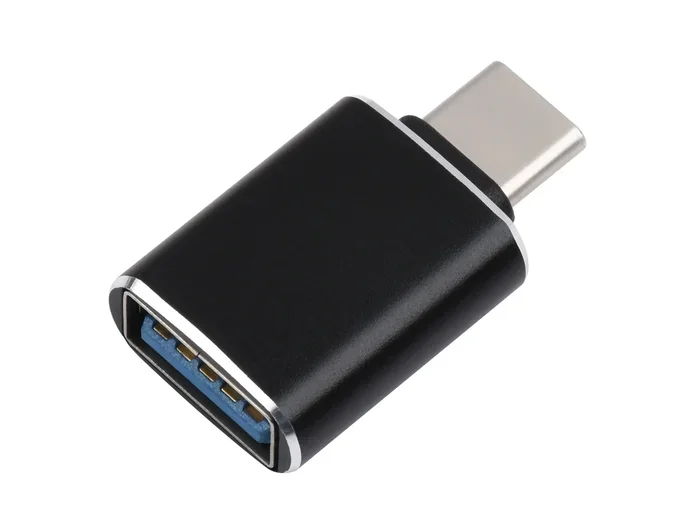
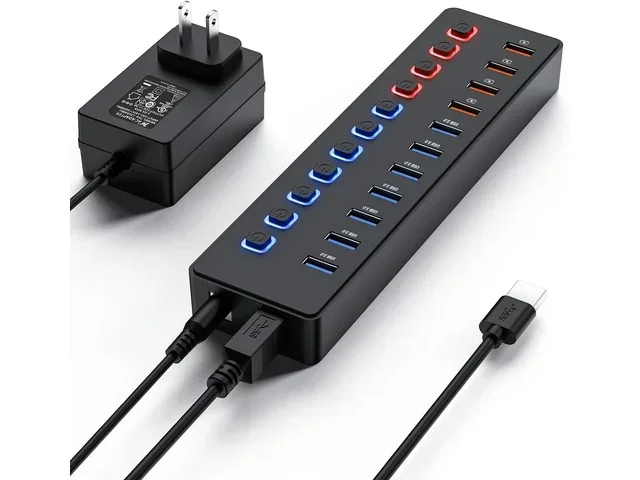
A USB hub for iPhone can expand your connectivity options. These small devices let you plug in multiple USB devices at once, such as flash drives, keyboards, or even external hard drives. Some USB hubs connect directly to your iPhone’s charging port, giving you extra ports to use.
Not all USB hubs work with every iPhone. Make sure the hub is compatible with your connector type and supports the data speeds you need. For the best experience, choose a hub that is MFi certified and supports USB 3.0 or higher for faster file transfers.
Wireless Alternatives to USB
While USB cables are reliable, wireless options are also worth considering. AirDrop lets you share files between Apple devices instantly without any cables. iCloud syncs your photos, files, and backups automatically over Wi-Fi. Bluetooth connects accessories like headphones and speakers without wires.
However, wireless transfer is usually slower than a wired USB connection for large files like videos or full backups. If you need to move a lot of data quickly, a USB cable is still the best choice.
Common Mistakes People Make With iPhone USB Cables
Even with the best intentions, many people make avoidable mistakes when choosing and using USB cables with their iPhones. Here are the most common ones.
Using Uncertified Cables
This is the biggest mistake. Cheap, uncertified cables might seem like a great deal, but they often fail to deliver proper power. They can cause slow charging, intermittent connections, or even damage your iPhone’s charging port over time. Always look for MFi certification before buying.
Ignoring Cable Length
Cable length might seem unimportant, but it actually affects charging speed. Longer cables have more resistance, which can reduce the power reaching your iPhone. If you want the fastest charging, use a shorter cable. A 1-foot or 2-foot cable is ideal for fast charging at home or at your desk.
Forcing a Cable That Does Not Fit
Never force a cable into your iPhone’s port. If it does not fit, it is the wrong cable. Lightning and USB-C connectors look different and are not interchangeable. Forcing the wrong connector can bend or break the pins inside your port, leading to costly repairs.
Using Damaged or Worn Cables
A frayed or cracked cable might still work, but it is a safety hazard. Exposed wires can cause short circuits, overheating, or even fire. Replace damaged cables immediately. A new certified cable costs just a few dollars and keeps your iPhone safe.
Assuming All USB-C Cables Are Equal
Not all USB-C cables support the same power delivery or data speeds. Some USB-C cables only support 5 watts, which charges your iPhone very slowly. Others support 20 watts or more for fast charging. Check the cable specifications before buying, especially if fast charging matters to you.
Best USB Cables and Accessories for iPhone
Not sure what to buy? Here are some trusted options for different needs.
For Lightning iPhones
- Apple Lightning to USB-C Cable: The official Apple cable works perfectly with all Lightning iPhones and supports fast charging when paired with a USB-C power adapter.
- Anker PowerLine III Lightning Cable: This MFi-certified cable is durable, flexible, and comes with a lifetime warranty. It is a great value option.
- Belkin Boost Up Lightning Cable: Another MFi-certified choice with strong build quality and reliable performance.
For USB-C iPhones
- Apple USB-C to USB-C Cable: The official Apple cable supports fast charging and data transfer. It works seamlessly with iPhone 15 and newer models.
- Nomad Ultra Rugged USB-C Cable: This cable is built to last with a braided nylon exterior and reinforced connectors. It is ideal for daily use.
- AmazonBasics USB-C to USB-C Cable: An affordable, MFi-certified option that delivers solid performance for everyday charging.
For Charging and Syncing
- Anker 20W USB-C Power Adapter: A compact, fast charger that pairs perfectly with USB-C iPhones for quick charging on the go.
- Apple USB-C Digital AV Multiport Adapter: This adapter lets you connect your iPhone to a display, USB-A devices, and a charging cable all at once.
- Satechi USB-C Hub: A sleek, compact hub that adds multiple ports to your iPhone for charging, data transfer, and connectivity.
Expert Tips for Getting the Most Out of Your iPhone USB Setup
Want to squeeze every bit of performance from your iPhone charging and data setup? Here are some expert-backed tips.
Invest in quality cables. A good cable costs a little more but lasts longer and charges faster. It is worth the investment. Look for MFi certification and read reviews before buying.
Keep your port clean. Dust and lint can build up inside your iPhone’s charging port over time. This can cause loose connections and slow charging. Gently clean the port with a soft, dry brush or a can of compressed air.
Update your software. Sometimes slow charging or connection issues are caused by outdated software. Make sure your iPhone is running the latest version of iOS. Updates often include bug fixes for USB connectivity and charging performance.
Use the right power adapter. The cable is only half the equation. A high-quality power adapter makes a big difference in charging speed. For fast charging, use a USB-C power adapter rated at 20 watts or higher.
Avoid charging in hot environments. Heat slows down charging and can degrade your battery over time. If your iPhone feels hot while charging, unplug it and let it cool down before continuing.
Key Takeaways
- Not every USB cable works with every iPhone. Match the connector type to your iPhone model.
- MFi certification ensures safety and performance. Always choose certified cables and adapters.
- USB-C is the new standard for iPhone 15 and newer. It offers faster charging and universal compatibility.
- Charging speed depends on the USB port, cable quality, and power adapter. USB-C with a fast charger delivers the best results.
- Data transfer requires the right cable and software. Sync your iPhone with a computer using the appropriate cable type.
- Avoid common mistakes like using cheap cables or forcing connectors. These habits can damage your iPhone over time.
- The right accessories make a big difference. Invest in quality cables, adapters, and hubs for the best experience.
Conclusion
The question can you use any USB with iPhone does not have a simple yes or no answer. It depends on your iPhone model, the connector type, the cable quality, and the power source you use. But with the right knowledge, you can easily find the perfect setup for your needs.
Whether your iPhone uses Lightning or USB-C, choosing an MFi certified cable and a compatible USB power adapter will keep your device safe, charged, and ready to go. Avoid cheap, uncertified cables, keep your port clean, and invest in quality accessories that last.
Your iPhone is a powerful tool, and the right USB cable and adapter help you get the most out of it every single day. Take a few minutes to understand your options, and you will never have to deal with a dead battery or a failed data transfer again. Make the smart choice today, and your iPhone will thank you tomorrow.
Frequently Asked Questions
Can I charge my iPhone with any USB cable?
No, you cannot use just any USB cable. The cable must have the correct connector for your iPhone model. Lightning iPhones need a Lightning cable, and USB-C iPhones need a USB-C cable. The cable should also be MFi certified for safe and reliable charging.
What is the difference between USB-A and USB-C?
USB-A is the older, flat, rectangular connector commonly found on computers and older chargers. USB-C is a smaller, oval-shaped connector that supports faster charging and data transfer. Newer iPhones use USB-C, while older models use Lightning with a USB-A or USB-C connector on the other end.
Do I need an Apple cable for my iPhone?
You do not have to use an Apple cable, but it must be MFi certified. MFi stands for Made for iPhone, and it guarantees the cable meets Apple’s safety and performance standards. Many third-party brands offer excellent MFi-certified alternatives at lower prices.
Why is my iPhone charging slowly when connected to USB?
Slow charging usually happens because of a low-power USB port, a cheap or damaged cable, or a non-compatible charger. USB-A ports typically deliver less power than USB-C ports. Using a certified cable with a proper USB-C power adapter will significantly improve your charging speed.
Can I use a USB hub to connect multiple devices to my iPhone?
Yes, you can use a USB hub with your iPhone, but it must be compatible with your connector type and support data transfer. Look for an MFi-certified USB hub that supports the speed and power requirements of your devices. Not all hubs work with every iPhone model.
Is it safe to use a USB cable from a different brand with my iPhone?
Yes, it is safe as long as the cable is MFi certified. Non-certified cables may cause slow charging, data transfer issues, or even damage to your iPhone over time. Always check for the MFi badge on the packaging or product description before purchasing.