How Do I Change My Bluetooth Pair Name on Your Device
Changing your Bluetooth pair name is simple and quick once you know where to look on your device. Whether you use Windows, Mac, Android, or iPhone, this guide walks you through the exact steps to rename any paired Bluetooth device. Your Bluetooth pair name helps you identify devices faster and keeps your connections organized.
Have you ever looked at a list of Bluetooth devices and thought, “Which one is mine?” It happens all the time. Your phone shows a long list of Bluetooth pair names, and half of them are just random letters and numbers. Renaming your Bluetooth pair name makes life so much easier.
In this guide, we walk you through the exact steps to change your Bluetooth pair name on every major device. Whether you use Windows, Mac, Android, or iPhone, you will find clear instructions here. We also share tips on choosing great names and avoiding common mistakes.
By the end of this article, you will know exactly how to rename any Bluetooth connection device. You will also understand why a good device nickname matters for smooth Bluetooth connectivity. Let us get started.
Key Takeaways
- Rename Bluetooth devices easily: Every major platform lets you change the pair name in just a few taps or clicks.
- Windows and Mac have built-in options: No extra software is needed to rename your Bluetooth pair name on desktop computers.
- Android and iPhone support custom names too: You can personalize device labels right from your phone settings.
- Good naming saves time: A clear Bluetooth device name helps you pick the right device fast during pairing.
- Restart after renaming: Always turn Bluetooth off and back on to make sure the new name shows up everywhere.
📑 Table of Contents
- What Is a Bluetooth Pair Name and Why Does It Matter?
- How to Change Your Bluetooth Pair Name on Windows
- How to Change Your Bluetooth Pair Name on Mac
- How to Change Your Bluetooth Pair Name on Android
- How to Change Your Bluetooth Pair Name on iPhone and iPad
- Tips for Naming Your Bluetooth Devices Effectively
- How Renaming Your Bluetooth Pair Name Improves Your Daily Routine
- Common Mistakes People Make When Renaming Bluetooth Devices
- Final Thoughts on Changing Your Bluetooth Pair Name
- Frequently Asked Questions
What Is a Bluetooth Pair Name and Why Does It Matter?
A Bluetooth pair name is the label that appears when your device searches for other wireless connection devices. Think of it as a name tag. When you scan for devices, you see names like “JBL Flip 5” or “AirPods Pro.” These names help you pick the right device to connect.
Your Bluetooth device name matters more than you might think. Here is why:
- Easy identification: A clear name helps you find the right device fast.
- Avoid confusion: When multiple devices are nearby, a unique name stops mix-ups.
- Better organization: Custom names keep your Bluetooth device list neat and tidy.
- Personal touch: You can make your devices feel like yours with a personal label.
Most devices come with default names straight from the factory. These names often include model numbers or random codes. Changing the Bluetooth pair name to something recognizable takes just a few minutes.
How to Change Your Bluetooth Pair Name on Windows
Windows makes it pretty easy to rename your Bluetooth devices. The process is slightly different depending on your Windows version, but the basic steps are the same. Let us walk through it.
Step-by-Step for Windows 10 and 11
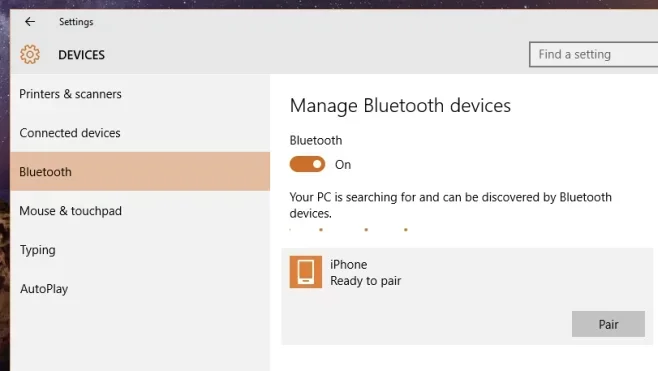
- Open Settings: Click the Start menu and select the gear icon to open Settings.
- Go to Bluetooth: Click on “Bluetooth and devices” (Windows 11) or “Devices” (Windows 10).
- Find your device: Look at the list of paired devices and click on the one you want to rename.
- Click Rename: Select the “Rename” option or click on the device name itself.
- Type a new name: Enter your preferred Bluetooth device name and press Enter.
That is it. Your new Bluetooth pair name should appear the next time you scan for devices. If it does not show up right away, try turning Bluetooth off and back on.
Troubleshooting Windows Bluetooth Rename Issues
Sometimes Windows does not let you rename a device right away. Here are a few things to try:
- Remove and re-pair the device: Delete the device from your Bluetooth list and pair it again with the new name.
- Update your Bluetooth driver: Go to Device Manager and check for driver updates. An outdated Bluetooth driver can cause issues.
- Restart your PC: A simple restart often fixes small glitches with Bluetooth settings.
How to Change Your Bluetooth Pair Name on Mac
Mac users have a straightforward way to rename Bluetooth devices too. Apple keeps the process simple and user-friendly. Here is how to do it on macOS.
Steps to Rename Bluetooth Devices on Mac
- Open System Settings: Click the Apple menu in the top left corner and choose “System Settings” (or “System Preferences” on older Macs).
- Go to Bluetooth: Click on the Bluetooth icon in the sidebar.
- Find your device: Locate the device you want to rename in the list of paired devices.
- Click the name: Hover over the device name and click “Edit” or the info icon (the “i” symbol).
- Enter a new name: Type in your preferred Bluetooth pair name and save.
Your Mac will now show the new name whenever you scan for Bluetooth connectivity devices. The change takes effect right away in most cases.
One thing to note: renaming a Bluetooth device on your Mac does not change the actual name stored on the device itself. It only changes how your Mac sees it. Other devices will still see the original name unless you rename it on their system too.
How to Change Your Bluetooth Pair Name on Android
Android phones give you solid control over your Bluetooth device names. The exact steps can vary slightly depending on your phone brand and Android version, but the process is similar across most devices.
Renaming Bluetooth Devices on Android
- Open Settings: Tap the gear icon on your home screen or app drawer.
- Go to Bluetooth: Tap on “Bluetooth” or “Connected devices” depending on your phone.
- Find your paired device: Look for the device you want to rename in the list of paired devices.
- Tap the gear icon: Next to the device name, tap the settings gear or the pencil icon.
- Edit the name: Type in your new Bluetooth pair name and save.
Some Android phones also let you rename devices directly from the Bluetooth settings screen. Just look for a “Rename” or “Edit” option when you tap on the device.
Using Bluetooth Companion Apps on Android
Many Bluetooth devices come with their own companion apps. These apps often give you more control over the Bluetooth pair name and other settings. For example:
- JBL Headphones: Use the JBL Portable app to rename your speaker or headphones.
- Sony devices: The Sony Headphones Connect app lets you customize your device name.
- Bose speakers: The Bose app gives you full control over naming and Bluetooth visibility.
Using the companion app is often the best way to change the Bluetooth pair name at the device level. This means the new name will show up on any device that scans for it, not just your phone.
For instance, if you want to make your old Bose speakers Bluetooth-capable, you can rename them through the Bose app to something easy to recognize. This is especially helpful when you have multiple Bluetooth speakers in your home.
How to Change Your Bluetooth Pair Name on iPhone and iPad
Apple devices handle Bluetooth pair names in a slightly different way than Android. iOS does not always let you rename paired devices directly from the Bluetooth settings. But there are workarounds.
Renaming Bluetooth Devices on iPhone
Here is what you can do on your iPhone:
- Open Settings: Tap the Settings app on your home screen.
- Go to Bluetooth: Tap on “Bluetooth” in the settings menu.
- Find your device: Look for the device in the list of My Devices.
- Tap the info icon: Tap the “i” icon next to the device name.
- Rename (if available): Some devices allow you to tap “Name” and enter a new Bluetooth pair name.
Unfortunately, not all Bluetooth devices support renaming from the iPhone side. In those cases, you need to rename the device on the device itself or through its companion app.
Renaming Bluetooth Devices on iPad
The process on iPad is the same as on iPhone. Go to Settings, tap Bluetooth, find your device, and look for the rename option. If it is not available, use the companion app for that device.
Tips for Naming Your Bluetooth Devices Effectively
Now that you know how to change your Bluetooth pair name, let us talk about how to name your devices well. A good name saves you time and frustration every day.
Best Practices for Bluetooth Device Names
- Be descriptive: Use names like “Kitchen Speaker” or “Office Headphones” so you know exactly what each device is.
- Include the room: If you use multiple devices, add the room name to avoid confusion.
- Keep it short: Aim for 15 characters or fewer. Long names may not display fully on all devices.
- Avoid special characters: Some devices do not support emojis or symbols in Bluetooth device names.
- Use consistent naming: Pick a format and stick with it across all your devices.
Examples of Great Bluetooth Pair Names
- “Living Room JBL”
- “Bedroom AirPods”
- “Car Audio BT”
- “Patio Speaker”
- “Work Headphones”
These names are short, clear, and easy to spot in a list of Bluetooth connections. When you are in a hurry and need to pair a device quickly, a good name makes all the difference.
When You Should Rename Your Bluetooth Device
Here are some situations where changing your Bluetooth pair name makes sense:
- You bought a used device: The previous owner may have named it something confusing.
- You have multiple similar devices: Two JBL speakers in different rooms need different names.
- The default name is generic: Names like “BT-SPK” or “HC-05” do not tell you anything.
- You share devices with family: Clear names help everyone in the household find the right device.
How Renaming Your Bluetooth Pair Name Improves Your Daily Routine
You might wonder why all this fuss about names matters. The truth is, a good Bluetooth pair name improves your daily experience in real ways.
Think about how often you connect to Bluetooth devices. You do it when you drive, work out, cook, or relax. Every time you scan for devices, a clear name helps you connect faster. You do not have to guess which device is which.
For example, if you want to listen to music on your TV with Bluetooth headphones, a clear name like “Bedroom Headphones” helps you find them instantly. You do not have to dig through a list of random device codes.
Renaming also helps when you are troubleshooting Bluetooth connectivity issues. When you call tech support, saying “My Living Room Speaker is not connecting” is much easier than saying “The BT-SPK02 device is not pairing.” Support teams can help you faster when you have clear names.
If you use a Bluetooth adapter on your TV to connect wireless devices, renaming that adapter to something like “TV Bluetooth Adapter” makes it easy to spot in your list of wireless connection devices. This is especially helpful when you have several adapters and dongles around your home.
Even if you want to use Bluetooth headphones with your TV or connect your phone to a projector, having clearly named devices makes the whole process smoother. A good Bluetooth device name is a small change that saves you time every single day.
Common Mistakes People Make When Renaming Bluetooth Devices
Renaming a Bluetooth pair name is simple, but people still make avoidable mistakes. Here are a few to watch out for:
- Forgetting to rename at the device level: If you only rename it on your phone, other devices will still see the old name. Always rename directly on the device when possible.
- Using the same name for multiple devices: This causes confusion and connection errors. Each device should have a unique Bluetooth device name.
- Ignoring the companion app: Some devices only let you rename them through their own app, not through your phone settings.
- Not restarting Bluetooth after renaming: Always toggle Bluetooth off and back on to make sure the new name takes effect across all devices.
- Using names that are too personal: Avoid names that contain private information, especially for devices that are visible to others during device discovery mode.
Final Thoughts on Changing Your Bluetooth Pair Name
Changing your Bluetooth pair name is one of those small tasks that makes a big difference. It takes just a few minutes and instantly improves how you manage your wireless connection devices. Whether you use Windows, Mac, Android, or iPhone, the process is straightforward and easy to follow.
Remember to keep your names short, descriptive, and consistent. Use companion apps when needed, and always rename at the device level for the best results. A well-organized Bluetooth device list saves you time and frustration every day.
So go ahead and take a few minutes to rename your devices today. You will wonder why you did not do it sooner. A little effort now pays off every time you connect to your favorite Bluetooth connectivity devices.
And if you ever want to explore more about Bluetooth setups, check out how you can use any Bluetooth headphones with your TV or learn how to use a Bluetooth adapter on your TV for even more wireless freedom. You can also find out how to make your old Bose speakers Bluetooth to breathe new life into your favorite audio gear.
Frequently Asked Questions
Can I change the Bluetooth pair name on my smart TV?
Yes, most smart TVs let you rename Bluetooth devices through their settings menu. Go to Settings, find Bluetooth, and look for the device you want to rename. If your TV does not support renaming, you can change the name on the device itself through its companion app.
Will changing my Bluetooth pair name affect the connection?
No, changing the Bluetooth pair name does not affect your connection in any way. It only changes how the device appears in your list of available devices. All your paired data, settings, and connection quality stay exactly the same.
Can I use emojis in my Bluetooth device name?
It depends on the device. Some devices and platforms support emojis in Bluetooth device names, while others do not. To be safe, stick to letters and numbers. This ensures your name shows up correctly on all devices.
How do I find my Bluetooth device’s original name?
You can usually find the original name on the device itself, on the packaging, or in the user manual. You can also check the original name by going to your Bluetooth settings and looking at the device before you rename it.
Can I change the Bluetooth pair name on a Windows PC without admin rights?
In most cases, you can rename Bluetooth devices on Windows without admin rights. However, if you are on a work or school computer, admin restrictions may limit your ability to change Bluetooth settings. Contact your IT administrator if you run into issues.
What should I do if the new Bluetooth pair name does not show up?
First, turn Bluetooth off and back on. If that does not work, remove the device from your paired list and pair it again. Sometimes restarting your device also forces the new Bluetooth device name to appear in scans and lists.