Can You Use Usb C For Display And Why It Matters So Much
Yes, you can use USB C for display, and it is one of the most versatile connectivity options available today. USB-C supports video output through Alt Mode and Thunderbolt, letting you connect monitors, projectors, and docking stations with a single cable. This guide covers everything you need to know about USB-C display technology, from cable selection to compatibility tips.
You have probably seen the small, reversible connector on your phone, laptop, or tablet and wondered whether it can do more than just charge your device. The answer is a clear yes. Can you use USB C for display? Absolutely. USB Type-C has become one of the most popular connectivity options in modern electronics, and its ability to carry video signals is a game changer. Whether you want to hook up a single monitor or build a multi-screen workstation, USB-C display output gives you flexibility and simplicity. In this guide, we will walk you through everything you need to know about using USB-C for display, from the basics to advanced setup tips.
USB-C is not just a cable. It is a complete connectivity standard that handles video, data, and power through one tiny port. USB-C connectivity has reshaped how we think about peripheral connections, replacing older standards like HDMI, VGA, and DisplayPort in many devices. The USB-C port on your laptop or tablet can drive a monitor, transfer files, and charge your battery all at the same time. This makes it incredibly convenient for professionals, students, and everyday users alike. Understanding how USB-C video output works helps you get the most out of your devices.
Key Takeaways
- USB-C Can Deliver Video: USB-C supports display output through Alt Mode and Thunderbolt protocols, making it a viable replacement for older ports.
- Thunderbolt Boosts Performance: Thunderbolt 3 and Thunderbolt 4 offer the best USB-C display experience with higher bandwidth and resolution support.
- One Cable Does It All: USB-C handles video, data, and power delivery simultaneously, reducing cable clutter on your desk.
- Compatibility Matters: Not all USB-C ports support video output. Always check your device specifications before buying a cable or adapter.
- Docking Stations Expand Your Setup: A USB-C docking station lets you connect multiple monitors and peripherals through a single port.
- Cable Quality Affects Performance: Using the wrong USB-C cable can limit resolution, refresh rate, or prevent display output entirely.
📑 Table of Contents
What Is USB-C and Why Is It So Popular?
The Universal Serial Bus Type-C connector is a small, oval-shaped port that has become the standard on modern laptops, tablets, and smartphones. Unlike older USB connectors, the USB-C reversible connector can be plugged in either way, which saves you from the frustrating flip-and-try routine. Its compact size makes it ideal for thin laptops and lightweight devices where space is limited.
USB-C data transfer speeds are impressive too. USB 3.1 and USB 3.2 standards can transfer data at speeds up to 10 or 20 gigabits per second. Newer USB4 standards push that even further. But what really sets USB-C apart is its ability to carry multiple types of signals through a single cable. You get video, audio, data, and power all in one connection. This versatility is the main reason USB-C display technology has taken off so quickly.
The USB-C Connector Explained
The USB-C connector has 24 pins inside it, which is double the number found in older USB-A connectors. These extra pins allow it to support higher power delivery and faster data rates. The reversible design means there is no up or down side, making it user-friendly. Most modern devices now include at least one USB-C port, and many newer laptops have replaced all other ports with USB-C only.
The physical design of the connector is also durable. The reversible connector reduces wear and tear because you are not constantly flipping it to find the right orientation. The slim profile fits easily into thin devices without adding bulk. These design choices make USB-C the preferred port for manufacturers and consumers alike.
USB-C Alt Mode and DisplayPort
Here is where things get interesting for display purposes. USB-C alt mode is a feature that allows the USB-C port to carry non-USB signals, including DisplayPort and HDMI. When a device supports alt mode, it can send video signals to an external display through the same USB-C port. This is the foundation of USB-C display output and is built into most modern laptops and tablets.
DisplayPort over USB-C is particularly powerful. It supports high resolutions and refresh rates without needing a separate DisplayPort cable. You can connect a USB-C monitor directly to your laptop using a single cable and get a crisp, high-quality image. Some devices also support USB-C to HDMI adapters, giving you even more flexibility in how you connect to displays.
Can You Use USB C For Display? The Short Answer
The short answer to can you use USB C for display is yes. Most modern devices with a USB-C port support some form of video output. However, the quality and capabilities depend on several factors, including the specific USB-C standard your device supports, the cable you use, and the display you are connecting to.
USB-C display output works by converting the digital data from your device into a video signal that your monitor or screen can understand. This process happens through the USB-C port’s alt mode or through a Thunderbolt connection. The result is a clean, digital video signal that delivers excellent picture quality without the need for bulky adapters.
How USB-C Handles Video Output
When you plug a display into a USB-C port, the device negotiates the connection and determines the best video output settings. It checks the capabilities of both the source device and the display, then adjusts resolution, refresh rate, and color depth accordingly. This happens automatically in most cases, making setup simple and straightforward.
The quality of the video output depends on the bandwidth available through the USB-C connection. Higher bandwidth supports higher resolutions and smoother motion. This is why Thunderbolt 3 and Thunderbolt 4 connections offer the best display performance over USB-C. They provide significantly more bandwidth than standard USB-C, allowing for 4K and even 8K resolution at high refresh rates.
USB-C vs Traditional Display Ports
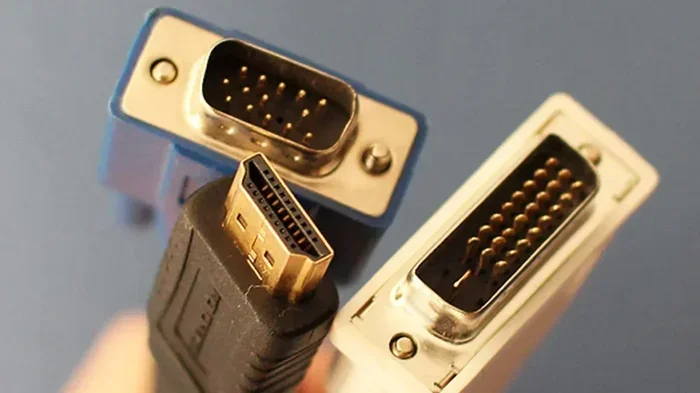
Traditional display ports like HDMI and DisplayPort have been around for a long time. They are reliable and well-understood. But USB-C offers several advantages over these older standards. First, the reversible connector is much more convenient. Second, a single USB-C cable can handle video, data, and power simultaneously. Third, USB-C is becoming the universal standard, meaning fewer cables and adapters clutter your workspace.
That said, traditional ports still have their place. Some older monitors and projectors only have HDMI or VGA inputs. In those cases, a USB-C adapter or USB-C to HDMI cable bridges the gap. The beauty of USB-C is that it can adapt to almost any display setup with the right accessory.
USB-C Display Technologies You Should Know
Not all USB-C connections are created equal when it comes to display performance. Understanding the different technologies behind USB-C video output helps you choose the right setup for your needs.
Thunderbolt 3 and Thunderbolt 4
Thunderbolt 3 and Thunderbolt 4 are the gold standards for USB-C display connections. Thunderbolt 3 offers 40 gigabits per second of bandwidth, which is enough to drive two 4K displays at 60Hz or a single 5K display. Thunderbolt 4 builds on this foundation with even better performance and stricter certification requirements.
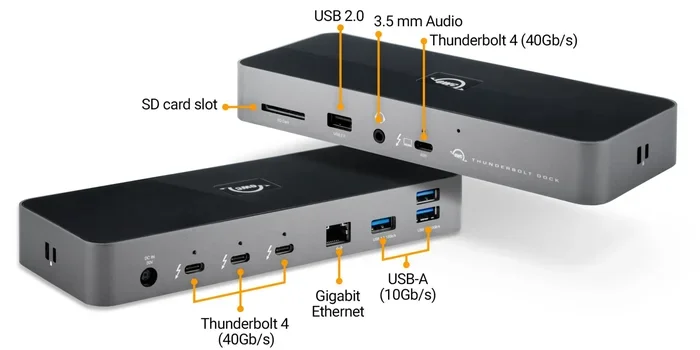
These connections are found on most modern laptops, especially those from Apple, Dell, HP, and Lenovo. If your device has a Thunderbolt 3 or Thunderbolt 4 port, you can connect high-resolution monitors with ease. The USB-C docking station becomes especially powerful with Thunderbolt, allowing you to daisy-chain multiple displays from a single port.
USB-C Docking Stations and Hubs
A USB-C docking station is one of the best investments you can make if you use USB-C for display. These devices expand a single USB-C port into multiple outputs, including HDMI, DisplayPort, and VGA. They also add USB-A ports, Ethernet, SD card readers, and sometimes even Ethernet connectivity.
Docking stations are perfect for desk setups. You plug one cable into your laptop, and suddenly you have access to multiple monitors, wired internet, and all your peripheral connections. When you leave your desk, you unplug one cable and go. The USB-C hub is a more compact alternative that adds a few extra ports without the full docking station feature set.
USB-C Power Delivery and Display
One of the most compelling features of USB-C charging and display is that a single cable can do both. USB-C Power Delivery (PD) can supply up to 100 watts of power to your laptop while simultaneously sending video to an external monitor. This means you only need one cable to charge your device and connect to a display, which is incredibly convenient.
This dual-purpose capability is why many professionals prefer USB-C over traditional display connections. It reduces cable clutter and simplifies the workspace. You can use the same USB-C cable to power your laptop and feed video to your monitor, creating a clean and organized desk setup.
Setting Up Your USB-C Display Setup
Setting up a USB-C display is straightforward, but there are a few things to keep in mind to ensure the best experience. Let us walk through the key steps and considerations.
Choosing the Right Cable
Not all USB-C cables are the same. Some are designed only for charging and data transfer, while others support video output. When shopping for a cable to connect your laptop to a monitor, look for one that explicitly supports USB-C display output or Thunderbolt. Cables that only support USB 2.0 or USB 3.0 data may not carry a video signal.
Cable length also matters. Longer cables can lose signal quality, especially at higher resolutions. For most setups, a 3 to 6 foot cable works perfectly. If you need a longer run, consider an active cable that boosts the signal to maintain quality over distance.
Common Compatibility Issues
Even though USB-C is a universal standard, compatibility issues can still arise. Some older devices with USB-C ports do not support video output at all. Others may only support specific resolutions or refresh rates. Before purchasing a cable or adapter, always check your device specifications to confirm that the port supports USB-C video output.
Another common issue is using the wrong adapter. A passive USB-C to HDMI adapter works well for most setups, but some high-resolution displays require an active adapter or a Thunderbolt connection. Always match your adapter to your device capabilities and your display requirements to avoid frustration.
Quick Tips for Best Results
- Always check if your USB-C port supports alt mode or Thunderbolt before buying a cable.
- Use certified cables from reputable brands to ensure reliable performance.
- If you experience flickering or no signal, try a different cable or adapter first.
- For dual-monitor setups, use a Thunderbolt docking station for the simplest configuration.
- Keep your device drivers and firmware up to date for the best display compatibility.
Benefits of Using USB-C for Display
There are many reasons to switch to USB-C for display connections. Here are the biggest advantages that make USB-C the go-to choice for modern setups.
- Simplicity: One cable handles video, data, and power. Fewer cables mean a cleaner, more organized workspace.
- Versatility: USB-C works with monitors, projectors, TVs, and docking stations. It adapts to almost any display you throw at it.
- Speed: Thunderbolt USB-C connections offer blazing fast data transfer and smooth video performance simultaneously.
- Future-Proofing: USB-C is becoming the universal standard. Investing in USB-C accessories now means your setup will stay relevant longer.
- Portability: The small size of the USB-C connector makes it ideal for laptops and mobile devices that you carry around.
- Cost Savings: You do not need separate cables for charging and display. A single USB-C cable replaces multiple cables.
These benefits make USB-C display technology a smart choice for almost anyone. Whether you are a professional working from home, a student setting up a study desk, or a creative professional who needs multiple high-resolution monitors, USB-C delivers the performance and convenience you need.
Common Mistakes and How to Avoid Them
Even with the best intentions, people make mistakes when setting up USB-C displays. Here are the most common ones and how to avoid them.
Buying the wrong cable. Not every USB-C cable supports video output. Always check the specifications and look for cables that explicitly mention display support or Thunderbolt compatibility. Using a charge-only cable will not give you any video signal.
Ignoring power delivery limits. Some USB-C cables only support limited power delivery. If you are using USB-C charging and display on the same cable, make sure it supports the wattage your laptop requires. A cable that cannot deliver enough power may charge your device slowly or not at all while driving the display.
Assuming all USB-C ports are equal. This is one of the biggest misconceptions. Not every USB-C port on every device supports video output or Thunderbolt. Always verify your device specifications before relying on a USB-C port for display.
Using low-quality adapters. Cheap adapters can cause signal loss, flickering, or no signal at all. Invest in quality adapters from trusted brands. The small extra cost is worth the reliability and performance you get.
Expert Insights on USB-C Display Technology
Industry experts agree that USB-C is the future of display connectivity. The ability to carry video, data, and power through a single reversible connector makes it the most efficient port design available today. As more devices adopt USB-C exclusively, the ecosystem of compatible accessories continues to grow.
Connectivity infrastructure continues to evolve, and USB-C sits at the center of that evolution. For professionals who rely on seamless digital communication and data exchange, the shift toward USB-C connectivity standards represents a significant simplification of workplace technology setups. Understanding how these connections work gives you an edge in building efficient, future-ready workspaces.
Looking ahead, USB4 and USB-C 2.0 standards promise even greater bandwidth and capabilities. These advancements will make USB-C display output even more powerful and versatile. If you are building a new setup or upgrading your current one, now is the perfect time to embrace USB-C display technology.
Conclusion
Can you use USB C for display? Yes, and it is one of the best decisions you can make for your workspace. USB-C offers unmatched versatility, speed, and simplicity. Whether you connect a single monitor or build a multi-screen setup with a USB-C docking station, the experience is smooth and reliable. The USB-C reversible connector makes setup effortless, and the ability to charge your device while outputting video saves you from cable chaos.
Understanding USB-C video output and choosing the right cables and adapters ensures you get the best performance from your setup. Always verify compatibility, invest in quality accessories, and keep your drivers updated. With the right approach, USB-C display technology transforms the way you work and connect with your devices.
The digital communication landscape continues to evolve rapidly, and staying informed about connectivity standards helps you make smarter technology decisions. As more devices embrace this universal port, USB-C will only become more essential in our daily lives. Embrace the change, and enjoy the simplicity and power of USB-C for display in your everyday workflow.
Frequently Asked Questions
Can any USB-C port output video?
Not all USB-C ports support video output. Some ports are designed only for charging and data transfer. Check your device specifications to confirm that the USB-C port supports alt mode or Thunderbolt before attempting to connect a display.
Do I need a special cable to use USB-C for display?
Yes, you need a cable that supports video output. Standard charge-only USB-C cables will not transmit a video signal. Look for cables labeled as supporting DisplayPort alt mode, Thunderbolt, or USB-C display output for reliable performance.
Can I connect multiple monitors using USB-C?
Yes, you can connect multiple monitors through USB-C, especially if your device supports Thunderbolt 3 or Thunderbolt 4. A USB-C docking station makes this easy by providing multiple video outputs from a single port on your laptop.
What is the difference between USB-C and Thunderbolt?
Thunderbolt is a protocol that runs through a USB-C connector. Thunderbolt 3 and Thunderbolt 4 offer significantly more bandwidth than standard USB-C, enabling higher resolutions, faster data transfer, and support for multiple displays. Not all USB-C ports are Thunderbolt ports.
Can I use USB-C to connect to a TV?
Yes, you can connect a laptop or tablet to a TV using a USB-C to HDMI cable or adapter. Most modern smart TVs and monitors have HDMI inputs, and a USB-C to HDMI adapter makes the connection simple and straightforward.
Does USB-C support 4K resolution?
Yes, USB-C supports 4K resolution, especially through Thunderbolt 3 and Thunderbolt 4 connections. Standard USB-C with alt mode can also support 4K at 60Hz, depending on the cable and device capabilities. Always check specifications to confirm 4K support for your specific setup.
=== INTERNAL LINK ===
As businesses increasingly rely on seamless connectivity for their operations, understanding the full scope of digital communication infrastructure becomes essential. For organizations exploring electronic commerce communication solutions, our detailed guide on the advantages and disadvantages of using a value-added network for electronic commerce communication provides valuable insights into how connectivity standards shape business operations.