Can You Use A Hdmi Cable With A Vga Monitor Explained
Yes, you can use an HDMI cable with a VGA monitor, but you need the right adapter or converter to bridge the digital and analog gap. HDMI carries digital signals while VGA uses analog, so a direct plug-and-play connection is not possible without help. This guide walks you through every step, from choosing the correct adapter to troubleshooting common issues.
You have an HDMI cable in your hand and a VGA monitor sitting on your desk. The question is simple: can you use an HDMI cable with a VGA monitor? The short answer is yes, but the full story is a bit more involved. If you have ever tried plugging one end of an HDMI cable into a modern device and the other end into an older monitor, you know the frustration of it not working. That is because HDMI and VGA speak two completely different languages when it comes to video connection standards.
This article breaks down everything you need to know. We will cover what HDMI and VGA are, why they cannot connect directly, what hardware you need, and how to set things up step by step. Whether you are trying to reuse an old monitor or connect a device to a legacy display, this guide has you covered. Let us get into it.
Key Takeaways
- You need an active HDMI-to-VGA converter: A simple cable will not work because HDMI is digital and VGA is analog.
- Audio may not transfer: VGA only carries video, so you will need a separate audio connection for sound.
- Resolution quality may drop: Converting from digital to analog can result in some loss of image clarity compared to a native HDMI display.
- Check your graphics card first: Not all GPUs support analog output through HDMI ports, so verify compatibility before buying gear.
- Passive vs active adapters matter: An active converter has built-in signal processing, while a passive adapter does not work for HDMI-to-VGA conversions.
- Legacy monitors still have value: With the right setup, older VGA monitors can still serve well for everyday tasks.
📑 Table of Contents
What Is HDMI and What Is VGA?
Before we answer whether an HDMI cable works with a VGA monitor, it helps to understand what each connector type does. These two standards were built for different eras of technology, and that is the core of the compatibility challenge.
Understanding HDMI
HDMI stands for High-Definition Multimedia Interface. It is a digital signal standard that carries both video and audio through a single cable. HDMI became the go-to connection type for modern TVs, laptops, gaming consoles, and streaming devices. It supports high resolutions, deep color depths, and multi-channel audio all in one neat package.
Most devices made after 2005 use HDMI in some form. The latest versions, like HDMI 2.1, support 4K and even 8K resolution at high refresh rates. HDMI is versatile, widely supported, and easy to use. You plug it in, and it just works.
Understanding VGA
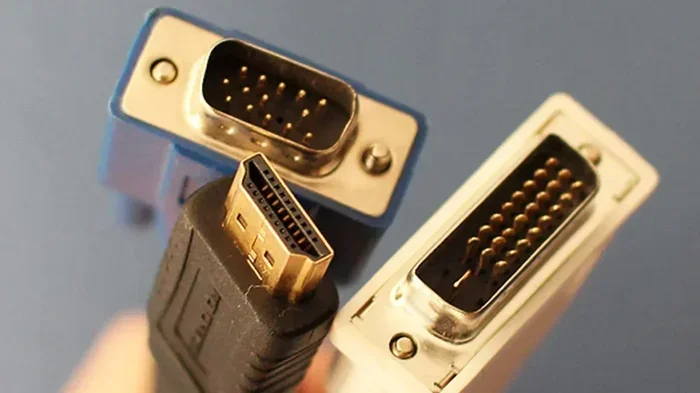
VGA stands for Video Graphics Array. It is an older analog signal standard that dates back to 1987. VGA connectors are the ones with the blue trapezoid-shaped plug and 15 pins. For decades, VGA was the standard way to connect computers to monitors and projectors.
VGA only carries video. There is no audio support whatsoever. Over the years, VGA has been phased out in favor of digital options like HDMI, DisplayPort, and DVI. However, many VGA monitors are still in use today, especially in offices, schools, and industrial settings.
Can You Connect HDMI to VGA Directly?
Here is the honest answer: no, you cannot plug an HDMI cable directly into a VGA monitor and expect it to work. The reason comes down to how each standard transmits data.
HDMI sends a digital signal. VGA expects an analog signal. Think of it like trying to fit a square peg into a round hole. The physical connectors are completely different shapes, and the electrical signals they use are fundamentally incompatible. Even if you could physically force a connection, no image would appear on the screen.
Some people confuse adapters with cables. A plain HDMI-to-VGA cable will not solve this problem because it does not contain the necessary circuitry to convert the signal. What you need is an active HDMI-to-VGA converter or adapter that contains a chip to translate the digital signal into analog.
Why Direct Connection Fails
- Signal type mismatch: Digital vs analog means the monitor cannot interpret the signal without conversion.
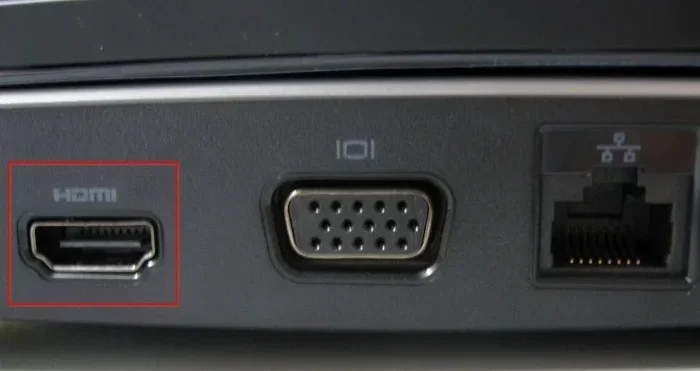
- Physical connector differences: HDMI has 19 pins in a flat connector. VGA has 15 pins in a D-shaped connector. They simply do not fit.
- No audio pathway: VGA was never designed to carry audio, so even with a converter, you will need a separate audio solution.
- Pin configuration incompatibility: The pin layouts are entirely different, making any direct link physically impossible.
What You Need for the Connection
So, what do you actually need to make this work? The good news is that the solution is straightforward. You need the right converter, and possibly a couple of extra cables.
The Active HDMI-to-VGA Converter
The most important piece of hardware is an active HDMI-to-VGA converter. This is a small box or dongle that takes the digital HDMI signal and converts it to an analog VGA signal. “Active” is the key word here. Passive adapters do not have the internal chip needed for signal conversion, so they will not work for this specific use case.
Active converters are affordable and widely available online. You can find them for under $15 in most cases. Look for one that supports the resolution you need. Most basic converters handle up to 1080p, which is plenty for everyday use.
Additional Cables You May Need
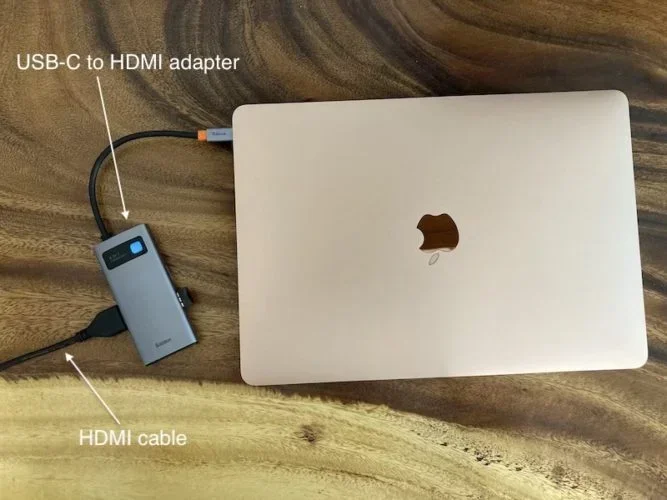
- HDMI cable: To connect your source device to the converter.
- VGA cable: To connect the converter to your VGA monitor.
- 3.5mm audio cable: To carry sound from the converter to your monitor’s audio input or external speakers.
- USB power cable: Some active converters need external power to work properly.
When choosing an adapter, make sure it is rated for your specific display compatibility needs. Not all converters support the same resolutions or refresh rates.
Step-by-Step Setup Guide
Setting up an HDMI-to-VGA connection is not complicated. Follow these steps, and you should be up and running in minutes.
Step 1: Check Your Source Device
Before buying any gear, check your source device. Does it have an HDMI output? Most modern laptops, desktops, and media players do. However, some devices use DisplayPort or USB-C instead. If your device does not have HDMI, you may need a different adapter chain.
Also, check if your graphics card supports analog output. Some modern GPUs have dropped VGA support entirely, which means you will need a converter that handles the signal processing for you.
Step 2: Purchase the Right Converter
Buy an active HDMI-to-VGA converter. Make sure it supports your desired resolution. If you need 1080p, get a converter rated for at least 1080p. Cheaper converters may only support 720p, which can look blurry on larger screens.
Read reviews before buying. Some budget converters have poor image clarity and introduce signal lag or color distortion.
Step 3: Connect the Cables
- Plug the HDMI cable into your source device.
- Connect the other end of the HDMI cable to the input port on the active converter.
- Plug the VGA cable into the output port on the converter.
- Connect the other end of the VGA cable to your VGA monitor.
- If your converter has a 3.5mm audio output, connect it to your speakers or monitor’s audio input.
- Power on the converter if it requires external power.
Step 4: Configure Display Settings
Once everything is connected, turn on your monitor and source device. You may need to adjust your display settings. On Windows, go to Settings > System > Display. On macOS, go to System Preferences > Displays. Make sure the output resolution matches what your VGA monitor supports.
VGA monitors typically max out at 1080p or 1600×900. Setting a higher resolution will not improve the picture and may cause display issues.
Step 5: Test and Adjust
Check the image quality on your monitor. Adjust the converter settings if available. Some converters have buttons or software that let you fine-tune the output. If the image looks faint or blurry, try adjusting the monitor’s contrast and brightness controls.
Common Problems and How to Fix Them
Even with the right converter, you may run into issues. Here are the most common problems and their solutions.
No Signal on the Monitor
If the screen stays blank, the first thing to check is your cable connections. Make sure every cable is firmly plugged in. A loose connection is the most common cause of no signal.
Next, check if the converter needs external power. Some active converters will not work without a USB power source. Try plugging the USB cable into a wall adapter or your computer’s USB port.
If you are still getting no signal, try a different HDMI port on your source device. Some ports may not output a signal when a converter is attached.
Fuzzy or Blurry Image
A blurry image usually means the resolution is set too high for the VGA monitor. Lower the output resolution in your display settings. Also, check that your VGA cable is not damaged. Old or bent cables can degrade the analog signal and cause visual artifacts.
No Audio
Remember that VGA does not carry audio. If you need sound, you must connect a separate audio cable from the converter’s audio output to your speakers or monitor. Some converters include a 3.5mm headphone jack for this purpose.
Color Distortion or Flickering
Flickering or odd colors often point to a low-quality converter. Try a different brand or model. Also, make sure your VGA cable is not too long. VGA signals degrade over distances longer than 15 feet.
Converter Overheating
Some active converters run warm during use. This is normal, but if the converter gets too hot to touch, give it some ventilation. Do not place it in an enclosed space. If overheating persists, consider getting a converter with a built-in fan or heat sink.
When to Upgrade Beyond VGA
Using a VGA monitor with an HDMI source works, but it comes with limitations. VGA is an older standard, and there are good reasons to consider upgrading.
Limitations of VGA
- No audio support: You always need a separate audio connection.
- Lower resolution ceiling: VGA maxes out around 2048×1536, and most monitors only support 1080p.
- Signal degradation: Analog signals are more prone to interference and quality loss over distance.
- No HDR support: VGA cannot handle High Dynamic Range content, which is becoming standard on modern content.
Modern Alternatives to Consider
If you are in the market for a new monitor, consider one with HDMI or DisplayPort input. These digital standards offer better picture quality, higher resolutions, and audio support through a single cable. A modern display port connection can handle 4K resolution at high refresh rates, making it ideal for gaming, design work, and media consumption.
However, if you are on a budget or have a perfectly good VGA monitor, there is no rush to replace it. With the right converter, your old monitor can still serve you well for years to come.
Proprietary Adapter Ecosystems
It is worth noting that some manufacturers use proprietary adapter designs. These can sometimes limit your options or lock you into a specific ecosystem. Understanding the advantages and disadvantages of a proprietary operating system can help you make informed decisions about adapter compatibility. Proprietary solutions may offer better integration but often come with higher costs and limited flexibility.
Networked Display Setups
If you are setting up multiple monitors in a business environment, you might also explore networked display solutions. Using a value-added network for electronic commerce communication can sometimes extend to remote display management. Understanding the advantages and disadvantages of using a value added network for communication can be valuable when planning multi-monitor setups in office environments.
Expert Tips for the Best Experience
Here are some practical tips to get the most out of your HDMI-to-VGA setup.
- Keep your cables short: Shorter cables mean less signal loss. Try to keep the VGA cable under 10 feet for the best results.
- Update your graphics drivers: Outdated drivers can cause display issues. Make sure your GPU drivers are up to date before troubleshooting.
- Use a grounded power source: Some converters work better when plugged into a grounded outlet. This can reduce electrical interference.
- Test with multiple source devices: If you are unsure whether the problem is with the converter or the source device, try connecting a different device.
- Match the refresh rate: VGA monitors typically support 60Hz. Setting your source device to a higher refresh rate may cause display problems.
Quick Tips
- Always buy an active converter, not a passive one, for HDMI-to-VGA connections.
- Keep a spare 3.5mm audio cable handy for sound output.
- Check your monitor’s native resolution before setting the output on your source device.
- Label your cables so you do not confuse HDMI and VGA connections later.
- Store your converter in a cool, dry place to extend its lifespan.
Common Mistakes to Avoid
- Buying a passive adapter: This is the most common mistake. Passive adapters do not convert digital signals to analog.
- Ignoring audio needs: VGA does not carry sound. Forgetting this will leave you without audio.
- Using a damaged cable: Old or frayed cables can cause a range of display problems that are hard to diagnose.
- Setting the wrong resolution: Pushing a VGA monitor beyond its native resolution will result in a poor image.
- Skipping the power supply: Some converters need external power. Skipping this step will result in no signal.
Frequently Asked Questions
Can I plug an HDMI cable directly into a VGA monitor?
No, you cannot plug an HDMI cable directly into a VGA monitor. The connectors are physically different, and HDMI uses a digital signal while VGA uses an analog signal. You need an active HDMI-to-VGA converter to bridge the gap between these two standards.
Do I need a special adapter to connect HDMI to VGA?
Yes, you need an active HDMI-to-VGA adapter or converter. A passive adapter or a simple cable will not work because it lacks the internal chip needed to convert the digital HDMI signal into an analog VGA signal.
Will I get sound through a VGA connection?
No, VGA only carries video. You will need a separate audio cable, such as a 3.5mm headphone cable, to get sound from your source device to your speakers or monitor.
What resolution can I expect with an HDMI-to-VGA setup?
Most active converters support up to 1080p, which is the practical maximum for most VGA monitors. Some converters may support higher resolutions, but the VGA standard itself limits the output quality you can achieve.
Can I use a USB-C to VGA adapter instead?
Yes, if your source device has a USB-C port, you can use a USB-C to VGA adapter. These work on the same principle as HDMI-to-VGA converters. They contain active circuitry to convert the digital signal to analog for your VGA monitor.
Is the image quality on VGA as good as HDMI?
Generally, no. VGA is an analog standard and is more susceptible to signal degradation, interference, and resolution limitations. HDMI provides a sharper, cleaner digital image. However, for everyday tasks like document editing and web browsing, a VGA connection is still perfectly usable.
Conclusion
So, can you use an HDMI cable with a VGA monitor? The answer is yes, with the right equipment. You need an active HDMI-to-VGA converter and a couple of cables to make the connection work. It is not a direct plug-and-play situation, but once you have the right setup, it works reliably for most everyday tasks.
The key takeaway is that HDMI and VGA are fundamentally different standards. HDMI is digital and carries both video and audio. VGA is analog and carries video only. Bridging that gap requires a converter with active signal processing. Once you understand this, the whole process becomes much simpler.
Do not let an old VGA monitor collect dust. With a simple converter, you can breathe new life into it. Whether you are working on a budget, reusing older equipment, or just need a second display, an HDMI-to-VGA setup gets the job done. Just remember to get an active converter, handle the audio separately, and set the right resolution for your monitor.
Follow the tips and troubleshooting steps in this guide, and you will be up and running in no time. Happy connecting!