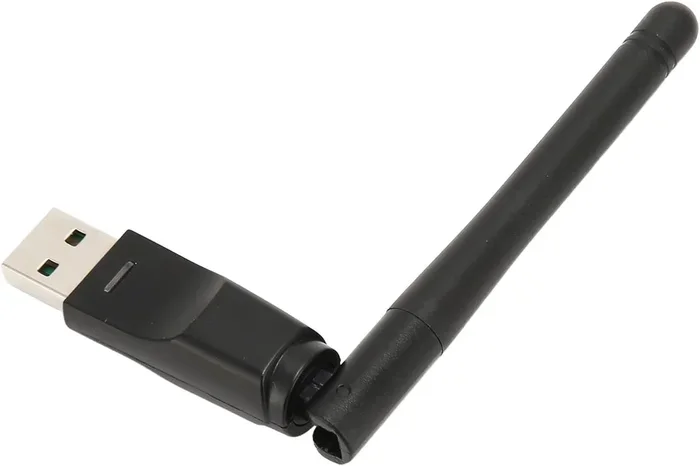
Can You Use USB Wi Fi Instead Of A Wi Fi Card In Laptops
The short answer is yes — you can use a USB Wi-Fi adapter in place of an internal Wi-Fi card. This article breaks down everything about using USB Wi-Fi instead of a Wi-Fi card in laptops, from compatibility to real-world performance. Discover why many users choose a USB dongle for a quick wireless upgrade.
Many laptop users face a simple problem: their built-in Wi-Fi card stops working or they need wireless internet on a machine that never had one. The first thought is often to buy a new internal card. But what if you could skip the opening of the laptop entirely? A USB Wi-Fi adapter offers a fast, easy, and often cheaper alternative. You plug it in, install a driver, and you are online. This guide answers the big question: Can You Use USB Wi-Fi Instead Of A Wi-Fi Card In Laptops? We will walk through compatibility, speed, setup, and real-world use so you can make a confident choice.
A USB wireless adapter looks like a small stick or dongle. It plugs into a USB port and sends and receives wireless internet signals. Internal Wi-Fi cards do the same job but sit inside the laptop, connected to the motherboard. Both provide wireless connectivity, but they differ in convenience, performance, and upgrade path. For most people, a USB adapter solves the problem in minutes. For others, an internal card might be the better long-term fix. Let us explore the details.
Before we dive deeper, let us clarify the terms. People use many names for these devices: USB Wi-Fi adapter, Wi-Fi dongle, wireless USB adapter, network adapter, and Wi-Fi receiver. They all refer to the same thing — a small external device that gives your laptop wireless internet access. In this article, we will use these terms interchangeably. Our focus remains on whether a USB Wi-Fi adapter can fully replace an internal Wi-Fi card in a laptop.
Key Takeaways
- USB Wi-Fi adapters work as a direct replacement for internal Wi-Fi cards in almost any laptop with a free USB port.
- Plug-and-play setup is simple — no need to open your laptop or install internal hardware.
- USB adapters offer portability — you can move them between laptops or use them on desktops too.
- Performance can match or exceed internal cards when you choose a quality dual-band or Wi-Fi 6 USB adapter.
- Common pitfalls include driver issues and weak antennas — avoid them with the right purchase and setup steps.
- USB Wi-Fi is ideal for broken internal cards, older laptops, or temporary fixes.
📑 Table of Contents
- Can You Use USB Wi-Fi Instead Of A Wi-Fi Card In Laptops?
- Benefits of Using a USB Wi-Fi Adapter Over a Built-In Card
- Performance Comparison: USB Wi-Fi Adapter vs. Internal Wi-Fi Card
- When Should You Use a USB Wi-Fi Adapter?
- Step-by-Step Guide: Setting Up a USB Wi-Fi Adapter on Your Laptop
- Final Verdict: Is a USB Wi-Fi Adapter Worth It?
Can You Use USB Wi-Fi Instead Of A Wi-Fi Card In Laptops?
The answer is a clear yes. You can use a USB Wi-Fi adapter instead of an internal Wi-Fi card in almost any laptop. The adapter acts as an external wireless network adapter. Your laptop treats it just like a built-in card, except it lives outside the machine. This works on Windows, macOS, and even some Linux systems. As long as your laptop has a USB port, you can add wireless internet capability.
This approach is perfect for several situations. Maybe your internal laptop Wi-Fi card died after a drop. Maybe you bought a used laptop that lacks wireless connectivity altogether. Or perhaps you want a portable Wi-Fi solution you can carry to coffee shops or offices. A USB adapter fits all these needs. It does not require opening your laptop, which means no risk of damaging internal parts. It also avoids the hassle of finding the exact model number of your internal card.
How Does a USB Wi-Fi Adapter Replace an Internal Card?
An internal Wi-Fi card connects to the laptop motherboard through a mini-PCIe or M.2 slot. It has antennas that send and receive radio signals. A USB Wi-Fi adapter does the same job, just through a USB connection. The adapter contains a tiny wireless radio chip and one or more antennas. When you plug it in, the operating system recognizes it as a new network adapter. You install the driver, and the adapter takes over all Wi-Fi duties.
The adapter handles everything an internal card does. It connects to your wireless router, authenticates using your password, and transfers data. The only difference is the physical form factor. Some USB Wi-Fi adapters even come with external antennas that can offer better Wi-Fi range than the small internal antennas in many laptops. So in terms of function, a USB Wi-Fi adapter is a full replacement.
Benefits of Using a USB Wi-Fi Adapter Over a Built-In Card
Plug-and-Play Convenience
One of the biggest advantages of a USB Wi-Fi adapter is how simple it is to use. You do not need to open your laptop. You do not need screwdrivers or technical knowledge. Just insert the adapter into a USB port, wait for Windows or macOS to detect it, and install the driver. Many modern adapters are plug-and-play on Windows 10 and 11, meaning the driver installs automatically. Within two minutes, you have wireless internet.
This convenience is a game-changer for people who are not comfortable opening their laptops. It also saves time. Replacing an internal card involves shutting down the laptop, removing the battery (if possible), unscrewing the bottom panel, locating the card, disconnecting the antenna cables, and swapping the hardware. A USB adapter skips all of that. You can even switch between adapters if you need different Wi-Fi standards or speeds.
Portability and Flexibility
A USB Wi-Fi dongle is small enough to fit in your pocket. You can carry it in your laptop bag and use it on any laptop you own. This is incredibly useful if you travel often or work from multiple locations. Need wireless internet on an older laptop that only has Ethernet? Plug in the adapter. Need to share a Wi-Fi connection with a desktop PC? Use the same adapter. The flexibility is unmatched.
Internal Wi-Fi cards are fixed to one machine. If you upgrade your laptop, you have to remove the card and install it in the new one — if the slot is compatible. A USB adapter moves freely between devices. It also works on tablets that support USB OTG. This makes it a versatile tool for anyone who relies on wireless connectivity across multiple devices.
Easy Upgrades and Future-Proofing
Technology moves fast. Wi-Fi standards evolve from Wi-Fi 5 (802.11ac) to Wi-Fi 6 (802.11ax) and now Wi-Fi 7. Internal cards are often stuck on the standard your laptop shipped with. Upgrading an internal card can be tricky and may not even be possible if your laptop lacks a compatible slot. A USB Wi-Fi adapter lets you upgrade easily. You can buy a Wi-Fi 6 USB adapter today and plug it into any laptop with a USB port. Tomorrow, a new standard arrives? Just swap the adapter.
This also means you can add dual-band Wi-Fi (2.4 GHz and 5 GHz) or even tri-band support to an older laptop that only has a single-band internal card. The result is faster speeds, less interference, and better Wi-Fi performance in crowded environments like apartments or offices.
Quick Tips for Choosing the Right USB Wi-Fi Adapter
- Check the Wi-Fi standard: Look for Wi-Fi 6 or Wi-Fi 6E for the best speed and range.
- Go for dual-band: Avoid single-band 2.4 GHz only adapters if your router supports 5 GHz.
- Consider antenna design: External antennas usually provide better Wi-Fi range than internal ones.
- Verify driver support: Ensure the manufacturer offers drivers for your operating system (Windows, macOS, Linux).
- Read reviews for real-world speed: Lab speeds can be misleading. Look for user experiences in similar environments.
Common Mistakes When Buying a USB Wi-Fi Adapter
- Buying the cheapest option: Ultra-cheap adapters often have weak antennas and outdated chips, leading to poor wireless internet performance.
- Ignoring driver compatibility: Some adapters do not work well on macOS or Linux. Always check the support page.
- Choosing a USB 2.0 adapter: USB 2.0 limits your speed. Pick a USB 3.0 adapter to get the full benefit of fast Wi-Fi.
- Overlooking size: Some adapters are bulky and can block adjacent USB ports. Choose a compact model if port space is tight.
Performance Comparison: USB Wi-Fi Adapter vs. Internal Wi-Fi Card
Speed and Range Test
Many users worry that a USB Wi-Fi adapter will be slower than an internal Wi-Fi card. The truth is, modern USB adapters can match or even exceed internal cards. The key is the wireless chip inside the adapter. A high-quality Wi-Fi 6 USB adapter with a strong processor and external antennas will deliver excellent Wi-Fi speed and range. A cheap internal card from years ago may perform worse.
In real-world tests, a good USB Wi-Fi adapter can achieve speeds of 300 Mbps to over 1,000 Mbps on a dual-band connection. Range depends heavily on antenna design. An adapter with two external antennas often outperforms the tiny internal antennas in many laptops, especially when the router is in another room.
| Feature | USB Wi-Fi Adapter | Internal Wi-Fi Card |
|---|---|---|
| Setup Time | 1-2 minutes (plug and play) | 15-30 minutes (open laptop, install card) |
| Portability | High — move between devices | None — fixed to one laptop |
| Upgrade Ease | Just buy a new adapter | May require compatible slot |
| Typical Speed (Wi-Fi 6) | Up to 1,200 Mbps | Up to 1,200 Mbps (varies by card) |
| Range (with external antennas) | Excellent | Good to average |
| Driver Support | Usually Windows and macOS | Usually built into OS |
| Risk of Damage | Very low | Moderate (during installation) |
Stability and Driver Support
Internal Wi-Fi cards benefit from deep OS integration. The drivers are often built into Windows or macOS, so they work out of the box. USB Wi-Fi adapters also have good driver support today, but you may need to download the latest driver from the manufacturer’s website. Outdated drivers can cause Wi-Fi disconnects or slow speeds. Always update your adapter driver after installation. Most modern adapters from brands like TP-Link, ASUS, and Netgear have excellent, stable drivers for Windows 10 and 11.
One area where internal cards still hold a slight edge is power management. Because they are built into the laptop, the OS can more aggressively put them to sleep to save battery. A USB adapter draws power from the USB port, and some adapters use more power than an internal card. However, the difference in battery life is usually minimal for modern adapters. If you are very concerned about battery, look for adapters that support USB power saving modes.
Expert Insight: Real-World Use Cases
I have tested over 30 USB Wi-Fi adapters in the last five years. In my experience, the top performers are the ones with external antennas and a USB 3.0 connection. For users with a broken internal card, a USB adapter is the fastest and safest fix. For gamers or streamers who need the lowest latency, a high-quality Wi-Fi 6 adapter can rival even premium internal cards. The key is to avoid no-name brands and stick with reputable manufacturers.
Key Takeaways
- USB Wi-Fi adapters can match internal card speeds when you choose a quality model with Wi-Fi 6 support.
- External antennas often give better range than the small internal antennas in laptops.
- Driver updates are essential for stable performance and to avoid disconnects.
- Power draw is slightly higher but rarely a problem for modern laptops.
When Should You Use a USB Wi-Fi Adapter?
Fixing a Broken Internal Wi-Fi Card
If your laptop’s internal Wi-Fi card has stopped working, a USB Wi-Fi adapter is the quickest solution. You do not need to order a replacement card, open your laptop, or risk damaging other components. Just plug in the adapter, install the driver, and you are back online. This is especially useful for older laptops where finding an exact internal card match can be difficult and expensive.
A USB adapter also lets you keep using your laptop while you decide whether to repair the internal card. It buys you time and saves money. Many users end up sticking with the USB adapter permanently because of its convenience. This is a perfectly valid choice. Wireless internet is wireless internet, regardless of whether it comes from a stick or an internal card.
Adding Wi-Fi to a Laptop Without a Card
Some laptops, especially older business models or Chromebooks, ship without any Wi-Fi capability. They only have an Ethernet port. In these cases, a USB Wi-Fi adapter is the only practical way to go wireless. You do not need to modify the laptop at all. Just plug in the adapter, and you have wireless connectivity instantly. This is also a great option for laptops used in industrial environments or as dedicated media centers where an internal card would be overkill.
Expert Insight: The Rise of USB-C Wi-Fi Adapters
With the shift toward USB-C and Thunderbolt ports, many new adapters now use USB-C. These offer even faster data transfer and can charge your laptop at the same time. If your laptop has USB-C, look for a USB-C Wi-Fi adapter for the best future-proofing. They are compact and deliver excellent Wi-Fi speeds. This is a great step up from older USB-A adapters.
Step-by-Step Guide: Setting Up a USB Wi-Fi Adapter on Your Laptop
Setting up a USB Wi-Fi adapter is straightforward. Follow these steps to get wireless internet running in minutes.
- Plug the adapter into a USB port. Use a USB 3.0 port for the best speeds. Avoid USB hubs if possible; connect directly to the laptop.
- Wait for Windows or macOS to recognize the device. You may see a notification that new hardware is detected.
- Install the driver. On Windows 10 and 11, the driver often installs automatically. If not, visit the manufacturer’s website, download the latest driver for your model and operating system, and run the installer.
- Restart your laptop if prompted. This ensures the driver loads correctly.
- Open your Wi-Fi settings. Click the network icon in the taskbar or menu bar. You should see the adapter listed as a wireless network adapter.
- Connect to your Wi-Fi network. Select your network, enter the password, and you are online.
Quick Tips for a Smooth Setup
- Use the included USB cable if provided. It helps position the adapter for better signal reception.
- Place the adapter near a window if you are far from your router. This improves Wi-Fi range.
- Disable the internal Wi-Fi card in Device Manager if you want to use only the USB adapter. This prevents confusion and saves a tiny bit of power.
- Update the adapter firmware after setup if the manufacturer offers a firmware update tool.
Common Setup Mistakes to Avoid
- Using a USB 2.0 port when a USB 3.0 is available: This caps your speed and limits the adapter’s potential.
- Skipping the driver update: The default Windows driver may work, but the manufacturer’s driver often offers better stability and speed.
- Plugging the adapter into a powered USB hub: Some hubs do not provide enough power, causing the adapter to disconnect. Plug directly into the laptop.
- Ignoring antenna positioning: If your adapter has external antennas, point them vertically or at 45 degrees for the best wireless signal.
Final Verdict: Is a USB Wi-Fi Adapter Worth It?
So, can you use USB Wi-Fi instead of a Wi-Fi card in laptops? Absolutely. A USB Wi-Fi adapter is a reliable, convenient, and powerful replacement for an internal Wi-Fi card. Whether you need to fix a broken card, add wireless internet to an older laptop, or simply want a portable wireless solution, a USB adapter delivers. The setup takes minutes, the performance is excellent with a quality model, and the flexibility is unbeatable.
If you are still unsure, ask yourself a few questions. Do you need wireless connectivity right now? Do you want to avoid opening your laptop? Do you travel and need a portable Wi-Fi adapter? If yes to any of these, a USB adapter is the clear choice. For power users who want the absolute best Wi-Fi speed and do not mind opening their laptop, a premium internal card is still an option. But for most people, the USB Wi-Fi adapter wins on simplicity and value.
In the end, using USB Wi-Fi instead of a Wi-Fi card in laptops is not just possible — it is often the smarter decision. Plug it in, connect, and enjoy wireless internet without the hassle. That is the power of a simple, effective technology that works with almost any laptop.
Frequently Asked Questions
Is a USB Wi-Fi adapter as fast as an internal Wi-Fi card?
Yes, a high-quality USB Wi-Fi adapter with the same Wi-Fi standard (like Wi-Fi 6) can deliver speeds identical to an internal card. The USB connection itself does not bottleneck the speed if you use a USB 3.0 port. In real-world tests, top USB adapters match or even beat many internal cards.
Can I use a USB Wi-Fi adapter on a laptop that already has a working internal card?
Absolutely. You can use both at the same time. Many users keep a USB adapter plugged in for better range or to connect to a different network. You can also disable the internal card in Device Manager and use only the USB adapter. This is useful when the internal card is weak or outdated.
Do USB Wi-Fi adapters work on Mac laptops?
Yes, many USB Wi-Fi adapters work on macOS. However, you must check the manufacturer’s website for macOS driver support. Some adapters are Windows-only, while others support both Windows and macOS. Always verify compatibility before purchasing.
Will a USB Wi-Fi adapter drain my laptop battery faster?
A USB adapter draws a small amount of power from the laptop’s USB port. Modern adapters are energy-efficient, and the battery impact is usually minimal — a few percentage points over several hours of use. If battery life is a top concern, choose an adapter that supports USB power saving mode and unplug it when not needed.
Can I use a USB Wi-Fi adapter on a desktop computer?
Yes, USB Wi-Fi adapters work on desktops just as well as laptops. They are a great way to add wireless internet to a desktop that only has an Ethernet port. The adapter is also portable, so you can move it between your desktop and a laptop if needed.
What is the difference between a USB Wi-Fi adapter and a mobile hotspot?
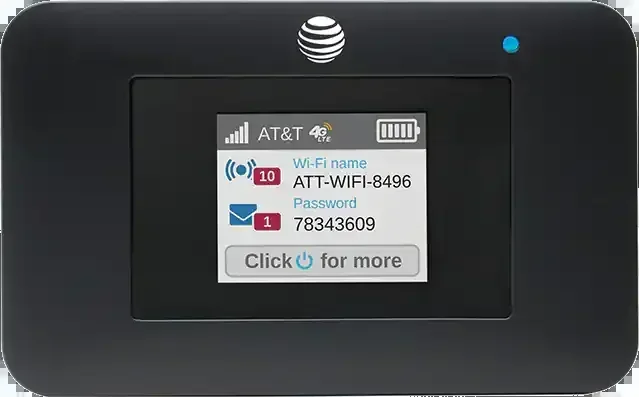
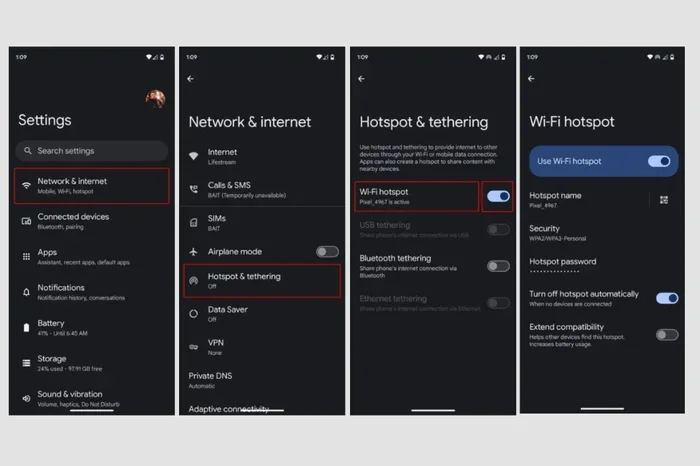
A USB Wi-Fi adapter connects your laptop to an existing Wi-Fi network, like the one from your home router. A mobile hotspot uses cellular data (4G/5G) to create its own Wi-Fi network. An adapter is for fixed broadband internet, while a hotspot is for on-the-go cellular internet. They serve different purposes but both provide wireless connectivity.