Do Computer Monitors Have Hdmi Ports Or Not Really
Do computer monitors have hdmi ports? The short answer is yes, nearly all modern monitors come with at least one HDMI port, making it the most widely used display connection today. Whether you are shopping for a budget office screen or a premium 4K gaming monitor, understanding HDMI connectivity helps you make the right choice for your setup.
Do computer monitors have hdmi ports? If you have ever unboxed a new monitor and stared at the back panel wondering which cable to use, you are not alone. The answer is almost always yes. HDMI, which stands for high-definition multimedia interface, has become the go-to standard for connecting computers, laptops, consoles, and streaming devices to displays.
But here is the thing. Not all monitors are created equal. Some come packed with multiple HDMI ports. Others rely on older display connection types like VGA or DVI. And then there are the newer models that use USB-C or DisplayPort as their primary input. So the real question is not just whether monitors have HDMI. It is about which version, how many ports, and what works best for your specific setup.
In this guide, we will walk through everything you need to know about HDMI ports on computer monitors. We will cover what HDMI is, which monitors have it, what to do if yours does not, and how to pick the right monitor for your needs. By the end, you will feel confident about your display connections and cable choices.
Key Takeaways
- Most monitors include HDMI: Nearly every modern computer monitor comes with at least one HDMI port for easy connectivity.
- Older monitors may lack HDMI: Vintage or budget models might only have VGA or DVI ports, but adapters can bridge the gap.
- HDMI versions matter: HDMI 2.0 and 2.1 support higher resolutions and refresh rates, which is crucial for 4K and gaming setups.
- Alternatives exist: DisplayPort, USB-C, and VGA are common alternatives, each with different strengths and use cases.
- Check your source device: Always match your HDMI port version with your source device for the best video signal quality.
- Adapters are your friend: You can use adapter cables to connect non-HDMI devices to HDMI-enabled monitors easily.
📑 Table of Contents
What Are Hdmi Ports And Why Do They Matter
HDMI stands for high-definition multimedia interface. It is a digital signal standard that carries both video and audio through a single cable. This is a big deal because older connection types often required separate cables for video and sound.
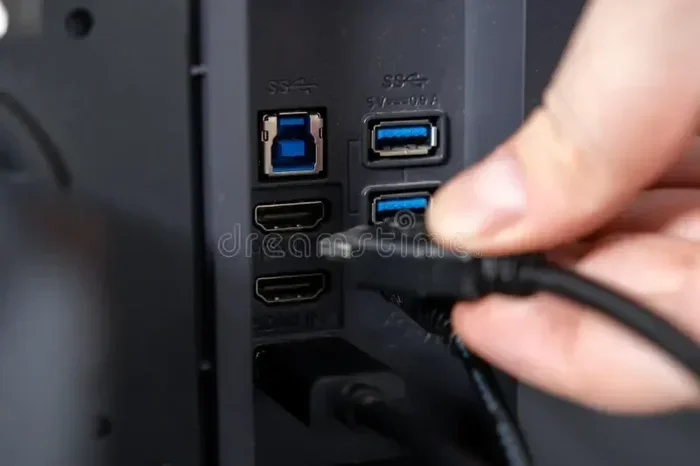
When you plug in an HDMI cable, you get a clean digital signal that supports high resolutions and surround sound. The HDMI port on monitor setups has become so common that most people expect it as a basic feature. Whether you are connecting a desktop PC, a laptop, a PlayStation, or a streaming stick, HDMI makes the process simple and straightforward.
Understanding The Basic Hdmi Connection
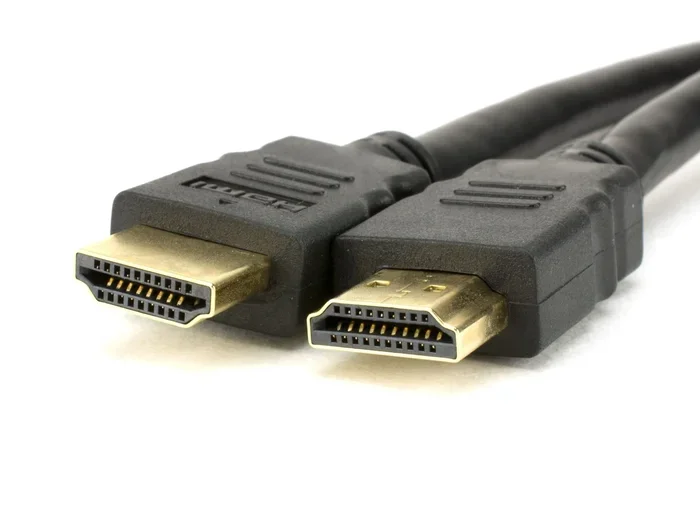
An HDMI cable has a distinctive flat, trapezoidal connector. There are several sizes too. The standard HDMI Type A is the most common one you will see on desktop monitors. Then there is the mini HDMI and micro HDMI, which you find on smaller devices like tablets and cameras.
The beauty of HDMI is its simplicity. One cable handles both video and audio. You do not need to juggle multiple cords or configure separate audio outputs. Just plug it in, and your monitor should display both picture and sound right away. This plug-and-play nature is why HDMI has dominated the display connection types market for so many years.
Why Hdmi Is The Standard For Most Monitors
HDMI won the popularity game for a few key reasons. First, it is universally supported. Nearly every source device, from budget laptops to high-end gaming rigs, includes at least one HDMI output. Second, it is backward compatible to a large extent. Older HDMI cables still work with newer ports, even if they do not unlock the full feature set.
Third, HDMI carries a digital signal that resists interference better than older analog standards. This means cleaner picture quality and fewer signal dropouts. For most users, the HDMI port on monitor setups is the easiest and most reliable way to get a great display experience.
Do Computer Monitors Have Hdmi Ports In 2024
Let us get straight to the point. Do computer monitors have hdmi ports? In 2024, the vast majority do. Whether you are looking at a budget office monitor or a premium 4K display, HDMI is almost always included. Manufacturers have made it a standard feature across nearly all price ranges and monitor categories.
But there are exceptions. Some ultra-wide monitors, ultrawide gaming panels, and specialty displays prioritize DisplayPort or USB-C over HDMI. And if you are shopping for older or refurbished monitors, you might run into models that only have VGA or DVI inputs. So while HDMI is the norm, it is not absolutely guaranteed on every single monitor.
Hdmi On Newer Monitor Models
Most monitors released in the last three to four years come with at least one HDMI 2.0 port. Many mid-range and premium models now include two or even three HDMI inputs. This is great news for users who need to connect multiple source devices to a single monitor.
For example, a typical home office setup might include a desktop PC, a laptop, and a gaming console. With multiple HDMI ports, you can switch between all three devices without unplugging and replugging cables. Some monitors even come with built-in USB hubs alongside the HDMI ports, adding extra convenience to your workspace.
If you are buying a new monitor today, you can safely assume it will have HDMI support. Just check the product specifications to confirm the HDMI version. HDMI 2.1 is now appearing on high-end gaming monitors and 4K displays, offering faster refresh rates and higher bandwidth for demanding applications.
Budget Vs Premium Monitor Hdmi Options
Budget monitors often include one HDMI 1.4 or HDMI 2.0 port. This is enough for most everyday tasks like web browsing, office work, and streaming videos. You might notice that a budget monitor only has one HDMI input, which can be limiting if you use multiple devices.
Premium monitors, on the other hand, tend to offer more HDMI ports and newer versions. A high-end gaming monitor might include both HDMI 2.1 and DisplayPort 1.4, giving you flexibility for different source devices. These monitors also tend to support higher resolutions and refresh rates through the HDMI connection.
The takeaway is simple. Do computer monitors have hdmi ports? Yes, across all price points. But the number of ports and the HDMI version can vary significantly based on the monitor tier and intended use case.
What If Your Monitor Does Not Have Hdmi
So you bought a monitor, and it does not have an HDMI port. Maybe it is an older model, or perhaps you picked a niche display that favors other connection types. Do not panic. You have several options to get your monitor working with HDMI source devices.
First, let us talk about why some monitors skip HDMI. Older monitors from the early 2000s and mid-2010s often relied on VGA or DVI connectors. These were the standards before HDMI became widespread. Some modern monitors, especially ultrawide panels and professional creative displays, prioritize DisplayPort or USB-C because those connections offer higher bandwidth for specific use cases.
Common Alternatives To Hdmi On Older Monitors
If your monitor lacks an HDMI port, you will likely find one or more of these alternatives on the back panel:
- VGA port: This is the older analog connection with a blue trapezoidal connector. It carries only video, not audio, and does not support high resolutions well.
- DVI connector: DVI came in digital and analog variants. DVI-D is digital and offers better quality than VGA, but it still does not carry audio.
- DisplayPort: A modern digital standard that supports high resolutions and refresh rates. It is common on gaming monitors and professional displays.
- USB-C: Found on newer slim monitors and laptops, USB-C can carry video, audio, and data through a single cable.
Each of these alternatives has its strengths. But if your source device only has HDMI output, you will need an adapter or converter to make the connection work.
How To Add Hdmi To A Non-Hdmi Monitor
Adding HDMI capability to a non-HDMI monitor is easier than you might think. The most common solution is an adapter cable. For example, you can buy an HDMI to VGA adapter or an HDMI to DVI adapter. These are affordable and widely available online and at electronics stores.
Here is how it works. You plug the HDMI end into your source device, like a laptop or gaming console. Then you plug the other end (VGA or DVI) into your monitor. The adapter converts the digital HDMI signal to the format your monitor expects.
Keep in mind that VGA adapters will not carry audio. You would need a separate 3.5mm audio cable if you want sound. DVI adapters also do not carry audio in most cases. For the best experience, look for adapters that explicitly state they support audio pass-through.
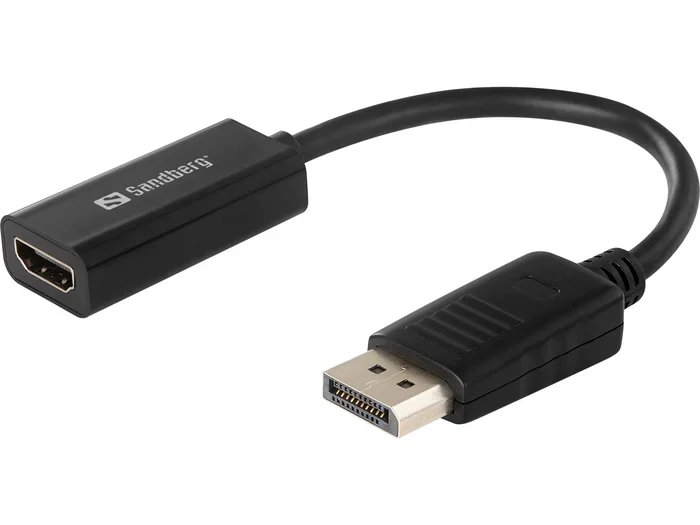
Another option is a USB-C to HDMI adapter or a DisplayPort to HDMI adapter, depending on what ports your monitor has. These work well for modern monitors that use alternative digital connections. Just make sure the adapter supports the resolution and refresh rate you need.
Hdmi Versions: What You Need To Know
Not all HDMI ports are the same. Over the years, HDMI has evolved through several versions, each bringing improvements in bandwidth, resolution support, and features. Understanding these differences helps you get the most out of your monitor and cable setup.
Hdmi 1 4 Vs Hdmi 2 0 Vs Hdmi 2 1
HDMI 1.4 was introduced in 2009 and supports up to 4K at 30Hz. It is still found on many older monitors and budget models. HDMI 2.0 arrived in 2013 and brought 4K support at 60Hz, which is the sweet spot for most modern 4K displays. HDMI 2.1 is the latest standard, released in 2017, and it supports 4K at 120Hz and even 8K at 60Hz.
Here is a quick comparison of the main HDMI versions you will encounter:
| HDMI Version | Max Resolution | Max Refresh Rate | Bandwidth | Common On |
|---|---|---|---|---|
| HDMI 1.4 | 4K | 30Hz | 10.2 Gbps | Older monitors, budget models |
| HDMI 2.0 | 4K | 60Hz | 18 Gbps | Mid-range monitors, most new models |
| HDMI 2.1 | 8K | 120Hz+ | 48 Gbps | Premium gaming monitors, high-end displays |
For most everyday users, HDMI 2.0 is more than enough. It handles 4K at 60Hz smoothly, which covers streaming, office work, and casual gaming. If you are a serious gamer or work with high-resolution content, HDMI 2.1 becomes important for its higher refresh rates and bandwidth.
Which Hdmi Version Do You Actually Need
The HDMI version you need depends on what you plan to do with your monitor. For basic tasks like reading emails, browsing the web, and watching videos, HDMI 1.4 or 2.0 will serve you just fine. You do not need the latest and greatest standard for everyday use.
However, if you are into competitive gaming or you want to enjoy 4K content at smooth frame rates, you should look for HDMI 2.0 at minimum. For the best experience on a high-refresh-rate gaming monitor, HDMI 2.1 is the way to go. It supports features like Variable Refresh Rate (VRR) and Auto Low Latency Mode (ALLM), which improve your gaming experience significantly.
One thing to keep in mind. Do computer monitors have hdmi ports that support the latest version? Not always. Check the monitor specifications carefully before purchasing if you need a specific HDMI version. The port version is just as important as the physical port itself.
Hdmi Vs Other Connection Types On Monitors
While HDMI is the most common, it is not the only game in town. Understanding how HDMI compares to other monitor inputs helps you make informed decisions about your setup. Each connection type has its own strengths and ideal use cases.
Hdmi Vs DisplayPort
DisplayPort is the main rival to HDMI in the monitor world. It was developed by the VESA consortium and is favored by PC enthusiasts and professionals. DisplayPort generally offers higher bandwidth than HDMI at the same version level, making it the preferred choice for ultrawide monitors and high-refresh-rate gaming setups.
HDMI, on the other hand, has the advantage of universal compatibility. It works with virtually every source device, including gaming consoles, Blu-ray players, and streaming sticks. If you want a simple, one-cable solution for both video and audio, HDMI is hard to beat.
For most users, having both HDMI and DisplayPort on your monitor is ideal. It gives you flexibility to connect whatever source devices you have without worrying about compatibility.
Hdmi Vs Usb C And Vga
USB-C is becoming increasingly popular on modern monitors, especially slim and portable models. A USB-C connection can carry video, audio, and data simultaneously, which is incredibly convenient for laptop users. Many USB-C monitors also support power delivery, meaning you can charge your laptop through the same cable you use for display output.
VGA is the oldest connection type on this list. It uses an analog signal and a bulky blue connector. It supports lower resolutions and does not carry audio. You will mostly find VGA on older monitors and projectors. While adapters can convert HDMI to VGA, the experience is not ideal because of the analog-to-digital conversion, which can degrade image quality.
Here is a quick look at how these connection types compare:
| Connection Type | Carries Audio | Max Resolution | Best For |
|---|---|---|---|
| HDMI | Yes | 8K (HDMI 2.1) | General use, consoles, streaming |
| DisplayPort | Yes | 16K (DP 2.1) | PC gaming, ultrawide, professional work |
| USB-C | Yes | 4K+ | Laptops, portable setups, docking |
| VGA | No | 1080p (approx.) | Legacy devices, older projectors |
Each connection type has its place. But for most people, HDMI remains the most versatile and widely supported option for connecting a source device to a monitor.
How To Choose The Right Monitor With Hdmi Support
Now that you understand HDMI on monitors, let us talk about how to choose the right one for your needs. The right monitor depends on what you will use it for, what devices you will connect, and what features matter most to you.
Matching Your Source Device To The Monitor
Before you buy a monitor, think about what you will connect to it. If you mainly use a modern laptop or desktop PC, HDMI compatibility is almost guaranteed. Most PCs from the last decade include HDMI output, so you should have no trouble connecting them to any modern monitor.
If you plan to connect a gaming console like the PlayStation 5 or Xbox Series X, you will want a monitor with HDMI 2.1 support. These consoles benefit from the higher bandwidth and features that HDMI 2.1 offers, including 4K at 120Hz and VRR support.
For office work and general use, an HDMI 2.0 connection is perfectly sufficient. You do not need the latest HDMI version unless you are pushing the limits of resolution or refresh rate.
Quick Tips For Choosing A Monitor With Hdmi Support
Here are some practical tips to help you choose the right monitor with HDMI support:
- Check the HDMI version: Look for HDMI 2.0 or higher for the best experience, especially if you plan to use 4K resolution.
- Count the ports: If you connect multiple devices, look for a monitor with at least two HDMI inputs.
- Consider your source devices: Make sure your HDMI cables and ports match the capabilities of your source devices for the best video signal quality.
- Think about audio: HDMI carries audio, so you can use your monitor speakers or connect to external audio through the HDMI connection.
- Look for backward compatibility: Most HDMI ports are backward compatible, so an older HDMI cable will still work with a newer HDMI 2.1 port, even if it does not unlock all the features.
- Read the specs carefully: Do not assume all HDMI ports are the same. Check the product specifications to confirm the exact HDMI version and the number of ports included.
Do computer monitors have hdmi ports? Yes, and with the right knowledge, you can choose a monitor that fits your needs perfectly. Focus on the HDMI version, the number of ports, and your specific use case, and you will be set up for success.
Conclusion
So, do computer monitors have hdmi ports? The answer is a resounding yes for the vast majority of monitors on the market today. HDMI has become the standard display connection, and you will find it on nearly every modern monitor, regardless of price or purpose.
Whether you are setting up a simple office workstation, a home theater system, or a competitive gaming rig, HDMI makes the connection process easy and reliable. Just remember to check the HDMI version on both your monitor and your source device to get the best results. If your monitor does not have HDMI, adapters and converter cables can bridge the gap with minimal hassle.
The key is to understand your options. Know what HDMI versions support, what alternatives exist, and how to match your monitor to your devices. With this knowledge, you can confidently choose the right monitor and cables for your setup and enjoy a seamless display experience every single day.
Do computer monitors have hdmi ports? Now you know the answer, and you are equipped to make the best choice for your display needs. Go ahead, plug in, and enjoy your screen.
Frequently Asked Questions
Can I use an HDMI cable with any monitor?
In most cases, yes. If your monitor has an HDMI port, a standard HDMI cable will work. Just make sure the cable supports the resolution and refresh rate you need. Older HDMI cables may not support 4K or high refresh rates, so check the cable specifications if you are pushing the limits of your display.
Do all gaming monitors have HDMI ports?
Most gaming monitors include at least one HDMI port, and many premium models offer multiple HDMI inputs including HDMI 2.1. However, some gaming monitors prioritize DisplayPort or USB-C as their primary inputs. Always check the product specs before buying if HDMI connectivity is essential for your setup.
Can I connect a console to a monitor without HDMI?
Yes, you can use an adapter cable to convert HDMI to VGA, DVI, or DisplayPort depending on what ports your monitor has. Keep in mind that analog adapters like VGA may reduce image quality, and you might need a separate audio cable since VGA and DVI do not carry sound.
Is HDMI 2.1 backward compatible with older monitors?
Yes, HDMI 2.1 is backward compatible. You can plug an HDMI 2.1 cable into an HDMI 2.0 port, and it will work. However, you will only get the features supported by the older HDMI version. The connection will default to the capabilities of the lower version.
How many HDMI ports should a good monitor have?
For most users, one or two HDMI ports are sufficient. If you regularly connect multiple devices like a PC, a laptop, and a gaming console, look for a monitor with at least two HDMI inputs. Some premium monitors offer three or more HDMI ports for heavy multi-device setups.
Does the HDMI cable affect monitor picture quality?
Yes, the HDMI cable can affect picture quality, especially at higher resolutions and refresh rates. A cable that supports the right bandwidth is essential for 4K and 120Hz content. Using a cheap or damaged cable can result in signal drops, flickering, or reduced image quality.
=== CONCLUSION ===
Understanding whether your monitor has HDMI ports is more important than it might seem at first glance. The HDMI connection affects everything from picture quality to audio output and device compatibility. With the information in this guide, you now know what to look for, how to handle monitors without HDMI, and how to choose the right HDMI version for your needs.
Do computer monitors have hdmi ports? Almost certainly yes. But the details matter. Check the HDMI version, count the available ports, and make sure your cables and source devices are compatible. A little homework before you buy saves frustration later.
Take what you have learned here and apply it to your next monitor purchase or setup upgrade. You will be glad you did. Happy connecting!