Does Gigabyte X570 Have Wifi Built Into Motherboard
The Gigabyte X570 motherboard does not always include built-in WiFi. Some models come with WiFi 6 and Bluetooth 5.0 already installed, while others require you to add a separate WiFi card. Always check the exact model name and spec sheet before buying. This guide walks you through every Gigabyte X570 WiFi variant, what to look for, and how to add wireless capability if your board lacks it.
This is a comprehensive guide about Does Gigabyte X570 Have Wifi.
Key Takeaways
- Not all X570 boards include WiFi: Gigabyte offers both WiFi and non-WiFi versions of the X570 chipset.
- Look for the “W” suffix: Models like the X570 AORUS PRO WIFI include built-in wireless.
- WiFi 6 support is standard on WiFi models: You get fast wireless speeds up to 2.4 Gbps on supported boards.
- Adding a PCIe WiFi card is easy: Non-WiFi boards can be upgraded with a compatible adapter.
- Bluetooth comes with WiFi models: Most Gigabyte X570 WiFi boards also include Bluetooth 5.0 or later.
- Check the box or spec sheet: Retail listings clearly state whether WiFi is included.
[FEATURED_IMAGE_PLACEHOLDER]
Does Gigabyte X570 Have WiFi Built Into the Motherboard?
The short answer is: it depends on the model. Gigabyte makes several versions of the X570 chipset, and not every one comes with wireless networking. Some boards have WiFi 6 and Bluetooth already baked in. Others do not. This can trip up buyers who assume every X570 board is the same.
When you shop for a Gigabyte X570 motherboard, you need to pay close attention to the product name. A model ending in “WIFI” or “AX” usually means it has wireless built right into the board. A model without those letters likely does not. This small naming detail makes a big difference when you are setting up a new PC.
In this article, we break down exactly which Gigabyte X570 boards have WiFi, what wireless features they offer, and how to add wireless capability if your board does not include it. We also cover practical tips for getting the best wireless performance from your setup.
Whether you are building a gaming rig, a home office machine, or a content creation station, wireless connectivity matters. You do not want to get halfway through a build only to realize you need a separate adapter. Let us dive into everything you need to know.
Understanding the Gigabyte X570 Chipset
The X570 chipset from AMD launched as a top-tier platform for Ryzen processors. It supports PCIe Gen 4, which gives faster speeds for GPUs, NVMe drives, and other peripherals. Gigabyte was one of the first motherboard makers to release X570 boards, and they offered a wide range of models to suit different budgets.
Here is something many people miss: the X570 chipset itself does not include WiFi. The wireless capability comes from the motherboard manufacturer. Gigabyte decides on a model-by-model basis whether to include a wireless module. This means two X570 boards from the same manufacturer can have very different features.
What Makes a Gigabyte X570 Board “WiFi Ready”
A Gigabyte X570 board that includes WiFi usually has a few key features. First, it has a wireless module soldered onto the board or attached via a small M.2 slot. Second, it includes one or two WiFi antennas that connect to the module. Third, the product name or packaging makes it clear that WiFi is included.
Most WiFi-enabled X570 boards from Gigabyte support WiFi 6 (802.11ax). This is the latest wireless standard that offers faster speeds, better range, and improved performance in crowded networks. Some older X570 boards may only support WiFi 5 (802.11ac), but WiFi 6 is now the standard for new X570 purchases.
Bluetooth support typically comes bundled with WiFi on these boards. You will usually get Bluetooth 5.0 or 5.1, which is great for wireless mice, keyboards, headsets, and other peripherals. This means you can set up a fully wireless desktop experience without any extra hardware.
Which Gigabyte X570 Models Include WiFi?
Gigabyte has released many X570 boards over the years. Below are some of the most popular WiFi-enabled models. Always double-check the product listing because Gigabyte sometimes releases updated versions that change the features.
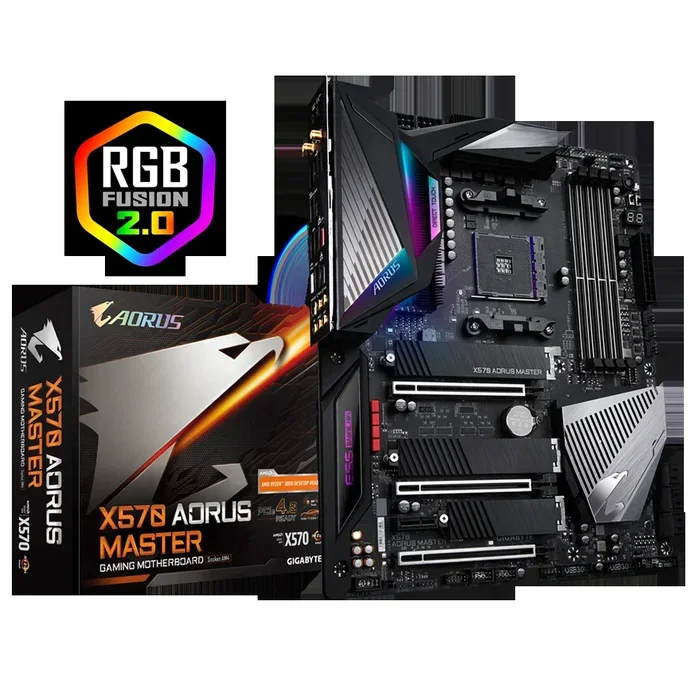
Gigabyte X570 AORUS PRO WIFI
This is one of the most well-known X570 boards on the market. It includes WiFi 6 and Bluetooth 5.0 right out of the box. The board also features a robust VRM design, making it great for high-end Ryzen processors. If you want a premium X570 board with wireless, this is a top choice.
Gigabyte X570 AORUS ELITE WIFI
The AORUS ELITE WIFI is a mid-range board that still delivers strong wireless performance. It supports WiFi 6 and Bluetooth 5.0. The board offers a good balance of features and price, making it popular among budget-conscious builders who still want wireless connectivity.
Gigabyte X570 GAMING X WIFI
This model targets gamers who want WiFi without breaking the bank. It includes WiFi 6 and Bluetooth 5.0. The board has solid audio and networking features, making it a solid pick for a gaming PC build.
Gigabyte X570 UD WIFI
The UD WIFI is a more affordable option that still includes wireless networking. It supports WiFi 6 and Bluetooth 5.0. This board is a great choice for people who want the X570 platform without spending a lot of money.
What If Your Gigabyte X570 Board Does Not Have WiFi?
Not every X570 board includes wireless. If you bought a non-WiFi model, you still have options. Adding WiFi to a board without built-in wireless is straightforward and affordable.
Option 1: Add a PCIe WiFi Card
The most common way to add WiFi to a non-WiFi X570 board is with a PCIe WiFi card. These cards plug directly into a PCIe slot on your motherboard. They usually come with a small antenna that you mount on the back of your PC case.
Popular choices include cards based on the Intel AX200 or AX210 chipsets. These support WiFi 6 and Bluetooth 5.0. You can find them for under $30, making them a budget-friendly upgrade. Just make sure your board has a free PCIe slot before buying.
One thing to keep in mind: some PCIe WiFi cards are dual-band, while others are tri-band. Dual-band cards support 2.4 GHz and 5 GHz frequencies. Tri-band cards add a 6 GHz band for even faster speeds if your router supports it. For most users, a dual-band card is more than enough.
Option 2: Use a USB WiFi Adapter
If you do not have a free PCIe slot, a USB WiFi adapter is another option. These plug into a USB port and provide wireless connectivity. They are easy to set up and do not require opening your PC case.
However, USB adapters usually do not match the speed or reliability of a PCIe card. They can also take up a USB port that you might need for other devices. If you go this route, look for an adapter that supports WiFi 6 for the best performance.
Option 3: Use a USB-C or Thunderbolt Dock
Some users prefer a USB-C or Thunderbolt dock that includes WiFi. These docks connect to your PC and provide wireless networking along with extra ports. This is a good option if you want a clean desk setup with minimal cables.
How to Check if Your Gigabyte X570 Board Has WiFi
If you already own a Gigabyte X570 board and are not sure if it has WiFi, there are a few easy ways to check. You do not need to open your PC case to find out.
First, look at the model number. If the name includes “WIFI” or “AX,” there is a good chance it has wireless. Second, check the Gigabyte website for the exact specifications of your model. The spec sheet will list WiFi and Bluetooth support clearly.
Third, look at the back I/O panel of your motherboard. If you see a WiFi antenna connector (a small pin header), your board likely supports WiFi. You can also check the BIOS or use Gigabyte’s software utility to see if a wireless module is detected.
For those who are still shopping, adding a WiFi antenna to your router can also help improve your overall wireless coverage once you set up your new board.
WiFi Performance Tips for Gigabyte X570 Boards
Having WiFi on your X570 board is great, but you want to make sure you are getting the best performance possible. Here are some tips to help you get the most out of your wireless connection.
Place Your Router Strategically
The location of your router matters a lot for WiFi performance. Try to place it in a central location in your home or office. Avoid putting it behind walls, inside cabinets, or near metal objects. The closer your router is to your PC, the stronger the signal will be.
Use the 5 GHz Band When Possible
Most WiFi 6 routers broadcast on both 2.4 GHz and 5 GHz bands. The 5 GHz band is faster and less crowded than 2.4 GHz. If your router supports it, connect your PC to the 5 GHz network for better speeds. If you are unsure about band settings, forcing a device to use the 2.4 GHz band is sometimes necessary for older devices, but for your PC, 5 GHz is the better choice.
Keep Your WiFi Drivers Updated
Gigabyte and your WiFi card manufacturer regularly release driver updates. These updates can improve performance, fix bugs, and add new features. Check for updates regularly through Gigabyte’s website or the driver software that came with your WiFi card.
Consider a Mesh Network for Larger Spaces
If your home or office is large, a single router may not provide enough coverage. A mesh WiFi system uses multiple nodes to spread the signal throughout your space. Google WiFi can work as an access point to extend your network and eliminate dead zones.
Comparing Built-In WiFi vs. Adding a WiFi Card
When deciding between a WiFi-enabled X570 board and a non-WiFi board with a separate card, there are a few things to consider. The table below breaks down the key differences.
| Feature | Built-In WiFi | Separate WiFi Card |
|---|---|---|
| Ease of Setup | Ready to use out of the box | Requires installation |
| Cost | Higher upfront price | Lower board cost + card cost |
| Aesthetics | Cleaner look, no extra cards | Extra card and antenna inside PC |
| Upgrade Flexibility | Cannot change WiFi module | Can swap out the WiFi card anytime |
| Performance | Good, varies by model | Can choose high-end cards for better performance |
| Bluetooth | Usually included | Depends on the card chosen |
For most users, a built-in WiFi X570 board is the simpler and cleaner choice. It saves you the hassle of installing a card and keeps your PC looking tidy. However, if you want the flexibility to upgrade your wireless hardware later, a non-WiFi board with a replaceable PCIe card gives you more options.
Also, keep in mind that wireless technology keeps evolving. WiFi 6E and WiFi 7 are on the horizon. A separate WiFi card lets you swap in newer technology without replacing your entire motherboard. This can be a smart long-term investment.
Common Mistakes People Make with X570 WiFi Boards
There are a few common mistakes that buyers make when dealing with X570 WiFi boards. Avoiding these can save you time, money, and frustration.
- Assuming all X570 boards have WiFi: This is the biggest mistake. Always check the product name and spec sheet before buying.
- Forgetting to install WiFi drivers: A new board may not show up in your WiFi settings until you install the correct drivers. Check Gigabyte’s website for the latest drivers.
- Not connecting the WiFi antenna: If your board has WiFi, make sure you connect the antennas. Without them, your wireless signal will be very weak.
- Ignoring Bluetooth: Some buyers focus only on WiFi and forget about Bluetooth. Make sure your board supports both if you need wireless peripherals.
- Buying the wrong WiFi card: If you are adding a PCIe WiFi card, make sure it is compatible with your motherboard and supports the wireless standard you need.
Expert Insights on X570 WiFi Motherboards
From a networking perspective, built-in WiFi on motherboards has come a long way. The wireless modules used in modern X570 boards are surprisingly capable. They can deliver speeds that are more than enough for most home and office use cases.
That said, a wired Ethernet connection will always be faster and more stable than WiFi. If you need the absolute best performance for gaming or heavy file transfers, use a cable. WiFi is perfect for convenience, but it is not a replacement for a solid wired connection when speed and reliability matter most.
One tip from networking experts: if you are using WiFi, make sure your router is also WiFi 6 compatible. A WiFi 6 router paired with a WiFi 6 motherboard gives you the best possible wireless performance. Mixing older WiFi standards can limit your speeds, even if your board supports the newer standard.
Final Thoughts
So, does Gigabyte X570 have WiFi? The answer is yes, but only on specific models. Look for the “WIFI” designation in the product name, and always verify the specs before purchasing. If your board does not include WiFi, adding a PCIe WiFi card or USB adapter is an easy and affordable solution.
The Gigabyte X570 platform offers a lot of flexibility. Whether you choose a board with built-in WiFi or add wireless later, you have options that fit every budget and use case. Wireless connectivity on a modern motherboard is no longer a luxury. It is a convenience that most users expect.
Take your time when choosing your board. Check the model number, read the spec sheet, and make sure you know exactly what you are getting. A little research upfront saves a lot of headaches later. Happy building.
Frequently Asked Questions
Do all Gigabyte X570 motherboards have WiFi?
No, not all Gigabyte X570 motherboards include WiFi. Only models with “WIFI” or “AX” in the product name come with built-in wireless. Always check the specifications before buying to confirm WiFi support.
What WiFi standard do Gigabyte X570 WiFi boards support?
Most Gigabyte X570 WiFi boards support WiFi 6 (802.11ax). This is the latest mainstream wireless standard and offers fast speeds and improved performance. Some older models may only support WiFi 5 (802.11ac).
Can I add WiFi to a Gigabyte X570 board that does not have it?
Yes, you can add WiFi by installing a PCIe WiFi card or using a USB WiFi adapter. PCIe cards generally offer better performance and reliability. A USB adapter is a simpler option if you do not have a free PCIe slot.
Does a Gigabyte X570 WiFi board include Bluetooth?
Yes, most Gigabyte X570 WiFi boards also include Bluetooth 5.0 or later. This allows you to connect wireless peripherals like mice, keyboards, and headsets without any extra hardware.
How can I tell if my Gigabyte X570 board has WiFi?
Check the model number for “WIFI” or “AX” in the name. You can also look at the back I/O panel for a WiFi antenna connector. The Gigabyte website spec sheet for your exact model will list WiFi and Bluetooth support clearly.
Is built-in WiFi on an X570 motherboard good enough for gaming?
Built-in WiFi 6 on an X570 board is good enough for most gaming needs. It provides fast and stable wireless speeds. However, for competitive gaming where every millisecond counts, a wired Ethernet connection is still the best choice.
=== CONCLUSION ===
The Gigabyte X570 motherboard lineup includes both WiFi and non-WiFi models, so it is important to know what you are getting. Always look for the “WIFI” suffix in the product name, and verify the specs on the Gigabyte website. Whether your board has built-in wireless or you add a card later, you have plenty of options for staying connected.
Wireless networking on the X570 platform is solid, convenient, and more than capable for everyday use. With WiFi 6 support, Bluetooth connectivity, and easy upgrade paths, the X570 platform gives you everything you need for a modern wireless setup. Take the time to choose the right model, and you will enjoy a fast and reliable wireless experience for years to come.