Does Your Network Affect Wi Fi Speed And Performance
Yes, your network absolutely affects Wi Fi speed and performance. The way your router is set up, the hardware you use, and even your home layout can slow down or boost your wireless connection. Understanding how your network impacts Wi Fi helps you fix slow speeds and get the most from your internet plan.
Key Takeaways
- Your network setup directly controls Wi Fi speed: Router quality, placement, and settings all play a major role.
- Older hardware limits performance: Outdated routers and modems bottleneck your wireless connection.
- Frequency bands matter: Switching between 2.4 GHz and 5 GHz can noticeably improve your experience.
- Network congestion slows things down: Too many connected devices share bandwidth and reduce speed.
- Simple fixes make a big difference: Router placement, firmware updates, and reducing interference boost performance.
- External factors play a role too: Weather, walls, and electronic devices can weaken your Wi Fi signal.
- Upgrading your network equipment is worth it: A modern router can transform your wireless experience.
📑 Table of Contents
- Does Your Network Affect Wi Fi Speed And Performance?
- How Your Network Hardware Affects Wi Fi
- Router Placement And Its Impact On Wi Fi
- Network Settings That Change Wi Fi Performance
- How Many Devices Affect Your Network?
- Environmental Factors That Weaken Wi Fi
- When Should You Upgrade Your Network?
- Common Mistakes That Hurt Your Network
- Final Thoughts
Does Your Network Affect Wi Fi Speed And Performance?
Have you ever wondered why your Wi Fi feels slow even though your internet plan promises fast speeds? The answer might be your network. Your network affects Wi Fi speed and performance more than most people realize. Everything from your router type to how many devices are connected can change the way your wireless connection behaves.
Many users blame their internet service provider when things get slow. But often, the real issue sits right inside your home. Your router, modem, placement, and even the number of devices sharing your network all shape your Wi Fi experience. This guide breaks down exactly how your network impacts your wireless connection and what you can do about it.
Whether you stream movies, work from home, or just browse the web, understanding your network helps you get better results. You do not need to be a tech expert to make real improvements. A few simple changes can speed up your Wi Fi and make your daily online tasks much smoother.
Let us walk through the key ways your network affects Wi Fi. By the end, you will know exactly what to check, what to fix, and how to get the best performance from your setup.
How Your Network Hardware Affects Wi Fi
The hardware in your network forms the foundation of your wireless experience. Old or low-quality equipment can hold back your speeds no matter how good your internet plan is. Let us look at the main hardware pieces that matter.
Your Router Matters A Lot
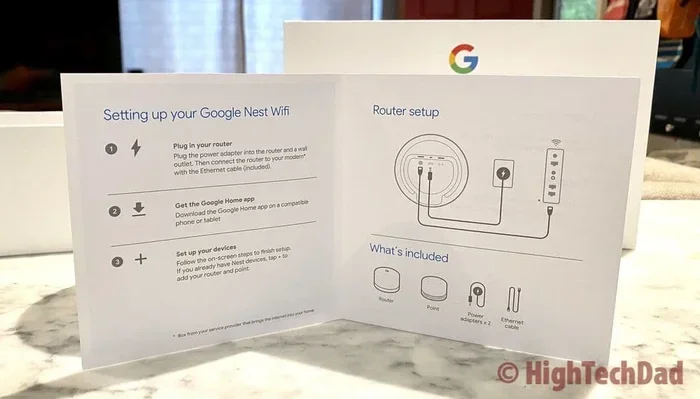
Your router is the brain of your wireless network. It sends and receives data to every device in your home. An older router may not support the latest Wi Fi standards, which means slower speeds and weaker coverage. If your router is more than five years old, it might be time for an upgrade.
Modern routers support Wi Fi 5 and Wi Fi 6 standards. These newer standards offer faster speeds, better range, and improved handling of multiple devices. If you have been using the same router for a long time, your network performance could be holding you back.
Modem Quality Plays A Role Too
Your modem connects your home to the internet. A slow or outdated modem limits the speed of data coming into your network. Even the best router cannot fix a bottleneck at the modem level. Check with your internet service provider to see if your modem supports the speeds you are paying for.
Some ISPs provide older modems to their customers. These modems often cannot handle gigabit speeds or modern network demands. Replacing your modem can unlock better performance across your entire network.
Ethernet Cables And Network Cables
Do not forget about the cables that connect your devices. Old Ethernet cables can limit your speeds. Cat5 cables max out around 100 Mbps, while Cat6 and Cat6a cables support much faster speeds. Upgrading your cables is a cheap and easy way to improve your wired network connections.
For devices that need stable, fast connections, always use a wired Ethernet link when possible. This takes the load off your wireless network and frees up bandwidth for your Wi Fi devices.
Router Placement And Its Impact On Wi Fi
Where you place your router has a huge effect on your Wi Fi performance. A poorly placed router can create dead zones and weak signals throughout your home. Good placement is one of the easiest ways to boost your wireless network.
Central Location Is Best
Place your router in a central spot in your home. This helps spread the signal evenly to all rooms. Walls, floors, and furniture block Wi Fi signals. The more obstacles between your router and your devices, the weaker your connection becomes.
Avoid hiding your router in a closet or behind furniture. These spots block signals and reduce coverage. Keep your router out in the open where air can flow around it. Heat buildup can also slow down your router and shorten its lifespan.
Height And Positioning Tips
Place your router on a high shelf or mount it on a wall. Signals spread downward better than upward. A higher position gives your Wi Fi better reach throughout your home. Try to keep the router elevated and away from the floor.
Point the antennas vertically for horizontal coverage. If you need better coverage on different floors, angle one antenna horizontally. This simple trick can improve signal strength in hard-to-reach areas.
Distance From Interference Sources
Keep your router away from other electronics. Microwaves, cordless phones, baby monitors, and Bluetooth devices all create interference. These devices operate on similar frequencies and can weaken your Wi Fi signal. A few feet of distance can make a noticeable difference.
Also, avoid placing your router near large metal objects or appliances. Metal blocks wireless signals and creates dead spots. A clear line of sight between your router and your devices gives the best results.
Network Settings That Change Wi Fi Performance
Your router settings control how your network operates. Small tweaks to these settings can lead to big improvements in speed and stability. You do not need advanced technical skills to make these changes.
Choosing The Right Frequency Band
Most modern routers offer two frequency bands: 2.4 GHz and 5 GHz. Each band has different strengths. The 2.4 GHz band covers longer distances but offers slower speeds. The 5 GHz band provides faster speeds but has a shorter range.
For devices close to your router, use the 5 GHz band. For devices far away or through walls, the 2.4 GHz band works better. Some routers let you choose the best band for each device manually. If your router supports band steering, turn it on to let the router assign devices automatically.
You can also check if your router lets you change my Wi Fi from 5 GHz to 2.4 GHz easily. This simple switch can solve many slow-connection problems at home.
Channel Selection And Congestion
Wi Fi channels are like lanes on a highway. Too many networks on the same channel causes congestion. Your router might be using a crowded channel, which slows down your connection. Most routers auto-select channels, but the auto choice is not always the best one.
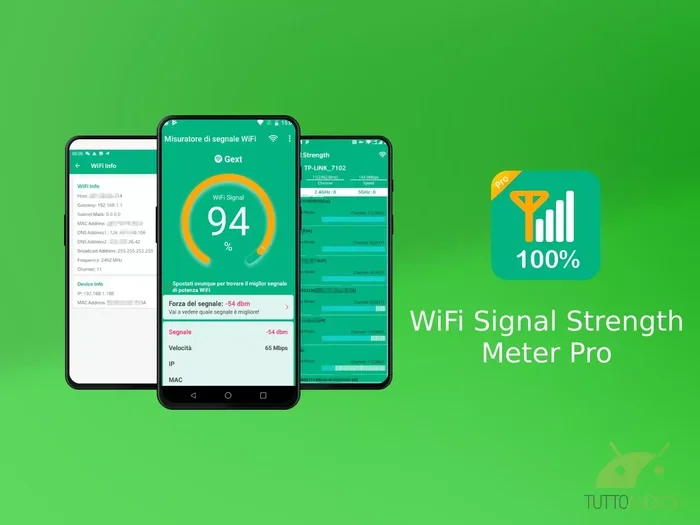
Use a Wi Fi analyzer app to check which channels are least crowded in your area. Then go into your router settings and switch to a less busy channel. This reduces interference from neighboring networks and can boost your speed significantly.
Quality Of Service Settings
QoS (Quality of Service) settings let you prioritize certain devices or activities on your network. If you video call for work, you can give your computer top priority. This ensures smooth calls even when someone else is streaming or downloading large files.
Check your router’s admin panel for QoS options. Set priorities based on what matters most to you. This feature helps balance network traffic and keeps important tasks running smoothly.
How Many Devices Affect Your Network?
Every device connected to your network uses a share of your bandwidth. The more devices you have online at the same time, the more your network has to work. This is called network congestion, and it directly affects your Wi Fi speed.
Understanding Bandwidth Sharing
Think of your internet connection like a water pipe. More devices using the pipe means less water (or data) for each one. A smart TV streaming 4K video, a laptop downloading updates, and a phone backing up photos all compete for the same bandwidth.
If you have many smart home devices, they also draw from your network. Smart cameras, smart speakers, and smart plugs stay connected even when you are not actively using them. Each one takes a small slice of your bandwidth. Over time, this adds up and can slow things down.
Managing Connected Devices
Regularly check how many devices are connected to your network. Most routers let you view connected devices in the admin panel. Disconnect devices you are not using or set up a guest network for visitors.
A guest network keeps visitors off your main network. This reduces the number of devices competing for bandwidth on your primary connection. It also adds a layer of security for your main devices.
If you have many devices, consider upgrading to a router that handles high device counts well. Wi Fi 6 routers are designed to manage dozens of devices efficiently. They use technologies like OFDMA to divide bandwidth more fairly among all connected devices.
Environmental Factors That Weaken Wi Fi
Your physical environment plays a bigger role in Wi Fi performance than most people think. Things you cannot control, like weather and building materials, still affect your wireless signal. Understanding these factors helps you set realistic expectations.
Walls, Floors, And Building Materials
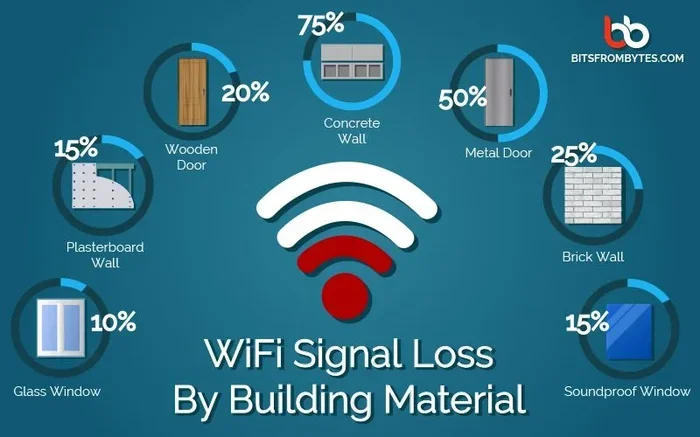
Thick walls, concrete floors, and brick construction block Wi Fi signals. Homes with multiple floors or large square footage face more signal loss. Metal studs, mirrors, and even aquariums can weaken your wireless connection.
If your home has thick walls, you may need a Wi Fi extender or mesh system to cover all areas. A simple range extender can bridge gaps between your router and hard-to-reach spots. You can also explore options like extending my Wi Fi to 200 feet away with the right equipment.
Weather And Outdoor Conditions
Believe it or not, weather can affect your outdoor Wi Fi signal. Heavy rain, high humidity, and extreme temperatures can weaken wireless signals. If you use an outdoor camera or access your network from your yard, weather conditions matter.
Humidity is one factor that many people overlook. Moisture in the air absorbs Wi Fi signals and reduces their strength. If you live in a humid climate, you might notice weaker outdoor signals during rainy seasons.
Electronic Interference In Your Home
Beyond microwaves and cordless phones, other electronics create interference. Baby monitors, wireless speakers, and even LED light bulbs can disrupt Wi Fi signals. USB 3.0 devices are also known to cause interference on the 2.4 GHz band.
Keep your router away from clusters of electronics. Give it space from other wireless devices. Reducing interference creates a cleaner signal path and better overall performance.
When Should You Upgrade Your Network?
Knowing when to upgrade your network equipment saves you from frustration and slow speeds. Here are clear signs your current setup is holding you back.
Signs You Need A New Router
Your router needs an upgrade if you notice any of these signs. Frequent disconnections, slow speeds even after a restart, and weak signals in rooms close to the router all point to aging hardware. If your router does not support the latest Wi Fi standards, it is probably time for a replacement.
Another sign is when your router gets overly hot. Overheating reduces performance and can cause unexpected reboots. A new router runs cooler and handles modern network demands much better.
Benefits Of A Wi Fi Booster Or Extender
A Wi Fi booster extends your existing network to areas with weak signals. These devices pick up your router’s signal and rebroadcast it to dead zones. They are affordable and easy to set up, making them a popular choice for homes with coverage gaps.
If you want better coverage without buying a whole new system, a booster can help. You can also buy a Wi Fi booster that matches your router’s standard for the best results. Make sure the booster supports the same frequency bands as your router.
Mesh Systems For Whole-Home Coverage
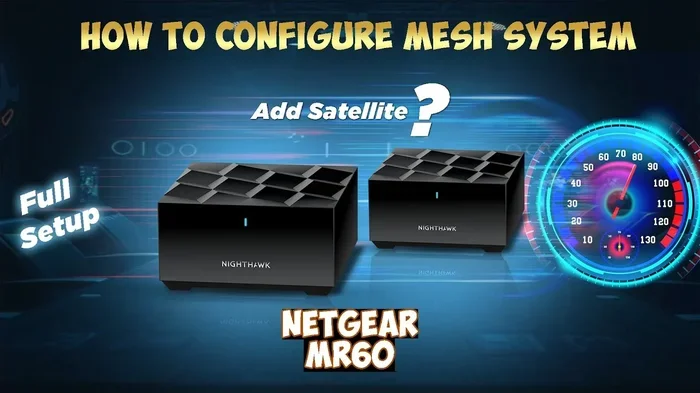
Mesh Wi Fi systems replace your router with multiple nodes placed around your home. Each node creates a strong, seamless connection. Mesh systems are ideal for large homes or homes with tricky layouts that cause dead spots.
Unlike traditional extenders, mesh systems create one unified network. Your devices switch smoothly between nodes without dropping the connection. If you have a large home or many floors, a mesh system is one of the best investments for better Wi Fi.
Common Mistakes That Hurt Your Network
Many people make simple mistakes that hurt their Wi Fi performance. Avoiding these errors can quickly improve your wireless experience.
- Placing the router on the floor: This blocks signals and limits coverage. Keep it elevated for better reach.
- Ignoring firmware updates: Router manufacturers release updates that improve speed and fix bugs. Check for updates regularly.
- Using the wrong channel: A crowded channel slows down your connection. Use a Wi Fi analyzer to find the best one.
- Overloading one band: Putting all devices on 2.4 GHz creates congestion. Split devices between bands for better balance.
- Not restarting your router: A simple restart clears cached data and refreshes your connection. Restart your router once a month.
- Ignoring your ISP speed: If your internet plan is slow, no router can fix that. Test your speeds and upgrade your plan if needed.
Final Thoughts
Your network absolutely affects your Wi Fi speed and performance. From the router you choose to where you place it, every decision shapes your wireless experience. Understanding these factors gives you the power to make real improvements at home.
Start with the basics. Check your hardware, move your router to a better spot, and adjust your settings. These simple steps often solve most Wi Fi problems. If you still need more coverage, consider a booster, extender, or mesh system.
Keep your network updated and well-maintained. Regular firmware updates, device management, and smart placement go a long way. A well-optimized network delivers faster speeds, better reliability, and a smoother online experience for everyone in your home.
Take action today. Your Wi Fi will thank you with faster speeds and fewer frustrations.
Frequently Asked Questions
Can a bad network slow down my Wi Fi even if I have a fast internet plan?
Yes, absolutely. A slow or outdated router, poor placement, or network congestion can all limit your speeds regardless of your internet plan. Your network acts as the bridge between your ISP and your devices, and any bottleneck there affects your overall experience.
How can I check if my network is affecting my Wi Fi speed?
Run a speed test with a device connected directly to your router via Ethernet. Then run the same test on Wi Fi. If the Wi Fi speed is much lower, your network setup is likely the issue. You can also check your router settings, firmware, and connected devices to identify problems.
Does the number of devices connected to my network really matter?
Yes, it matters a lot. Every connected device shares your available bandwidth. The more devices online at once, the slower each one becomes. Modern Wi Fi 6 routers handle multiple devices better, but managing connected devices still helps maintain good speeds.
Can weather or humidity really affect my Wi Fi signal?
Yes, weather and humidity can affect outdoor Wi Fi signals. Moisture in the air absorbs wireless signals and reduces their strength. Heavy rain and high humidity can cause noticeable signal loss for outdoor connections and devices far from your router.
Should I use a Wi Fi extender or upgrade to a mesh system?
It depends on your home size and needs. A Wi Fi extender is affordable and easy to set up for small coverage gaps. A mesh system is better for larger homes or homes with multiple floors. Mesh systems provide seamless coverage and handle more devices efficiently.
What is the best Wi Fi frequency band for speed?
The 5 GHz band offers faster speeds for devices close to your router. The 2.4 GHz band covers longer distances but at slower speeds. For the best experience, use 5 GHz for streaming and gaming, and 2.4 GHz for devices that are farther away or through walls.