How Do I Change My Wi Fi Channel Frequency for Better Speed
Changing your Wi Fi channel frequency is one of the easiest ways to improve your wireless speed and reduce network interference. Whether you use a 2.4 GHz band or a 5 GHz band, picking the right channel can make a huge difference in your Wi Fi performance. This guide walks you through every step, from finding the best channel to adjusting your router settings like a pro.
Your wireless network feels slow. Pages take forever to load. Videos buffer every few seconds. You might think your internet plan is to blame, but often the real culprit is your Wi Fi channel frequency. Picking the right channel can transform your wireless connection from frustrating to flawless.
Most people never think about their Wi Fi channel. They set up their wireless router once and forget about it. But here is the truth. Your neighbors have routers too. All those networks compete for the same airspace. When too many signals overlap, your network performance drops. Changing your channel frequency is like switching to a less crowded highway. Traffic flows better. Speeds improve. Everything just works smoother.
This guide covers everything you need to know. You will learn what a Wi Fi channel is, why it matters, and exactly how to change it. We will walk you through both the 2.4 GHz band and the 5 GHz band. By the end, you will have the knowledge to optimize your wireless network for the best possible Wi Fi speed.
Key Takeaways
- Channel selection matters: Choosing the right frequency channel reduces interference and boosts your wireless speed significantly.
- 2.4 GHz vs 5 GHz: Each band has different strengths. The 2.4 GHz band reaches farther, while the 5 GHz band delivers faster speeds.
- Use a Wi Fi analyzer: Free apps help you scan nearby networks and find the least congested channel for your router.
- Router admin access is key: You need to log into your router’s settings panel to change the channel frequency.
- Channel width affects performance: Wider channels (40 MHz or 80 MHz) offer more speed but can cause more overlap and interference.
- Restart after changes: Always reboot your router after adjusting channel settings for the best results.
- Consider a Wi Fi booster: If changing channels doesn’t fix your issues, a booster can extend coverage and improve signal strength.
📑 Table of Contents
- What Is a Wi Fi Channel Frequency?
- Why Should You Change Your Wi Fi Channel?
- How to Find the Best Wi Fi Channel
- How to Change Your Wi Fi Channel Frequency Step by Step
- 2.4 GHz vs 5 GHz: Which Band Should You Use?
- Common Mistakes That Hurt Your Wi Fi Channel Performance
- When to Consider a Wi Fi Booster or Extender
- Expert Tips for Long-Term Wi Fi Performance
- Conclusion
What Is a Wi Fi Channel Frequency?
Think of your Wi Fi network like a radio station. Your router broadcasts on a specific frequency band. Within that band, there are smaller slots called channels. Each channel carries your data. When you change your channel, you simply pick a different slot on the same radio frequency.
The two main bands used by most home routers are the 2.4 GHz band and the 5 GHz band. The 2.4 GHz band has 11 to 14 channels depending on your country. The 5 GHz band has many more channels, often 25 or more. Each band serves a different purpose and works best in different situations.
How Channels Work in the 2.4 GHz Band
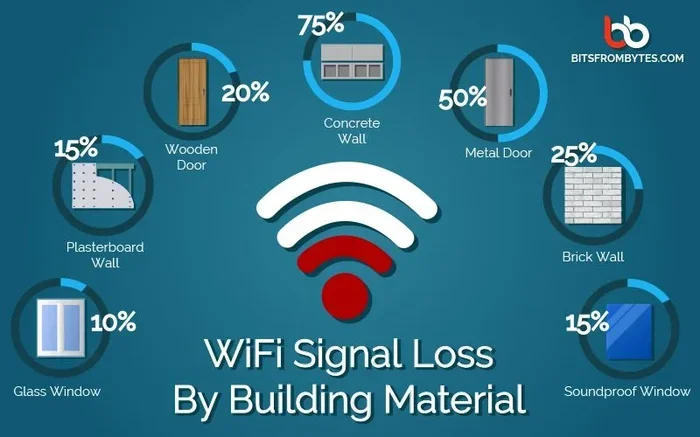
The 2.4 GHz band is the older and more common standard. It has a longer range and penetrates walls better than the 5 GHz band. However, it only has three non-overlapping channels: channels 1, 6, and 11. Most routers default to channel 6, which means many networks end up competing on the same frequency. This creates wireless interference and slows down your connection.
When you switch to channel 1 or channel 11, you reduce the chance of overlap from nearby networks. This simple change can noticeably improve your internet connection speed and stability.
How Channels Work in the 5 GHz Band
The 5 GHz band offers more channels and less congestion. It is the better choice for high-speed activities like streaming 4K video or online gaming. However, its range is shorter. It does not penetrate walls as well. If you live in a dense apartment building, the 5 GHz band can still suffer from interference, but it generally performs better than the 2.4 GHz band for speed.
The 5 GHz band also supports wider channel widths like 40 MHz and 80 MHz. A wider channel means more data can flow at once. This translates to faster speeds. But wider channels can also overlap with neighboring networks if the area is crowded.
Why Should You Change Your Wi Fi Channel?
You might wonder why you need to change your channel at all. If your network works fine, should you really bother? The answer is yes. Here is why.
Network interference is the number one reason. In a typical neighborhood, dozens of wireless routers broadcast simultaneously. Many of them use the default channel settings. This creates a crowded wireless environment. Your signal has to compete with all of them. The result is slower speeds, higher latency, and dropped connections.
Network congestion also plays a role. Even if your neighbors are not on the same channel, their signals can bleed into your channel. This is called adjacent channel interference. It degrades your Wi Fi performance even when you are not directly overlapping.
Changing your channel gives you a cleaner signal path. Less competition means better speeds. Less interference means more stable connections. It is one of the simplest and most effective ways to improve your home network.
How to Find the Best Wi Fi Channel
Before you change anything, you need to know which channel is best. You cannot just pick a random number. You need to scan your environment and find the least congested option.
Use a Wi Fi Analyzer App
A Wi Fi analyzer app is your best friend for this task. These apps scan all nearby wireless networks and show you which channels they use. They display the results in a visual graph that makes it easy to see the crowded channels and the open ones.
For Android phones, apps like Wi Fi Analyzer are free and work great. For iPhone, you can use apps like AirPort Utility, which has a built-in scanner. Simply open the app, walk around your home, and note which channels have the least traffic.
Look for channels 1, 6, and 11 on the 2.4 GHz band since they do not overlap. On the 5 GHz band, look for channels with the least number of networks using them. The app will show you signal strength for each network too, so you can identify which neighbors are closest and most likely to interfere.
Check Your Router’s Built-In Tools
Many modern routers have a built-in channel scanner. You can access this through the router’s admin panel. Look for a section labeled Wireless Settings or Wi Fi Scan. The router will show you a list of nearby networks and their channels.
This method works well if you do not want to install a separate app. However, dedicated Wi Fi analyzer apps usually provide more detailed and accurate information. They show signal strength, channel overlap, and even the type of network (2.4 GHz or 5 GHz).
Consider Your Neighbors
Your neighbors’ routers are the biggest factor in choosing a channel. If you live in a townhouse or apartment, many networks may be competing for the same space. In a rural area with few neighbors, channel selection matters less. But in a crowded neighborhood, it makes a huge difference.
Pay attention to which channels your closest neighbors use. If the apartment next door uses channel 6, do not pick channel 6. Pick channel 1 or channel 11 instead. This simple strategy reduces overlap and improves your wireless signal quality.
How to Change Your Wi Fi Channel Frequency Step by Step
Now for the part you have been waiting for. Actually changing the channel on your router. The process is straightforward, but the exact steps vary slightly depending on your router brand. Here is the general guide that works for most routers.
Step 1: Find Your Router’s IP Address
You need to access your router’s admin panel. To do that, you first need its IP address. Most routers use 192.168.1.1 or 192.168.0.1. You can also check the label on the back of your router for the default IP address.
Another way is to open Command Prompt on Windows and type ipconfig. Look for the Default Gateway address. That is your router’s IP. On Mac, go to System Preferences, then Network, then Advanced, and look for the Router field.
Step 2: Log Into Your Router
Open a web browser and type your router’s IP address into the address bar. Press Enter. You will see a login page. Enter your username and password. If you never changed these, the defaults are usually admin for both fields, or admin for the username and password for the password. Check your router’s manual if these do not work.
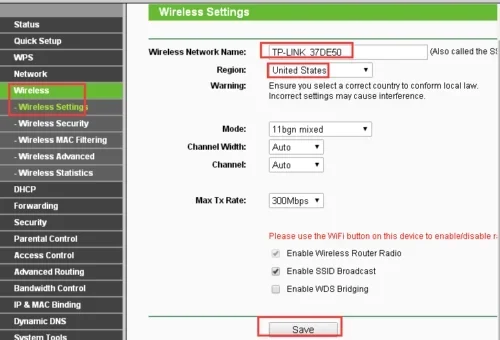
Once logged in, you will see the router’s dashboard. Look for a section called Wireless Settings, Wi Fi Settings, or something similar. This is where you control your wireless network settings.
Step 3: Change the Channel
In the wireless settings, find the channel dropdown menu. It usually shows Auto or a specific channel number. Select the channel number you identified as the best option from your Wi Fi analyzer scan.
If you are using the 2.4 GHz band, choose channel 1, 6, or 11. If you are using the 5 GHz band, you have many more options. Pick a channel that shows the least congestion from your scan.
Some routers also let you set the channel width. For the 2.4 GHz band, 20 MHz is usually best. It is more stable and less prone to interference. For the 5 GHz band, you can try 40 MHz or 80 MHz for faster speeds, but be aware that wider channels can pick up more interference in crowded areas.
Step 4: Save and Restart
Click Save or Apply to save your new settings. Then restart your router. Unplug it, wait 30 seconds, and plug it back in. This ensures the new channel settings take effect properly.
After the router boots back up, test your connection. Run a speed test at fast.com or speedtest.net. Compare the results to what you had before. You should see an improvement in both speed and stability.
2.4 GHz vs 5 GHz: Which Band Should You Use?
This is one of the most common questions people ask about their wireless network. The answer depends on what you need. Let us break it down.
| Feature | 2.4 GHz Band | 5 GHz Band |
|---|---|---|
| Speed | Slower (up to 600 Mbps) | Faster (up to 1300 Mbps or more) |
| Range | Longer range | Shorter range |
| Wall Penetration | Better | Worse |
| Channel Options | 11-14 channels | 25+ channels |
| Interference | More crowded | Less crowded |
| Best For | Browsing, email, smart home devices | Streaming, gaming, large file transfers |
If you want the best of both worlds, use dual-band technology. Most modern routers support both bands simultaneously. You can connect your phone and laptop to the 5 GHz band for fast speeds. Connect smart home devices and older gadgets to the 2.4 GHz band for better range. This split reduces congestion on both bands and improves your overall Wi Fi performance.
If you are currently stuck on the 2.4 GHz band and want to switch, you can change your Wi Fi from 5 GHz to 2.4 GHz or vice versa through your router settings. The process is the same as changing the channel frequency we just covered.
Common Mistakes That Hurt Your Wi Fi Channel Performance
Even after you change your channel, some common mistakes can undo your progress. Here is what to watch out for.
Leaving your channel on Auto. Auto mode sounds convenient, but it often picks a crowded channel. Manual selection gives you more control and better results. Take the extra minute to scan and choose the best channel yourself.
Ignoring channel width settings. A wider channel is not always better. On the 2.4 GHz band, stick with 20 MHz. On the 5 GHz band, 40 MHz is a good starting point. Only use 80 MHz if you live in a low-density area with few neighboring networks.
Not updating your router firmware. Outdated firmware can cause performance issues and security vulnerabilities. Check for firmware updates in your router admin panel at least once a month. Many modern routers also support automatic updates, so enable that feature if available.
Placing your router poorly. Even the best channel cannot fix a bad router placement. Keep your router in a central location, elevated off the floor, away from walls and metal objects. Avoid placing it near microwaves, cordless phones, and baby monitors, as these devices emit signals on the 2.4 GHz band and cause interference.
Forgetting to restart after changes. Always reboot your router after making any setting changes. A simple restart ensures all new settings take effect and your wireless connection refreshes properly.
When to Consider a Wi Fi Booster or Extender
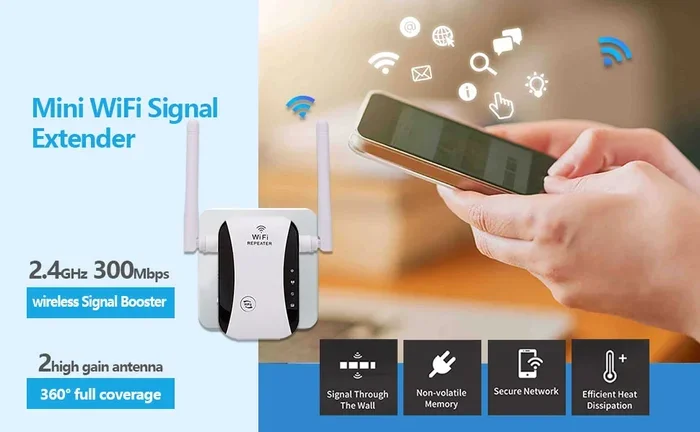
Sometimes changing your channel is not enough. If your home is large or has thick walls, your signal may still be weak in certain rooms. In these cases, a Wi Fi booster or extender can help. These devices amplify your existing signal and extend coverage to areas your router cannot reach on its own.
A Wi Fi booster works by receiving your router’s signal and rebroadcasting it. This eliminates dead zones in your home. You can also try moving your router to a more central location before buying a booster. Sometimes a simple repositioning solves the problem without any extra equipment.
If you live in a very large home or have many devices, consider a mesh Wi Fi system. These systems use multiple nodes to create seamless coverage throughout your entire house. They automatically manage channel selection and band steering, so you do not have to manually adjust settings.
Before buying any equipment, make sure you have tried changing your channel frequency first. It is free, easy, and often solves the problem on its own. If it does not, then a booster or mesh system is the next logical step to improve your Wi Fi signal and network optimization.
Expert Tips for Long-Term Wi Fi Performance
Changing your channel is not a one-time fix. To keep your wireless network running at its best, follow these ongoing tips.
- Rescan every few months. New neighbors move in. New routers get installed. Rescan your environment every two to three months and adjust your channel if needed.
- Use the 5 GHz band when possible. It is faster and less congested. Reserve the 2.4 GHz band for devices that need more range.
- Limit the number of connected devices. Too many devices on one network slows everything down. Consider setting up a guest network for visitors and smart home devices.
- Keep your router in a cool, ventilated area. Overheating can reduce performance and shorten the lifespan of your equipment.
- Change your router password regularly. This keeps unauthorized users off your network and prevents them from slowing down your connection.
Following these habits keeps your Wi Fi channel frequency optimized over time. Your network stays fast, stable, and reliable. You never have to deal with slow speeds or dropped connections again.
Conclusion
Changing your Wi Fi channel frequency is one of the simplest and most effective ways to improve your wireless speed. It takes just a few minutes, costs nothing, and can make a dramatic difference in your daily internet experience. Whether you use the 2.4 GHz band or the 5 GHz band, picking the right channel reduces interference and boosts your Wi Fi performance.
Start by scanning your environment with a Wi Fi analyzer app. Find the least congested channel. Log into your router admin panel. Change the channel. Save, restart, and test your connection. That is all it takes. If you still experience issues, consider a Wi Fi booster or better router placement. And remember to rescan periodically as your neighborhood’s wireless landscape changes.
Take control of your wireless network today. A better channel means a better internet experience. You deserve faster speeds and a more reliable connection. Make the change and feel the difference.
Frequently Asked Questions
What is the best Wi Fi channel for 2.4 GHz?
Channels 1, 6, and 11 are the best options for the 2.4 GHz band because they do not overlap with each other. Use a Wi Fi analyzer app to see which of these three channels has the least traffic in your area. Then set your router to that channel for the best performance and least interference.
How often should I change my Wi Fi channel?
There is no fixed schedule, but rescanning every two to three months is a good practice. New networks appear in your area over time, and a channel that was clear before may become congested. Regular scans help you maintain optimal Wi Fi speed and network performance.
Can changing my Wi Fi channel improve my internet speed?
Yes, it can. If your current channel is crowded with neighboring networks, switching to a less congested channel reduces interference. This can lead to faster speeds, lower latency, and a more stable connection. However, if your slow speeds come from your internet plan or your ISP, changing the channel alone may not fix the issue.
Should I use Auto or Manual channel selection on my router?
Manual selection is generally better. Auto mode often picks a crowded channel because it only looks at current traffic without considering long-term congestion. By manually choosing the least used channel, you gain more control over your wireless network and enjoy more consistent performance.
Do I need to change both the 2.4 GHz and 5 GHz channels?
It is a good idea to optimize both bands if your router supports dual-band. The 2.4 GHz band is more prone to interference, so changing its channel often has a bigger impact. The 5 GHz band is less crowded, but in dense areas, it can still benefit from a manual channel selection for the best network optimization.
Will changing my Wi Fi channel affect my connected devices?
No, it will not. All your devices will automatically reconnect to the new channel after the router restarts. You do not need to re-enter any passwords or reconfigure any settings. The change is seamless and invisible to your phones, laptops, and smart home devices.