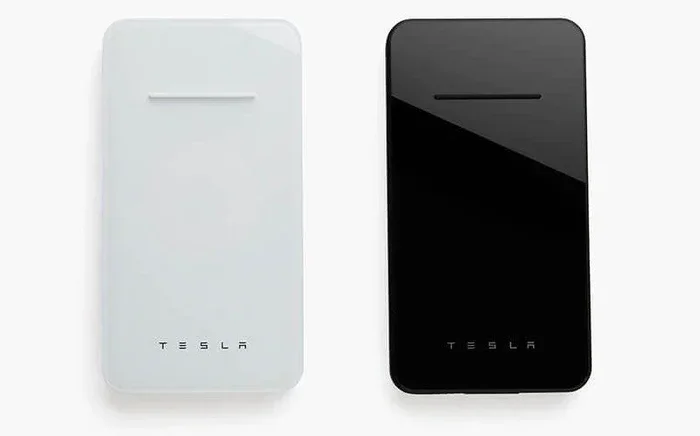
Do You Need To Connect Tesla Charger To Wi Fi Today
You do not always need to connect your Tesla charger to Wi-Fi, but doing so unlocks key features like over-the-air updates and remote monitoring. Most Tesla home chargers work fine without Wi-Fi for basic charging. However, a Wi-Fi connection makes managing your charger easier and more convenient.
Tesla chargers are sleek, powerful, and smart. But one question keeps popping up among new Tesla owners: do you need to connect Tesla charger to Wi-Fi? The short answer is no, not always. But the longer answer is much more interesting, and it could save you time, money, and frustration down the road.
When you first unbox your Tesla charger, the setup process might make you feel like Wi-Fi is mandatory. The Tesla app walks you through connecting your charger to your home network, and it almost feels like you cannot proceed without it. But here is the thing — your Tesla charger will still charge your car just fine without an internet connection. So why does Tesla push Wi-Fi so hard? And what do you actually gain by connecting?
In this article, we will break down everything you need to know about Tesla charger Wi-Fi connectivity. We will cover when Wi-Fi is necessary, what happens when you skip it, and how to get the best results if you do connect. Whether you are setting up a new charger or troubleshooting an existing one, this guide has you covered.
Key Takeaways
- Basic charging works without Wi-Fi: Your Tesla charger can operate fully offline for day-to-day use.
- Wi-Fi enables over-the-air updates: Keep your charger firmware current without visiting a service center.
- Remote monitoring is a big perk: Check charging status and settings from your phone using the Tesla app.
- Most Tesla chargers use 2.4GHz Wi-Fi: Make sure your router broadcasts on the right frequency band.
- Wi-Fi range matters: If your charger is far from the router, consider a Wi-Fi extender to maintain a strong signal.
- Security is important: Use a strong Wi-Fi password to protect your charging setup from unauthorized access.
📑 Table of Contents
- What Is a Tesla Charger and How Does It Work?
- Do You Actually Need Wi-Fi for Your Tesla Charger?
- How to Connect Your Tesla Charger to Wi-Fi
- Common Wi-Fi Connection Problems and How to Fix Them
- Benefits of Keeping Your Tesla Charger Connected to Wi-Fi
- When You Might NOT Need Wi-Fi for Your Tesla Charger
- Can You Use a Wi-Fi Extender for Better Charger Connectivity?
- Expert Tips for the Best Tesla Charger Wi-Fi Experience
- Final Thoughts
What Is a Tesla Charger and How Does It Work?
Before we dive into the Wi-Fi question, let us quickly cover what a Tesla charger actually is. A Tesla charger, often called a Tesla Wall Connector, is a home charging station designed specifically for Tesla vehicles. It plugs into your home’s electrical panel and delivers power directly to your car’s battery.
The Wall Connector is a Wi-Fi enabled device, which means it has the hardware to connect to your home network. But having the hardware and needing the connection are two very different things. Think of it like a smartphone — your phone has Wi-Fi capability, but it still works perfectly fine on cellular data alone.
Here is how the Tesla charger works in simple terms:
- You plug the Wall Connector into your home’s electrical panel.
- The charger communicates with your Tesla vehicle through a cable.
- Power flows from your home’s electrical system into your car’s battery.
- The charger adjusts the power level based on your car’s needs and settings.
None of that basic process requires Wi-Fi. Your car and charger talk to each other directly through the cable. The Wi-Fi connection is an extra layer of functionality, not a requirement for charging.
Do You Actually Need Wi-Fi for Your Tesla Charger?
This is the big question, and the answer depends on what you want your charger to do. Let us look at two scenarios: charging without Wi-Fi and charging with Wi-Fi.
Charging Without Wi-Fi
If you choose not to connect your Tesla charger to Wi-Fi, you can still charge your car every single day without any issues. The charger will draw power from your home’s electrical supply and deliver it to your vehicle. Your charging schedule, power settings, and cable connection all work perfectly fine offline.
Here is what you will miss out on without Wi-Fi:
- Over-the-air firmware updates for your charger
- Remote monitoring through the Tesla app
- Automatic software improvements
- Smart scheduling features tied to your phone’s location
- Usage tracking and charging history in the app
For many people, this is perfectly fine. If you just want to plug in your car at night and wake up to a full battery, you do not need Wi-Fi at all. The charger will do its job without any internet connection.
Charging With Wi-Fi
When you connect your Tesla charger to Wi-Fi, you unlock a whole set of smart features. The charger becomes a connected device, much like a smart thermostat or a Wi-Fi enabled security camera. Here is what you gain:
- Over-the-air updates: Tesla pushes firmware updates to your charger remotely. These updates can improve charging speed, fix bugs, and add new features without you lifting a finger.
- Remote monitoring: You can check your charging status from anywhere using the Tesla mobile app. Want to know if your car finished charging? Just open the app.
- Smart scheduling: You can set charging schedules based on off-peak electricity rates. The app uses your Wi-Fi connection to sync these schedules.
- Usage insights: Track how much energy your charger uses and how much it costs over time.
So do you need Wi-Fi? If you want the full Tesla experience and the convenience of smart features, yes. If you just want basic charging, no. It is really that simple.
How to Connect Your Tesla Charger to Wi-Fi
If you decide to connect your Tesla charger to Wi-Fi, the process is straightforward. Here is a step-by-step guide to get you through it.
Step 1: Make Sure Your Wi-Fi Is Ready
Before you start, check a few things on your router. Tesla chargers work best on a 2.4GHz Wi-Fi network. Many modern routers broadcast both 2.4GHz and 5GHz bands, and sometimes they share the same network name. If that is the case, your charger might try to connect to the 5GHz band, which can cause problems.
To avoid issues, you may want to switch your Wi-Fi to 2.4GHz or set up separate network names for each band. The 2.4GHz band has a longer range and better wall penetration, which makes it ideal for a charger that is typically mounted on a wall in your garage or driveway.
Step 2: Open the Tesla App
On your phone, open the Tesla app and navigate to the charger settings. You will see an option to set up Wi-Fi or connect to a network. Tap on it and select your home network from the list.
Step 3: Enter Your Wi-Fi Password
Type in your Wi-Fi password carefully. Passwords are case-sensitive, so double-check before hitting connect. If you are concerned about Wi-Fi security, make sure you are using a strong, unique password for your network. You can learn more about keeping your Wi-Fi safe in our guide on Wi-Fi password protection.
Step 4: Wait for the Connection
The charger will try to connect to your network. This usually takes less than a minute. You will see a confirmation on the charger’s screen and in the Tesla app once the connection is established.
Step 5: Test the Connection
Try opening the Tesla app and checking your charger status from a different room or even outside your home. If the app shows your charger online and you can adjust settings, you are all set.
Common Wi-Fi Connection Problems and How to Fix Them
Even when you follow the setup steps perfectly, things can go wrong. Wi-Fi connection issues are the most common complaint among Tesla charger owners. Here are the most frequent problems and how to solve them.
Charger Cannot Find Your Wi-Fi Network
If your charger does not show your network in the list, the most likely cause is that your router is broadcasting on the 5GHz band only. Tesla Wall Connectors only support 2.4GHz networks. Check your router settings and make sure the 2.4GHz band is active.
Connection Keeps Dropping
A weak Wi-Fi signal is the usual culprit here. If your charger is far from your router, the signal may not reach it reliably. In this case, you might want to consider a Wi-Fi booster or a mesh network system to extend coverage to your charging area.
Another common fix is to move your router closer to the charger or to avoid placing the router in a basement or behind thick walls. Physical obstacles like concrete, metal, and even large appliances can weaken your Wi-Fi signal significantly.
Wrong Password or Authentication Error
This one is simple but annoying. Make sure you are entering the correct password. If you recently changed your Wi-Fi password, you will need to update it on the charger. Go back into the Tesla app, remove the old network, and add the new one with the updated password.
Firmware Update Fails
Sometimes a firmware update will fail because the Wi-Fi connection drops during the process. To fix this, make sure your charger has a stable connection and try the update again. If the problem persists, resetting the charger and reconnecting to Wi-Fi often resolves the issue.
Benefits of Keeping Your Tesla Charger Connected to Wi-Fi
Now that we have covered the basics, let us talk about why connecting your Tesla charger to Wi-Fi is worth the effort. There are several real-world benefits that make the connection valuable for most Tesla owners.
Always-Up-to-Date Firmware
Tesla regularly releases firmware updates that improve charger performance and fix known issues. When your charger is connected to Wi-Fi, it receives these updates automatically. You do not need to visit a service center or manually upload any software. This is one of the biggest advantages of a connected charger.
Convenient Remote Control
Imagine you are at work and you realize you forgot to set a charging schedule. With Wi-Fi, you can open the Tesla app on your phone and adjust your charger settings from anywhere. This kind of remote access is incredibly handy and makes managing your charger feel effortless.
Energy Cost Savings
Many utility companies offer lower electricity rates during off-peak hours. When your charger is connected to Wi-Fi, you can schedule charging to happen during these cheaper time windows. Over weeks and months, this can add up to real savings on your electricity bill.
Future-Proofing Your Setup
Tesla continues to add new features through software updates. By keeping your charger connected to Wi-Fi, you ensure that you will always have access to the latest features and improvements. It is a small step today that pays off in the long run.
When You Might NOT Need Wi-Fi for Your Tesla Charger
While Wi-Fi offers clear benefits, there are situations where you might not need it at all. Let us look at a few scenarios where going offline makes sense.
You Live in an Area with Poor Internet Coverage
If your home has weak or unreliable internet, connecting your charger to Wi-Fi might cause more headaches than it solves. In this case, it is perfectly fine to skip the Wi-Fi connection. Your charger will still work beautifully for its primary job: charging your car.
You Prefer a Simple Setup
Some people just want things to work without any extra steps. If you fall into this camp, you can set up your Tesla charger and forget about Wi-Fi entirely. Basic charging does not require any internet connection, and you will not miss out on anything essential.
You Are Concerned About Privacy
Connected devices collect data, and Wi-Fi enabled chargers are no exception. If you are someone who values privacy and does not want your charging habits tracked or transmitted, keeping your charger offline is a valid choice. Your charging data stays on your local network and does not leave your home.
Can You Use a Wi-Fi Extender for Better Charger Connectivity?
If your charger is too far from your router and the signal is weak, a Wi-Fi extender can be a great solution. These devices pick up your existing Wi-Fi signal and rebroadcast it to areas where the signal is weak.
Many people ask if a Wi-Fi extender will work with a Tesla charger. The answer is yes, in most cases. Just make sure the extender supports the 2.4GHz frequency band, since that is what Tesla chargers use. You can also explore whether getting a Wi-Fi extension is the right move for your home setup.
When choosing an extender, look for one that is easy to set up and supports modern Wi-Fi standards. A good extender can turn a weak, spotty signal into a strong, reliable connection for your charger and all your other devices.
Expert Tips for the Best Tesla Charger Wi-Fi Experience
We talked to Tesla owners and tech experts to gather the best tips for getting the most out of your charger’s Wi-Fi connection. Here is what they recommend:
- Place your router centrally: The closer your router is to your charger, the stronger the signal will be. Avoid hiding your router in a closet or behind furniture.
- Use a dedicated 2.4GHz network: If your router supports dual-band, create a separate network name for the 2.4GHz band. This prevents your charger from accidentally connecting to the wrong frequency.
- Restart your router regularly: A simple router reboot can fix many connectivity issues. Make it a habit to restart your router once a month.
- Keep your Tesla app updated: App updates often include fixes for Wi-Fi connectivity bugs. Keeping the app current ensures smooth communication with your charger.
- Use a strong Wi-Fi password: A secure password protects your network and prevents unauthorized users from accessing your charger settings. Check out our guide on Wi-Fi password security for tips on creating strong passwords.
Following these simple tips will keep your Tesla charger connected reliably and help you enjoy all the smart features that Wi-Fi enables.
Final Thoughts
So, do you need to connect Tesla charger to Wi-Fi? The honest answer is: it depends on what you value. If you want basic charging and nothing more, you can skip Wi-Fi entirely and your charger will work just fine. But if you want over-the-air updates, remote monitoring, smart scheduling, and future-proofing, connecting to Wi-Fi is absolutely worth it.
The good news is that setting up Wi-Fi on your Tesla charger is easy, and you can always change your mind later. If you start without Wi-Fi and decide you want the extra features, you can connect at any time. Similarly, if you connect and find that Wi-Fi is causing more trouble than it is worth, you can disconnect and go offline.
Take a moment to assess your home setup, your internet reliability, and your personal preferences. Then make the choice that makes the most sense for you. Either way, your Tesla charger will deliver the power you need to keep your car ready to go.
For more tips on getting the most out of your connected devices, check out our article on extending your Wi-Fi range to 200 feet to ensure your charger stays connected no matter where you place it in your home.
Frequently Asked Questions
Can I use my Tesla charger without Wi-Fi?
Yes, you can absolutely use your Tesla charger without Wi-Fi. The charger will still charge your car normally. You simply will not have access to features like remote monitoring, firmware updates, and smart scheduling that require an internet connection.
What Wi-Fi frequency does a Tesla charger use?
Tesla chargers use the 2.4GHz Wi-Fi frequency band. If your router broadcasts both 2.4GHz and 5GHz, make sure your charger connects to the 2.4GHz network for the best compatibility and range.
Can I connect my Tesla charger to a public Wi-Fi network?
While technically possible, connecting your charger to public Wi-Fi is not recommended. Public networks are less secure and may not provide the stable connection needed for reliable firmware updates and remote monitoring. Stick to your home Wi-Fi network for the best experience.
What should I do if my Tesla charger won’t connect to Wi-Fi?
Start by checking that your router is broadcasting on the 2.4GHz band. Make sure you are entering the correct password and that your signal reaches the charger’s location. If problems persist, try restarting your router and the charger, then attempt the connection again.
Do Tesla charger Wi-Fi updates happen automatically?
Yes, when your charger is connected to Wi-Fi, Tesla pushes firmware updates automatically. You do not need to do anything manually. The charger downloads and installs updates in the background, usually when it is not actively charging.
Will disconnecting my Tesla charger from Wi-Fi delete any data?
No, disconnecting from Wi-Fi will not delete any data from your charger. Your charging settings, schedules, and preferences remain saved locally on the device. You can reconnect to Wi-Fi at any time and everything will be right where you left it.