How Do I Connect My Controller To My Phone Right Now
Connecting your controller to your phone is easier than you think. Whether you use Bluetooth or a USB cable, this guide walks you through every method for both Android and iPhone. You will learn pairing steps, troubleshooting tips, and the best games for controller gaming.
Have you ever wanted to play mobile games with a real controller but did not know where to start? Connecting your controller to your phone opens up a whole new world of gaming on the go. Whether you are into fast-paced action games or slow strategy titles, a physical controller makes everything feel better. The good news is that the process is simpler than most people think.
This guide covers every method you can use to connect a controller to your phone right now. You will learn about Bluetooth pairing, USB connections, and how to set things up on both Android and iPhone. By the end, you will be ready to game like a pro.
Many gamers assume they need expensive gear or technical skills. That is simply not true. With a few basic steps, your phone and controller can work together seamlessly. Let us dive into the details.
Key Takeaways
- Bluetooth pairing is the most common way to connect a wireless controller to your phone.
- USB OTG adapters let you use wired controllers on phones that support them.
- Both Android and iPhone support external controllers, but setup steps differ.
- Controller compatibility varies by game, so check before you buy.
- Common issues like lag or disconnection are usually easy to fix.
📑 Table of Contents
- Understanding Your Controller Options
- How To Connect A Bluetooth Controller To Your Phone
- Connecting A Wired Controller Using USB
- Setting Up Controller Support On Your Phone
- Best Games That Support External Controllers
- Troubleshooting Common Connection Problems
- Expert Tips For The Best Controller Phone Gaming Experience
- Key Takeaways
- Conclusion
Understanding Your Controller Options
Before you start connecting anything, it helps to know what kind of controller you have. Not all controllers work the same way, and the connection method depends on the type you own. Let us break this down so you can pick the right path.
Bluetooth Controllers
Most modern controllers use Bluetooth to connect wirelessly. This includes popular options like the Xbox Wireless Controller, PlayStation DualShock, and Nintendo Switch Pro Controller. These devices pair directly with your phone through Bluetooth settings. You do not need any extra cables or adapters for this method.
Bluetooth controllers are great because they give you freedom of movement. There are no wires to get tangled, and you can play from across the room. The Bluetooth controller range is usually around 30 feet, which is plenty for most setups.
Wired Controllers
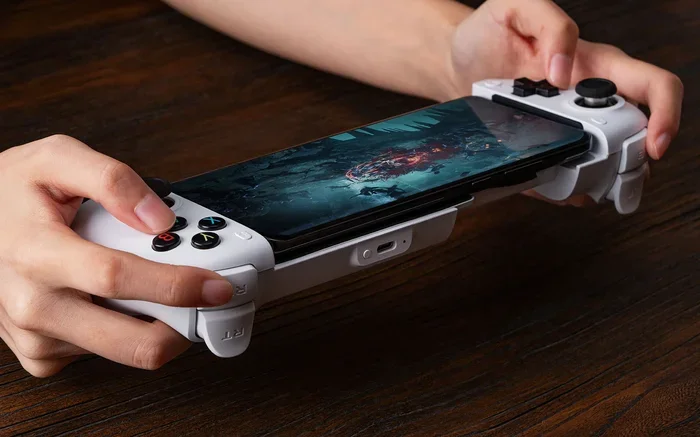
Wired controllers connect through a USB cable. They offer a stable connection with no latency issues. If you are serious about competitive gaming, a wired setup can give you an edge. The tradeoff is that you are tethered to your phone, which limits how far you can move.
Some wired controllers plug directly into phones with USB-C or Lightning ports. Others need a USB OTG adapter to work. We will cover this in more detail later in the article.
Controller Compatibility With Phones
Not every controller works with every phone. Before buying, check whether your controller compatibility matches your device. Most major controllers work well with both Android and iPhone, but some may need extra setup. Always check the manufacturer’s website for a list of supported devices.
Here are some quick tips to keep in mind:
- Check the controller brand before purchasing.
- Make sure your phone supports Bluetooth version 4.0 or higher.
- Look for controller support in the game you want to play.
- Test the controller before buying if possible.
How To Connect A Bluetooth Controller To Your Phone
Bluetooth is the go-to method for most people. It is fast, wireless, and works with almost all modern phones. Here is exactly how to do it step by step.
Step-By-Step Bluetooth Pairing Guide
Follow these steps to pair your controller with your phone using Bluetooth. The process is very similar for both Android and iPhone.
- Turn on your controller. Press and hold the power button until the LED light flashes. This means the controller is ready to pair.
- Open Bluetooth settings on your phone. Go to Settings, then Bluetooth, and make sure it is turned on.
- Put your controller in pairing mode. Most controllers have a dedicated pairing button. Press it and wait for the light to blink rapidly.
- Find your controller on your phone. It should appear in the list of available devices. Tap on it to connect.
- Wait for the connection to confirm. The LED light on the controller will usually stop blinking and stay solid.
That is it. Your Bluetooth controller is now connected to your phone. You can open your game and start playing right away.
Pairing Tips For Better Results
Sometimes the first attempt does not work. That is completely normal. Here are a few tips to make the process smoother:
- Turn off Bluetooth on other devices nearby to avoid interference.
- Restart your phone before trying to pair again.
- Make sure your controller is charged. A low battery can cause pairing failures.
- Forget old pairings on your phone if you have connected this controller before.
If you have ever paired wireless headphones to a phone, the process is almost identical. Pairing Bluetooth devices is now second nature for most of us, and controllers work the same way.
Common Bluetooth Connection Issues
Even with the best setup, you might run into problems. Here are the most common issues and how to fix them:
- Controller does not show up in the list. Make sure it is in pairing mode and try again.
- Connection drops during gameplay. Move closer to your phone and reduce interference from other devices.
- Input lag or delay. This can happen if your phone is running too many background apps. Close them and try again.
- Controller connects but does not work in games. Check if the game supports external controllers.
Most Bluetooth issues are quick fixes. You do not need to be a tech expert to solve them.
Connecting A Wired Controller Using USB
Wired controllers offer a reliable and lag-free experience. If you prefer a direct connection, USB is the way to go. Let us walk through how to set this up.
USB OTG Adapter Setup
Many phones do not have a full-sized USB port. That is where a USB OTG adapter comes in. OTG stands for On-The-Go, and it lets you connect USB devices like controllers to your phone.
Here is how to set it up:
- Get a USB OTG adapter that matches your phone’s charging port (USB-C or Lightning).
- Plug the adapter into your phone.
- Connect your wired controller to the adapter using a USB cable.
- Your phone should recognize the controller automatically.
If you are an iPhone user, you may need a Lightning-to-USB adapter. Connecting a USB device to your iPhone is straightforward, but make sure you get the right adapter for your model.
Which Phones Support USB Controllers
Most modern Android phones support USB OTG. iPhones also support wired controllers, but you need the correct adapter. Here is a quick comparison:
- Android phones: Almost all phones from the last 5 years support USB OTG. Just use a USB-C OTG adapter.
- iPhones: You need a Lightning-to-USB adapter or a USB-C-to-Lightning cable for newer models.
- Older phones: Some older devices may not support OTG. Check your phone’s specifications online.
The beauty of a wired connection is that you do not have to worry about battery drain on your controller. It draws power directly from the phone. This also means zero input lag, which is perfect for competitive games.
If you are looking for a reliable wired option, you can also check how other devices connect via USB. For example, connecting Powerbeats to a laptop uses a similar USB or Bluetooth approach, and pairing AirPods to a Switch shows how Bluetooth devices can link to gaming systems too.
Setting Up Controller Support On Your Phone
Once your controller is connected, you need to make sure your phone recognizes it for gaming. This step is often overlooked but makes a big difference in your experience.
Android Controller Configuration
Android phones generally handle controllers very well. Most games will detect your controller automatically once it is connected. Here is what to do:
- Go to Settings, then Developer Options (if available) and look for controller settings.
- Open your game and check the controls menu. You should see an option to map buttons.
- Download a controller app if your game does not support controllers natively. Apps like “Gamepad” or “Button Mapper” can help.
Android gives you a lot of flexibility. You can customize button mappings, adjust sensitivity, and even create profiles for different games.
iPhone Controller Setup
iPhones also support external controllers, but the setup is a bit more limited. Apple has built-in support for MFi (Made for iPhone) certified controllers. Here is how to get started:
- Connect your controller using Bluetooth or a Lightning adapter.
- Open the game and check if it shows controller support in the settings.
- Go to Settings, then General, then Game Controller to see if your device is recognized.
Not all iPhone games support controllers. Apple Arcade games tend to work well, but third-party games vary. Always check the game description before assuming it will work.
If you have ever connected accessories to your iPhone before, this process will feel familiar. Connecting USB to iPhone devices follows the same basic principles as any other accessory setup.
Best Games That Support External Controllers
Now that your controller is connected, you need games to play. Not all mobile games support controllers, but many great ones do. Here are some of the best options.
Top Games For Controller Gaming
- Call of Duty: Mobile – Fully supports external controllers and offers a great console-like experience on your phone.
- Genshin Impact – This popular RPG works beautifully with controllers and has excellent button mapping.
- Fortnite – One of the most popular battle royale games, and it supports controllers on mobile.
- Minecraft – A classic that works great with a controller for building and exploring.
- Stardew Valley – A relaxing farming game that is even better with a physical controller.
- Dead Cells – A challenging action game that benefits greatly from controller input.
These games are just the beginning. More developers are adding controller support every year. The mobile gaming scene is growing fast, and controllers are becoming standard.
Troubleshooting Common Connection Problems
Even with the best setup, things can go wrong. Here are the most common problems and how to solve them quickly.
Controller Not Showing Up In Bluetooth List
This is the most common issue. Start by making sure your controller is fully charged. Then turn off Bluetooth on your phone, wait 10 seconds, and turn it back on. Put the controller back in pairing mode and try again. If it still does not work, restart your phone completely.
Lag Or Delay During Gameplay
Lag can ruin your gaming experience. The first thing to check is distance. Stay within 10 feet of your phone for the best Bluetooth performance. Also, close any apps running in the background. These can steal processing power and cause delays.
Controller Works But Buttons Do Not Respond
This usually means the game does not support your controller. Check the game settings for controller options. Some games need you to enable controller support manually. If that does not work, try a different game to confirm the controller itself is working.
Connection Keeps Dropping
Interference from other Bluetooth devices can cause dropouts. Turn off nearby Bluetooth devices that you are not using. Also, make sure your phone and controller firmware are up to date. Updates often fix connection bugs.
Remember, most connection problems are simple to fix. Do not give up after the first try. A little patience goes a long way.
Expert Tips For The Best Controller Phone Gaming Experience
Here are some extra tips from experienced mobile gamers to help you get the most out of your setup:
- Keep your controller firmware updated. Manufacturers often release updates that improve performance and fix bugs.
- Use a phone stand or mount. This keeps your screen at the right angle while you play with both hands on the controller.
- Invest in a good case. A protective case keeps your phone safe during intense gaming sessions.
- Consider a controller with a built-in battery. This way, you do not need to worry about charging it separately.
- Try different controller grips. Some controllers fit better in certain hands. Find one that feels comfortable for long sessions.
These small adjustments can make a huge difference in how much you enjoy mobile gaming with a controller.
Key Takeaways
- Bluetooth pairing is the most common way to connect a wireless controller to your phone.
- USB OTG adapters let you use wired controllers on phones that support them.
- Both Android and iPhone support external controllers, but setup steps differ slightly.
- Controller compatibility varies by game, so always check before you buy.
- Common connection issues are usually easy to fix with simple troubleshooting steps.
- Many popular mobile games support controllers, including Call of Duty, Fortnite, and Genshin Impact.
- Keeping your devices updated ensures the best performance and fewest connection problems.
Conclusion
Connecting your controller to your phone is a simple process that transforms your mobile gaming experience. Whether you choose Bluetooth or USB, the steps are straightforward and work on most modern phones. You do not need expensive equipment or technical skills. Just follow the steps in this guide, and you will be gaming in minutes.
Start by checking your controller type and your phone’s compatibility. Then follow the pairing steps for Bluetooth or USB, depending on your setup. Once connected, explore the wide range of games that support external controllers. You will be amazed at how much better mobile gaming feels with a physical controller in your hands.
Now that you know how to connect your controller to your phone, there is nothing stopping you from leveling up your gaming. Pick up your controller, follow the steps, and start playing today.
Frequently Asked Questions
Can I connect any controller to my phone?
Most modern controllers work with phones, but compatibility depends on Bluetooth support and game compatibility. Check if your controller is MFi certified for iPhone or supports Android before buying.
Do I need an app to connect a controller to my phone?
Usually no. Most phones detect controllers automatically through Bluetooth settings. Some games may need you to enable controller support in their settings, but a separate app is rarely required.
Why does my controller disconnect from my phone during gameplay?
This is usually caused by distance, interference from other Bluetooth devices, or a low controller battery. Stay close to your phone and make sure your controller is fully charged for the best connection.
Can I use an Xbox controller with my iPhone?
Yes. Xbox controllers work with iPhones through Bluetooth or a Lightning-to-USB adapter. Apple supports MFi-certified controllers, and Xbox controllers are compatible with most iOS games that allow external input.
Is there any lag when using a Bluetooth controller with a phone?
Bluetooth controllers may have slight input lag compared to wired ones. However, for most casual and mid-core games, the lag is barely noticeable. Competitive gamers may prefer a wired connection for zero lag.
Can I connect two controllers to my phone at the same time?
Yes, many phones support multiple Bluetooth connections at once. This is great for local multiplayer games. Check your game’s settings to see if it supports two-player mode with external controllers.