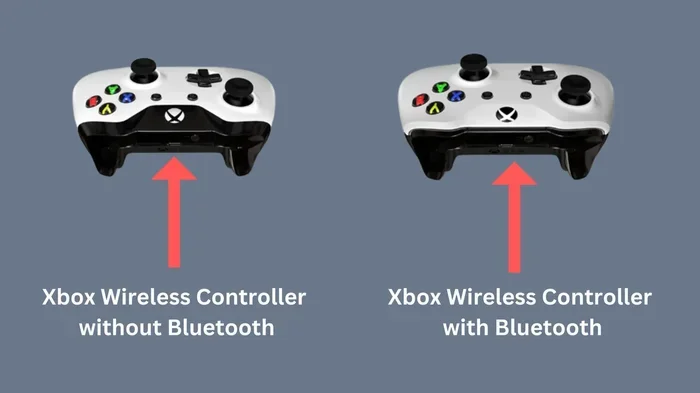
Does Xbox Series 2 Controller Have Bluetooth Support
The Xbox Series 2 controller — part of the Xbox Series X and Series S lineup — does have Bluetooth support for connecting to PCs and other devices. You can pair it wirelessly, but the connection uses a proprietary Xbox Wireless protocol alongside standard Bluetooth. Understanding how this works helps you set up your controller for PC gaming, use Bluetooth headphones, and troubleshoot connection issues.
Gaming has changed a lot over the years. Controllers have gotten better, wireless tech has improved, and players expect seamless connections. If you are asking whether the Xbox Series 2 controller has Bluetooth, you are in the right place. This guide covers everything you need to know about Bluetooth support on the latest Xbox controller.
The Xbox Series X and Series S represent the newest generation of Microsoft gaming consoles. Their controllers come packed with features. Bluetooth connectivity is one of the most asked-about features. Whether you want to play on PC, use wireless headphones, or connect to a smart TV, Bluetooth matters. Let us break it all down for you.
Key Takeaways
- Bluetooth Support: The Xbox Series X controller includes built-in Bluetooth for wireless connections to PCs and other devices.
- Proprietary Protocol: It uses Xbox Wireless for console connections and Bluetooth for PC and mobile devices.
- Easy Pairing: You can pair the controller with a PC in just a few simple steps using Bluetooth settings.
- Limitations Exist: Bluetooth on the Xbox controller has a shorter range and fewer features than the Xbox Wireless protocol.
- Adapter Option: A Bluetooth adapter can help expand connectivity options for your controller.
- Gaming Audio: You can connect Bluetooth headphones while using the Xbox controller for an immersive gaming experience.
📑 Table of Contents
- Does the Xbox Series 2 Controller Have Bluetooth?
- How to Pair the Xbox Controller via Bluetooth
- Xbox Wireless vs Bluetooth: What Is the Difference?
- Using Bluetooth with the Xbox Controller for Gaming
- Common Bluetooth Issues and How to Fix Them
- Can You Use the Xbox Controller with Other Devices via Bluetooth?
- Expert Tips for Getting the Most Out of Bluetooth
- Final Thoughts
Does the Xbox Series 2 Controller Have Bluetooth?
Yes, the Xbox Series X controller — sometimes referred to informally as the Xbox Series 2 controller — does have Bluetooth. Microsoft included Bluetooth 4.1 in the controller design. This lets you connect the controller to PCs, tablets, and other compatible devices without needing a USB cable.
However, there is a catch. The Xbox controller uses two different wireless technologies. It uses Xbox Wireless when connecting to an Xbox console. This is a proprietary protocol that offers low latency and stable performance. When connecting to a PC or mobile device, it switches to Bluetooth. Both technologies live inside the same controller.
How Bluetooth Works on the Xbox Controller
Bluetooth on the Xbox controller works similarly to Bluetooth on other gaming accessories. You put the controller in pairing mode. Then you select it from your device’s Bluetooth settings. The connection is straightforward. But the experience may differ depending on what you are connecting to.
Here is what you need to know about the Bluetooth implementation:
- Bluetooth Version: The controller uses Bluetooth 4.1, which is reliable but not the newest standard.
- Range: Bluetooth range is typically around 30 feet. Walls and obstacles can reduce this.
- Latency: Bluetooth adds slight input delay compared to the Xbox Wireless protocol.
- Audio Support: The 3.5mm jack on the controller handles audio. Bluetooth audio works through your PC or device settings.
For most casual and even competitive gamers, Bluetooth works perfectly fine. If you are a hardcore competitive player, you might notice the difference. But for everyday gaming, the Bluetooth connection is more than adequate.
How to Pair the Xbox Controller via Bluetooth
Pairing your Xbox controller to a PC or other device via Bluetooth is simple. Follow these steps to get connected quickly. The process takes about two minutes once you know the steps.
Step-by-Step Pairing Guide
- Turn on your controller. Press the Xbox button in the center. The controller will power up and the guide menu will appear.
- Put it in pairing mode. Hold the pairing button on the top of the controller near the USB-C port. The Xbox button will start flashing rapidly.
- Open Bluetooth settings on your device. On Windows 10 or 11, go to Settings > Bluetooth & Devices > Add Device.
- Select the controller. Choose “Xbox Wireless Controller” from the list of available devices.
- Wait for connection. The Xbox button will stop flashing and stay solid. Your controller is now connected.
Tips for a Smooth Pairing Process
Sometimes pairing does not go smoothly the first time. Here are some tips to help:
- Make sure your controller is fully charged before pairing. Low battery can cause connection issues.
- Keep the controller close to your device during pairing. Move it closer if the connection fails.
- Restart your device’s Bluetooth if it does not find the controller.
- If you are using a Bluetooth adapter on your PC, make sure the adapter drivers are up to date.
- Remove other Bluetooth devices temporarily to reduce interference.
Xbox Wireless vs Bluetooth: What Is the Difference?
Understanding the difference between Xbox Wireless and Bluetooth helps you choose the right connection method. Both connect your controller wirelessly, but they work differently under the hood.
Xbox Wireless Protocol
Xbox Wireless is Microsoft’s proprietary wireless technology. It connects the controller directly to the Xbox console. This connection offers the best performance with minimal input lag. It also supports features like remote play and controller firmware updates directly from the console.
Xbox Wireless has a range of about 30 feet. It provides a stable, consistent connection. This is the preferred method when you are gaming on an Xbox console.
Bluetooth Connection
Bluetooth is a universal wireless standard. It connects the controller to PCs, tablets, and phones. Bluetooth is convenient because most devices support it natively. You do not need any extra hardware.
However, Bluetooth has some limitations compared to Xbox Wireless:
- Slightly higher input latency
- Shorter effective range in some cases
- No support for Xbox-specific features like firmware updates over Bluetooth
- Potential interference from other Bluetooth devices
Which Should You Use?
For Xbox console gaming, always use Xbox Wireless. For PC gaming, Bluetooth works great. If you want the lowest latency on PC, you can use the Xbox Wireless Adapter for Windows. This gives you the best of both worlds — Xbox Wireless performance on your PC.
Using Bluetooth with the Xbox Controller for Gaming
The Xbox controller’s Bluetooth opens up many possibilities beyond just connecting to a PC. You can use it with smart TVs, streaming devices, and more. Let us explore some practical use cases.
Connecting to a PC for PC Gaming
PC gaming with the Xbox controller is one of the most popular uses. Bluetooth makes it easy to connect without cables. You can play Steam games, Xbox Game Pass PC titles, and other PC games wirelessly.
Here is what you need for a great PC Bluetooth gaming setup:
- A PC with built-in Bluetooth or a Bluetooth adapter
- The latest Xbox controller firmware
- Updated Bluetooth drivers on your PC
- A stable Bluetooth connection with minimal interference
Using Bluetooth Headphones with Your Controller
Many gamers want to use Bluetooth headphones with their Xbox setup. The Xbox controller has a 3.5mm jack for wired headphones. But Bluetooth headphones offer more freedom of movement.
You can connect Bluetooth headphones to your PC or TV separately. Then use the Xbox controller for gameplay. The audio routes through your Bluetooth headphones while the controller handles input. This setup works great for late-night gaming sessions where you do not want to disturb others.
Connecting to a Smart TV or Streaming Device
Some smart TVs and streaming devices support Bluetooth input. You can pair your Xbox controller directly to a TV for casual gaming. This is useful for games that do not require a console. However, not all TVs support controller input via Bluetooth. Check your TV’s specifications first.
If your TV does not support Bluetooth input natively, you can use a Bluetooth adapter to add this capability. This is an affordable solution that expands your options.
Common Bluetooth Issues and How to Fix Them
Bluetooth connections are not always perfect. Here are some common problems you might face with your Xbox controller and how to solve them.
Controller Not Showing Up in Bluetooth Settings
If your controller does not appear in the Bluetooth device list, try these fixes:
- Make sure the controller is in pairing mode (Xbox button flashing rapidly).
- Restart your PC or device and try again.
- Check that Bluetooth is turned on and working with other devices.
- Update your Bluetooth drivers or firmware.
- Move the controller closer to your device.
Connection Drops During Gaming
A controller that keeps disconnecting can be frustrating. This usually happens because of interference or low battery. Try these solutions:
- Charge the controller fully. Low battery causes connection instability.
- Move closer to your device. Walls and furniture weaken Bluetooth signals.
- Turn off other Bluetooth devices temporarily to reduce interference.
- Restart both the controller and your device.
Input Lag Over Bluetooth
Bluetooth adds a small amount of input lag compared to Xbox Wireless. Most players do not notice this in casual games. But in fast-paced competitive games, it can matter. If you experience noticeable lag:
- Switch to Xbox Wireless using the Xbox Wireless Adapter for Windows.
- Use a wired USB connection for the lowest latency.
- Make sure your controller firmware is up to date.
Can You Use the Xbox Controller with Other Devices via Bluetooth?
The Xbox Series X controller works with more than just PCs. Its Bluetooth support opens doors to many devices. Here are some other ways you can use your controller wirelessly.
Android and iOS Devices
The Xbox controller works with Android phones and tablets via Bluetooth. Many mobile games support controller input. You can pair the controller just like you would with a PC. On iOS, support is more limited. Apple devices prefer MFi-certified controllers. The Xbox controller does not have official MFi support.
Nintendo Switch
The Xbox controller does not connect to the Nintendo Switch via Bluetooth. The Switch uses its own proprietary wireless protocol. You need a separate adapter or wired connection to use an Xbox controller on the Switch.
Smart TVs and Streaming Boxes
Some smart TVs and streaming boxes like Android TV and Fire TV support Xbox controller input. Bluetooth makes this connection possible. Check your device’s compatibility before trying. The experience varies by device and manufacturer.
Expert Tips for Getting the Most Out of Bluetooth
Want to improve your Bluetooth gaming experience? Here are some expert tips that make a real difference.
- Keep firmware updated. Microsoft regularly releases controller firmware updates. These improve Bluetooth performance and fix bugs.
- Use a dedicated Bluetooth adapter. A quality Bluetooth 5.0 adapter on your PC can improve range and stability.
- Reduce interference. Keep your controller away from Wi-Fi routers, microwaves, and other Bluetooth devices during gaming.
- Charge before long sessions. A low battery affects Bluetooth stability. Keep your controller charged for the best experience.
- Use the Xbox app for Windows. The Xbox app lets you update firmware and manage controller settings. It also helps troubleshoot Bluetooth issues.
These small steps can significantly improve your Bluetooth gaming experience. They take just a few minutes but save you from frustration later.
Final Thoughts
The Xbox Series 2 controller — meaning the Xbox Series X and Series S controller — does have Bluetooth support. This gives you flexible wireless connectivity for PC gaming, mobile devices, and more. The controller uses both Xbox Wireless and Bluetooth, each serving different purposes.
For Xbox console gaming, Xbox Wireless is the best choice. For PC and mobile gaming, Bluetooth works great. The setup is simple, and the experience is solid for most players. While Bluetooth has some limitations compared to the proprietary Xbox Wireless protocol, it covers the needs of the vast majority of gamers.
Whether you are a casual player or a dedicated gamer, Bluetooth on the Xbox controller adds convenience. You can game without cables, connect to multiple devices, and enjoy wireless freedom. The Xbox Series controller’s Bluetooth support is a welcome feature that keeps Microsoft competitive in the modern gaming landscape.
If you run into any issues, the troubleshooting tips in this guide should help. Keep your firmware updated, manage your Bluetooth connections wisely, and enjoy your gaming sessions. Wireless gaming is here to stay, and the Xbox controller is ready for it.
Frequently Asked Questions
Can I use the Xbox Series X controller with Bluetooth on any PC?
Most modern PCs with built-in Bluetooth can connect to the Xbox controller. If your PC does not have Bluetooth, you can add it with a Bluetooth adapter. Make sure your Bluetooth drivers are up to date for the best experience.
Does Bluetooth on the Xbox controller work with Xbox Game Pass?
Yes, Bluetooth works with Xbox Game Pass PC games. You can connect your controller via Bluetooth and play Game Pass titles on your PC. The connection works just like it does with any other PC game.
Can I connect the Xbox controller to my TV using Bluetooth?
Some smart TVs support Bluetooth input from controllers. Check your TV’s settings for Bluetooth device pairing. If your TV does not support it natively, a Bluetooth adapter can add this functionality.
Is Bluetooth on the Xbox controller the same as Xbox Wireless?
No, they are different technologies. Xbox Wireless is a proprietary protocol for connecting to Xbox consoles. Bluetooth is a universal standard for connecting to PCs, phones, and other devices. Both are built into the controller.
How far can I be from my device when using Bluetooth with the Xbox controller?
Bluetooth range is typically around 30 feet in open space. Walls and obstacles reduce this distance. For the best experience, keep your controller within a reasonable range of your connected device.
Can I use Bluetooth headphones with the Xbox controller for gaming?
You can connect Bluetooth headphones to your PC or TV separately while using the Xbox controller for input. The controller has a 3.5mm jack for wired headphones, but Bluetooth headphones connected to your PC or TV work well for wireless audio during gaming sessions.
=== CONCLUSION ===
The Xbox Series 2 controller brings Bluetooth support to the table, making it a versatile choice for gamers who play across multiple devices. Whether you are connecting to a PC, a smart TV, or mobile devices, Bluetooth offers a convenient wireless option. While Xbox Wireless remains the gold standard for console gaming, Bluetooth fills the gap for everything else.
Pairing is straightforward, the connection is reliable, and the experience is solid for most gaming scenarios. Keep your controller updated, manage interference, and you will enjoy a seamless wireless gaming experience. The Xbox controller continues to evolve, and Bluetooth support ensures it stays relevant in an increasingly wireless world.