Does Your Wi Fi Ip Address Change With Router Restart
Does your Wi-Fi IP address change with a router restart? The short answer is yes, usually it does. Your IP address is assigned by your internet provider and can shift each time you reboot your router. Understanding how this works helps you troubleshoot connection issues and keep your home network running smoothly.
Key Takeaways
- Your public IP address can change every time you restart your router, depending on your ISP’s settings.
- Your private IP address may also reset to a new local address assigned by your router’s DHCP server.
- Dynamic IP addresses are temporary and change frequently, while static IPs stay the same.
- Restarting your router is one of the simplest fixes for common Wi-Fi problems.
- You can set a static IP for specific devices to prevent unwanted changes.
- Your IP address affects how you browse the web, access smart home devices, and connect to remote services.
📑 Table of Contents
- Does Your Wi-Fi IP Address Change When You Restart Your Router?
- How Restarting Your Router Affects Your Public IP Address
- What Happens to Your Private IP Address After a Restart?
- Static IP vs Dynamic IP: Which Is Right for You?
- When Should You Restart Your Router?
- How to Check If Your IP Address Has Changed
- Common Mistakes People Make With IP Addresses and Router Restarts
- Expert Tips for Managing Your IP Address After a Router Restart
- Final Thoughts
Does Your Wi-Fi IP Address Change When You Restart Your Router?
Here is a question that many people ask but rarely get a clear answer. Does your Wi-Fi IP address change when you restart your router? The truth is, it depends on a few factors. And once you understand those factors, you will never look at your router restart the same way again.
Your IP address is like your home address on the internet. It tells websites and devices where to send data. When you restart your router, you essentially reset the connection between your home network and your internet service provider. And that reset can trigger a change in your IP address.
But here is the thing. Not all IP address changes are the same. There is a big difference between your public IP address and your private IP address. Each one behaves differently when you reboot your router. Let us break it all down so you can understand exactly what is happening on your network.
Many people restart their router to fix slow internet or connection drops. They do not even think about what happens to their IP address. But knowing this information is useful. It helps you troubleshoot problems. It helps you set up smart home devices. And it helps you understand how your Wi-Fi network really works behind the scenes.
What Is an IP Address, Anyway?
Before we dive deeper, let us quickly cover the basics. An IP address is a string of numbers that identifies your device on a network. Think of it as a digital name tag. Without it, your router would not know where to send internet traffic.
There are two types of IP addresses you need to know about:
- Public IP address – This is the address your internet service provider assigns to your router. The outside world sees this address when you visit websites or use online services.
- Private IP address – This is the address your router assigns to devices inside your home. Your phone, laptop, smart TV, and smart speakers all get a private IP.
Both of these addresses can change when you restart your router. But they change in different ways. And the reasons behind each change are worth understanding.
When you type a website address into your browser, your Wi-Fi network uses your public IP to find that website. Your router then uses private IPs to send the data to the correct device in your home. It is a seamless process that happens in milliseconds. But restarting your router can shake things up.
How Restarting Your Router Affects Your Public IP Address
Your public IP address is the one the internet sees. When you restart your router, your internet service provider may assign you a new public IP. This is especially true if your ISP uses dynamic IP addresses.
Most home internet plans use dynamic IPs. This means your IP address is not permanent. It is leased for a set period of time. When that lease expires, your ISP can assign you a new address. Restarting your router often triggers this lease renewal process.
Here is what typically happens when you restart your router:
- Your router loses its current connection to your ISP.
- It sends a new request to establish a connection.
- Your ISP receives the request and assigns a new IP address.
- Your router connects to the internet with the new IP.
This process usually takes less than a minute. But the IP change is not guaranteed every time. Some ISPs are smart enough to recognize your router and assign the same IP again. It really depends on your provider and their network setup.
If you want to check your current public IP, you can visit any free IP lookup site. Just search “what is my IP” in your browser. You will see your public IP displayed right away. Try this before and after a router restart. You might see a change.
Why Would Your Public IP Change?
There are several reasons your public IP address might change after a restart:
- Dynamic IP allocation – Your ISP uses a pool of shared addresses. Each time you connect, you may get a different one.
- IP lease expiration – Your IP lease has a time limit. Restarting the router can trigger a new lease.
- Network maintenance – Your ISP may be performing updates that require new IP assignments.
- Router reset to factory settings – A full factory reset almost always results in a new IP address.
Understanding these reasons helps you predict when your IP might change. And that knowledge is valuable for troubleshooting.
What Happens to Your Private IP Address After a Restart?
While your public IP is what the internet sees, your private IP is what your local devices use. When you restart your router, your private IP addresses can also change. This is because your router uses a system called DHCP to assign private IPs to your devices.
DHCP stands for Dynamic Host Configuration Protocol. It is just a fancy way of saying your router hands out IP addresses to devices on your network. When you restart your router, the DHCP server resets. This means it may assign new private IPs to your phone, laptop, and smart devices.
For most people, this private IP change does not cause any problems. Your devices reconnect automatically and everything works fine. But in some cases, a private IP change can create issues.
IP Conflicts and Connection Problems
Sometimes, two devices on the same network end up with the same private IP address. This is called an IP conflict. It happens when the DHCP server does not properly track which IPs are already in use.
When an IP conflict occurs, one or both devices lose internet access. You might see error messages or find that a device keeps disconnecting. Restarting the router usually fixes this, but it can be annoying.
Here are some quick tips to avoid IP conflicts:
- Set your router to assign IPs in a larger range.
- Reserve static IPs for devices that need a consistent address.
- Restart your router during off-peak hours to reduce network congestion.
- Keep your router firmware updated to fix DHCP bugs.
These simple steps can save you a lot of headaches. They keep your Wi-Fi network stable and predictable.
Static IP vs Dynamic IP: Which Is Right for You?
Now that you know how IP addresses work, you might wonder whether you should use a static or dynamic IP. Both options have pros and cons. Let us compare them so you can make an informed choice.
| Feature | Dynamic IP | Static IP |
|---|---|---|
| Changes after router restart | Yes | No |
| Setup difficulty | Automatic | Manual |
| Cost | Free | Often extra monthly fee |
| Best for | Home users | Servers, smart home, remote access |
| Security | More private (changes often) | Less private (always the same) |
Most home users are fine with dynamic IPs. They work automatically and require no effort. But if you run a home server or use remote access tools, a static IP can be very helpful.
You can also set a static IP for specific devices on your network. This means your phone or smart TV always gets the same private IP, even after a router restart. To do this, you need to access your router’s settings page. Look for the DHCP reservation or static IP option. This is a great way to keep your network organized.
If you are not sure how to access your router settings, you can usually type your router’s IP address into your browser. Common addresses are 192.168.1.1 or 192.168.0.1. From there, you can adjust your network settings and configure IP assignments.
It is also worth noting that you can change your Wi-Fi from 5GHz to 2.4GHz if you experience signal issues after a restart. Sometimes IP changes are related to frequency band switches that happen during reconnection. And if your Wi-Fi signal is weak, consider whether you can buy a Wi-Fi booster to strengthen your connection across your home.
When Should You Restart Your Router?
Router restarts are not just for fixing IP address issues. They serve many purposes in keeping your internet connection healthy. But timing matters. You do not want to restart your router randomly or too often.
Here are the best times to restart your router:
- When your internet is slow – A restart clears cached data and refreshes your connection.
- After a firmware update – Many router updates require a restart to take effect.
- When devices keep disconnecting – A restart can resolve DHCP and IP assignment issues.
- Once a month – Regular restarts keep your router running smoothly and prevent memory leaks.
- When you notice unusual network activity – A restart can help reset your security settings.
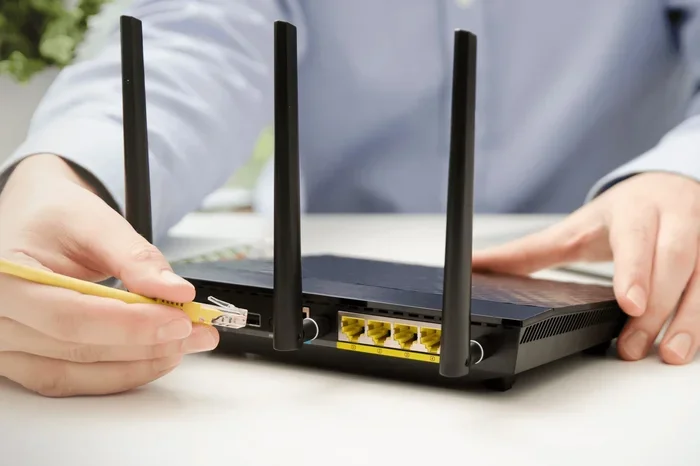
Restarting your router is simple. Unplug it from the power source. Wait at least 30 seconds. Plug it back in. Wait for all the lights to stabilize. Then reconnect your devices. This process ensures a clean reconnection with your ISP and a fresh IP assignment if needed.
Some modern routers have a restart button built into their admin panel. You can restart without unplugging anything. Check your router’s manual or settings app to see if this option is available. It saves time and is more convenient.
Can You Restart Your Router Remotely?
Yes, you can in many cases. If your router supports remote management, you can restart it from your phone or computer. This is especially useful if you are away from home and need to troubleshoot a connection issue.
Just keep in mind that remote access can be a security risk. Make sure you use a strong password and enable encryption. If you are concerned about security, you can also connect to Xfinity Wi-Fi away from home or use other secure networks when you are traveling. This keeps your data safe while you manage your router remotely.
Some people also wonder whether they can get Wi-Fi without a traditional router. The answer is yes. You can use a mobile hotspot or a Wi-Fi extender to expand your network. And if you are setting up a new device, you might need to connect your phone to your TV for Wi-Fi to stream content while troubleshooting your network.
How to Check If Your IP Address Has Changed
After restarting your router, you might want to confirm whether your IP address actually changed. There are several easy ways to check this.
For your public IP address, simply visit a site like whatismyip.com or iplocation.net. Compare the address shown now with what it was before the restart. If the numbers are different, your public IP has changed.
For your private IP address, follow these steps:
- On Windows: Open Command Prompt and type ipconfig. Look for the IPv4 address.
- On Mac: Open Terminal and type ifconfig. Look for the inet address.
- On your phone: Go to Settings, then Wi-Fi, and tap your network. Your IP will be listed there.
Make a note of your private IP before the restart. Then check again after. If the numbers changed, your router assigned a new private IP during the reboot.
Keeping track of your IP addresses helps you troubleshoot faster. It also helps you set up devices that need a consistent address, like security cameras or printers. If you are setting up a new device, you might need to get a Wi-Fi extension to ensure it connects properly, especially if it is far from your router.
Common Mistakes People Make With IP Addresses and Router Restarts
There are several mistakes that people make when dealing with IP addresses and router restarts. Avoiding these can save you a lot of frustration.
Mistake 1: Restarting your router too frequently. Every restart triggers a new IP request to your ISP. Doing this multiple times a day can confuse your network and cause connection drops.
Mistake 2: Not saving your network settings. If your router resets to factory defaults, you lose all your custom settings. Always back up your configuration before making major changes.
Mistake 3: Ignoring IP conflicts. If a device keeps losing its connection, it might be an IP conflict. Check your router’s DHCP settings and reserve static IPs for important devices.
Mistake 4: Forgetting to update router firmware. Old firmware can cause DHCP and IP assignment bugs. Check for updates regularly in your router’s admin panel.
Mistake 5: Assuming your IP address never changes. Many people think their IP is permanent. But with dynamic IPs, changes happen regularly. Knowing this helps you set realistic expectations.
By avoiding these mistakes, you keep your Wi-Fi network stable and your IP addresses predictable. And that means fewer surprises and less time spent troubleshooting.
Expert Tips for Managing Your IP Address After a Router Restart
Here are some expert-level tips that can help you take control of your IP address management:
- Use DHCP reservations. This lets you assign the same private IP to specific devices every time they connect. It is perfect for printers, NAS drives, and smart home hubs.
- Set a longer DHCP lease time. This reduces how often IPs change on your network. It keeps things more stable.
- Use a DNS service like Google DNS or Cloudflare DNS. This can improve your browsing speed and reliability after an IP change.
- Monitor your network regularly. Use your router’s admin panel to check connected devices and their IPs. This helps you spot problems early.
- Consider a static public IP from your ISP. If you need a permanent public IP, ask your internet provider. It usually costs extra but provides consistency.
These tips are especially useful for people who run home servers, manage multiple smart devices, or work from home. A stable IP setup means fewer interruptions and a better online experience.
It is also helpful to understand how your network configuration interacts with other devices. For example, if you have a dash cam that needs Wi-Fi connectivity, an IP change could temporarily disconnect it. And if you use voice calling over Wi-Fi with no cellular service, a changed IP might affect call quality during the reconnection period.
Final Thoughts
So, does your Wi-Fi IP address change when you restart your router? The answer is yes, most of the time. Your public IP is likely to change, and your private IP may also shift. But this is normal and usually nothing to worry about.
Understanding how IP addresses work after a router restart gives you more control over your home network. You can troubleshoot faster. You can set up devices more efficiently. And you can avoid common pitfalls that trip up many users.
Take a few minutes to check your current IP addresses. Explore your router settings. Try some of the tips we shared. The more you know about your Wi-Fi network, the better you can manage it. And a well-managed network means faster internet, fewer disconnections, and peace of mind.
Restart your router with confidence now. You know exactly what to expect. And if something does not go as planned, you have the knowledge to fix it.
Frequently Asked Questions
Will restarting my router change my Wi-Fi password?
No, restarting your router does not change your Wi-Fi password. Your password stays the same unless you reset the router to factory settings. A simple restart only refreshes your connection and may change your IP address.
How long does it take for a new IP address to assign after a router restart?
It usually takes less than one to two minutes for a new IP to be assigned after a restart. Your router reconnects to your ISP, and the DHCP process assigns a new address. The exact time depends on your internet service provider.
Can I keep my IP address from changing after a restart?
You can request a static IP from your internet provider. This keeps your public IP the same permanently. For private IPs, you can set DHCP reservations on your router to assign the same local IP to specific devices every time.
Is it safe to restart my router every day?
Yes, it is generally safe to restart your router daily. Many people do it to keep their network running smoothly. However, frequent restarts can wear out the hardware over time. Once a day or a few times a week is usually fine.
What is the difference between a router restart and a factory reset?
A restart simply turns the router off and back on. It refreshes the connection and may change your IP. A factory reset wipes all your settings and returns the router to its original state. A factory reset will definitely change your IP and erase your Wi-Fi password and custom configurations.
Does changing my router’s channel affect my IP address?
No, changing your Wi-Fi channel does not affect your IP address. The channel controls which frequency band your Wi-Fi signal uses. Your IP address is assigned by your ISP and is separate from your Wi-Fi channel settings. You can change your Wi-Fi from 5GHz to 2.4GHz without worrying about your IP address changing.
=== CONCLUSION ===
Your Wi-Fi IP address does change when you restart your router, and now you know exactly why and how. Whether it is your public IP or private IP, a restart triggers a fresh connection process that can result in new addresses for both. This is normal, expected, and usually nothing to worry about.
By understanding how dynamic and static IPs work, you can take control of your home network. You can troubleshoot faster, set up devices more reliably, and avoid common mistakes that cause connection problems. Use the tips in this guide to manage your IP addresses with confidence.
Restart your router when you need to. Check your IP before and after. And remember, a little knowledge about your network settings goes a long way toward keeping your internet running smoothly every single day.