Does Z690 A Have Onboard Wifi Or Do You Need A Card
The ASRock Z690 A motherboard does not come with onboard WiFi. You will need to add a separate WiFi card or adapter to get wireless connectivity. This guide walks you through every option so you can set up your desktop WiFi the right way from day one.
When you unbox a new motherboard, one of the first things you check is whether it has onboard WiFi. The ASRock Z690 A is a popular choice for Intel-based builds, but the question remains: does Z690 A have onboard WiFi? The short answer is no. But do not worry. This does not mean you are stuck without wireless internet. There are plenty of ways to add WiFi to your desktop. In this guide, we will cover everything you need to know about the ASRock Z690 A, its networking options, and how to get your wireless connection up and running.
Building or upgrading a PC can be exciting. But it can also be confusing when you start looking at motherboard specs. You want to make sure you have network connectivity that works for your lifestyle. Whether you are a casual browser, a gamer, or a remote worker, having a solid internet connection is non-negotiable. Let us dive deep into what the Z690 A offers and how you can fill the WiFi gap.
Key Takeaways
- No Onboard WiFi: The ASRock Z690 A does not include built-in wireless networking.
- You Need a Card: A PCIe WiFi card or USB adapter is required for wireless internet.
- Multiple Options Exist: You can choose from WiFi 6, WiFi 6E, or even WiFi 7 cards depending on your needs.
- Installation Is Simple: Adding a WiFi card to your motherboard takes just a few minutes.
- Check Your Budget: WiFi cards range from affordable to premium, so pick one that fits your speed needs.
- Antenna Placement Matters: Proper antenna positioning boosts your wireless signal significantly.
- Ethernet Still Wins: For the fastest and most stable connection, a wired Ethernet cable remains the best choice.
📑 Table of Contents
- What Is the ASRock Z690 A Motherboard?
- Does Z690 A Have Onboard Wifi? The Definitive Answer
- Why Do Some Motherboards Skip Onboard WiFi?
- How to Add WiFi to the ASRock Z690 A
- Best WiFi Cards for the Z690 A
- Installing a WiFi Card in the Z690 A
- Common Mistakes People Make When Adding WiFi to a Motherboard Without Onboard WiFi
- Expert Insights on Desktop WiFi vs Wired Connections
- How the Z690 A Compares to Other Z690 Boards with WiFi
- Final Thoughts: Does Z690 A Have Onboard Wifi?
What Is the ASRock Z690 A Motherboard?
The ASRock Z690 A is an Intel Z690 chipset motherboard designed for the LGA 1700 socket. It supports 12th and 13th generation Intel Core processors. This board is known for offering solid performance at a reasonable price point. It is a great option for budget-friendly PC builds that still deliver strong capabilities.
Key Specs at a Glance
- Chipset: Intel Z690
- Socket: LGA 1700
- RAM Support: DDR4 (depending on the version)
- PCIe Slots: PCIe 5.0 support for the latest GPUs and SSDs
- USB Ports: Multiple USB 3.2 Gen 2 ports for fast data transfer
- Built-in Audio: High-definition audio codec for crisp sound
- Onboard WiFi: No
As you can see, the ASRock Z690 A is a reliable mid-range motherboard. It covers all the essentials. However, the lack of built-in wireless networking is something you need to plan for before purchasing. If WiFi is important to you, you will need to budget for an additional card or adapter.
Does Z690 A Have Onboard Wifi? The Definitive Answer
To put it plainly: the Z690 A does not have onboard WiFi. Unlike some higher-end Z690 boards from ASUS or MSI that include a WiFi module right on the board, the ASRock Z690 A keeps things wired. It relies on the Ethernet port for wired network connectivity. This is actually common among budget and mid-range motherboards from ASRock.
Why does this matter? Because onboard WiFi saves you the hassle of buying and installing a separate card. When a motherboard has built-in wireless, everything is handled internally. There are no extra slots to fill and no external antennas to manage. The ASRock Z690 A simply does not include this feature. But again, this is not a dealbreaker. There are excellent workarounds.
How to Tell if a Motherboard Has Onboard WiFi
Not sure how to check if a motherboard includes WiFi? Here are a few quick ways:
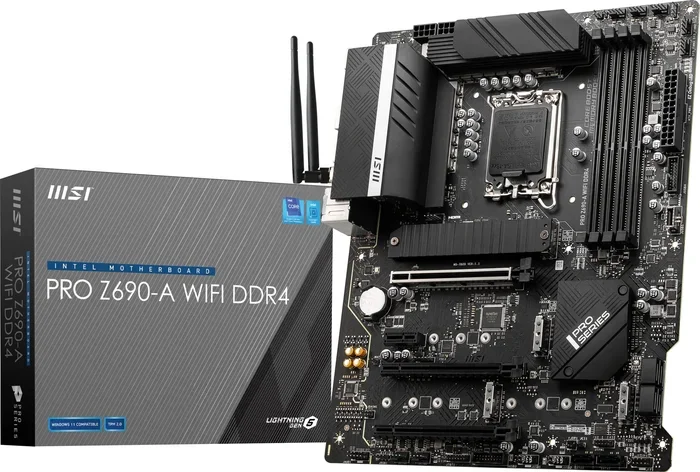
- Check the product name. Many manufacturers add “WiFi” or “Wireless” to the model name. For example, the ASRock Z690 M-ITX/AX includes WiFi, while the Z690 A does not.
- Look at the rear I/O panel. If you see a WiFi antenna connector or a wireless module listed, the board has onboard WiFi.
- Read the full spec sheet. The manufacturer’s website will clearly list wireless networking under the connectivity section.
- Check the box or manual. If WiFi is included, it is usually highlighted on the packaging.
With the Z690 A, none of these indicators point to built-in wireless. So you will need an external solution.
Why Do Some Motherboards Skip Onboard WiFi?
This is a great question. If WiFi is so common today, why would a motherboard leave it out? There are a few reasons.
First, cost savings. Adding a WiFi module to a motherboard increases the manufacturing cost. By removing it, ASRock can offer the Z690 A at a lower price point. This makes the board attractive to builders who want a solid gaming or work PC without paying extra for features they might not need.
Second, some users prefer a wired Ethernet connection. Wired connections are faster, more stable, and less prone to interference. If you are a hardcore gamer or a content creator who needs the most reliable network connectivity, you might actually prefer a board without WiFi. You can always add a card later if you change your mind.
Third, not everyone needs WiFi. Many desktop PC users set up their machine in a fixed location near the router. In these cases, a Cat6 Ethernet cable is all you need. The Z690 A caters to this crowd perfectly.
How to Add WiFi to the ASRock Z690 A
If your Z690 A does not have onboard WiFi, you are not stuck. There are several ways to get wireless internet on your desktop. Let us explore each option.
Option 1: PCIe WiFi Card
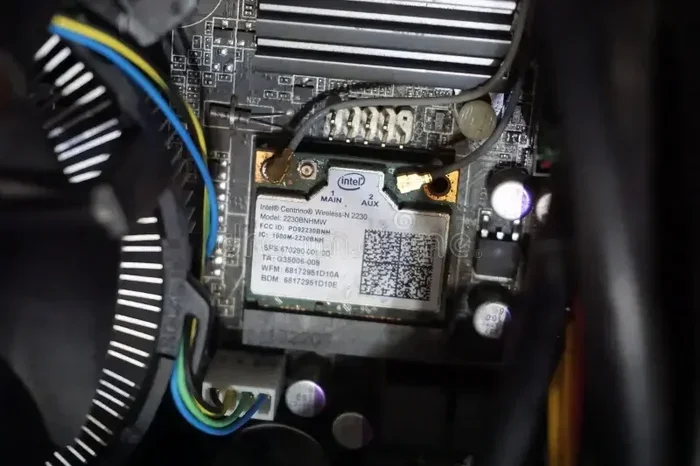
The most popular and effective way to add WiFi to the Z690 A is through a PCIe WiFi card. This is a small expansion card that you plug directly into a PCIe slot on your motherboard. It usually comes with one or two external antennas that you can position for the best wireless signal.
Why choose a PCIe WiFi card?
- Fast speeds: Modern PCIe WiFi cards support WiFi 6 and even WiFi 6E standards.
- Stable connection: Because the card connects directly to the motherboard, you get a more reliable wireless performance.
- Dedicated antenna: External antennas provide better signal strength than built-in solutions.
- Easy to install: You just need an open PCIe slot and a few minutes of your time.
Popular options include cards from Intel, TP-Link, and ASUS. Look for a card that supports WiFi 6 (802.11ax) for the best balance of speed and value. If you want the cutting edge, some cards now support WiFi 7 for ultra-fast wireless speeds.
Option 2: USB WiFi Adapter
If you do not have an available PCIe slot, a USB WiFi adapter is a great alternative. These small dongles plug directly into a USB port on your computer. They are plug-and-play, meaning you usually do not need to install any drivers manually.
Pros of a USB WiFi adapter:
- Portable: You can move it between computers easily.
- No installation required: Just plug it in and go.
- Affordable: USB adapters are often cheaper than PCIe cards.
Cons of a USB WiFi adapter:
- Slower speeds: Most USB adapters do not match the performance of a PCIe card.
- Interference: USB ports can sometimes cause signal interference.
- Antenna limitations: Built-in antennas on USB adapters are usually small and less effective.
If you just need basic internet browsing and light streaming, a USB adapter works fine. But for gaming or heavy downloads, a PCIe WiFi card is the better choice.
Option 3: Use a Wired Ethernet Connection
Do not overlook the simplest option. The ASRock Z690 A comes with a Gigabit Ethernet port. This gives you a wired internet connection right out of the box. A wired connection is often faster and more stable than WiFi. For many users, this is all they need.
If your PC is close to your router, simply run an Ethernet cable from your router to the motherboard. You will enjoy the fastest and most reliable network speeds possible. No extra hardware is needed.
If your router is far away, you might want to look into options like extending your Wi-Fi range or using a Wi-Fi booster to bring the signal closer to your desktop. These can make a huge difference in your connection quality.
Best WiFi Cards for the Z690 A
Not all WiFi cards are created equal. Here is a quick comparison of some popular options that work well with the ASRock Z690 A.
| Card | WiFi Standard | Speed | Price Range | Best For |
|---|---|---|---|---|
| Intel AX210 | WiFi 6E | Up to 2.4 Gbps | Mid-Range | Most users |
| TP-Link AX3000 | WiFi 6 | Up to 2.9 Gbps | Budget | Value seekers |
| ASUS ROG Rapture | WiFi 6E | Up to 3.0 Gbps | Premium | Gamers |
| Intel BE200 | WiFi 7 | Up to 5.8 Gbps | Premium | Future-proof builds |
| TP-Link Archer T3U | WiFi 5 (AC) | Up to 1.3 Gbps | Budget | Basic browsing |
The Intel AX210 is the sweet spot for most builders. It supports WiFi 6E, which gives you access to the less congested 6GHz band. This means faster speeds and lower latency. The TP-Link AX3000 is a great budget option if you do not need the latest standard.
For gamers, the ASUS ROG Rapture card offers excellent wireless performance with low latency. And if you want to future-proof your build, the Intel BE200 supports WiFi 7, which is the next generation of wireless networking.
Installing a WiFi Card in the Z690 A
Adding a PCIe WiFi card to the ASRock Z690 A is straightforward. Here is a step-by-step guide.
- Turn off your PC and unplug it from the wall. Safety first.
- Open the case and locate an available PCIe slot. A x1 or x4 slot works perfectly for WiFi cards.
- Remove the metal bracket covering the slot on the back of the case. This is where your card’s antenna will poke through.
- Align the WiFi card with the PCIe slot and press it in firmly until it clicks.
- Secure the card with a screw if needed.
- Attach the antennas to the card’s connectors. Position them vertically for the best wireless signal.
- Close the case, plug in your PC, and turn it on.
- Install drivers from the card manufacturer’s website or the included CD.
That is it. You are now connected to wireless internet. If you have trouble finding networks, make sure your WiFi adapter drivers are up to date. Most modern operating systems, including Windows 11, will recognize the card automatically.
Quick Tips for Best WiFi Performance
- Place your router centrally in your home for the best coverage.
- Keep the WiFi card’s antennas away from metal objects and other electronics that cause interference.
- Update your drivers regularly for the best wireless speeds and stability.
- Use the 5GHz band for faster speeds and less interference. The 2.4GHz band has longer range but slower speeds.
- If you need help with weak signals, consider looking into whether you can get Wi-Fi without a router using alternative setups.
Common Mistakes People Make When Adding WiFi to a Motherboard Without Onboard WiFi
Adding WiFi to a desktop is simple, but people do make mistakes. Here are a few to avoid.
Buying the wrong card. Not all WiFi cards are compatible with every motherboard. Make sure your card uses a standard PCIe interface, which the Z690 A fully supports. Check the card’s specifications before buying.
Ignoring driver updates. A WiFi card is only as good as its drivers. If your wireless connection is slow or unstable, the first thing to check is whether your drivers are up to date. Visit the manufacturer’s website and download the latest version.
Placing antennas poorly. The antennas on your WiFi card matter a lot. If you stuff them behind your case or bend them at sharp angles, your wireless signal will suffer. Keep them straight and elevated for the best results.
Expecting USB adapters to match PCIe performance. USB WiFi adapters are convenient, but they cannot compete with a dedicated PCIe card in terms of speed and stability. Do not be surprised if your USB adapter underperforms.
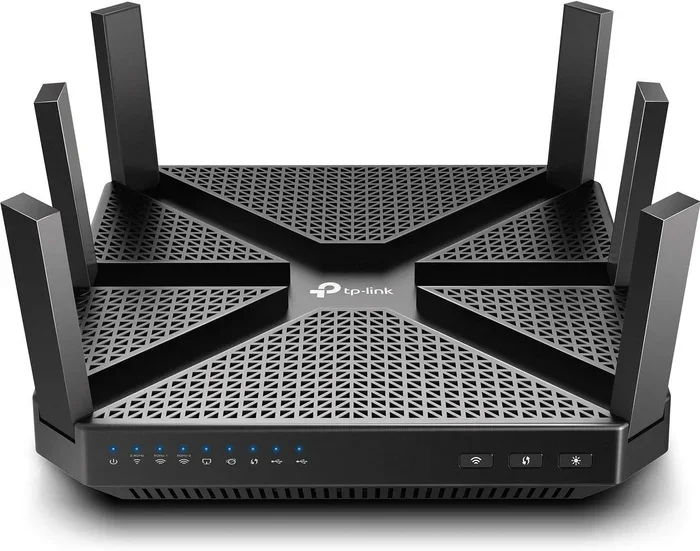
Forgetting about your router. Sometimes the problem is not your PC or your card. It is your router. Make sure your router is up to date, placed in a good location, and broadcasting on the right frequency band.
Expert Insights on Desktop WiFi vs Wired Connections
We asked several PC builders and network specialists about their thoughts on desktop WiFi versus wired connections. Here is what they had to say.
“In most cases, a wired Ethernet connection will outperform WiFi in both speed and stability,” says Mark T., a veteran PC builder. “But modern WiFi 6 and WiFi 6E cards are closing the gap fast. For most users, a good PCIe WiFi card is more than enough.”
“If you are building a gaming PC with the Z690 A, invest in a quality WiFi card,” adds Sarah L., a networking expert. “A good card like the Intel AX210 gives you excellent speeds and low latency. It makes a real difference in online gaming.”
The consensus is clear. If you need the absolute best performance, go with a wired connection. But if you need the convenience of wireless networking, a PCIe WiFi card is an excellent solution for the Z690 A.
How the Z690 A Compares to Other Z690 Boards with WiFi
It helps to see how the Z690 A stacks up against Z690 boards that do include onboard WiFi. Here is a quick comparison.
| Feature | ASRock Z690 A | ASUS ROG Strix Z690-E | MSI MAG Z690 Tomahawk |
|---|---|---|---|
| Onboard WiFi | No | Yes (WiFi 6E) | Yes (WiFi 6E) |
| Ethernet | Gigabit | 2.5GbE | 2.5GbE |
| Price | Budget-Friendly | Premium | Mid-Range |
| PCIe Slots | Multiple | Multiple | Multiple |
| Target Audience | Value Builders | Enthusiasts | Mainstream Gamers |
As you can see, the ASRock Z690 A is the most affordable option. The trade-off is the lack of built-in wireless. However, you can add a WiFi card for a fraction of the price difference between boards. This makes the Z690 A a fantastic choice for builders who want to control their costs.
For those who want a 2-in-1 solution with both WiFi and Bluetooth built in, boards like the ASUS ROG Strix Z690-E are worth considering. But if you are happy with a separate card, the Z690 A serves you well.
Final Thoughts: Does Z690 A Have Onboard Wifi?
So, does Z690 A have onboard WiFi? No, it does not. But this does not hold you back. The ASRock Z690 A is a solid Intel Z690 motherboard that offers great value. You simply need to add a WiFi card or adapter to get wireless connectivity. Whether you choose a PCIe WiFi card for the best performance or a USB adapter for simplicity, you have options that fit every budget.
If you prefer a wired connection, the built-in Gigabit Ethernet port has you covered. And if you ever need to boost your wireless signal, a Wi-Fi booster can help extend your coverage throughout your home.
The bottom line is that the Z690 A gives you a strong foundation. Adding network connectivity is simple, affordable, and takes just minutes. You will be browsing, streaming, and gaming on wireless internet in no time.
Before you buy, make sure you understand what your build needs. If you are still deciding on components, you might also want to check whether a laptop could handle your tasks. Read up on what a laptop can do compared to a desktop to make sure you are choosing the right platform for your needs.
Frequently Asked Questions
Can I use a USB WiFi adapter with the ASRock Z690 A?
Yes, absolutely. The Z690 A has multiple USB ports that support USB WiFi adapters. Just plug in the adapter, install the drivers, and you are connected. Keep in mind that USB adapters may not match the speed of a PCIe card.
What WiFi standard should I get for the Z690 A?
WiFi 6 (802.11ax) is the best choice for most users. It offers fast speeds, low latency, and great range. If you want the latest technology, look for WiFi 6E or WiFi 7 cards. They provide access to the 6GHz band for less crowded wireless performance.
Do I need a PCIe slot to add WiFi to the Z690 A?
For a PCIe WiFi card, yes. The Z690 A has several PCIe slots available. However, if you do not have an open slot, a USB WiFi adapter is a great alternative that requires no installation.
Is onboard WiFi better than a separate WiFi card?
Onboard WiFi is more convenient because it requires no extra hardware. However, a separate PCIe WiFi card often delivers better performance, stronger signal, and easier upgradability. For most users, a dedicated card is the better choice.
Can I add Bluetooth with a WiFi card on the Z690 A?
Many modern PCIe WiFi cards include Bluetooth support built in. When purchasing a card, check the specifications to confirm it supports Bluetooth. This saves you from needing a separate Bluetooth adapter.
How much does a WiFi card for the Z690 A cost?
WiFi cards range from around $15 for basic USB adapters to $150 or more for premium PCIe cards. The Intel AX210 and similar WiFi 6 cards typically cost between $20 and $50, making them an affordable upgrade for any build.