Can I Use An Eero As A Wifi Extender Here Is The Answer
Yes, you can use an eero as a wifi extender by adding it to an existing mesh network. Eero devices work as both primary routers and range extendenders, giving you seamless wifi coverage throughout your home. This guide walks you through setup, benefits, and common mistakes to avoid.
Staring at a wifi dead zone in your house is frustrating. You tap the screen. Nothing loads. You walk to the next room. Still nothing. If this sounds familiar, you have probably wondered about extending your wifi signal. And if you already own an eero device, you might be asking one simple question: can I use an eero as a wifi extender?
The short answer is yes. You absolutely can. But the full picture is a little more interesting than a simple yes or no. Eero devices are designed to work together as a mesh wifi system. That means adding a second or third eero unit to your network does double duty. It acts as both a router node and a wireless signal booster. In this article, we will walk you through everything you need to know. We will cover setup, placement, pros and cons, and how it compares to a traditional wifi range extender. By the end, you will know exactly how to fix your weak signal problem.
Key Takeaways
- Eero can work as a wifi extender: Adding an eero unit to your network extends coverage without extra hardware.
- Mesh technology makes it seamless: Eero uses a mesh system, so devices switch between nodes automatically.
- Setup is simple: The eero app guides you through adding a new node in minutes.
- You need a compatible eero unit: Any eero or eero Pro can serve as an extender node.
- Placement matters a lot: Position your eero node halfway between your router and the weak spot.
- Eero beats traditional extenders: Mesh nodes deliver better speed and a stronger signal than standard wifi repeaters.
- Avoid common placement mistakes: Don’t put eero nodes too far apart or inside closets.
📑 Table of Contents
- What Is an Eero and How Does It Work?
- Can You Use an Eero As a Wifi Extender?
- How to Set Up an Eero As a Range Extender
- Eero vs Traditional Wifi Extenders: Key Differences
- Common Mistakes When Using Eero As a Wifi Extender
- Expert Tips for Getting the Most From Your Eero Extender
- Key Takeaways
- Conclusion
What Is an Eero and How Does It Work?
Before we dive into using eero as an extender, let us quickly cover what an eero actually is. Eero is a mesh wifi system made by Amazon. It replaces your standard router with a set of devices that work together. Each eero unit, or node, talks to the others. They create one unified wifi network across your entire home.
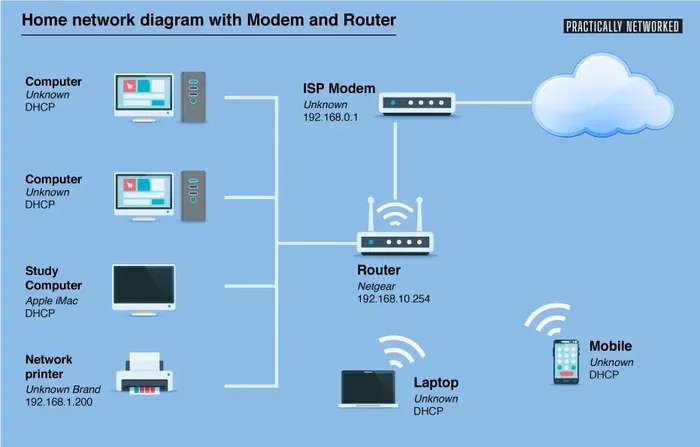
Here is how it works in plain terms. Your main eero unit connects to your modem. That is your primary router. Then you place additional eero units around your house. These are called eero nodes or sometimes eero beacons. Each node shares the wifi signal with the others. The result is one network name and password everywhere you go. Your phone and laptop switch between nodes automatically. You do not even notice.
This is very different from a traditional router. A single router sends signal in all directions. But walls, floors, and furniture block that signal. By the time you reach the far end of your house, the signal is weak. That is where adding extra eero units comes in handy.
How Mesh Wifi Differs from Traditional Routers
A traditional router sends one wifi signal from one point. Think of it like a single speaker in a large room. The sound fades as you walk away. A mesh wifi system is more like having speakers in every room. They all work together. The signal stays strong because each node helps carry it forward.
Mesh systems also use seamless roaming. This means your device connects to the strongest node without dropping the connection. Traditional routers often cause lag when you move around the house. Mesh systems fix that problem. This is why so many people choose eero for home networks.
Can You Use an Eero As a Wifi Extender?
Now for the big question. Can I use an eero as a wifi extender? The answer is a clear yes. When you add an extra eero unit to your existing network, it functions as a wifi extender. It picks up the signal from your main eero and rebroadcasts it. But it does this much better than a standard wifi repeater or network extender.
Here is why. Traditional wifi extenders create a separate network. You have to switch between networks as you move around your house. Eero nodes do not do that. They all share the same network name. Your devices stay connected to the strongest node without any manual switching. That is the magic of mesh technology.
You can use any eero or eero Pro unit as an extender node. The eero Mini, eero Pro, eero Pro 6, eero 6, and eero 6 Plus all work this way. You just need to add the new unit through the eero app. The app walks you through the whole process. It is designed to be simple, even if you are not tech savvy.
When Does It Make Sense to Add an Eero Node?
There are a few clear situations where adding an eero unit makes sense. Let us look at them:
- Your wifi signal is weak in certain rooms: Maybe the bedroom far from the router has poor coverage.
- You have a large home: Single routers struggle to cover 2,000 square feet or more.
- You have thick walls or multiple floors: Concrete, brick, and metal block wifi signals easily.
- You have many connected devices: Smart TVs, phones, tablets, and smart home devices all compete for bandwidth.
- You want seamless coverage: You do not want to switch networks when walking from room to room.
If any of these sound like your situation, using an eero as a wifi extender is a smart move.
How to Set Up an Eero As a Range Extender
Setting up an eero as a range extender is surprisingly easy. You do not need any special equipment. You do not need to be a networking expert. Here is the step by step process.
Step 1: Make Sure Your Main Eero Is Working
Before adding a new node, confirm your main eero is online and working properly. Open the eero app on your phone. Check that all your devices are connected. Run a speed test inside the app. Make sure you are getting a good signal from the primary unit.
Step 2: Place Your New Eero Unit
Placement is the most important part. Put the new eero unit halfway between your main eero and the weak spot. You want it close enough to get a strong signal from the main unit. But far enough to actually reach the area with poor coverage.
Do not tuck it inside a closet or behind a TV. Walls and furniture block the signal. Place it on a shelf or table at waist height. This gives the best wifi coverage for the room.
Step 3: Add the New Eero Through the App
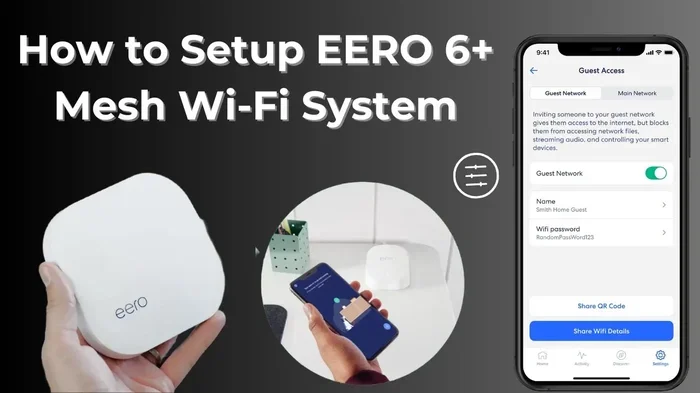
Open the eero app. Tap the plus sign. Select Add Eero. Follow the on screen instructions. The app will walk you through pairing the new unit. It usually takes about two minutes. Once added, the new eero joins your mesh network automatically.
Step 4: Test Your Coverage
Walk around your home with your phone. Check the signal in rooms that used to be weak. Run another speed test in the eero app. You should see improved internet speed in the areas that needed help most.
Quick Tip: The eero app has a built in network test feature. Use it to check signal strength in every room before and after adding a new node. This helps you find the best placement.
Eero vs Traditional Wifi Extenders: Key Differences
Not all wifi boosters are created equal. Let us compare eero mesh nodes to traditional wifi extenders side by side.
| Feature | Eero Mesh Node | Traditional Wifi Extender |
|---|---|---|
| Network Name | One unified network | Separate network name |
| Seamless Roaming | Yes | No |
| Speed Loss | Minimal | Significant |
| Setup Process | Simple app guided | Manual configuration |
| Device Switching | Automatic | Manual |
| Price | Higher upfront cost | Lower upfront cost |
| Coverage | Whole home | Single room or area |
| Bandwidth Sharing | Dedicated backhaul | Shares main bandwidth |
The comparison makes it clear why mesh systems like eero are superior for most homes. Traditional extenders cut your speed in half because they use the same radio to receive and send data. Eero nodes use a dedicated backhaul channel to communicate with each other. This means faster speeds and better performance.
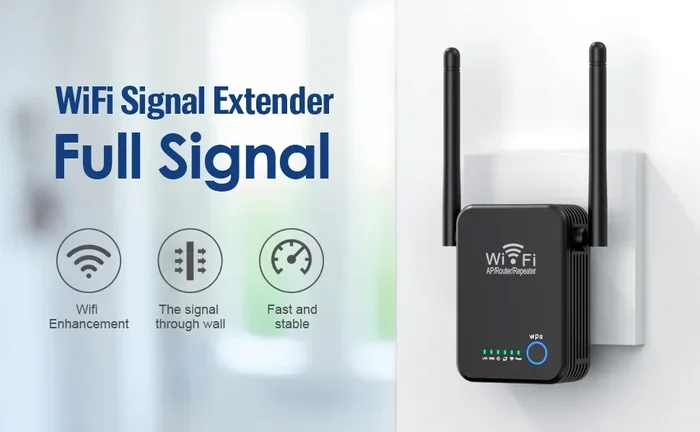
However, traditional extenders are cheaper. If you just need to boost signal in one room, a basic wifi repeater might work. But for whole home coverage, eero is the better choice.
Eero Beacon vs Eero Pro As an Extender
Eero offers different models, and they work differently as extenders. The eero beacon is the smallest and most affordable. It is great for extending coverage in a single room. The eero Pro is more powerful. It supports more devices and faster speeds. If you have a large home or many connected devices, the eero Pro makes a better extender node.
Common Mistakes When Using Eero As a Wifi Extender
Even though setup is easy, people make mistakes that hurt performance. Here are the most common ones to avoid.
Placing the Eero Too Far From the Main Unit
This is the number one mistake. If you put the new eero too far from the main unit, it will not get a strong enough signal to rebroadcast. The result is slow speeds and dropped connections. Keep the new node within good range of the main eero.
Hiding the Eero in a Closet or Cabinet
It is tempting to hide electronics. But walls and closed doors block wifi signals. Your eero needs to be out in the open. A shelf or table works great. Keep it away from metal objects and thick walls.
Adding Too Many Nodes
More is not always better. Eero networks work best with three to four nodes for most homes. Adding too many can cause interference and slow down the network. Start with one extra node and test before adding more.
Not Updating the Eero Firmware
Eero releases firmware updates regularly. These updates fix bugs and improve performance. Make sure your eero units are running the latest software. The eero app will notify you when updates are available.
Common Mistakes: Avoid these four pitfalls and your eero extender setup will run smoothly. Good placement and regular updates make a huge difference in wifi coverage and speed.
Expert Tips for Getting the Most From Your Eero Extender
Want to squeeze every bit of performance from your setup? Here are some expert-backed tips.
Use the Eero App to Optimize Placement
The eero app shows you signal strength for each node. Use this data to fine tune placement. Move the node slightly and check if the signal improves. Small adjustments can make a big difference.
Enable Fastlane Technology
Eero uses a feature called Fastlane. It dedicates a radio band for communication between nodes. This keeps your network extender from slowing down your main connection. Make sure Fastlane is turned on in the app settings.
Keep Your Eero Units on the Same Floor When Possible
Signal travels better across open spaces than through floors and ceilings. If your weak spot is on a different floor, place a node on the stairs or landing. This helps the signal travel more efficiently.
Restart Your Eero Network Monthly
Like any tech, eero units benefit from a fresh start. Restart your main eero and all nodes once a month. This clears temporary glitches and keeps the mesh wifi system running at peak performance.
Consider Your Internet Plan
Adding eero nodes does not increase your internet speed from your provider. If you have a slow plan, even the best mesh system will not make it faster. Check your plan speed and upgrade if needed. Eero helps distribute your speed evenly across your home.
Expert Insight: According to networking professionals, the best eero setup follows the one-third rule. Place each node about one third of the distance from the previous node. This ensures strong signal overlap without interference.
Key Takeaways
- Eero can work as a wifi extender: Adding an eero unit to your network extends coverage without extra hardware.
- Mesh technology makes it seamless: Eero uses a mesh system, so devices switch between nodes automatically.
- Setup is simple: The eero app guides you through adding a new node in minutes.
- You need a compatible eero unit: Any eero or eero Pro can serve as an extender node.
- Placement matters a lot: Position your eero node halfway between your router and the weak spot.
- Eero beats traditional extenders: Mesh nodes deliver better speed and a stronger signal than standard wifi repeaters.
- Avoid common placement mistakes: Don’t put eero nodes too far apart or inside closets.
Conclusion
So, can I use an eero as a wifi extender? Yes, absolutely. Eero devices are versatile. They work as primary routers and as mesh network extender nodes. Adding an extra eero unit to your home network is one of the easiest ways to eliminate wifi dead zones and boost internet speed in weak areas.
The setup process is simple. The eero app makes it foolproof. And the results are impressive. You get one unified network with seamless roaming. No more switching between networks. No more buffering in the bedroom or the backyard.
If you are tired of weak wifi signals, consider adding an eero node to your setup. It is one of the best investments you can make for your home network. Just remember to place your nodes wisely, keep your firmware updated, and avoid the common mistakes we covered. With the right setup, your entire home will have strong, reliable wifi coverage.
Take action today. Open your eero app, add a new node, and enjoy better internet all around your house. Your wifi dead zones do not stand a chance.
Frequently Asked Questions
Can I use any eero model as a wifi extender?
Yes, most eero models work as extender nodes. This includes the eero Mini, eero Pro, eero 6, eero 6 Plus, and eero Pro 6. They all connect to the main eero unit through the mesh network. Just make sure your main eero and the new node are compatible with each other for the best results.
Does using an eero as an extender slow down my internet speed?
Not significantly. Eero uses mesh technology with dedicated backhaul channels. This means the extender node does not cut your speed in half like traditional wifi extenders do. You will experience minimal speed loss, especially with eero Pro models that support faster wifi standards.
How many eero nodes do I need for my home?
It depends on your home size and layout. For homes under 1,500 square feet, two eero units usually work well. For homes between 1,500 and 3,000 square feet, three nodes are ideal. Larger homes may need four or more. Start with one extender node and test your coverage before adding more.
Do I need a subscription to use eero as a wifi extender?
No, you do not need a subscription to extend your network with an eero node. Basic mesh functionality works without any extra cost. Eero offers a subscription called Eero Plus for advanced features like ad blocking and VPN support, but that is completely optional.
Can I mix eero models in my mesh network?
Yes, you can mix different eero models. For example, you can pair an eero Pro with an eero Mini. They will all work together on the same mesh network. Just keep in mind that the network will perform at the speed of the slowest node in the setup.
What is the difference between an eero node and a traditional wifi extender?
The main difference is seamless integration. Traditional wifi extenders create a separate network that you must switch to manually. Eero nodes all share one network name and password. Your devices automatically connect to the strongest node. Eero also uses dedicated backhaul, which preserves speed better than traditional repeaters.