Dvd Player Disc Not Reading Repair Tips and How to Fix
A DVD player disc not reading is a common frustration, but most causes are simple to fix at home. This guide covers everything from lens cleaning and disc scratches to laser replacement and firmware updates. You will learn practical DVD player repair tips that save time and money.
There is nothing more annoying than sliding a disc into your DVD player and hearing it spin up, only to get an error message or nothing at all. You pop in your favorite movie or cherished home video, and the screen just stares back at you blank. A DVD player disc not reading problem can ruin movie night in seconds.
Here is the good news. Most of the time, this issue has a simple fix. You do not need to be a tech expert. You do not even need to spend a lot of money. This guide walks you through every common cause and gives you practical repair tips you can try right now. Whether your player skips, freezes, or refuses to recognize any disc at all, we have got you covered.
We will start with the easiest solutions and work our way up to more advanced fixes. By the end, you will know exactly what to do when your DVD player disc not reading problem strikes. Let us get your movies playing again.
Key Takeaways
- Dirty or scratched discs are the most common reason a DVD player fails to read discs.
- Cleaning the laser lens is a quick fix that resolves many disc reading problems.
- Firmware updates can improve disc compatibility and fix playback errors.
- Region code mismatches often cause silent disc reading failures that users overlook.
- Replacing the optical pickup is a last resort but very effective for persistent issues.
- Regular maintenance prevents most DVD player disc reading problems from occurring.
- Professional repair makes sense when DIY fixes do not resolve the issue.
📑 Table of Contents
- Why Your DVD Player Disc Not Reading: Common Causes
- How to Fix a DVD Player Disc Not Reading: Step-by-Step Solutions
- When to Seek Professional Repair
- Preventing Future DVD Player Disc Reading Problems
- Quick Reference: Troubleshooting Checklist
- Comparison: DIY Fix vs. Professional Repair vs. Replacement
- Final Thoughts
Why Your DVD Player Disc Not Reading: Common Causes
Before you start fixing anything, it helps to understand what is going wrong. A DVD player disc not reading issue can come from many directions. Sometimes the disc is the problem. Sometimes the player is. And sometimes it is both. Let us break down the most common causes so you can narrow things down fast.
Dirty or Scratched Discs
This is the number one cause of disc reading failures. Dust, fingerprints, and smudges on the disc surface block the laser from reading the data properly. Even tiny scratches can scatter the laser beam and cause the player to skip or refuse to play altogether. If you have ever noticed your disc looks smudgy or has visible marks, that is likely your culprit.
Scratched discs are especially common with kids’ movies or discs that have been handled roughly. The good thing is that light scratches are often fixable at home. Deep gouges, on the other hand, may be permanent and require disc replacement.
Dirty Laser Lens
Inside your DVD player sits a small laser lens that reads the data on the disc. Over time, dust and debris build up on this lens. When the lens gets dirty, it cannot read the disc properly even if the disc itself is perfectly clean. This is one of the most overlooked causes of DVD player disc not reading problems.
A dirty lens does not always mean your player is broken. In most cases, a simple cleaning solves the problem completely. We will walk you through exactly how to do that in a later section.
Laser Wear or Failure
DVD players use an optical pickup assembly that includes a laser diode. This laser has a limited lifespan. After years of use, the laser weakens and eventually fails. When this happens, the player may still spin the disc but cannot read any data from it. This is a more serious issue that usually requires part replacement.
Laser failure tends to happen more often with older players or units that were used heavily. If your player is more than five years old and starts showing reading problems, the laser could be wearing out.
Firmware or Software Issues
Modern DVD players have internal software, much like a computer. Sometimes, outdated firmware causes disc read failure issues. The player may not recognize newer disc formats or may struggle with burnt DVDs and rewritable discs. A firmware update can often resolve these compatibility problems.
Firmware issues are more common with combo players that play both DVDs and Blu-rays. The software has to handle multiple formats, and sometimes it gets confused.
Region Code and Format Mismatch
DVDs come with region codes that restrict where they can be played. If you try to play a disc from a different region, your player might refuse to read it. This is a built-in feature, not a malfunction. Similarly, PAL and NTSC format differences can cause playback issues when you are trying to play discs from another country.
This is a sneaky cause because it does not show an obvious error message. The player just seems to ignore the disc entirely. If you have tried everything else and nothing works, this could be the reason.
Mechanical Problems
Sometimes the issue is physical. The disc tray might not open properly. The spindle that holds the disc in place could be worn out. Gears inside the player can strip or jam. These mechanical DVD player problems prevent the disc from sitting correctly in the player, which makes reading impossible.
Mechanical issues are more common in older units or players that have been dropped or bumped. You might hear clicking sounds or grinding noises when these problems are present.
How to Fix a DVD Player Disc Not Reading: Step-by-Step Solutions
Now that you know the common causes, let us get into the fixes. We start with the simplest solutions and work up to the more advanced ones. Try each step in order and stop as soon as your player starts reading discs again.
Step 1: Inspect and Clean the Disc
Before you touch the player, look at the disc. Hold it up to a light and check for scratches, smudges, or smears. Here is what to do:
- Hold the disc by the edges and the center hole only.
- Wipe it gently with a soft, lint-free cloth.
- Wipe from the center outward in straight lines, not in circles.
- Use a tiny drop of mild dish soap and water for stubborn fingerprints.
- Let the disc dry completely before putting it back in the player.
Avoid using paper towels or rough fabrics. These can add micro-scratches that make the problem worse. If the disc has light scratches, you can also try a disc repair kit from your local electronics store. These kits fill in minor scratches and restore readability.
Quick Tip: If the disc looks warped or bent, it is probably not fixable. Replace it and see if the new disc plays fine. This tells you whether the problem was the disc or the player.
Step 2: Clean the Laser Lens
A clean laser lens is essential for proper disc reading. Here is how to do it safely:
- Unplug the DVD player from the power outlet.
- Remove the outer casing. Check your player’s manual or look up a video tutorial for your specific model.
- Locate the laser lens assembly. It is usually a small rectangular or circular component near the disc spindle.
- Use a can of compressed air to blow away loose dust.
- Dampen a cotton swab with isopropyl alcohol (90% or higher).
- Gently wipe the lens in one direction. Do not press hard.
- Let it dry completely before reassembling and testing.
Be very gentle during this process. The laser lens is delicate and expensive to replace. If you are not comfortable opening your player, a CD/DVD lens cleaning disc is a great alternative. You just pop it in and let it run. It uses tiny brushes to clean the lens automatically.
Step 3: Update the Firmware
If cleaning does not work, check for a firmware update. Here is how:
- Go to the manufacturer’s website.
- Find your player model number.
- Look for a support or downloads section.
- Download the latest firmware file.
- Follow the instructions to install it on your player.
Firmware updates fix bugs and improve disc compatibility. They are especially helpful if your player struggles with DVD+R, DVD-R, or rewritable discs. Some newer players also support USB and network playback, and firmware updates can improve these features too.
Quick Tip: Write down your player model number before you start. You will need it to find the right firmware file. If you cannot find an update for your model, the manufacturer may have discontinued support for older units.
Step 4: Check Region and Format Settings
If you are trying to play an imported disc, the region code might be the issue. Most DVD players are locked to a specific region. Here is what you can try:
- Check the disc packaging for its region code.
- Compare it with your player’s region settings.
- Some players allow you to change the region code a limited number of times.
- For multi-region playback, you may need a firmware hack or a multi-region player.
Keep in mind that changing region codes can void your warranty on some models. Also, PAL to NTSC conversion issues can cause playback problems even when the disc does read. If you frequently play discs from other countries, consider investing in a multi-region DVD player.
Step 5: Reset the Player
Sometimes a simple reset clears up disc reading errors. Try this:
- Unplug the player from the wall outlet.
- Wait at least 60 seconds.
- Plug it back in and turn it on.
- Try playing a disc.
This resets all internal settings and clears temporary glitches. It is the equivalent of restarting a computer. If this works, great. If not, move on to the next step.
Step 6: Inspect and Replace Mechanical Parts
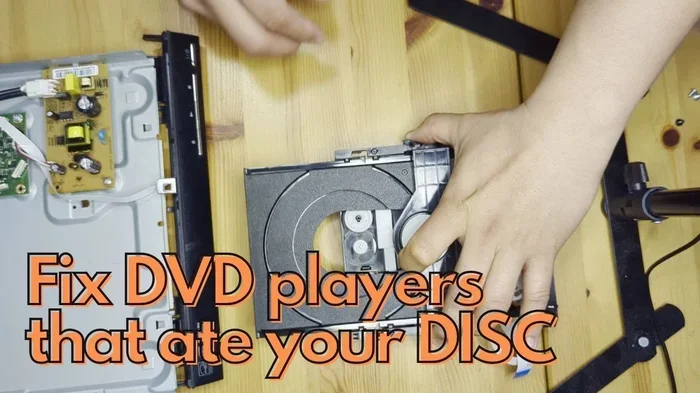
If none of the above steps work, there may be a mechanical problem inside the player. Here are some things to check:
- Open the tray and look for visible damage or obstructions.
- Check if the disc spindle spins freely.
- Listen for unusual clicking or grinding sounds during playback.
- Inspect the gears and belts for wear or breakage.
Replacing mechanical parts like the spindle motor, gear assembly, or optical pickup requires some technical skill. If you are handy, you can find replacement parts online for most popular DVD player brands. Just search for your model number plus the part name. If you are not comfortable with internal repairs, skip to the professional repair section below.
When to Seek Professional Repair
Not every DVD player disc not reading problem is a DIY fix. Here are some signs that you should take your player to a professional:
- The laser lens needs replacement and you are not comfortable doing it yourself.
- There are internal electrical issues causing the player to malfunction.
- The disc tray mechanism is broken and will not open or close properly.
- Your player is still under warranty. Opening it up may void the coverage.
- You have tried all the DIY fixes and the problem persists.
Professional repair costs vary. A lens replacement typically runs between $30 and $80. More complex repairs like motherboard or motor replacement can cost $100 or more. Before committing to repairs, compare the cost with buying a new player. Sometimes it makes more sense to invest in a new unit, especially if your current player is more than seven years old.
Expert Insight: Many local electronics repair shops offer free diagnostics. They can tell you what is wrong and give you a cost estimate before you commit. This is a smart first step before spending money on parts or a new player.
Preventing Future DVD Player Disc Reading Problems
Prevention is always better than cure. Here are simple habits that keep your DVD player running smoothly and your discs reading clearly for years to come.
Store Discs Properly
Always keep your discs in their cases when not in use. Avoid leaving them on coffee tables, dashboards, or anywhere they can collect dust or get scratched. Store discs in a cool, dry place away from direct sunlight. Heat and humidity warp discs and degrade the data layer over time.
Clean Your Player Regularly
Dust is the enemy of any electronic device. Use compressed air to blow dust out of your DVD player’s vents and openings every few months. If you use your player frequently, consider a monthly lens cleaning with a cleaning disc. This simple habit prevents buildup and extends the life of your player.
Handle Discs with Care
Teach everyone in the household how to handle discs properly. Hold them by the edges and the center hole. Never touch the shiny surface. Put discs back in their cases immediately after watching. These small habits go a long way in preventing scratches and smudges.
Use Quality Discs
Cheap, poorly made discs are more prone to read errors and degrade faster. Invest in reputable brands for your DVD collection. If you burn your own discs, use good quality blank media and finalize your discs properly after burning. Cheap discs also tend to warp more easily in hot environments.
Keep Firmware Updated
Check for firmware updates once or twice a year. Manufacturers occasionally release updates that improve disc compatibility and fix known bugs. Staying current with firmware keeps your player performing at its best and reduces disc read failure issues.
Quick Reference: Troubleshooting Checklist
Use this checklist whenever your DVD player disc not reading problem strikes. Work through it quickly to find and fix the issue:
- Is the disc clean and free of scratches?
- Did you try a different disc to rule out a bad disc?
- Have you cleaned the laser lens recently?
- Is the disc from the correct region for your player?
- Did you try resetting the player by unplugging it?
- Is the firmware up to date?
- Are there any mechanical sounds or errors from the player?
If you go through this list and the problem is still there, it is time to dig deeper or seek professional help. This checklist is your first line of defense against most DVD player troubleshooting situations.
Comparison: DIY Fix vs. Professional Repair vs. Replacement
When your DVD player will not read discs, you have three main options. Here is how they compare:
| Option | Cost | Time | Best For |
|---|---|---|---|
| DIY Fix | $0 to $15 | 15 minutes to 1 hour | Simple issues like dirty lens or scratched disc |
| Professional Repair | $30 to $150 | 1 to 7 days | Laser replacement or mechanical issues |
| Replacement | $40 to $200 | Immediate | Old players or costly repairs |
The best option depends on your situation. If your player is relatively new and the issue is simple, DIY fixes are the way to go. If it is an older model with complex problems, replacement often makes more sense financially.
Final Thoughts
A DVD player disc not reading problem is almost always fixable. Most of the time, the solution is simpler than you think. Start with the basics: clean the disc, clean the lens, and reset the player. If those do not work, move on to firmware updates and mechanical checks. Only consider professional repair or replacement when the DIY options have been exhausted.
Remember, regular maintenance is your best defense. A little care goes a long way in keeping your DVD player and your discs in top shape. You will spend less time troubleshooting and more time enjoying your favorite movies and shows.
Now that you have all these DVD player repair tips in your toolkit, you are ready to tackle any disc reading problem that comes your way. Grab a disc, try a few fixes, and get back to your movie night. Your DVDs are worth it.
Frequently Asked Questions
Why does my DVD player read some discs but not others?
This usually happens because some discs are dirty, scratched, or from a different region. Try cleaning the disc and checking the region code. If the player reads clean, region-matched discs fine, the issue is with the specific disc, not the player.
Can a scratched DVD be repaired?
Light scratches can often be fixed with a disc repair kit or by carefully polishing the disc. Deep gouges, however, are permanent and cannot be repaired. Replace badly scratched discs for reliable playback.
How do I know if my DVD player laser is bad?
A failing laser causes the player to spin the disc but not read any data. You may also hear clicking sounds or see the tray eject the disc repeatedly. Cleaning the lens first. If that does not help, the laser likely needs replacement.
Is it worth repairing an old DVD player?
It depends on the repair cost and the player’s age. If repairs cost more than half the price of a new player, replacement is usually the better choice. Simple fixes like lens cleaning are always worth trying first.
Can a firmware update fix disc reading issues?
Yes, firmware updates can resolve compatibility problems and fix bugs that affect disc reading. Check the manufacturer’s website for your player model and install any available updates.
What is the best way to clean a DVD laser lens?
Use a cotton swab dampened with isopropyl alcohol and gently wipe the lens in one direction. Alternatively, a CD lens cleaning disc works well for routine maintenance and is very easy to use.
=== CONCLUSION ===
A DVD player disc not reading problem does not have to be stressful. With the right knowledge and a little patience, you can diagnose and fix most issues yourself. Start with the simple stuff: clean your discs, clean your lens, and keep your firmware updated. These habits prevent most problems before they start.
If the issue is deeper, you now have the tools and know-how to tackle mechanical and laser-related problems too. And when repair is not practical, you know exactly when to invest in a new player. Keep this guide bookmarked for future reference. Your DVD collection deserves a player that works reliably every time you press play.