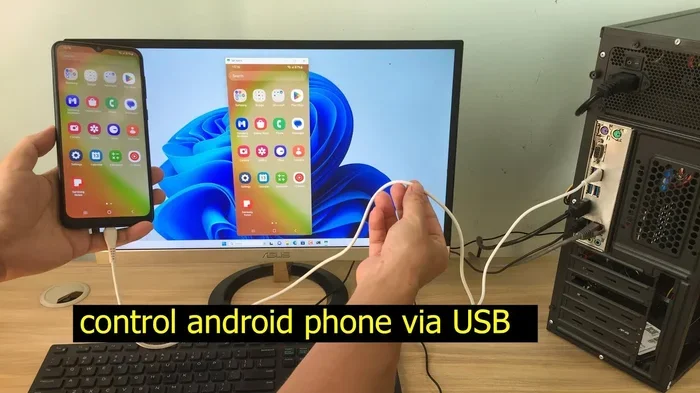
Factory Resetting An Android Phone From Your Computer
Factory resetting an Android phone from your computer is a simple process that works even when your phone screen is broken or locked. You can use tools like Android Device Manager, ADB commands, or manufacturer software to wipe your device remotely. This guide walks you through every method with clear, easy-to-follow steps so anyone can do it safely.
There are many reasons you might need to factory reset an Android phone from your computer. Maybe your phone is frozen and unresponsive. Perhaps you are selling it and want to wipe all your personal data. Or maybe the screen is cracked and you cannot navigate the menus. Whatever the reason, doing a reset from a PC is a reliable and powerful option.
When you reset from a computer, you bypass the phone’s screen entirely. This means you can still erase your device even if the touchscreen is broken or you forgot your lock screen password. It is also helpful when malware or a software glitch has made the phone nearly unusable. A computer-based reset gives you more control and a clean slate for your device.
In this article, we will cover every practical method you can use. You will learn about Android Device Manager, ADB commands, manufacturer tools like Samsung Smart Switch, and recovery mode. Each method is explained in simple steps so anyone can follow along. We will also cover what to do before and after the reset, common mistakes to avoid, and tips from experts. By the end, you will feel confident resetting any Android phone from your computer.
Before we dive into the methods, let us quickly talk about why this topic matters. Millions of Android phones are reset every year for repair, resale, or troubleshooting. Knowing how to do it from a computer saves time and frustration. It also ensures your personal data is fully removed, which is critical for privacy and security. So let us get started.
Key Takeaways
- Multiple methods available: You can reset your Android phone from a computer using Android Device Manager, ADB commands, manufacturer tools, or recovery mode.
- Works even when locked: Factory resetting from a computer is possible even if your phone screen is broken or you forgot the password.
- Back up first: Always save your important files before performing a reset to avoid permanent data loss.
- ADB offers advanced control: Using ADB commands gives you direct access to reset your device from a terminal or command prompt.
- Activation lock exists: Android Factory Reset Protection may require your Google account credentials after a reset.
- Re-setup is quick: Restoring your phone after a reset takes only a few minutes with your Google account and backups.
📑 Table of Contents
- Why You Might Need to Factory Reset Your Android Phone From a Computer
- Preparing Your Android Phone and Computer Before the Reset
- How to Factory Reset an Android Phone From Your Computer Using Android Device Manager
- Method 2: Using ADB Commands for a Direct Reset
- Method 3: Using Manufacturer Software Like Samsung Smart Switch
- Method 4: Using Recovery Mode Connected to Your Computer
- What Happens After You Factory Reset Your Android Phone
- Common Mistakes to Avoid When Resetting From a Computer
- Expert Tips for a Smooth and Safe Reset
- Conclusion
Why You Might Need to Factory Reset Your Android Phone From a Computer
There are several situations where a computer-based reset is your best or only option. Understanding these scenarios helps you know when to use this approach.
When a Phone Reset From PC Makes Sense
A soft reset or restart is great for minor glitches. But when your phone has a serious software problem, a hard reset is often the fix. A hard reset wipes everything and restores the phone to its original factory settings. Doing this from a computer is especially useful in these cases:
- Your phone screen is cracked or unresponsive. You cannot tap the screen to navigate menus or enter your password.
- You forgot your lock screen password. After too many failed attempts, your phone may lock you out completely.
- Your phone is stuck in a boot loop. It keeps restarting and never reaches the home screen.
- You are preparing a device for sale. You want to make sure all personal data is completely removed.
- Malware or a rogue app has taken over. A full wipe is the safest way to remove stubborn malware.
In all of these cases, resetting from a computer gives you a way forward when the phone itself cannot help you.
Benefits of Using a Computer Instead of the Phone
You might wonder why you should bother using a computer at all. Why not just use the phone’s built-in reset option? Here are the key benefits:
- You bypass the lock screen. No need to enter a PIN, pattern, or password.
- You can do it remotely. With tools like Android Device Manager, you can reset your phone from anywhere in the world.
- You have more control. ADB commands let you target specific reset options that the phone menu might not offer.
- It works on dead phones. Even if the touchscreen is completely unresponsive, a USB connection to a computer can still work.
These advantages make computer-based resets a valuable skill for any Android user.
Preparing Your Android Phone and Computer Before the Reset
Before you start any reset method, proper preparation is essential. Skipping this step can lead to problems or data loss. Take a few minutes to get everything ready.
Back Up Your Important Data First
This is the most important step. A factory reset permanently deletes all data on your phone. That includes photos, contacts, messages, apps, and settings. Before you do anything, back up everything you want to keep.
Here are some easy backup options:
- Google Account sync: Go to Settings, then Accounts, and make sure Google Backup is turned on. Your contacts, app data, and call history will sync automatically.
- Google Photos: Open the Google Photos app and make sure all your photos and videos are uploaded.
- USB cable to computer: Connect your phone to your PC and manually copy important files like photos, documents, and videos to your hard drive.
- Cloud storage: Use services like Dropbox, OneDrive, or Samsung Cloud to store important files online.
Once your data is safe, you can proceed with confidence knowing nothing important will be lost.
What You Need Before Starting
Depending on the method you choose, you will need a few things ready:
- A USB cable: The original cable that came with your phone works best. Third-party cables sometimes cause connection issues.
- A computer with internet access: Most methods require an active internet connection.
- USB debugging enabled (for ADB): If you plan to use ADB commands, you need to turn on Developer Options and USB Debugging on your phone before the reset. Go to Settings, tap Build Number seven times to unlock Developer Options, then enable USB Debugging.
- Your Google account credentials: After the reset, you will need your Google email and password to set the phone back up. Make sure you remember these.
- Manufacturer software (optional): If you are using Samsung Smart Switch or another brand tool, download and install it on your computer first.
Having everything ready before you start will make the process smooth and stress-free.
How to Factory Reset an Android Phone From Your Computer Using Android Device Manager
Android Device Manager is a free Google tool that lets you locate, lock, or erase your phone remotely. It works through your web browser, so you do not need any special software installed on your computer. This is one of the easiest and most accessible methods available.
How Android Device Manager Works
Android Device Manager is built into every Android phone that is linked to a Google account. It communicates with your phone over the internet. When you sign in to the Device Manager website from any computer, you can send commands to your phone as long as it is turned on and connected to the internet.
The erase feature works like a normal factory reset. It wipes all data, apps, and settings from the phone. After the erase, the phone will restart and require you to set it up again from scratch. You will need your Google account password to complete the setup, which adds a layer of security.
Step-by-Step Reset Instructions
Follow these steps to reset your phone using Android Device Manager:
- Open any web browser on your computer.
- Go to the Android Device Manager website (android.com/find).
- Sign in with the Google account that is linked to your phone.
- You will see a list of devices. Select the phone you want to reset.
- Click the “Erase Device” button.
- Confirm your choice when prompted.
- Wait for the erase to complete. This may take a few minutes.
- Once done, your phone will restart and be completely wiped.
That is all there is to it. This method is simple, fast, and does not require any cables or special software. However, it does require your phone to be turned on and connected to the internet. If your phone is offline, the erase command will be sent as soon as it connects.
Method 2: Using ADB Commands for a Direct Reset
ADB stands for Android Debug Bridge. It is a powerful command-line tool that lets you communicate directly with your Android phone from your computer. Using ADB to factory reset your phone gives you precise control and works even in situations where other methods might fail.
Setting Up ADB on Windows or Mac
Before you can use ADB, you need to set it up on your computer. Here is how:
- Download the Android SDK Platform Tools: Go to the official Android developer website and download the platform tools package for your operating system.
- Extract the files: Unzip the downloaded file to a folder on your computer. Keep the folder in an easy-to-find location.
- Enable USB Debugging on your phone: Go to Settings, tap on About Phone, and tap Build Number seven times to unlock Developer Options. Then go to Developer Options and toggle USB Debugging on.
- Connect your phone to the computer: Use your USB cable and make sure your phone is recognized. You may need to approve the USB debugging connection on your phone screen.
To check that ADB is working, open a command prompt or terminal window, navigate to the platform tools folder, and type adb devices. If your phone shows up in the list, you are ready to go.
Running the Factory Reset Command
Once ADB is set up and your phone is connected, follow these steps:
- Open a command prompt on Windows or a terminal on Mac.
- Navigate to the folder where you extracted the ADB platform tools.
- Type
adb shelland press Enter. This opens a shell session on your phone. - Type
adb reboot recoveryand press Enter. Your phone will reboot into recovery mode. - In recovery mode, use the volume keys to navigate and the power button to select.
- Choose “Wipe data/factory reset.”
- Confirm the action when prompted.
- Once the wipe is complete, select “Reboot system now.”
ADB is a powerful tool. It gives you direct access to your phone’s system and works even when the touchscreen is completely broken. However, it does require some basic comfort with using a command line. If you have never used ADB before, the Android Device Manager method might be simpler.
Method 3: Using Manufacturer Software Like Samsung Smart Switch
Many phone manufacturers offer their own computer software that includes factory reset features. These tools are designed specifically for their devices and often provide a more user-friendly experience than ADB commands.
Samsung Smart Switch Reset Feature
If you have a Samsung phone, Samsung Smart Switch is a great option. It is a free application available for Windows and Mac. Here is how to use it to reset your phone:
- Download and install Samsung Smart Switch from the Samsung website.
- Connect your Samsung phone to your computer using a USB cable.
- Open Samsung Smart Switch and wait for it to detect your phone.
- Look for the settings or tools menu within the application.
- Select the factory reset or backup/restore option. Some versions of Smart Switch allow you to create a backup first, then erase the device.
- Follow the on-screen prompts to complete the reset.
Samsung Smart Switch is particularly useful because it provides a graphical interface that is easier to navigate than ADB commands. It also gives you the option to back up your data before wiping the phone.
Other Manufacturer Tools You Can Try
Samsung is not the only brand with dedicated software. Other manufacturers offer similar tools:
- Xiaomi PC Suite: Available for Xiaomi and Redmi phones. It offers backup, restore, and reset features.
- Huawei HiSuite: Works with Huawei and Honor devices. It provides device management and reset options.
- LG Bridge: Designed for LG phones. It includes backup and reset functionality.
- Sony Xperia Companion: For Sony Xperia devices. It offers software updates, backup, and reset tools.
Check your phone manufacturer’s website to find the official software for your specific model. Using the manufacturer’s tool ensures the best compatibility and the smoothest experience.
Method 4: Using Recovery Mode Connected to Your Computer
Recovery mode is a special startup mode on Android phones that gives you access to basic system functions. It is different from the normal operating system and provides options like wiping data, applying updates, and rebooting. You can access recovery mode using your computer and a USB cable.
How to Boot Into Recovery Mode
The method to enter recovery mode varies slightly by phone brand. Here are the most common ways:
- Most Android phones: Turn off the phone completely. Then press and hold the Volume Up button and the Power button together. Keep holding both buttons until the recovery menu appears on screen.
- Samsung phones: Turn off the phone. Press and hold Volume Up, the Home button (if your phone has one), and the Power button together. Release when the recovery menu appears.
- Using ADB to boot into recovery: If your phone is connected to your computer and ADB is set up, you can type
adb reboot recoveryin the command prompt. This is the easiest way if your phone is connected but the screen is unresponsive.
Navigating Recovery Mode With a Keyboard
One of the great advantages of using recovery mode connected to a computer is that you can navigate the menu using your keyboard. Most recovery screens use the volume keys to scroll and the power button to select. But when connected to a computer, you can also use the keyboard to navigate and confirm selections in some recovery versions.
Once in recovery mode, look for the “Wipe data/factory reset” option. Use the volume keys to highlight it and the power button to select it. Confirm the action, and the reset will begin. After the wipe is complete, select “Reboot system now” to restart your phone.
Recovery mode is a reliable fallback method. It works on most Android phones and does not require any special software beyond ADB if you are using the computer to trigger the reboot into recovery.
What Happens After You Factory Reset Your Android Phone
After the reset is complete, your phone will restart and show the initial setup screen, just like when you first took it out of the box. Here is what to expect and how to handle the setup process.
Setting Up Your Phone Again
The first time you turn on your phone after a reset, you will go through the setup wizard. Here are the steps you will encounter:
- Select your language and region. Choose your preferred settings.
- Connect to Wi-Fi. You will need an internet connection to continue.
- Sign in with your Google account. This is required to use the Google Play Store and restore your backed-up data.
- Restore from backup. During setup, Android will offer to restore your apps, settings, and data from your Google backup. Say yes if you backed up before the reset.
- Set up security. Choose a new lock screen PIN, pattern, or password.
The entire setup process usually takes about 10 to 15 minutes. Once complete, your phone will be clean, fresh, and ready to use.
Protecting Your Data Going Forward
Now that your phone has been reset, it is a great time to put some protections in place. Here are a few tips to keep your data safe going forward:
- Enable automatic Google backups. Go to Settings, then System, then Backup, and make sure backup is turned on.
- Use a strong lock screen password. A PIN, pattern, or biometric lock helps keep unauthorized users out.
- Turn on Find My Device. This is the same feature behind Android Device Manager. Go to Settings, then Security, and enable Find My Device so you can locate or erase your phone remotely if needed.
- Keep your phone updated. Software updates often include security patches that protect against vulnerabilities.
Taking these simple steps after your reset helps ensure you never need to do a hard reset again unless absolutely necessary.
Common Mistakes to Avoid When Resetting From a Computer
Even with clear instructions, mistakes can happen. Here are the most common errors people make when resetting an Android phone from a computer, and how to avoid them:
- Forgetting to back up data first. This is the number one mistake. A factory reset deletes everything. Always back up before you start.
- Using a low-quality USB cable. Cheap cables can cause connection drops or fail to transfer data properly. Use the original cable or a high-quality replacement.
- Not enabling USB debugging before the reset. If you plan to use ADB, you must enable USB debugging while the phone is still working. You cannot enable it after the reset.
- Interrupting the reset process. Do not disconnect the USB cable or turn off the computer while the reset is in progress. This can corrupt your phone’s software.
- Forgetting your Google account password. After a reset, Android Factory Reset Protection requires your Google credentials. If you forget them, you may not be able to set up the phone again.
- Using the wrong method for your situation. If your phone is completely dead and will not turn on, Android Device Manager will not work. Choose a method that matches your phone’s current state.
Avoiding these mistakes will save you time, frustration, and potential data loss.
Expert Tips for a Smooth and Safe Reset
Here are some extra tips from experienced users and technicians to help you get the best results:
- Charge your phone fully before starting. A low battery during the reset process can cause problems. Aim for at least 80% battery.
- Use a wired USB connection. Wireless connections can be unreliable during a reset. A USB cable provides the most stable connection.
- Close unnecessary programs on your computer. This frees up system resources and helps your computer communicate with your phone more smoothly.
- Try one method at a time. If one method does not work, do not immediately try another. Give the first method a fair chance before switching.
- Be patient. Some resets take several minutes to complete. Your phone may appear to be frozen or unresponsive during the process. Wait it out.
- Know your phone model. Different Android brands and models may have slightly different steps for entering recovery mode or enabling USB debugging. A quick search for your specific model can save you headaches.
These small tips can make a big difference in how smoothly the reset process goes.
Conclusion
Factory resetting an Android phone from your computer is a practical and valuable skill that every Android user should know. Whether you are dealing with a broken screen, a locked phone, malware, or you are simply preparing a device for resale, the methods in this guide give you reliable options. You can use Android Device Manager for a simple remote reset, ADB commands for advanced control, manufacturer software like Samsung Smart Switch for a user-friendly experience, or recovery mode as a dependable fallback.
The key is preparation. Always back up your data first, gather the tools you need, and choose the method that best fits your situation. Avoid the common mistakes we covered, and follow the step-by-step instructions carefully. After the reset, take a few minutes to set up your phone properly and put protections in place to keep your data safe.
With the right approach, factory resetting your Android phone from a computer is straightforward and stress-free. You now have the knowledge and confidence to handle this task whenever you need it. Save this guide for future reference, and do not hesitate to try any of the methods we have covered. Your phone will thank you for it.
Frequently Asked Questions
Can I factory reset my Android phone from a computer if the screen is completely broken?
Yes, you can. Methods like Android Device Manager and ADB commands work even if your phone screen is completely broken or unresponsive. As long as your phone is turned on and connected to the internet (for Android Device Manager) or connected via USB to your computer (for ADB), you can send the reset command remotely.
Will factory resetting my Android phone remove the Factory Reset Protection lock?
No. Android Factory Reset Protection is a security feature that requires your Google account credentials after a reset. It is designed to prevent thieves from wiping and using a stolen phone. After a factory reset, you will need to enter the Google account and password that was previously linked to the device. This cannot be bypassed.
How long does it take to factory reset an Android phone from a computer?
The reset process itself usually takes between 5 and 15 minutes, depending on the amount of data on your phone and the method you use. The setup process after the reset takes an additional 10 to 15 minutes. If you are using Android Device Manager, the phone will receive the erase command and begin the reset as soon as it connects to the internet.
Do I need to install any software on my computer to reset an Android phone?
It depends on the method. Android Device Manager works through any web browser and requires no software installation. ADB requires you to download the Android SDK Platform Tools. Manufacturer tools like Samsung Smart Switch require you to download their specific application. Choose the method that best fits your needs and technical comfort level.
Can I recover my data after a factory reset?
Once a factory reset is complete, the data is permanently erased from your phone. Recovery is extremely difficult and often impossible without a prior backup. This is why backing up your data before any reset is absolutely essential. If you backed up to Google, Samsung Cloud, or another service, you can restore your data during the phone setup process after the reset.
Is it safe to factory reset a phone that is infected with malware?
Yes, a factory reset is one of the most effective ways to remove malware from an Android phone. It wipes all data, including malicious apps and files. However, make sure you have a clean backup of your important files, as restoring an infected backup could reintroduce the malware. After the reset, avoid sideloading apps from untrusted sources to prevent future infections.