How Can I Activate Airtel 5g Wi Fi Setup Guide Now
Activating your Airtel 5G WiFi is simple once you know the right steps. This guide walks you through everything from checking 5G coverage and choosing the right plan to setting up your router and troubleshooting common issues. You will learn how to get Airtel 5G WiFi up and running in minutes with clear, easy-to-follow instructions.
Getting Airtel 5G WiFi up and running at home is one of the best upgrades you can make for your internet experience. With 5G speeds, you can stream movies, work from home, and game without any frustrating lag. But the process of activating your Airtel 5G WiFi can feel confusing if you have never done it before. This guide breaks down every step in simple, easy-to-follow language so you can get connected quickly and confidently.
Whether you are a tech-savvy user or someone who just wants things to work, this Airtel 5G WiFi setup guide has you covered. We will walk you through checking coverage, picking the right plan, configuring your router, and fixing common problems. By the end, you will have a fully activated and optimized 5G WiFi connection that delivers the speeds you are paying for.
Let us dive right in and get your Airtel 5G WiFi activated. No fluff, no confusion, just clear steps that actually work.
Key Takeaways
- Check 5G Coverage First: Make sure your area has Airtel 5G network availability before starting the activation process.
- Choose the Right Plan: Airtel offers specific 5G plans and bundles that unlock faster speeds for your WiFi connection.
- Use the Airtel Thanks App: The easiest way to activate 5G WiFi is through the official Airtel app on your phone.
- Router Setup Matters: Properly configuring your Airtel WiFi router ensures you get the best 5G speeds throughout your home.
- Troubleshoot Common Issues: Simple fixes like restarting your router or updating firmware can resolve most activation problems.
- Boost Your Signal: Using a Wi-Fi booster can help extend your Airtel 5G coverage to every corner of your home.
- Contact Support When Needed: Airtel customer care is always available if you run into issues that need professional help.
📑 Table of Contents
- What Is Airtel 5G WiFi and Why Should You Activate It?
- Requirements Before You Activate Airtel 5G WiFi
- Step-by-Step Guide to Activate Airtel 5G WiFi
- Setting Up Your Airtel 5G WiFi Router for Best Performance
- Common Problems and How to Fix Them
- Tips to Maximize Your Airtel 5G WiFi Speed and Coverage
- When to Contact Airtel Support
- Final Thoughts on Activating Airtel 5G WiFi
What Is Airtel 5G WiFi and Why Should You Activate It?
Airtel 5G WiFi combines Airtel’s fifth-generation mobile network with a wireless WiFi router to give you ultra-fast internet at home or in your office. Unlike older 4G networks, 5G WiFi offers dramatically faster download and upload speeds, lower latency, and the ability to connect more devices at once without slowdowns.
When you activate Airtel 5G WiFi, you are unlocking a whole new level of connectivity. Here is why it matters:
- Blazing Fast Speeds: Airtel 5G can deliver download speeds of up to 1 Gbps or more in covered areas. That means large files download in seconds and HD streaming never buffers.
- Low Latency: Online gaming, video calls, and real-time apps feel instant with 5G’s minimal delay.
- More Device Connections: Smart homes with dozens of devices run smoothly on 5G without performance drops.
- Future-Proof Connectivity: 5G is the latest standard and will only get better as networks expand.
Activating Airtel 5G WiFi is not just about speed. It is about making your daily digital life smoother, faster, and more reliable. If you have been stuck with slow internet, making the switch to 5G WiFi is a game changer.
Requirements Before You Activate Airtel 5G WiFi
Before you start the activation process, you need a few things in place. Skipping these steps can lead to frustration later, so let us make sure you are fully prepared. Having everything ready will make your Airtel 5G WiFi activation smooth and stress-free.
1. Check 5G Network Coverage in Your Area
The first and most important step is verifying that Airtel 5G is available where you live. Airtel has been expanding its 5G network rapidly across India, but coverage varies by city, town, and even specific neighborhoods.
- Visit the Airtel website and check the 5G coverage map.
- Call Airtel customer care and ask about 5G availability in your area.
- Check with neighbors who already use Airtel 5G WiFi to confirm signal strength.
If 5G is not yet available in your location, you may need to wait or consider alternative options like Airtel’s 4G WiFi plans until coverage expands.
2. Have an Active Airtel SIM and Plan
You need an active Airtel SIM card to access 5G services. Make sure your SIM is 5G-compatible. Older SIM cards may need to be replaced with new USIM cards that support 5G technology.
- Check if your current Airtel SIM supports 5G by contacting customer service.
- Choose a 5G WiFi plan that offers the data speeds and allowances you need.
- Ensure your SIM is properly activated and registered with your ID proof as per TRAI regulations.
Airtel offers various prepaid and postpaid 5G plans. Pick one that matches your usage habits. Heavy streamers and remote workers will benefit from higher data plans, while casual users can opt for more budget-friendly options.
3. Get a Compatible Airtel WiFi Router
To convert your Airtel 5G connection into a WiFi network, you need a compatible router. Airtel provides its own routers as part of many plans, but you can also use a third-party router if it supports 5G bands.
- Airtel’s own WiFi routers are pre-configured for easy setup.
- If you use a personal router, make sure it supports 5G frequency bands (n77, n78, etc.).
- For larger homes, consider a mesh WiFi system or a mesh router connected to your existing router for seamless coverage.
4. Download the Airtel Thanks App
The Airtel Thanks app is your go-to tool for managing your Airtel connection. You can use it to activate 5G, check your plan details, recharge, and troubleshoot issues. Download it from the Google Play Store or Apple App Store and log in with your Airtel number.
Step-by-Step Guide to Activate Airtel 5G WiFi
Now that you have everything ready, let us walk through the actual activation process. Follow these steps carefully and you will have your Airtel 5G WiFi running in no time.
Step 1: Insert Your Airtel SIM into the Router
If you are using an Airtel-provided WiFi router, insert your active Airtel SIM card into the SIM slot on the router. Make sure the SIM is properly seated and the router recognizes it. Most Airtel routers have a single SIM tray on the back or bottom.
Once the SIM is inserted, power on the router and wait for the indicator lights to stabilize. A solid green or blue light usually means the router has connected to the network.
Step 2: Connect to the Router’s Default WiFi Network
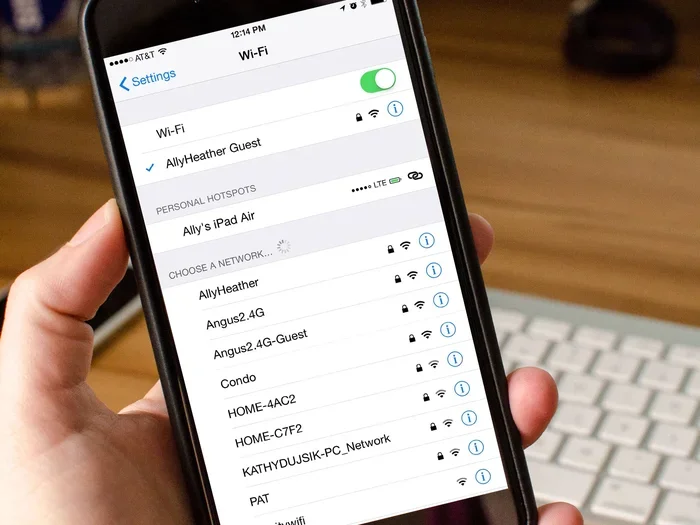
On your phone or laptop, open the WiFi settings and look for the default network name (SSID) printed on the router’s label. Connect to it using the default password also found on the router.
This initial connection allows you to access the router’s admin panel where you can configure your settings and complete the activation.
Step 3: Open the Router Admin Panel
Open a web browser and type the router’s default IP address into the address bar. For most Airtel routers, this is 192.168.1.1 or 192.168.0.1. Press Enter and you will see a login page.
Use the default admin credentials printed on the router label. Once logged in, you can navigate to the network settings and verify that your Airtel 5G WiFi connection is active.
Step 4: Activate 5G Through the Airtel App
Open the Airtel Thanks app on your phone. Go to the “My Connection” section and look for the 5G activation option. Follow the on-screen prompts to enable 5G on your connection.
The app may also prompt you to restart your router after activation. Always do this to ensure the changes take effect properly.
Step 5: Change Your WiFi Name and Password
For security and personalization, change your default WiFi name and password. Go to the router admin panel, find the wireless settings, and enter your preferred network name and a strong password.
Use a mix of letters, numbers, and special characters for the best security. This prevents unauthorized users from accessing your Airtel 5G WiFi network.
Setting Up Your Airtel 5G WiFi Router for Best Performance
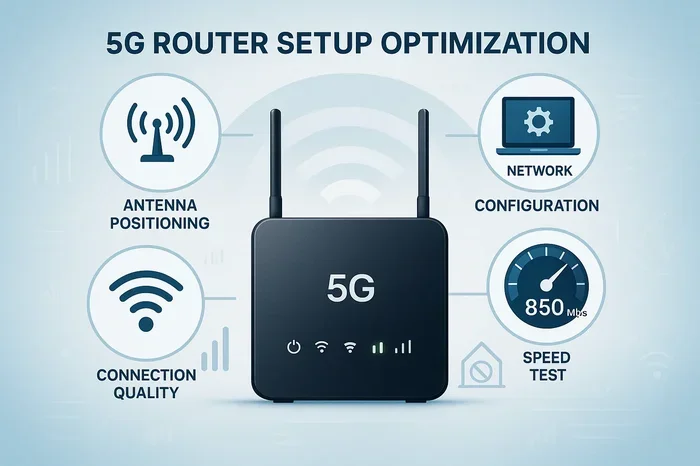
Activation is just the beginning. Proper setup ensures you get the fastest and most reliable 5G WiFi experience. Take a few extra minutes to optimize your router settings.
Choose the Right WiFi Band
Airtel 5G routers typically support both 2.4 GHz and 5 GHz bands. The 5 GHz band offers faster speeds but shorter range. The 2.4 GHz band covers more distance but is slower.
- Use the 5 GHz band for devices that need high speed, like laptops and streaming boxes.
- Use the 2.4 GHz band for devices that are farther away or do not need maximum speed.
- If your router supports dual-band, consider setting up two separate networks for each band.
Position Your Router Strategically
Router placement has a huge impact on your WiFi signal strength. Place your router in a central location in your home, preferably on a higher shelf or mounted on a wall. Avoid placing it near metal objects, microwaves, or thick walls that can block the signal.
If your home is large and the signal does not reach every room, you might want to look into options like extending your WiFi signal or using a WiFi booster to strengthen the coverage.
Update Your Router Firmware
Regular firmware updates keep your router secure and performing at its best. Check the admin panel for any available updates after you set up your Airtel 5G WiFi. Most modern routers also offer automatic updates if you enable that feature.
Enable Quality of Service (QoS) Settings
QoS lets you prioritize certain types of traffic on your network. If you work from home and need stable video calls, you can prioritize video conferencing traffic over other uses. This ensures your most important activities always get the bandwidth they need.
Common Problems and How to Fix Them
Even with careful setup, you might run into issues when activating Airtel 5G WiFi. Here are the most common problems and their solutions.
5G Not Showing on Your Device
If your phone or laptop does not detect the 5G network, try these fixes:
- Restart your router and your device.
- Make sure your device supports 5G WiFi bands.
- Check that the 5G feature is enabled in the router admin panel.
- Update your device’s WiFi drivers or firmware.
Slow Speeds After Activation
Slow speeds can be frustrating. Here is what to check:
- Make sure you are in an area with strong 5G coverage.
- Check if other devices are using heavy bandwidth.
- Move closer to the router to improve signal strength.
- Run a speed test to compare your actual speeds with your plan’s advertised speeds.
- If speeds are consistently low, contact Airtel support to check for network issues in your area.
Router Not Connecting to the Internet
If your router shows as connected to WiFi but has no internet access:
- Check that your Airtel SIM has an active data plan.
- Restart the router by unplugging it for 30 seconds and plugging it back in.
- Verify the SIM is properly inserted and recognized by the router.
- Contact Airtel customer care if the issue persists.
WiFi Keeps Disconnecting
Intermittent connections are often caused by interference or outdated firmware:
- Change your WiFi channel in the router settings to avoid congestion.
- Update the router firmware to the latest version.
- Reduce the number of devices connected simultaneously to see if that improves stability.
- Place the router away from other electronic devices that may cause interference.
Tips to Maximize Your Airtel 5G WiFi Speed and Coverage
Once your Airtel 5G WiFi is up and running, a few simple tips can help you squeeze every bit of performance out of your connection.
Restart Your Router Regularly
A quick restart can clear temporary glitches and refresh your connection. Set a weekly reminder to power cycle your router. This simple habit keeps your 5G WiFi running smoothly.
Use Ethernet for Critical Devices
For devices that need the most stable connection, like desktop computers or gaming consoles, use an Ethernet cable directly connected to the router. Wired connections are faster and more reliable than wireless ones.
Keep Your Router Cool
Routers can overheat if placed in enclosed spaces or near heat sources. Overheating causes slowdowns and disconnections. Keep your router in a well-ventilated area for consistent performance.
Monitor Your Data Usage
5G plans can be data-intensive. Use the Airtel Thanks app to monitor your data usage and avoid unexpected speed throttling. If you find yourself running out of data often, consider upgrading to a higher data plan or exploring unlimited hotspot options that better suit your needs.
Secure Your Network
Always use a strong WiFi password and enable WPA3 encryption if your router supports it. An unsecured network not only slows down your speeds as neighbors share your bandwidth but also leaves you vulnerable to security threats.
When to Contact Airtel Support
Most activation and setup issues can be resolved with the steps above. However, some problems need professional assistance. Contact Airtel customer care if:
- Your 5G connection does not activate after following all the steps.
- You experience persistent slow speeds even after troubleshooting.
- Your router hardware appears damaged or malfunctioning.
- You need help with advanced network configurations.
Airtel support is available through the app, phone, and online chat. Having your account details and router model number ready will speed up the support process.
Final Thoughts on Activating Airtel 5G WiFi
Activating your Airtel 5G WiFi is a straightforward process once you know what to do. From checking coverage and getting the right plan to configuring your router and troubleshooting issues, every step is manageable. The key is to be patient, follow the instructions carefully, and reach out to support when needed.
The benefits of 5G WiFi are well worth the effort. Faster speeds, lower latency, and more reliable connections transform how you work, stream, game, and communicate online. With Airtel’s expanding 5G network, now is the perfect time to make the switch.
Take action today. Follow this guide, activate your Airtel 5G WiFi, and enjoy the future of wireless connectivity. Your faster, more reliable internet experience starts now.
Frequently Asked Questions
How do I know if my area has Airtel 5G coverage?
You can check the Airtel website for a coverage map, call customer care directly, or ask neighbors who use Airtel services. The Airtel Thanks app also shows 5G availability in your area once you log in with your number.
Do I need a special SIM card for Airtel 5G WiFi?
Yes, you need a 5G-compatible SIM card, often called a USIM. Older SIM cards may not support 5G networks. You can request a new 5G SIM from Airtel customer care or at any Airtel store for free or a small fee.
Can I use my own router with Airtel 5G?
Yes, you can use a compatible third-party router as long as it supports the 5G frequency bands used by Airtel (typically n77 and n78). However, Airtel-provided routers come pre-configured for easier setup and troubleshooting.
Why is my Airtel 5G WiFi slower than expected?
Slow speeds can result from weak signal coverage, too many connected devices, outdated router firmware, or network congestion during peak hours. Try restarting your router, moving closer to it, and checking for firmware updates. If issues persist, contact Airtel support.
How much does an Airtel 5G WiFi plan cost?
Airtel offers a range of 5G plans at different price points to suit various needs. Prepaid plans start from affordable options with limited data, while postpaid plans offer larger data allowances and additional benefits. Check the Airtel website or app for the latest plan details and pricing in your region.
Can I activate Airtel 5G WiFi without visiting a store?
Absolutely. You can activate 5G through the Airtel Thanks app, by calling customer care, or by recharging with a 5G plan online. Physical store visits are only necessary if you need a new SIM card or hardware replacement.