How Do I Turn On Bluetooth On My Samsung Galaxy Phone
Turning on Bluetooth on your Samsung Galaxy phone is quick and easy. You can enable it through the Quick Settings panel or the Settings app in just a few taps. This guide covers every method, troubleshooting tip, and pairing trick for Samsung Galaxy users. Whether you are connecting headphones, speakers, or sharing files, you will find everything you need right here.
So you want to know how to turn on Bluetooth on your Samsung Galaxy phone. Great question! Bluetooth is one of the most useful features on any smartphone. It lets you connect wireless headphones, speakers, smartwatches, and even share files with other devices. Whether you just got a new Samsung Galaxy or have had one for a while, this guide will walk you through everything you need to know.
Bluetooth technology has come a long way over the years. Today, it is fast, reliable, and uses very little battery. Samsung Galaxy phones make it super simple to turn on Bluetooth, find nearby devices, and pair them in seconds. In this article, we will cover every method, every troubleshooting fix, and every pro tip you need. Let us get started.
Key Takeaways
- Quick Settings is the fastest way to turn on Bluetooth on any Samsung Galaxy phone in two taps.
- The Settings app gives you more control over Bluetooth visibility, pairing, and device management.
- Restarting Bluetooth or your phone fixes most common connection problems.
- Updating your software can resolve Bluetooth issues caused by outdated firmware.
- Clearing the Bluetooth cache helps when your Samsung device refuses to connect.
- Pairing mode matters — make sure your accessory is discoverable before trying to connect.
- Battery drain is minimal when Bluetooth is on, but turning it off when unused helps save power.
📑 Table of Contents
- How to Turn On Bluetooth on Samsung Galaxy Phone
- How to Pair a Bluetooth Device with Your Samsung Galaxy
- Managing Your Bluetooth Devices on Samsung Galaxy
- Bluetooth Troubleshooting for Samsung Galaxy Phones
- Bluetooth Tips and Tricks for Samsung Galaxy Users
- Common Bluetooth Mistakes to Avoid
- Frequently Asked Questions
- Conclusion
How to Turn On Bluetooth on Samsung Galaxy Phone
There are two main ways to enable Bluetooth on your Samsung Galaxy phone. The first method is the fastest, and the second gives you more options. Both methods work on all Samsung Galaxy models, including the Galaxy S series, Galaxy A series, Galaxy Z Fold, and Galaxy Z Flip.
Method 1: Use the Quick Settings Panel
This is the easiest and fastest way to turn on Bluetooth. Here is what you need to do:
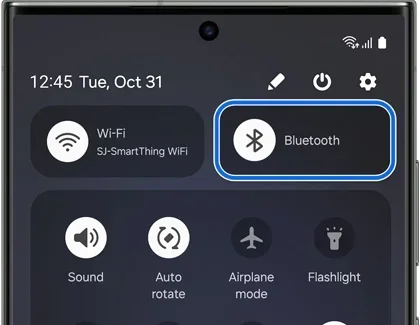
- Swipe down from the top of your screen. This opens the Quick Settings panel.
- Look for the Bluetooth icon. It looks like a small B made of arrows.
- Tap the Bluetooth icon once. It will light up to show it is turned on.
- Wait a moment. Your phone will start searching for nearby Bluetooth devices.
That is it! Your Bluetooth is now active. You should see a list of available devices appear on your screen. If you do not see the Bluetooth icon in your Quick Settings, you may need to edit your panel. Just tap the pencil icon at the bottom of the Quick Settings drawer and add Bluetooth to your quick tiles.
Quick Tip: If Bluetooth is already on but not connecting, try turning it off and back on again with a single tap. This simple reset often fixes minor glitches right away.
Method 2: Use the Settings App
The Settings app method gives you more control over your Bluetooth settings. Here is how to do it:
- Open the Settings app on your Samsung Galaxy phone. You can find it in your app drawer or by swiping down and tapping the gear icon.
- Scroll down and tap on Connections.
- Tap on Bluetooth.
- Toggle the switch at the top to turn Bluetooth on.
Once Bluetooth is on, you will see a list of previously paired devices and any new devices nearby. This method also lets you access more detailed settings like renaming your phone’s Bluetooth name, managing paired devices, and adjusting visibility settings.
Using the Settings app is especially helpful when you want to forget a device, update connection preferences, or troubleshoot a connection problem. It gives you a complete picture of all your Bluetooth activity on your Samsung device.
How to Pair a Bluetooth Device with Your Samsung Galaxy
Turning on Bluetooth is only the first step. The next step is pairing your device. Pairing means connecting your Samsung phone to a Bluetooth accessory like headphones, a speaker, or a car system. Here is how to do it the right way.
Step-by-Step Pairing Guide
- Turn on your Bluetooth accessory. Make sure your headphones, speaker, or other device is powered on and ready.
- Put your accessory in pairing mode. Most devices have a flashing light or a voice prompt when they are ready to pair. Check the manual if you are not sure how to do this.
- Go to your Samsung Galaxy Bluetooth settings. You can use either the Quick Settings panel or the Settings app method described above.
- Tap on the device name when it appears in the list of available devices.
- Wait for the connection. You should see a confirmation message and hear a sound from your accessory.
That is all there is to it! Your Samsung Galaxy phone is now connected to your Bluetooth device. The connection should stay active as long as both devices are within range and Bluetooth is turned on.
Tips for Successful Pairing
- Keep your devices close together. Bluetooth works best within about 30 feet. The closer you are, the stronger the signal.
- Make sure the accessory is charged. A low battery can sometimes cause pairing problems.
- Turn off other Bluetooth devices nearby. Too many active Bluetooth signals can cause confusion and slow down the pairing process.
- Restart both devices if pairing fails. A simple restart clears temporary glitches on both your Samsung phone and the accessory.
Managing Your Bluetooth Devices on Samsung Galaxy
Once you have connected your Bluetooth devices, you will want to manage them properly. Samsung Galaxy phones give you several useful tools to keep your Bluetooth connections organized and running smoothly.
Viewing Paired Devices
To see all the devices your Samsung phone is paired with, go to Settings > Connections > Bluetooth. You will see a list of all previously connected devices. Devices that are currently connected will show a status below their name. You can tap on any device to see more details or to disconnect it.
Forgetting a Device
Sometimes you need to remove a device from your Bluetooth list. Maybe you are selling your old headphones or a device is giving you trouble. Here is how to forget a paired device:
- Go to Settings > Connections > Bluetooth.
- Find the device you want to remove.
- Tap the gear icon next to the device name.
- Tap Unpair or Forget.
After you forget a device, you will need to pair it again from scratch if you want to connect it later. This is a great fix when a device keeps giving you connection problems.
Renaming Your Bluetooth Device Name
Your Samsung phone shows up with a default Bluetooth name when other devices search for it. You can change this name to something more personal or recognizable. Here is how:
- Go to Settings > Connections > Bluetooth.
- Tap the gear icon in the top right corner.
- Tap on your phone’s name under the Bluetooth settings.
- Enter a new name and tap Save.
Now when other people search for Bluetooth devices near you, they will see your custom name instead of the default one. This is a small feature that makes a big difference, especially in crowded places like offices or cafes.
Bluetooth Troubleshooting for Samsung Galaxy Phones
Even though Samsung Galaxy phones have excellent Bluetooth technology, sometimes things do not work as expected. Bluetooth connection issues can be frustrating, but most of them are easy to fix. Let us look at the most common problems and how to solve them.
Bluetooth Is Not Turning On
If you try to turn on Bluetooth and nothing happens, do not worry. Try these steps:
- Restart your phone. A simple restart fixes most software glitches. Hold down the power button and tap Restart.
- Check if Airplane Mode is on. Airplane Mode disables all wireless connections including Bluetooth. Swipe down from the top and make sure the airplane icon is not highlighted.
- Update your phone software. Go to Settings > Software Update > Download and Install. Samsung regularly releases updates that fix Bluetooth bugs.
Bluetooth Is On but Not Connecting
This is one of the most common Bluetooth problems. Your Bluetooth shows as on, but your device will not connect. Here is what to do:
- Turn Bluetooth off and back on. Use the Quick Settings panel to toggle it off, wait five seconds, and turn it back on.
- Restart the Bluetooth accessory. Turn off your headphones or speaker and turn them back on.
- Move closer to the device. Distance and walls can weaken the Bluetooth signal.
- Forget the device and pair it again. Go to Settings > Connections > Bluetooth, tap the gear icon next to the device, and select Unpair. Then pair it fresh.
Bluetooth Is Working Slowly or Cutting Out
If your Bluetooth connection keeps dropping or sounds choppy, try these fixes:
- Move away from Wi-Fi routers. Bluetooth and Wi-Fi use similar frequencies and can interfere with each other.
- Reduce the number of connected devices. Too many active Bluetooth connections can slow things down.
- Clear the Bluetooth cache. Go to Settings > Apps > Bluetooth > Storage > Clear Cache. This removes temporary data that may be causing problems.
Bluetooth Is Draining Your Battery
Some Samsung Galaxy users worry that Bluetooth uses too much battery. The truth is, modern Bluetooth uses very little power when connected to a device. However, if your phone is constantly searching for devices, it can drain your battery faster. Here is how to save battery:
- Turn off Bluetooth when you are not using it. Use the Quick Settings panel to toggle it off.
- Turn off Bluetooth scanning. Go to Settings > Connections > Bluetooth > Menu (three dots) > Advanced and turn off Bluetooth scanning. This stops your phone from searching for devices in the background.
Bluetooth Tips and Tricks for Samsung Galaxy Users
Now that you know how to turn on Bluetooth and fix common issues, let us share some pro tips that will make your Bluetooth experience even better on your Samsung Galaxy phone.
Use Bluetooth to Share Files
Did you know you can share files between two Samsung phones using Bluetooth? You can send photos, videos, and documents without using the internet. Just turn on Bluetooth on both phones, pair them, and use the Nearby Share feature. It is a great way to share files quickly without using mobile data.
Connect to Your Car’s Bluetooth System
Most modern cars have Bluetooth built in. You can connect your Samsung Galaxy phone to your car’s audio system for hands-free calling and music streaming. Go to Settings > Connections > Bluetooth, make sure your car is in pairing mode, and tap on your car’s name when it appears. Your phone will remember the connection and connect automatically the next time you get in the car.
Use Bluetooth with Samsung Galaxy Buds and Watches
If you use Samsung Galaxy Buds or a Galaxy Watch, Bluetooth is what keeps them connected to your phone. The setup process is automatic when you first open the charging case or strap the watch on your wrist. If the connection ever drops, simply turn Bluetooth off and back on to re-establish the link.
Keep Your Bluetooth Devices Updated
Some Bluetooth accessories receive firmware updates through their companion apps. Check the app for your headphones or speaker regularly. Updates can improve connection stability, sound quality, and battery life. Samsung also releases updates for your phone that improve how it handles Bluetooth connections.
Common Bluetooth Mistakes to Avoid
Even experienced Samsung Galaxy users sometimes make mistakes with Bluetooth. Here are some common errors and how to avoid them.
- Leaving Bluetooth on all the time. While it does not drain much battery, turning it off when you do not need it is still a good habit. It also keeps your phone from connecting to unknown devices automatically.
- Not putting accessories in pairing mode. Many people try to pair a device without putting it in pairing mode first. Always check that the accessory is ready to be discovered.
- Ignoring software updates. Samsung regularly fixes Bluetooth bugs in software updates. Keeping your phone updated prevents many connection problems.
- Connecting to unknown devices. Never connect to a Bluetooth device you do not recognize. This can be a security risk and may drain your battery.
- Not clearing the cache when problems persist. A simple cache clear can fix many stubborn Bluetooth issues. Do not skip this step when troubleshooting.
Frequently Asked Questions
Why is Bluetooth not turning on on my Samsung Galaxy phone?
There are a few reasons why Bluetooth might not turn on. First, check if Airplane Mode is enabled. Airplane Mode disables all wireless connections. Second, try restarting your phone. A simple reboot often fixes software glitches. If the problem continues, check for a software update or clear the Bluetooth cache through Settings > Apps > Bluetooth > Storage > Clear Cache.
How do I find Bluetooth devices near my Samsung Galaxy phone?
Make sure Bluetooth is turned on, and your accessory is in pairing mode. Then go to Settings > Connections > Bluetooth. Your phone will automatically scan for nearby devices and show them in the list. If no devices appear, try turning Bluetooth off and back on, or restart both your phone and the accessory.
Can I connect multiple Bluetooth devices at once on my Samsung Galaxy phone?
Yes, you can connect multiple Bluetooth devices at the same time. Your Samsung Galaxy phone supports multiple Bluetooth connections. However, keep in mind that having too many active connections can slow down performance and drain your battery faster. Disconnect devices you are not using to keep things running smoothly.
Why does my Bluetooth keep disconnecting on my Samsung Galaxy phone?
Bluetooth disconnections can happen for several reasons. Distance is the most common cause. Stay within 30 feet of the connected device for the best signal. Interference from Wi-Fi routers or other electronics can also cause disconnections. Try moving to a different location or turning off other wireless devices nearby. If the problem persists, forget the device and pair it again.
Does leaving Bluetooth on drain my Samsung Galaxy phone battery?
Modern Bluetooth technology uses very little battery when connected to a device. However, if your phone is constantly scanning for devices in the background, it can use more power. To save battery, turn off Bluetooth when you are not using it, and disable Bluetooth scanning in Settings > Connections > Bluetooth > Advanced settings.
How do I update the Bluetooth drivers on my Samsung Galaxy phone?
Samsung Galaxy phones do not have separate Bluetooth drivers like computers. Instead, Bluetooth is part of the phone’s software. To update your Bluetooth functionality, check for a system software update by going to Settings > Software Update > Download and Install. This ensures your phone has the latest Bluetooth fixes and improvements from Samsung.
Conclusion
Turning on Bluetooth on your Samsung Galaxy phone is simple, fast, and something you will do every day. Whether you use the Quick Settings panel for speed or the Settings app for more control, you now know every method to get Bluetooth working on your device. You also know how to pair new devices, manage your connections, and troubleshoot common problems.
Remember, Bluetooth is one of the most valuable features on your Samsung Galaxy phone. It connects you to your favorite headphones, speakers, smartwatches, and car systems without any wires. With the tips and tricks in this guide, you can get the most out of your Bluetooth experience.
Keep your software updated, manage your paired devices regularly, and do not be afraid to troubleshoot when something goes wrong. Most Bluetooth issues have simple fixes. Now that you know how to turn on Bluetooth on your Samsung Galaxy phone and keep it running smoothly, you are ready to connect and enjoy the wireless experience. Go ahead, turn on that Bluetooth, and start streaming your favorite music or taking calls hands-free. Your Samsung Galaxy phone is ready to go.