How Do I Find My Wi Fi Password On My Hp Laptop Fast
Finding your Wi-Fi password on an HP laptop is quick and simple once you know where to look. You can check it through your network settings, use the Command Prompt, or view it in your router. This guide covers every method so you can reconnect your devices in minutes. Whether you use Windows 10 or Windows 11, these steps work every time.
Ever stood in front of a friend’s house, a hotel lobby, or a new office, and needed to type in your Wi-Fi password on another device? It happens to all of us. And when it happens on your HP laptop, you might wonder where that password even went.
The good news is that your HP laptop stores every wireless network password you have ever connected to. You just need to know how to dig it out. Whether you are using Windows 10 or Windows 11, there are several easy ways to find your saved wireless network password. In this guide, I will walk you through every method step by step.
You will learn how to check your network settings, use the Command Prompt, access your router, and even share your password with others. By the end, you will never lose track of your Wi-Fi password again. Let us get started.
Key Takeaways
- Check Network Settings: Your saved Wi-Fi password is hidden in the Wireless Properties window under the Security tab.
- Use Command Prompt: A simple netsh command reveals your wireless network password in seconds.
- View Router Labels: Your router’s default password is printed on a sticker or in the manual.
- Access Router Admin Panel: Log into your router settings to find or change your network security key.
- Share Password Easily: Windows lets you share your Wi-Fi password with nearby devices using a QR code or plain text.
- Know Your Windows Version: Steps vary slightly between Windows 10 and Windows 11, but both are straightforward.
- Reset If Needed: If all else fails, you can reset your router to restore the default wireless password.
📑 Table of Contents
- Why You Might Need to Find Your Wi-Fi Password on Your HP Laptop
- Method 1: Find Your Wi-Fi Password Through Windows Settings
- Method 2: Use the Command Prompt to Find Your Password
- Method 3: Check Your Router for the Default Password
- Method 4: Access Your Router Admin Panel
- Method 5: Share Your Wi-Fi Password with Other Devices
- Common Mistakes to Avoid When Finding Your Wi-Fi Password
- How to Change Your Wi-Fi Password on Your HP Laptop
- Tips to Remember Your Wi-Fi Password in the Future
- Frequently Asked Questions
- Conclusion
Why You Might Need to Find Your Wi-Fi Password on Your HP Laptop
There are many reasons you might need to pull up your wireless password from your HP laptop. Sometimes you buy a new phone or tablet and need to type the password in. Other times you set up a smart TV, a gaming console, or a smart home device. Each of these devices needs your network security key to connect to the internet.
Maybe you moved to a new place and need to give your Wi-Fi password to a guest. Or perhaps you forgot it after a long time. Whatever the reason, your HP laptop keeps a record of every network you have ever joined. The trick is knowing how to read that record.
Common Situations Where You Need Your Password
- Setting up a new device: Smart TVs, printers, and streaming sticks all need your wireless network password.
- Guest access: Friends or family visiting need your Wi-Fi password to get online.
- Reconnecting after a reset: If you reset your network adapter or reinstalled Windows, you will need the password again.
- Troubleshooting connection issues: Sometimes a wrong wireless security key causes slow or dropped connections.
- Moving to a new router: When you get a new router, you need to confirm the router password before switching devices over.
Method 1: Find Your Wi-Fi Password Through Windows Settings
This is the easiest and most common way to find your saved Wi-Fi password on an HP laptop. It works on both Windows 10 and Windows 11. You do not need any extra software or technical skills. Just follow these simple steps.
For Windows 11 Users
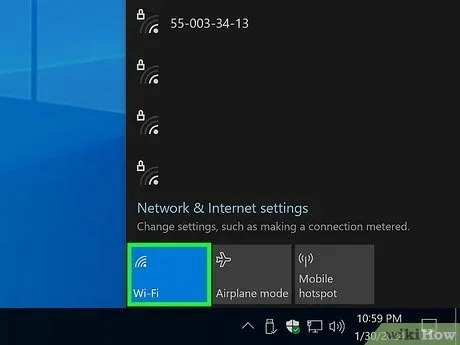
First, click the Wi-Fi icon in the bottom-right corner of your taskbar. Then click on the Network & Internet settings gear icon. Next, find your connected network and click on it. Look for the Network & Security section and click on Wireless Properties. A new window will pop up. Go to the Security tab. There you will see a checkbox that says “Show characters.” Click it, and your wireless network password will appear on screen.
For Windows 10 Users
Right-click the Wi-Fi icon in your taskbar. Select Open Network & Internet Settings. Scroll down and click on Network and Sharing Center. Next to your active connection, click on the blue Wi-Fi link. A new window opens. Click the Wireless Properties button. Switch to the Security tab. Check the box that says “Show characters.” Your Wi-Fi password is now visible.
Both methods give you the same result. Your HP laptop keeps all your saved network passwords safe and easy to access. You just need to know which buttons to click.
Method 2: Use the Command Prompt to Find Your Password
If you like a more technical approach, the Command Prompt is a powerful tool. It lets you retrieve your wireless network password in just a few seconds. Many people find this method faster once they get the hang of it.
Step-by-Step Command Prompt Guide
- Open the Start menu and type “cmd” in the search bar.
- Right-click Command Prompt and select “Run as administrator.”
- Type the following command and press Enter: netsh wlan show profiles
- You will see a list of all wireless networks your HP laptop has ever connected to.
- Find the network name you want the password for.
- Type this command: netsh wlan show profile name=”NetworkName” key=clear (replace NetworkName with your actual network name).
- Look for the line that says Key Content. The password is right there.
This method is especially useful when you have multiple saved networks and want to check several Wi-Fi passwords at once. It also works even if you are not currently connected to the network.
Quick Tip
Make sure you run the Command Prompt as an administrator. Without admin rights, you might not see the Key Content field. If the password field shows a long string of characters, that is your network security key. Copy it and save it somewhere safe.
Method 3: Check Your Router for the Default Password
Every router comes with a default wireless password printed on a sticker or included in the manual. If you never changed your Wi-Fi password, this is the one you need. The sticker is usually on the bottom or back of your router.
Look for labels like “Wireless Password,” “Wi-Fi Key,” “Security Key,” or “Network Key.” These all refer to the same thing — your wireless network password. If you cannot find the sticker, check the router’s original box or the user manual.
When to Use the Router Label Method
- You just set up a new router and never changed the password.
- You moved into a new place and the previous tenant did not update the router password.
- You are trying to connect a device for the first time and need the original network security key.
Keep in mind that if someone changed the wireless security key after setup, the label will not help. In that case, you will need to log into the router admin panel or use one of the other methods described in this guide.
Method 4: Access Your Router Admin Panel
If you changed your Wi-Fi password at some point and forgot it, logging into your router is the best way to find or reset it. Every router has a built-in admin panel that lets you view and change all settings, including your wireless network password.
How to Log Into Your Router
- Open a web browser on your HP laptop.
- Type your router’s IP address in the address bar. Common addresses are 192.168.0.1 or 192.168.1.1.
- Press Enter. A login page will appear.
- Enter your router username and password. These are often “admin” and “admin” or “admin” and “password.” Check the router label if you are unsure.
- Once logged in, look for a section called Wireless Settings or Wi-Fi Settings.
- Your wireless network password will be displayed there. You can also change it from this screen.
Each router brand has a slightly different interface. Brands like Netgear, TP-Link, and ASUS all have their own layouts. But the general steps remain the same. Once you find the wireless security key in the admin panel, write it down and store it somewhere safe.
Method 5: Share Your Wi-Fi Password with Other Devices
Did you know your HP laptop can share your Wi-Fi password directly with nearby devices? Both Windows 10 and Windows 11 have a built-in sharing feature. This is incredibly handy when guests need to connect or when you are setting up a new device.
How to Share Your Password on Windows 11
Go to Settings > Network & Internet > Wi-Fi. Click on Manage known networks. Select your network and click Properties. Scroll down until you see the Share network option. Click it, and Windows will generate a QR code or display the password as plain text. Anyone with a smartphone can scan the QR code to connect instantly.
How to Share Your Password on Windows 10
On Windows 10, go to Settings > Network & Internet > Wi-Fi > Manage known networks. Select your network and click Properties. Under the Security section, you will see the option to copy the password to your clipboard. Paste it wherever you need it.
This feature makes it so much easier to share your wireless network password without having to type it out letter by letter. It also reduces the risk of typos that can cause connection failures.
Common Mistakes to Avoid When Finding Your Wi-Fi Password
Even though finding your Wi-Fi password is straightforward, some common mistakes can cause frustration. Here are a few things to watch out for.
Mistake 1: Confusing the Wi-Fi Password with the Router Admin Password
Your wireless network password is different from your router admin password. The Wi-Fi password lets devices connect to your network. The router admin password lets you log into the router settings page. Many people mix these up and get stuck trying to use the wrong password.
Mistake 2: Not Running Command Prompt as Administrator
If you use the Command Prompt method and do not run it as an administrator, you may not see the Key Content field. Always right-click and select “Run as administrator” before typing your commands.
Mistake 3: Looking at the Wrong Network Profile
If you have connected to multiple networks, make sure you are checking the correct one. Your HP laptop saves every network you join. Double-check the network name before copying the password.
Mistake 4: Forgetting to Check the “Show Characters” Box
This one is simple but easy to miss. The password field is hidden by default. You must check the “Show characters” box to reveal it. Without this step, you will just see dots or asterisks.
Expert Insight
Tech experts recommend saving your wireless network password in a password manager after you find it. Apps like Bitwarden, LastPass, or even the built-in Windows Credential Manager can store your passwords securely. This way, you never have to dig them out again.
How to Change Your Wi-Fi Password on Your HP Laptop
Once you find your Wi-Fi password, you might want to change it for security reasons. Changing your wireless network password regularly is a great practice. It keeps your network safe from unauthorized access.
To change your password, log into your router admin panel using the steps in Method 4 above. Navigate to the Wireless Settings section. Look for the Network Security Key or Password field. Delete the old password and type in a new one. Save your changes, and all connected devices will need the new password to reconnect.
Choose a strong password that is at least 12 characters long. Use a mix of uppercase letters, lowercase letters, numbers, and symbols. Avoid common words or personal information like birthdays or names. A strong network security key is your first line of defense against unwanted visitors on your network.
Tips to Remember Your Wi-Fi Password in the Future
Once you have found your Wi-Fi password, take a moment to save it somewhere safe. Here are a few tips to help you remember it next time.
- Write it down: Keep a physical note with your router password in a safe place at home.
- Use a password manager: Apps like Google Password Manager, Apple Keychain, or Windows Credential Manager store passwords securely.
- Label your router: Put a small sticker on your router with the network name and password. This helps guests connect easily.
- Share with trusted devices: Save the password on your phone, tablet, and other devices so you always have access.
- Take a screenshot: After revealing your wireless security key, take a screenshot and save it in a secure folder on your HP laptop.
These small habits save a lot of time and frustration down the road. You will never have to scramble to find your Wi-Fi password again.
Frequently Asked Questions
Can I find my Wi-Fi password on my HP laptop if I am not connected to the network?
Yes, you can. Your HP laptop saves every network profile you have ever connected to, even if you are not currently connected. Use the Command Prompt method with netsh wlan show profile to see all saved networks and their passwords. This works for both Windows 10 and Windows 11.
What is the difference between a Wi-Fi password and a network security key?
There is no difference. Network security key is just a technical term for your Wi-Fi password. It is the password that protects your wireless connection and keeps unauthorized users out of your network. You may see this term in your router settings or Windows network properties.
Is it safe to save my Wi-Fi password on my HP laptop?
Yes, it is safe. Windows encrypts saved wireless network passwords in your system. Only users with administrator access can view them. However, if you share your HP laptop with others, be mindful of who has admin rights. For extra security, consider using a dedicated password manager instead.
What should I do if none of these methods work?
If you cannot find your Wi-Fi password using any of the methods above, you can reset your router. Locate the small reset button on the back of your router. Press and hold it for about 10 seconds with a paperclip. This restores the router password and wireless password to factory defaults. Check the router label for the default credentials. Then reconnect all your devices using the original password.
Can I find my Wi-Fi password on my HP laptop using the Settings app?
Absolutely. Both Windows 10 and Windows 11 Settings apps let you view saved Wi-Fi passwords. Go to Settings > Network & Internet > Wi-Fi > Manage known networks. Select your network and look for the Security or Properties section. You may need to click through to Wireless Properties to see the network security key.
How do I find my Wi-Fi password if I changed it and forgot?
If you changed your wireless password and forgot it, logging into your router admin panel is your best bet. Use the router’s IP address (usually 192.168.0.1 or 192.168.1.1) to access the admin page. Navigate to Wireless Settings to view or reset the Wi-Fi password. If you also forgot the router admin password, you will need to perform a factory reset.
Conclusion
Finding your Wi-Fi password on your HP laptop is easier than you might think. Whether you use the Windows Settings method, the Command Prompt, the router label, or the admin panel, you have multiple ways to recover your wireless network password quickly. Each method works on both Windows 10 and Windows 11, so you can pick whichever feels most comfortable.
Remember to save your password somewhere safe after you find it. A password manager or a simple note can save you a lot of trouble in the future. And if you ever need to share your Wi-Fi password with others, the built-in sharing feature on your HP laptop makes it effortless.
Now that you know all the methods, you can reconnect any device, help a friend, or set up a new gadget without stress. Your wireless connection is always just a few clicks away. Keep this guide bookmarked for the next time you need your Wi-Fi password fast.