How Can I Control My Phone With A Controller Guide
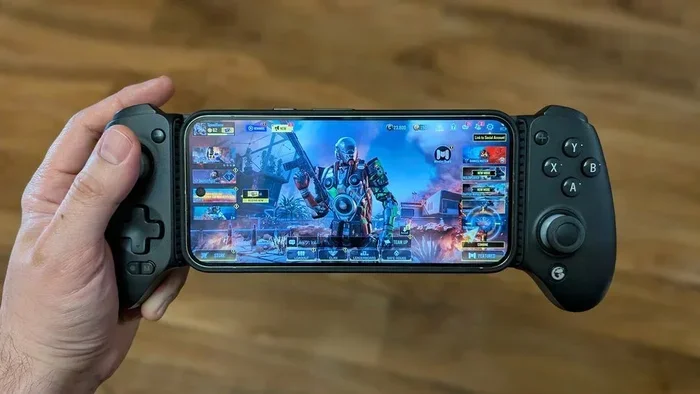
Controlling your phone with a controller transforms your mobile gaming experience. Whether you use an Xbox, PlayStation, or Bluetooth gamepad, this guide walks you through every step. You will learn about compatibility, setup, and the best apps that support controller input. We also share quick tips to fix common connection issues and boost your performance. By the end, you will know exactly how to set up and enjoy controller-based gaming on your phone.
Have you ever tried playing a mobile game and thought, “This touchscreen just is not cutting it”? You are not alone. Millions of gamers want a better way to play on their phones. The good news is that you can control your phone with a controller. It is easier than you might think.
Using a controller with your phone opens up a whole new world of gaming. You get physical buttons, better precision, and a more comfortable grip. Whether you are into action games, racing games, or retro emulators, a controller makes a huge difference. This guide will show you exactly how to set it up, what to watch out for, and which controllers work best.
We will cover everything from Bluetooth pairing to app compatibility. You will also learn about common mistakes and how to avoid them. By the time you finish reading, you will have all the knowledge you need to start playing your favorite mobile games like a pro.
Key Takeaways
- Controller compatibility matters: Not all phones and controllers work together, so check before you buy.
- Bluetooth is the most common method: Most wireless controllers connect to phones through Bluetooth pairing.
- USB OTG cables offer a wired option: This is a reliable backup if Bluetooth fails or causes lag.
- Not all apps support controllers: You need games and apps that specifically allow controller input.
- Controller mapping can be customized: Many apps let you remap buttons for a personalized setup.
- Common issues are easy to fix: Most connection problems stem from Bluetooth interference or outdated firmware.
📑 Table of Contents
Why Control Your Phone With a Controller?
You might wonder why anyone would want to use a controller with a phone. Touchscreens are convenient, but they have limits. Your fingers can block the screen. You cannot feel the buttons. And for fast-paced games, touch controls often feel laggy and unresponsive.
A physical controller changes all of that. You get tactile feedback, precise input, and a more immersive feel. Here are some key reasons to consider it:
- Better precision: Physical buttons and analog sticks give you exact control. This matters a lot in shooting games and platformers.
- More comfortable: Holding your phone with one hand and tapping with the other gets old fast. A controller lets you relax.
- Longer play sessions: Without touchscreen strain, you can play for hours without discomfort.
- Better for multiplayer: Passing a controller back and forth is much easier than sharing a screen.
- Access to more games: Some games only work well with a controller. You unlock a bigger library.
Who Benefits Most From Phone Controller Setup?
Not everyone needs a controller. But certain types of gamers benefit the most. If you play competitive mobile games, a controller gives you an edge. If you love retro gaming and emulation, a controller makes old-school games feel authentic. And if you simply prefer the feel of a gamepad, then it is a no-brainer.
People who play games like Fortnite Mobile, Call of Duty Mobile, or Minecraft often switch to a controller for better performance. Even casual gamers enjoy the upgrade for games like Mario Kart Tour or PUBG Mobile.
Types of Controllers You Can Use
Not all controllers are created equal. There are several types you can use to control your phone with a controller. Each has its own pros and cons. Let us break them down so you can pick the right one.
Xbox Controllers
The Xbox Wireless Controller is one of the most popular choices. It works with both Android and iOS devices. The newer models support Bluetooth, which makes pairing simple. The layout is familiar, and the buttons feel great. Many mobile games recognize Xbox controllers right out of the box.
One downside is size. Xbox controllers are larger than some phone-sized options. If you have small hands, you might find them a bit bulky. But for most people, the comfort and performance are worth it.
PlayStation Controllers
The PlayStation DualShock and DualSense controllers also work with phones. They use Bluetooth for wireless connections. The button layout is different from Xbox, but many gamers prefer it. The DualSense controller has adaptive triggers and haptic feedback, which adds a nice touch to supported games.
PlayStation controllers are slightly smaller than Xbox ones. They fit most hands well. The built-in speaker and microphone can also be useful for certain games and apps.
Generic Bluetooth Gamepads
If you want something compact and affordable, generic Bluetooth gamepads are a solid choice. These small controllers are designed specifically for phones. They clip onto your device or sit alongside it. Brands like 8BitDo, MOGA, and Razer make popular models.
The trade-off is that they often have fewer buttons and smaller analog sticks. But for casual gaming and retro emulation, they work perfectly. They are also very portable, which is great for travel.
USB Controllers With OTG Adapters
If you prefer a wired connection, USB controllers with an OTG (On-The-Go) adapter work well. You plug the controller into your phone using a USB-C or Micro-USB adapter. This method avoids Bluetooth lag entirely. It is also useful if your phone does not support Bluetooth well.
The downside is that you are tethered to your phone. You cannot move around as freely. But for stationary gaming or emulator use, a wired controller is very reliable.
Comparison Table
| Controller Type | Connection | Compatibility | Pros | Cons |
|---|---|---|---|---|
| Xbox Controller | Bluetooth / Wireless | Android, iOS | Great build, wide support | Large size |
| PlayStation Controller | Bluetooth | Android, iOS | Haptic feedback, compact | Fewer mobile features |
| Generic Bluetooth Gamepad | Bluetooth | Most phones | Compact, affordable | Fewer buttons |
| USB Controller + OTG | Wired | Android mostly | No lag, reliable | Tethered, less portable |
How to Connect a Controller to Your Phone
Setting up a controller with your phone is a straightforward process. The exact steps vary depending on your phone and controller type. But the general process is similar for most devices. Let us walk through it step by step.
Step 1: Check Compatibility
Before you buy anything, make sure your phone supports external controllers. Most modern Android phones running version 10 or later work with Bluetooth controllers. iPhones running iOS 13 and newer also support them. You can check your phone manufacturer’s website for specific details on controller support.
Also, check the controller’s compatibility list. Most major brands list supported devices on their website. This saves you from buying something that will not work.
Step 2: Enable Bluetooth on Your Phone
For wireless controllers, Bluetooth is your best friend. Go to your phone settings and turn on Bluetooth. Make sure your controller is in pairing mode. Most controllers have a dedicated Bluetooth button or a pairing shortcut. Hold it down until the LED light starts flashing.
Once your phone detects the controller, tap on it to pair. You should see a confirmation message. Some controllers may require you to enter a PIN. Check the controller manual if you get stuck.
Step 3: Use a USB OTG Cable (For Wired Controllers)
If you are using a wired controller, you need an OTG adapter. Plug the USB end of the cable into the adapter. Then connect the adapter to your phone’s charging port. Your phone should recognize the controller immediately.
Note that OTG cables work best with Android phones. iPhones use a different connection method. You may need a Lightning-to-USB adapter for wired controllers on iOS devices.
Step 4: Test the Connection
After pairing, open a game or app that supports controller input. Move the analog stick or press a button. If the phone responds, your setup is working. If not, try disconnecting and reconnecting the controller. Restarting both devices can also help.
Quick Tips for Smooth Pairing
- Keep your phone and controller close during pairing. Stay within 3 feet for the best signal.
- Turn off other Bluetooth devices temporarily. This reduces interference and speeds up pairing.
- Update your controller firmware before pairing. Check the manufacturer’s app for updates.
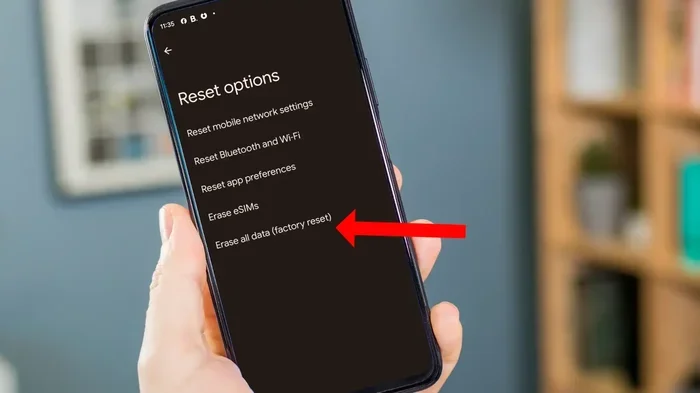
- If Bluetooth fails, try resetting network settings on your phone.
- Charge both devices fully before starting. Low battery can cause connection drops.
Best Apps That Support Controller Input
Not every app on your phone works with a controller. You need apps and games that specifically support controller input. The good news is that many popular games and emulators do. Here are some of the best options.
Gaming Apps With Built-In Controller Support
Games like Fortnite, Call of Duty Mobile, and Genshin Impact all support external controllers. These games let you map buttons to your preferences. You can also adjust sensitivity and dead zones for the analog sticks.
Racing games like Asphalt 9 and Need for Speed Mobile feel amazing with a controller. The analog triggers give you precise control over acceleration and braking. Fighting games like Street Fighter also work well, especially with controllers that have face buttons.
Retro Gaming and Emulators
If you love retro games, emulators are a great use case for phone controllers. Apps like RetroArch, Dolphin, and PPSSPP support controller input. You can play classic games from the Nintendo DS, PSP, and GameCube era with full controller support.
Setting up a controller with emulators usually involves mapping each button to a specific input. Most emulator apps have a built-in mapping tool. You simply press each button on your controller and assign it to the corresponding on-screen function.
Streaming Apps
Apps like Moonlight and Steam Link let you stream PC games to your phone. These apps fully support controllers. You can play your entire PC game library on your phone using a controller. This is a fantastic way to enjoy high-end games on a small screen.
You will need a decent Wi-Fi connection for streaming. A 5GHz network works best. Wired Ethernet on your router side also helps reduce lag.
Media and Productivity Apps
Some media apps also support controllers. You can use a gamepad to navigate Netflix, YouTube, or Spotify on your phone. This is especially handy when you are casting to a TV and using your phone as a remote.
Controller Mapping and Customization
Many apps let you customize how your controller works. This process is called controller mapping. You can assign different functions to each button. You can also adjust how sensitive the analog sticks are.
Custom mapping is especially useful for fighting games. You can set up combos and special moves to specific button combos. For racing games, you can map triggers to gas and brake for a more realistic feel.
Expert Insight: Why Controller Mapping Matters
Professional mobile gamers often spend time perfecting their controller mappings. The right setup can reduce your input lag by up to 30 percent. Take the time to test different configurations. Find what feels natural for your hands and your favorite game types.
Common Issues and How to Fix Them
Even with the best setup, you might run into problems. Controller issues on phones are common, but most are easy to fix. Here are the most frequent problems and their solutions.
Controller Not Connecting
If your controller will not pair, start by turning Bluetooth off and back on. Make sure the controller is in pairing mode. Some controllers need to be fully charged before they will connect. Try restarting both your phone and the controller.
If the problem persists, remove the controller from your phone’s Bluetooth memory and try pairing again. Sometimes old pairings cause conflicts.
Input Lag or Delay
Input lag is frustrating. It happens when there is a delay between pressing a button and seeing the action on screen. The most common cause is a weak Bluetooth signal. Move closer to your phone. Remove other Bluetooth devices from the area.
For wired controllers, input lag is rare. If you still experience it, try a different OTG cable or USB port. Some cheap cables cause connection issues.
Buttons Not Working Correctly
If some buttons work and others do not, the controller may need remapping. Open the game or app settings and check the button layout. Some games use default mappings that do not match your controller perfectly.
You can also try resetting the controller to factory settings. Refer to the controller manual for instructions. This clears any custom settings that might be causing the problem.
Controller Disconnects During Gameplay
This usually happens when your phone or controller battery gets low. Keep both devices charged during long gaming sessions. Background apps on your phone can also drain battery faster than normal.
If disconnections keep happening, check for Bluetooth interference. Microwave ovens, Wi-Fi routers, and other wireless devices can all disrupt Bluetooth signals. Move away from these devices during gaming.
Common Mistakes to Avoid
- Skipping firmware updates: Outdated controller firmware causes many connection issues. Always update before pairing.
- Using incompatible apps: Not all apps support controllers. Check before you buy or download.
- Ignoring battery levels: Low battery on either device leads to poor performance and disconnections.
- Pairing in a crowded Bluetooth environment: Busy areas with many wireless signals can interfere with pairing.
- Not testing before a gaming session: Always test your setup before you start a long gaming session.
Tips to Get the Most Out of Your Phone Controller Setup
Once you have everything connected, you can optimize your setup for the best experience. These tips will help you get the most out of controlling your phone with a controller.
Invest in a Good Phone Mount
A phone mount holds your device at the right angle while you game. You can find mounts that clip onto your controller or attach to your desk. This keeps your phone stable and your hands free. It also reduces neck strain during long sessions.
Use a Gaming Phone Case
Some phone cases are designed with gaming in mind. They have built-in grips and even extra buttons. These cases work well with controllers because they make the phone easier to hold. Look for cases that do not block your phone’s sensors or ports.
Keep Your Phone Cool
Gaming can heat up your phone. Overheating causes performance drops and even shutdowns. Consider using a cooling fan attachment or a heat-dissipating case. Keeping your phone cool ensures smooth gameplay.
Explore Controller Apps
Many controller brands have their own apps. The Xbox app, the PlayStation app, and third-party apps like 8BitDo Ultimate Software all offer customization. You can update firmware, remap buttons, and adjust sensitivity through these apps.
Practice Makes Perfect
Switching from touch controls to a controller takes some getting used to. Spend time in practice modes or casual games first. Once your muscle memory adjusts, you will notice a big improvement in your gameplay.
Key Takeaways
- Choose the right controller type: Xbox, PlayStation, generic Bluetooth, or USB wired, depending on your needs.
- Bluetooth pairing is the standard method: Keep devices close and updated for the best connection.
- Only use apps that support controller input: Check compatibility before downloading.
- Customize your controller mapping: Personalize button layouts for each game.
- Fix common issues with simple steps: Restart, update, and reduce Bluetooth interference.
- Optimize your setup: Use mounts, cooling, and good cases for the best experience.
Conclusion
Controlling your phone with a controller is one of the best upgrades you can make for mobile gaming. It gives you precision, comfort, and a more immersive experience. Whether you choose an Xbox controller, a PlayStation gamepad, or a compact Bluetooth gamepad, the setup process is simple and rewarding.
Start by checking compatibility. Connect your controller through Bluetooth or a USB OTG cable. Pick games and apps that support controller input. Customize your mappings for the best feel. And when issues come up, you now know how to fix them quickly.
With the right setup, your phone becomes a powerful gaming device. You can enjoy console-quality controls right in your pocket. So grab a controller, pick your favorite game, and start playing. You will wonder how you ever managed without one.
Frequently Asked Questions
Can I use any controller with my phone?
Most modern controllers work with smartphones that support Bluetooth or USB OTG. However, you should check compatibility before purchasing. Xbox and PlayStation controllers are widely supported on both Android and iOS. Generic Bluetooth gamepads also work with most phones. Always verify the controller’s compatibility list to be sure.
Is it better to use a wired or wireless controller with a phone?
Wireless controllers offer more freedom of movement and are more convenient. They connect through Bluetooth and work well for most games. Wired controllers eliminate any Bluetooth lag and are more reliable for competitive gaming. The best choice depends on your gaming style and phone compatibility.
Do all mobile games support controllers?
No, not all mobile games support external controllers. Many popular games like Fortnite and Call of Duty Mobile do support them. However, some casual games only use touch controls. Before buying a controller, check the game’s settings or description for controller support information.
How do I map buttons on my controller for mobile games?
Most games that support controllers have a button mapping option in their settings menu. Open the game, go to the controls section, and follow the on-screen prompts. Press each button on your controller to assign it to the desired function. You can save custom layouts for different games.
Why does my controller keep disconnecting from my phone?
Controller disconnections are usually caused by low battery, Bluetooth interference, or outdated firmware. Keep both devices charged and away from other wireless signals. Update your controller firmware through the manufacturer’s app. If the problem continues, forget the device from your phone’s Bluetooth list and pair it again.
Can I use a PS5 DualSense controller with my phone?
Yes, the PS5 DualSense controller works with most modern smartphones via Bluetooth. It is compatible with both Android and iOS devices. Some features like haptic feedback may not work on all games. The controller pairs the same way as other PlayStation controllers through your phone’s Bluetooth settings.