Can My Pc Do Bluetooth A Complete Step By Step Guide
Can My Pc Do Bluetooth? This guide answers that question with a full step-by-step walkthrough. You will learn how to check if your PC has built-in Bluetooth, how to add it if it doesn’t, and how to pair any device in minutes. We cover troubleshooting tips, best Bluetooth gear for PCs, and expert advice for a smooth wireless experience.
Have you ever sat down at your computer and thought, “Can My Pc Do Bluetooth?” Maybe you want to connect a wireless headset, a Bluetooth speaker, or a Bluetooth mouse without dealing with cables. The good news is that most modern computers support Bluetooth right out of the box. But older PCs or budget builds might not have it built in. Either way, the fix is usually simple and affordable.
In this guide, we walk you through everything you need to know about Bluetooth on your PC. You will learn how to check if your computer already has wireless connectivity built in. We will show you how to add Bluetooth if it is missing. And we will cover pairing, troubleshooting, and the best Bluetooth devices for PC users. By the end, you will be a Bluetooth pro.
Key Takeaways
- Check Your PC First: Use Device Manager, Settings, or Taskbar icons to see if your PC is Bluetooth enabled.
- Adding Bluetooth Is Easy: A USB Bluetooth adapter is the fastest and cheapest way to get wireless connectivity on any desktop or laptop.
- Pairing Takes Seconds: Once Bluetooth is active, pairing a speaker, mouse, or headset is a simple process through Windows Settings.
- Troubleshooting Is Common: Driver updates, signal distance, and interference are the top culprits for Bluetooth problems.
- Choose the Right Gear: Not all Bluetooth devices work the same way. Pick the right Bluetooth version and type for your needs.
- Keep It Updated: Regular driver and software updates keep your Bluetooth connection fast and stable.
📑 Table of Contents
- What Is Bluetooth and Why Does It Matter on a PC?
- How to Check if Your PC Has Bluetooth
- How to Add Bluetooth to a PC That Does Not Have It
- How to Pair Bluetooth Devices with Your PC
- Bluetooth Troubleshooting: Common Issues and Fixes
- Best Bluetooth Devices for PC Users
- How to Keep Your Bluetooth Connection Running Smoothly
- Frequently Asked Questions
- Conclusion
What Is Bluetooth and Why Does It Matter on a PC?
Understanding Wireless Connectivity
Bluetooth is a short-range wireless technology that lets devices talk to each other without cables. It uses radio waves to send data over short distances, usually within 30 feet. The technology has been around for over two decades and is now built into almost every phone, laptop, and smart device.
When you think about PC Bluetooth, the possibilities are huge. You can connect wireless headphones for gaming or music. You can pair a Bluetooth keyboard and mouse for a clean desk setup. You can even share files between your phone and computer without a USB cable. Wireless connectivity makes your workspace cleaner and more flexible.
Why Bluetooth Matters for Everyday Computing
Here are some real reasons why Bluetooth enabled PCs make life easier:
- No More Cables: Say goodbye to tangled cords on your desk.
- Portability: Use a Bluetooth mouse or headset anywhere in your home.
- Quick Sharing: Send photos or documents from your phone to your PC instantly.
- Multi-Device Support: Connect several wireless peripherals at once.
- Clean Aesthetic: A cable-free desk looks better and feels more organized.
Not all PCs come with Bluetooth built in, though. That is why it is so important to know how to check and, if needed, how to add it. Let us walk through that now.
How to Check if Your PC Has Bluetooth
The first step is figuring out whether your computer already has PC Bluetooth support. You do not need to be a tech expert for this. Windows makes it pretty easy to find out.
Method 1: Check Device Manager
Device Manager is the fastest way to see if your PC has a Bluetooth adapter. Here is how to do it:
- Right-click the Start button on your taskbar.
- Click “Device Manager” from the menu.
- Look for a section called “Bluetooth.”
- If you see it with a name like “Intel Wireless Bluetooth” or “Realtek Bluetooth,” your PC is Bluetooth enabled.
If you do not see a Bluetooth section, that does not mean your PC cannot support it. It just means there is no Bluetooth hardware installed yet. Do not worry — we will fix that in the next section.
Method 2: Check Windows Settings
You can also check through your Windows Settings app:
- Press the Windows key + I to open Settings.
- Click on “Devices” or “Bluetooth & devices.”
- Look for a toggle switch for Bluetooth.
- If you see the option, your PC supports wireless connection via Bluetooth.
Method 3: Look for the Taskbar Icon
Sometimes the easiest check is right on your screen. Look at the bottom-right corner of your taskbar. If you see a Bluetooth icon (it looks like a “B” made of triangles), your PC has Bluetooth hardware. If you do not see it, your PC may not have Bluetooth support.
How to Add Bluetooth to a PC That Does Not Have It
If your PC does not have Bluetooth built in, you are not stuck. Adding wireless connectivity to any computer is simple and affordable. There are a few different ways to do it.
Option 1: Buy a USB Bluetooth Adapter
A Bluetooth adapter is a small USB stick that plugs into your computer and adds Bluetooth support instantly. This is the most popular and easiest method. Here is what to look for:
- Bluetooth Version: Look for Bluetooth 5.0 or higher for the best speed and range.
- Compatibility: Make sure it works with your version of Windows.
- Size: Mini adapters are small and stay plugged in without blocking other USB ports.
Popular brands like TP-Link, ASUS, and Avantree make reliable adapters. Most cost between $10 and $30. Once you plug it in, Windows usually installs the Bluetooth driver automatically. If not, you can download the driver from the manufacturer’s website.
Option 2: Use a Bluetooth PCIe Card (For Desktop PCs)
If you have a desktop tower, you can install a Bluetooth PCIe card inside the computer. This is a more permanent solution that offers strong performance. You just open your PC case, plug the card into an empty PCIe slot, and close it back up. The card comes with its own antenna for better signal strength.
Option 3: Use a Bluetooth Dongle with Extra Features
Some Bluetooth dongles do more than just add Bluetooth. They also include USB hubs or SD card readers. These are great if you need extra ports on your PC. They are a bit pricier than basic adapters but offer more value.
Quick Tip: Always check your Bluetooth version before buying. Bluetooth 5.0 offers twice the speed and four times the range of older versions. If you want the best wireless experience, go with 5.0 or higher.
How to Pair Bluetooth Devices with Your PC
Once your PC is Bluetooth enabled, pairing devices is straightforward. Whether it is a Bluetooth speaker, a wireless headset, or a Bluetooth keyboard, the process is similar across all devices.
Step-by-Step Pairing Process
- Turn on your Bluetooth device. Make sure it is in pairing mode. Most devices have a flashing light or a voice prompt when they are ready.
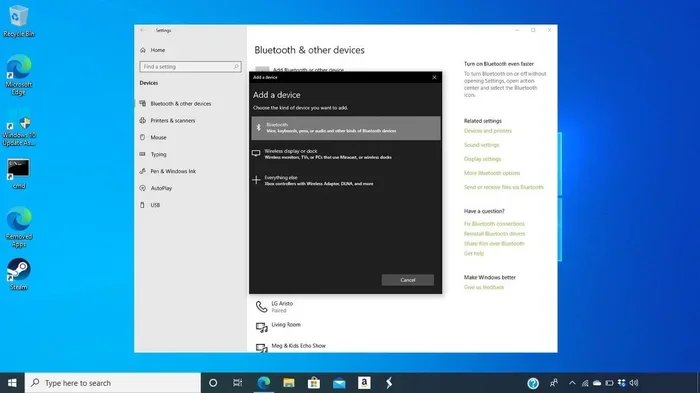
- Open Windows Bluetooth Settings. Press Windows key + I, then click “Bluetooth & devices.”
- Turn on Bluetooth. Toggle the Bluetooth switch to On if it is not already.
- Click “Add device.” This opens a list of available devices nearby.
- Select your device. Click on the name of the device you want to pair.
- Follow any on-screen prompts. Some devices require you to enter a PIN or confirm a connection.
- Wait for confirmation. Once paired, the device will show as “Connected.”
Pairing a Bluetooth Headset
Wireless headsets are one of the most popular Bluetooth peripheral devices for PC users. Whether you are gaming, working from home, or listening to music, a good headset makes a big difference. To pair one, put your headset into pairing mode, then follow the steps above. Most headsets connect within seconds.
Pairing a Bluetooth Mouse and Keyboard
A wireless mouse and wireless keyboard combo can transform your desk setup. No cables means more desk space and a cleaner look. Most modern wireless peripherals support Bluetooth 5.0, which means a stable connection with almost no lag. Just make sure both devices are in pairing mode and select them from the Windows device list.
Pairing a Bluetooth Speaker
Want to play music or game audio through a Bluetooth speaker? It is just as easy. Turn on the speaker, put it in pairing mode, and select it from your PC’s Bluetooth settings. You can also adjust the volume and audio output in Windows Sound Settings.
Bluetooth Troubleshooting: Common Issues and Fixes
Even when everything is set up correctly, Bluetooth troubleshooting sometimes becomes necessary. Bluetooth connections can be finicky at times. Here are the most common problems and how to fix them.
Device Not Showing Up in the List
If your Bluetooth device does not appear when you click “Add device,” try these steps:
- Make sure the device is in pairing mode. Check the manual for instructions.
- Move the device closer to your PC. Bluetooth range is typically about 30 feet.
- Restart both your PC and the Bluetooth device.
- Turn Bluetooth off and back on in Windows Settings.
Connection Keeps Dropping
A wireless connection that drops frequently is frustrating. Here is what to check:
- Interference: Other wireless devices, microwaves, and even USB 3.0 ports can cause interference. Move your Bluetooth adapter away from USB 3.0 ports if possible.
- Driver Issues: Outdated Bluetooth drivers can cause dropouts. Go to Device Manager, find your Bluetooth adapter, right-click, and select “Update driver.”
- Battery Level: Low battery on your Bluetooth device can weaken the signal. Charge it fully and try again.
- Distance: Stay within range of your adapter. Walls and furniture can weaken the signal.
Audio Quality Is Poor
If your sound through a Bluetooth headset or speaker is scratchy or delayed, try these fixes:
- Check your audio codec settings in Windows. Some codecs work better with certain devices.
- Reduce the distance between your PC and the Bluetooth device.
- Make sure your Bluetooth software is up to date.
- Try a different Bluetooth profile (like A2DP for audio instead of HSP).
Bluetooth Not Turning On
If the Bluetooth toggle is grayed out or will not turn on:
- Restart your PC and try again.
- Run the Windows Bluetooth troubleshooter. Go to Settings > System > Troubleshoot > Other troubleshooters.
- Check if your Bluetooth service is running. Press Windows key + R, type “services.msc,” and look for “Bluetooth Support Service.” Make sure it is set to “Running.”
Expert Insight: Many Bluetooth issues come down to drivers. Keeping your Bluetooth driver updated is the single best way to prevent connection problems. Set a reminder to check for driver updates once a month.
Best Bluetooth Devices for PC Users
Now that you know how to get Bluetooth working on your PC, you might be wondering what to connect. Here are some of the best Bluetooth devices for PC users, broken down by category.
Bluetooth Headsets and Headphones
Wireless headsets are essential for gaming, calls, and media consumption. Look for headsets with Bluetooth 5.0 or higher for the best audio quality and lowest latency. Popular choices include the SteelSeries Arctis Nova, the Jabra Evolve2, and the Sony WH-1000XM5 for noise cancellation.
Bluetooth Keyboards and Mice
A wireless keyboard and wireless mouse combo gives you a clean, cable-free workspace. Logitech, Microsoft, and Razer all make excellent Bluetooth peripherals. For gaming, look for mice with low-latency Bluetooth connections.
Bluetooth Speakers
Bluetooth speakers are great for sharing audio or enjoying music while you work. The JBL Flip 6, the Bose SoundLink Micro, and the Ultimate Ears Wonderboom are all popular choices. They are portable, loud, and connect easily to any Bluetooth enabled PC.
Bluetooth Webcams and Microphones
If you work from home or stream content, a Bluetooth microphone or wireless webcam can improve your setup significantly. These devices free up USB ports and reduce cable clutter on your desk.
Bluetooth File Sharing
One underrated use of PC Bluetooth is sharing files between devices. You can send photos, documents, and videos from your phone to your PC without a cable. Just pair your phone to your PC and use the Bluetooth file transfer feature in Windows.
How to Keep Your Bluetooth Connection Running Smoothly
Once your Bluetooth devices are paired and working, you want to keep them running well. Here are some maintenance tips:
- Update Drivers Regularly: Go to Device Manager and check for Bluetooth driver updates every few weeks.
- Keep Your PC Updated: Windows updates often include Bluetooth improvements and bug fixes.
- Limit Connected Devices: Too many connected devices can slow down your connection. Only keep devices paired that you actively use.
- Restart Your Adapter: If things feel slow, unplug and replug your USB Bluetooth adapter.
- Check for Interference: Keep your Bluetooth adapter away from other wireless devices and metal objects.
Quick Tip: If you are buying a new Bluetooth adapter, look for one that supports Bluetooth 5.3. It is the latest version and offers the best speed, range, and energy efficiency.
Frequently Asked Questions
Can I add Bluetooth to any PC?
Yes, you can add Bluetooth to almost any PC. Whether you have a desktop or a laptop, a simple USB Bluetooth adapter is the easiest solution. Just plug it in, install the driver, and you are ready to go. Even very old PCs can gain Bluetooth support this way.
How do I know if my laptop already has Bluetooth?
Check your Device Manager for a Bluetooth section. You can also look at your taskbar for a Bluetooth icon. If you see the Bluetooth toggle in Windows Settings, your laptop is Bluetooth enabled. Most laptops made after 2015 come with Bluetooth built in.
What is the difference between Bluetooth 4.0 and Bluetooth 5.0?
Bluetooth 5.0 is significantly faster and has a longer range than Bluetooth 4.0. It offers twice the speed and four times the range. It also uses less power, which is great for battery-powered devices. If you are buying a new adapter or peripheral, always choose Bluetooth 5.0 or higher.
Can I connect multiple Bluetooth devices at once?
Yes, you can connect multiple Bluetooth devices to your PC at the same time. Most PCs support several connected devices simultaneously. However, keep in mind that too many devices can cause interference or slow down your connection. Stick to the devices you use most often for the best experience.
Why does my Bluetooth keep disconnecting?
Bluetooth disconnections are usually caused by interference, outdated drivers, or being too far from the adapter. Try moving closer to your PC, updating your Bluetooth driver, or reducing wireless interference from other devices. Restarting both your PC and the Bluetooth device can also help.
Is Bluetooth safe to use on a PC?
Yes, Bluetooth is safe to use on a PC. It uses encrypted connections and operates on a secure frequency. As long as you only pair devices you trust, your data stays safe. Keep your Bluetooth drivers updated to ensure you have the latest security patches.
Conclusion
The answer to “Can My Pc Do Bluetooth” is almost always yes. Whether your PC has it built in or you need to add a Bluetooth adapter, getting wireless connectivity is simple and affordable. You now know how to check for Bluetooth, add it if needed, pair devices, troubleshoot common issues, and choose the best Bluetooth gear for your setup.
Bluetooth technology has become an essential part of modern computing. From wireless headsets to Bluetooth keyboards and speakers, the possibilities are endless. A cable-free workspace is not just more convenient — it also looks better and feels more professional.
Start by checking your PC today. If it does not have Bluetooth, grab a USB adapter and get connected in minutes. Once you experience the freedom of wireless connectivity, you will wonder how you ever lived with cables. Enjoy your Bluetooth journey!