How Do I Access My Router From Command Prompt Step by Step
Accessing your router from Command Prompt is simple and fast. You just need to open cmd, find your default gateway IP address, and type it into your web browser. This guide walks you through every step so you can manage your router settings without any hassle.
Ever needed to check or change something on your router but couldn’t find the right way in? Maybe you lost the manual or forgot the web address. The good news is you can access your router directly from Command Prompt. It is faster and easier than you think.
Using Command Prompt to reach your router gives you full control over your network. You can change your Wi-Fi name, update passwords, check connected devices, and fix connection problems. This guide shows you exactly how to do it step by step. Whether you are a beginner or someone who just forgot the process, you will find everything you need right here.
Accessing your router from Command Prompt is a skill that saves time and frustration. You do not need to download extra apps or dig through confusing menus. A few simple commands in the Windows Command Prompt window will get you to your router’s admin page in under a minute. Let us walk through it together.
Key Takeaways
- Finding Your Router IP: The default gateway is the key to accessing your router settings from Command Prompt.
- Simple Steps: You only need a few cmd commands to pull up your router’s admin page.
- Troubleshooting Help: We cover common issues and how to fix them when you can’t connect.
- Security Tips: Learn how to protect your router settings once you log in.
- No Extra Software Needed: Everything you need is already built into Windows.
📑 Table of Contents
- What Is Command Prompt and Why Use It for Router Access?
- How to Find Your Router IP Address Using Command Prompt
- How to Access Your Router Admin Page Through a Browser
- Useful Command Prompt Commands for Router and Network Tasks
- Common Problems When Accessing Router From Command Prompt
- Tips for Securing Your Router After Accessing It
- Can I Use Command Prompt on a Mac to Access My Router?
- Key Takeaways
What Is Command Prompt and Why Use It for Router Access?
Command Prompt, often called cmd, is a built-in Windows tool. It lets you interact with your computer using text commands. Many people think it is only for tech experts, but it is actually very beginner-friendly once you know a few basic commands.
Using Command Prompt to find your router has several advantages:
- No extra software required: Everything is already on your computer.
- Fast and direct: You get your router IP in seconds.
- Works on all Windows versions: Windows 10, Windows 11, and older versions all support it.
- Great for troubleshooting: You can run additional network commands to diagnose problems.
When you type a simple command, Windows shows you the IP address of your default gateway. That is your router. From there, you open a web browser and log in to manage your network. It is one of the most reliable ways to find and access router settings without guessing.
How to Find Your Router IP Address Using Command Prompt
This is the most important step. Your router has a unique IP address on your local network. Command Prompt can reveal it instantly. Once you have that address, you can open it in any web browser to reach the login page.
Step 1: Open Command Prompt
Press the Windows key on your keyboard. Type “cmd” in the search bar. Click on Command Prompt when it appears. You can also right-click it and choose “Run as administrator” for full access. The black window with white text is your Command Prompt.
Step 2: Type the ipconfig Command
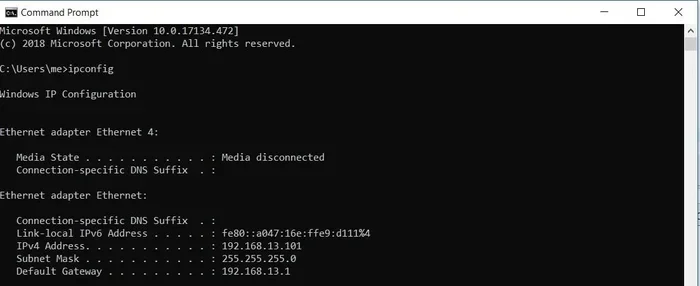
Once Command Prompt is open, type the following command and press Enter:
ipconfig
This command displays all your network connection details. You will see a section called “Wireless LAN adapter Wi-Fi” or “Ethernet adapter Ethernet” depending on how you connect. Look for the line that says Default Gateway. The number next to it is your router IP address.
Step 3: Note Down the Default Gateway Address
The default gateway usually looks like 192.168.1.1 or 192.168.0.1. Write this down or keep the Command Prompt window open. You will need this address in the next step. Every router brand uses a slightly different default IP, but the process is the same.
How to Access Your Router Admin Page Through a Browser
Now that you have your router IP, opening the admin page is straightforward. This is where you can change all your network settings, from Wi-Fi passwords to port forwarding rules.
Step 4: Open Your Web Browser
You can use Chrome, Firefox, Edge, or any browser you prefer. In the address bar at the top, type your default gateway IP address. For example, type 192.168.1.1 and press Enter.
Step 5: Enter Your Router Login Credentials
A login page will appear. You need a username and password to get in. Most routers use “admin” for both the username and password by default. Check the sticker on the back or bottom of your router if you have not changed these. Some brands use different defaults, so look up your specific model if needed.
Once you log in, you will see the router dashboard. From here you can adjust wireless settings, check connected devices, update firmware, and much more. This is your control center for the entire home network.
Useful Command Prompt Commands for Router and Network Tasks
Command Prompt offers more than just finding your router IP. You can run several other commands to manage and troubleshoot your network. These are handy tools to keep in your back pocket.
Ping Your Router to Check Connectivity
Type ping 192.168.1.1 (replace with your actual router IP) and press Enter. This sends a small signal to your router and measures the response time. If you get replies, your connection is working. If you see “Request timed out,” there may be a connection problem.
Release and Renew Your IP Address
Sometimes your device loses its connection to the router. You can fix this with two commands:
- Type
ipconfig /releaseand press Enter. - Then type
ipconfig /renewand press Enter.
This forces your computer to get a fresh IP address from the router. It often solves connection issues without needing a restart.
Flush DNS Cache for Faster Browsing
Type ipconfig /flushdns and press Enter. This clears old website data stored on your computer. It can help if websites are loading slowly or not at all. This is a quick fix for many common browsing problems.
Check All Network Connections
Type netstat -an to see all active network connections. This shows you what devices and services are communicating through your router. It is useful for spotting unknown devices on your network.
Common Problems When Accessing Router From Command Prompt
Sometimes things do not go as planned. Do not worry. These are common issues and they all have simple fixes.
Default Gateway Not Showing Up
If you run ipconfig and do not see a default gateway, your computer may not be connected to the router properly. Check your Wi-Fi or Ethernet cable. Make sure the router is powered on. You can also try restarting your computer and running the command again.
Router Login Page Will Not Load
If typing the router IP into your browser does nothing, try these steps:
- Double-check the IP address for typos.
- Make sure you are connected to the router’s network.
- Try a different web browser.
- Disable any VPN software you might be running.
- Restart your router and try again.
If you still cannot reach the login page, you may need to reset your router to factory settings. This restores the default IP address and login credentials. Use the reset button on the back of the router and hold it for about 10 seconds.
Forgot Router Username or Password
If you changed the login details and forgot them, a factory reset is your best option. Press and hold the small reset button on your router for 10 to 15 seconds. All custom settings will return to defaults, including the original username and password. You will need to set up your network again after this.
Tips for Securing Your Router After Accessing It
Once you log in to your router, take a few minutes to improve your network security. This is especially important because an open or poorly secured router can leave your entire home network vulnerable.
Change the Default Login Credentials
The first thing you should do is change the admin username and password. Default credentials are easy to guess and widely known. Choose a strong password with a mix of letters, numbers, and symbols.
Update Your Wi-Fi Password Regularly
Set a strong Wi-Fi password and update it every few months. This keeps unauthorized users off your network. If you need help changing it, you can refer to guides on how to change your SSID and Wi-Fi password through the router admin panel.
Enable Network Encryption
Make sure your Wi-Fi uses WPA3 or WPA2 encryption. This scrambles the data sent over your network so others cannot intercept it. Avoid using WEP, as it is outdated and easily cracked.
Keep Your Router Firmware Updated
Router manufacturers release firmware updates to fix bugs and security holes. Check for updates in your router dashboard regularly. Keeping your firmware current helps your network run smoothly and safely.
Can I Use Command Prompt on a Mac to Access My Router?
If you are on a Mac, the process is slightly different. You would use the Terminal app instead of Command Prompt. Open Terminal and type netstat -nr | grep default to find your router IP. The rest of the process is the same. You type that IP into your web browser and log in to the admin page.
Many people also use their phones to manage router settings. You can connect to your router through a mobile app or a mobile browser. Some brands offer dedicated apps that make this even easier. For example, Netgear, TP-Link, and Linksys all have free apps for both iOS and Android.
Another option worth exploring is a mesh router system. If you have a large home or experience weak signals in certain rooms, a mesh setup can help. You can connect a mesh router to your existing router to extend coverage throughout your home. These systems often come with user-friendly apps that simplify the setup and management process.
Keeping your network strong and secure is an ongoing process. Regularly checking your router settings, updating passwords, and monitoring connected devices helps you stay ahead of potential issues. Command Prompt gives you a quick and reliable way to get started any time you need.
Remember that your router is the heart of your home network. Taking a few minutes to access it and review your settings can make a big difference in performance and security. With the steps in this guide, you now have the power to manage your network whenever you want. No third-party apps, no guesswork, just a few simple commands and a browser.
Whether you are troubleshooting a slow connection, changing your Wi-Fi name, or checking who is using your network, Command Prompt is your best friend. It works every time, it is built right into Windows, and it puts you in complete control. Start using these steps today and take charge of your home network like a pro.
Key Takeaways
- Open Command Prompt: Type cmd in the Windows search bar and launch the tool to begin.
- Run ipconfig: This command reveals your default gateway, which is your router IP address.
- Open the IP in a Browser: Type the gateway address into your web browser to reach the admin login page.
- Use Additional Commands: Ping, release, renew, and flushdns commands help troubleshoot network issues.
- Secure Your Router: Change default passwords, enable WPA2/WPA3 encryption, and update firmware regularly.
- Troubleshoot Common Issues: A factory reset or checking your connection usually fixes most access problems.
Frequently Asked Questions
Can I access my router from Command Prompt without being connected to Wi-Fi?
No, you need to be connected to your router either through Wi-Fi or an Ethernet cable. The Command Prompt command will only show your default gateway if your device is actively connected to the router’s network.
What should I do if the ipconfig command does not show a default gateway?
This usually means your computer is not connected to the router. Check your Wi-Fi or Ethernet connection and make sure the router is powered on. Try restarting your computer and running the command again.
Is it safe to change router settings through the admin page?
Yes, it is safe as long as you know what you are changing. Stick to settings you understand, and write down your original settings before making any changes. If something goes wrong, you can always reset the router to factory defaults.
Can I access my router from Command Prompt on Windows 11?
Absolutely. The process works the same on Windows 11 as it does on Windows 10 and older versions. Just open Command Prompt, run ipconfig, and look for the default gateway address.
How do I find my router IP if I forgot it?
Open Command Prompt and type ipconfig. Look for the default gateway line under your active network connection. That number is your router IP. You can also check the sticker on the back of your router for the factory default.
What is the difference between a router IP and a public IP address?
Your router IP, or default gateway, is your local network address used to access router settings. Your public IP is the address your internet service provider assigns to your entire network. You can find your public IP by searching “what is my IP” in a browser.
=== CONCLUSION ===
Accessing your router from Command Prompt is a straightforward process that puts you in full control of your home network. You simply open cmd, run the ipconfig command, find your default gateway, and type that address into your web browser. From there, you can log in and adjust any setting you need. Whether you want to change your Wi-Fi password, check connected devices, or troubleshoot a slow connection, Command Prompt makes it quick and easy.
Remember to always secure your router after making changes. Update your login credentials, enable strong encryption, and keep your firmware current. These small steps go a long way in protecting your network and keeping your internet running smoothly. Now that you know how simple it is, try accessing your router from Command Prompt today and see how easy network management can be.