How Do I Activate My Straight Talk Mobile Hotspot Guide
Activating your Straight Talk Mobile Hotspot is simple once you know the right steps. This guide walks you through enabling tethering on your Android phone, adjusting APN settings, and troubleshooting common connection issues. Whether you want to share mobile data with a laptop or tablet, you will find clear instructions to get your Straight Talk Mobile Hotspot up and running quickly.
Have you ever been somewhere without Wi-Fi and wished you could just share your phone’s data connection with your laptop or tablet? That is exactly what a Straight Talk Mobile Hotspot lets you do. It turns your phone into a portable Wi-Fi router so you can stay connected wherever you go.
Maybe you are traveling, working remotely, or just stuck somewhere with no available Wi-Fi. In all these situations, knowing how to activate your hotspot is a real lifesaver. The good news is that the process is straightforward, and this guide will walk you through every step.
We will cover everything from basic activation to troubleshooting common problems. You will also learn about APN settings, data usage tips, and how to keep your connection secure. By the end of this article, you will feel confident turning your Straight Talk Mobile Hotspot on and off whenever you need it.
Key Takeaways
- Easy Activation: You can turn on your Straight Talk Mobile Hotspot directly from your phone settings in just a few taps.
- APN Settings Matter: Correct APN configuration is essential for hotspot tethering to work properly on the Straight Talk network.
- Data Plans Are Key: Make sure your Straight Talk data plan supports hotspot usage to avoid extra charges or blocked connections.
- Troubleshooting Is Simple: Most hotspot issues can be fixed by restarting your phone, toggling settings, or resetting APN values.
- Multiple Devices Work: You can connect laptops, tablets, and other phones to your Straight Talk Mobile Hotspot simultaneously.
- Security Matters: Setting a strong hotspot password protects your connection from unauthorized users.
📑 Table of Contents
- What Is a Straight Talk Mobile Hotspot?
- How to Activate Your Straight Talk Mobile Hotspot
- Configuring APN Settings for Straight Talk Hotspot
- Troubleshooting Common Straight Talk Hotspot Problems
- How to Secure Your Straight Talk Mobile Hotspot
- Can You Use a Hotspot Without Phone Service?
- Tips to Maximize Your Straight Talk Hotspot Performance
- Final Thoughts on Activating Your Straight Talk Mobile Hotspot
What Is a Straight Talk Mobile Hotspot?
A mobile hotspot is a feature built into your phone that shares your mobile data connection with other devices. When you turn it on, your phone creates a small Wi-Fi network. Other devices can then connect to it and use the internet through your phone’s data plan.
Straight Talk is a popular prepaid wireless service that runs on major networks like AT&T, T-Mobile, and Verizon. This means your Straight Talk Mobile Hotspot works just like any other carrier’s hotspot, but you do not need a contract or a monthly bill. You simply buy a data plan and go.
Here are some key things to know about how it works:
- Tethering: This is the technical term for sharing your phone’s data connection with another device.
- Portable Wi-Fi: Your phone becomes a mini router that broadcasts a Wi-Fi signal.
- Data Usage: Every device connected to your hotspot uses data from your Straight Talk plan.
- Network Compatibility: Your hotspot uses the same network your phone connects to, whether that is AT&T, T-Mobile, or Verizon.
If you have ever wondered whether are they getting rid of Straight Talk, the short answer is no. Straight Talk continues to operate and offer affordable plans, including data-only and hotspot-friendly options. It remains a solid choice for people who want flexibility without a long-term commitment.
How to Activate Your Straight Talk Mobile Hotspot
Now let us get into the actual steps. Activating your hotspot on a Straight Talk phone is simple, but the exact steps can vary slightly depending on your phone model and Android version. Below, we cover the most common method for Android devices.
Step 1: Check Your Data Plan
Before you do anything else, make sure your Straight Talk plan includes data and supports hotspot usage. Some plans limit or block tethering entirely. You can check your plan details by logging into your Straight Talk account online or calling their customer service.
If you need more data for hotspot use, consider looking into can I get unlimited hotspot options. Unlimited hotspot plans give you the freedom to share your connection without worrying about running out of data too quickly.
Step 2: Open Your Phone Settings
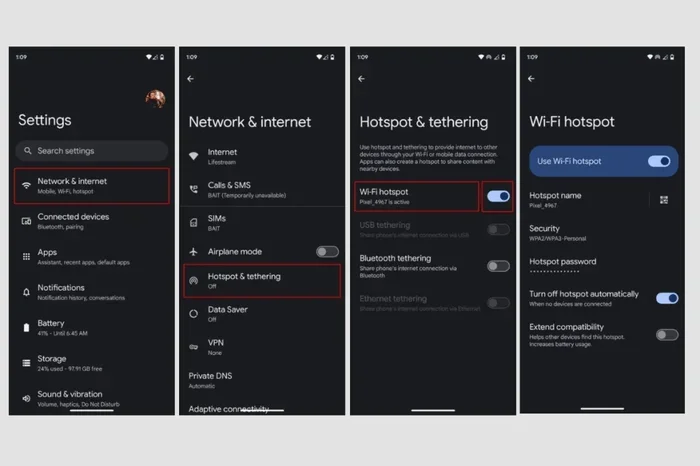
Unlock your phone and open the Settings app. On most Android phones, you will find it in the app drawer or by swiping down from the top of the screen and tapping the gear icon.
Step 3: Go to Network and Internet
In the Settings menu, look for “Network and Internet” or “Connections,” depending on your phone. Tap on it to open the network settings.
Step 4: Find the Hotspot and Tethering Option
Scroll down until you see “Hotspot and Tethering” or “Mobile Hotspot.” Tap on this option. You should see a toggle switch to turn your hotspot on or off.
Step 5: Turn On the Hotspot
Flip the toggle switch to turn on your Straight Talk Mobile Hotspot. Your phone will start broadcasting a Wi-Fi network right away. You will see the network name and password displayed on this screen.
Step 6: Connect Your Other Devices
On your laptop, tablet, or another phone, open the Wi-Fi settings. Look for the network name of your hotspot. Tap on it, enter the password, and you should be connected within seconds.
Configuring APN Settings for Straight Talk Hotspot
Sometimes your hotspot will not work even after you turn it on. This is often caused by incorrect APN (Access Point Name) settings. APN settings tell your phone how to connect to the Straight Talk network for data and tethering.
Think of APN settings like the address your phone uses to find the internet. If the address is wrong, your phone cannot connect properly. This is one of the most common reasons why a Straight Talk Mobile Hotspot fails to activate.
How to Check and Update APN Settings
Follow these steps to check your APN settings:
- Open the Settings app on your phone.
- Go to “Network and Internet” or “Connections.”
- Tap on “Mobile Network” or “Cellular Networks.”
- Select “Access Point Names” or “APN.”
- Look for the APN entry that Straight Talk uses.
- Tap on it and check that all fields are filled in correctly.
If the APN settings look wrong or incomplete, you can reset them to default. On most phones, you will find a menu option that says “Reset to default.” Tap it, and your phone will restore the correct Straight Talk APN values.
You can also manually enter APN settings if you have the correct values from Straight Talk. Visit the Straight Talk website or contact their support team to get the latest APN configuration for your specific plan.
Troubleshooting Common Straight Talk Hotspot Problems
Even when you follow all the steps correctly, you might run into issues. This section covers the most common problems and how to fix them quickly.
Hotspot Won’t Turn On
If the toggle switch is grayed out or your hotspot will not activate, try these fixes:
- Restart your phone: A simple reboot often resolves temporary software glitches.
- Check your data plan: Make sure you have an active data plan that supports tethering.
- Update your phone: Go to Settings and check for system updates. Outdated software can cause compatibility issues.
- Remove and reinsert your SIM card: This can refresh your connection to the Straight Talk network.
Devices Cannot Connect to the Hotspot
If your other devices cannot find or connect to your hotspot, try these steps:
- Make sure your hotspot is turned on and visible.
- Check that you are entering the correct password.
- Move closer to your phone to ensure a strong signal.
- Restart the Wi-Fi on the device you are trying to connect.
- Forget the hotspot network on the connecting device and try again.
Slow Hotspot Speeds
Slow speeds are frustrating but common. Here is what you can do:
- Check your signal strength. A weak signal means slower speeds.
- Limit the number of connected devices. Too many devices slow everything down.
- Switch your phone to a location with better reception.
- Check if other apps on your phone are using data in the background.
How to Secure Your Straight Talk Mobile Hotspot
Keeping your hotspot secure is really important. When you share your internet connection, you do not want strangers hopping on and using your data or accessing your personal information.
Here are some simple security tips for your Straight Talk Mobile Hotspot:
- Use a strong password: Choose a password that is at least 12 characters long and includes a mix of letters, numbers, and symbols.
- Change the default network name: A custom name makes it harder for strangers to identify your hotspot.
- Turn off your hotspot when not in use: This saves data and prevents unauthorized access.
- Limit connected devices: Most phones let you set a maximum number of devices that can connect to your hotspot.
- Use WPA2 or WPA3 encryption: This is the strongest available security for Wi-Fi connections.
Following these simple steps keeps your connection safe and your data usage under control. It is especially important if you use your hotspot frequently or in public places.
Can You Use a Hotspot Without Phone Service?
This is a question many people ask, and the answer is yes, in certain situations. You can use a Straight Talk Mobile Hotspot without active phone service as long as you have a data-only plan or a plan that includes data but does not require voice service.
Some people buy a data-only SIM card and use it purely for hotspot purposes. This lets them connect laptops and tablets to the internet without needing a phone number or calling plan. If you are interested in this approach, you can learn more about can I get hotspot without phone service to explore your options.
The key requirement is that your SIM card or plan must have active data. Without data, your hotspot simply cannot work, regardless of whether you have phone service or not.
Tips to Maximize Your Straight Talk Hotspot Performance
Getting the most out of your Straight Talk Mobile Hotspot is all about a few smart habits. Here are some practical tips that make a real difference:
Monitor Your Data Usage
Hotspot usage eats through data fast. A single video call or a few minutes of streaming can use a lot of megabytes. Keep an eye on your data usage by going to Settings and then Data Usage on your phone. This helps you avoid surprises on your bill.
Position Your Phone Strategically
Your phone’s signal strength directly affects hotspot performance. Place your phone near a window or in an open area for the best results. Avoid putting it in a drawer or inside a bag, as this weakens the signal.
Update Your Phone Regularly
Software updates often include improvements to network performance and bug fixes for hotspot issues. Make it a habit to check for updates at least once a week.
Use a Wi-Fi Extender if Needed
If you need to cover a larger area, you can use a Wi-Fi extender to boost your hotspot signal. This is especially helpful in large homes or outdoor spaces where the signal might be weak.
Final Thoughts on Activating Your Straight Talk Mobile Hotspot
Activating your Straight Talk Mobile Hotspot does not have to be complicated. With the right settings and a little patience, you can share your mobile data connection with any device in just a few minutes. Start by checking your data plan, then follow the activation steps we covered above.
If you run into issues, the troubleshooting tips in this guide should help you resolve most problems quickly. And remember to keep your hotspot secure with a strong password and WPA2 encryption.
Whether you are working from a coffee shop, traveling across the country, or just need internet in an area without Wi-Fi, your Straight Talk Mobile Hotspot has you covered. Now you have everything you need to activate, troubleshoot, and optimize your connection like a pro.
Stay connected, stay productive, and enjoy the freedom that a Straight Talk Mobile Hotspot brings to your everyday life.
Frequently Asked Questions
How do I activate my Straight Talk Mobile Hotspot on an iPhone?
On an iPhone, go to Settings, then Personal Hotspot, and toggle it on. You may need to contact Straight Talk to ensure your plan supports tethering. Set a Wi-Fi password in the same menu to secure your connection.
Why is my Straight Talk Mobile Hotspot not working?
Common reasons include incorrect APN settings, an inactive data plan, or a software glitch. Try restarting your phone, checking your APN configuration, and confirming that your plan includes hotspot data.
Can I connect multiple devices to my Straight Talk hotspot?
Yes, most Straight Talk phones allow multiple devices to connect to the hotspot at the same time. However, connecting too many devices can slow down your speeds and use data quickly.
How much data do I need for hotspot use?
It depends on what you do. Light browsing uses about 60 MB per hour, while streaming video can use 1 GB or more per hour. Check your Straight Talk plan to make sure you have enough data for your needs.
Is it free to use my Straight Talk phone as a hotspot?
Using your phone as a hotspot is not an extra cost if your data plan already includes tethering. However, if your plan does not support hotspot usage, Straight Talk may charge an additional fee or block the feature entirely.
Can I use my Straight Talk hotspot while traveling internationally?
Straight Talk primarily operates on U.S. networks, so international hotspot use may not work unless you have a specific international plan or roaming add-on. Check with Straight Talk customer service before traveling abroad to confirm your options.
=== CONCLUSION ===
Activating your Straight Talk Mobile Hotspot is a skill that comes in handy in many situations. From remote work to travel emergencies, having a reliable portable internet connection gives you peace of mind and real freedom. The steps in this guide make the process simple, even if you are not very tech-savvy.
Remember to check your data plan, configure your APN settings correctly, and keep your hotspot secure with a strong password. If you run into trouble, the troubleshooting section has you covered with practical fixes for the most common issues.
Now that you know exactly how to activate and manage your Straight Talk Mobile Hotspot, you can stay connected anytime, anywhere. Share this guide with friends or family who might be struggling with their own hotspot setup. Staying connected should never be a hassle, and with the right knowledge, it never has to be.