How Do I Connect My 2boom Bluetooth Speaker Step by Step
Connecting your 2boom Bluetooth speaker is easy once you know the steps. This guide walks you through pairing your speaker with any device, fixing common connection issues, and getting the best sound every time. Whether you are new to Bluetooth or just need a refresher, you will find clear instructions that work every time.
Have you just unboxed your new 2boom Bluetooth speaker and are not sure where to start? You are not alone. Many people love the idea of wireless audio but feel stuck when it comes to the setup. The good news is that connecting a 2boom Bluetooth speaker is much simpler than it looks.
In this guide, we will walk you through every single step. From powering on your speaker to pairing it with your phone, tablet, or laptop, we have you covered. You will also learn how to fix common problems and get the most out of your wireless speaker connection. By the end of this article, you will be streaming music without any hassle.
Key Takeaways
- Simple Pairing Process: Turning on your 2boom speaker and putting it in pairing mode takes just a few seconds.
- Works with Many Devices: You can connect your 2boom speaker to phones, tablets, laptops, and even TVs.
- Troubleshooting is Easy: Most connection problems have simple fixes like resetting the speaker or checking the Bluetooth settings.
- Pro Tips Improve Sound: Keeping your speaker close and updating firmware can boost your wireless audio experience.
- Multiple Speakers Can Connect: Some 2boom models let you pair more than one speaker for richer sound.
📑 Table of Contents
- What Is a 2boom Bluetooth Speaker?
- What You Need Before You Start
- Step-by-Step Guide to Connect Your 2boom Bluetooth Speaker
- Connecting Your 2boom Speaker to Different Devices
- Troubleshooting Common Connection Problems
- Pro Tips for the Best Experience
- Can You Use Your 2boom Speaker with Other Bluetooth Devices?
- How to Disconnect and Reconnect Your Speaker
- Final Thoughts
What Is a 2boom Bluetooth Speaker?
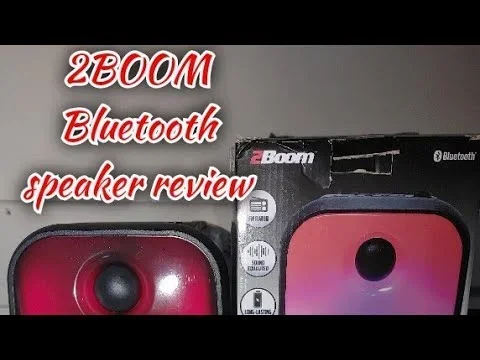
A 2boom Bluetooth speaker is a portable wireless speaker made by the brand 2boom. These speakers are known for their compact size and powerful sound. They use Bluetooth technology to connect to your devices without any cables. This means you can take your music anywhere, from the kitchen to the backyard.
Most 2boom speakers are waterproof and durable. They come in different shapes and sizes to fit your needs. Some are small enough to fit in your pocket, while others are bigger and louder. No matter which model you have, the Bluetooth pairing process is very similar across the lineup.
What You Need Before You Start
Before you begin the setup, make sure you have everything ready. Having the right items nearby saves time and prevents frustration.
Check Your Speaker
Make sure your 2boom speaker is fully charged. A low battery can cause connection problems. Plug in the charging cable and wait until the light shows it is fully powered. Also, check that your speaker is clean and free of dust or debris.
Check Your Device
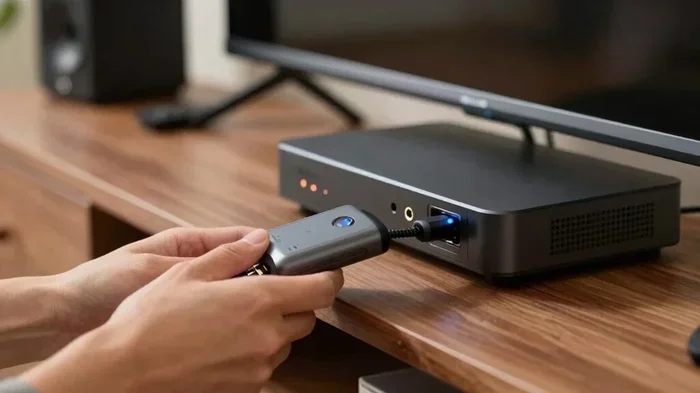
Your phone, tablet, or laptop needs to have Bluetooth turned on. Most modern devices support Bluetooth, but older ones might not. If your device does not have built-in Bluetooth, you can use a Bluetooth adapter to add wireless capability. This is a small USB device that plugs into your computer or TV.
Know Your Distance
Keep your speaker and device close during setup. Bluetooth works best within about 30 feet. Once connected, you can move farther away, but staying close during the initial pairing helps a lot.
Step-by-Step Guide to Connect Your 2boom Bluetooth Speaker
Now let us get into the main part. Follow these steps carefully and you will be listening to music in no time.
Step 1: Turn On Your Speaker
Press and hold the power button on your 2boom Bluetooth speaker. You should see a light turn on or hear a short sound. This tells you the speaker is ready. Some models have a voice prompt that says “Power on” or “Ready to pair.”
If the speaker does not turn on, try charging it for at least 30 minutes. A completely drained battery may need a bit of time before it responds.
Step 2: Put the Speaker in Pairing Mode
This is the most important step. You need to tell your speaker that you want to connect it to a new device. On most 2boom models, you do this by pressing and holding the Bluetooth button. The light will start flashing, usually in blue or red. This flashing light means the speaker is ready to be found.
Some newer models have a dedicated “Pair” button. Others require you to hold the power button for a few seconds. Check your user manual if you are unsure. The speaker pairing mode is what allows your phone or laptop to detect it.
Step 3: Turn on Bluetooth on Your Device
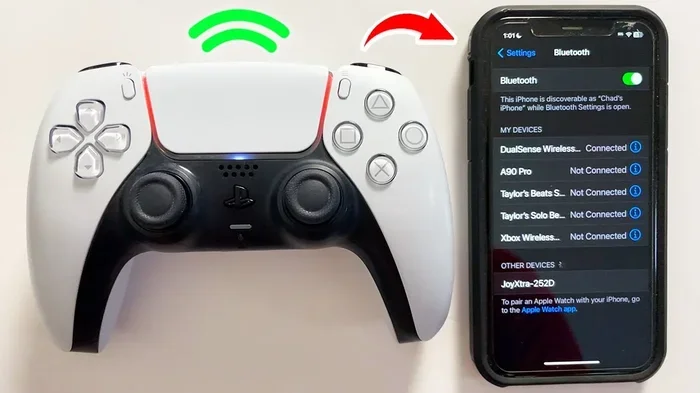
Go to the settings on your phone, tablet, or laptop. Find the Bluetooth option and make sure it is turned on. Your device will start scanning for nearby Bluetooth devices automatically.
On most phones, you can swipe down from the top of the screen and tap the Bluetooth icon. On a laptop, go to Settings and then Bluetooth. On a tablet, the process is similar to a phone.
Step 4: Find Your Speaker on the List
Wait a few seconds while your device searches. You should see your 2boom speaker appear on the list of available devices. It might show up as “2boom Speaker” or a similar name depending on your model.
Tap on the name of your speaker. The connection should happen within a few seconds. You will usually hear a confirmation sound from the speaker. Some models also show a solid light instead of a flashing one, which means the pairing was successful.
Step 5: Test the Connection
Play some music or a video on your device. The sound should come through your 2boom Bluetooth speaker immediately. If you hear audio, congratulations, you are connected! If not, do not worry. We will cover troubleshooting in the next section.
Step 6: Save the Connection
Most devices remember paired speakers automatically. This means you do not need to repeat the process every time. As long as Bluetooth is on and the speaker is powered, they will reconnect on their own. This feature makes the wireless speaker connection very convenient for daily use.
Connecting Your 2boom Speaker to Different Devices
The basic pairing steps are the same across devices, but there are a few differences worth knowing. Here is how to connect your 2boom Bluetooth speaker to various devices.
Connecting to a Smartphone
Smartphones are the most common device for Bluetooth speakers. Whether you use an iPhone or an Android phone, the process is straightforward. Open your Bluetooth settings, find the speaker, and tap to connect. Your phone will remember the speaker, so future connections are instant.
If you have trouble connecting, make sure no other device is currently paired with the speaker. Bluetooth speakers can only connect to one device at a time in most cases. Disconnect the speaker from any other device first.
Connecting to a Laptop or Computer
Desktop computers often do not have built-in Bluetooth. If your laptop or desktop lacks Bluetooth, you can use a Bluetooth adapter to add wireless capability. Simply plug the adapter into a USB port, install any drivers if needed, and then follow the same pairing steps.
On a Windows laptop, go to Settings, then Devices, then Bluetooth. On a Mac, click the Bluetooth icon in the menu bar. Find your 2boom speaker and click connect. The Bluetooth speaker setup on a computer works just like on a phone.
Connecting to a TV
Want to use your 2boom speaker with your TV? Many smart TVs support Bluetooth. Go to your TV settings, find the Bluetooth option, and search for devices. Your speaker should appear in the list.
If your TV does not have Bluetooth, you can still connect it. Use a Bluetooth transmitter that plugs into your TV’s audio output. This small device sends audio wirelessly to your speaker. It is a great way to upgrade your TV sound without buying a new sound system.
Troubleshooting Common Connection Problems
Even with the best instructions, things do not always go smoothly. Here are the most common issues and how to fix them.
Speaker Not Showing Up on the Device
If your device cannot find the 2boom Bluetooth speaker, try these steps. First, make sure the speaker is in pairing mode. The light should be flashing. If it is not, hold the Bluetooth button again until it starts blinking.
Second, turn Bluetooth off and back on your device. This refreshes the connection search. Third, move closer to the speaker. Bluetooth signals weaken with distance and walls. Finally, restart both the speaker and your device. A simple reboot fixes many connection issues.
Sound Cuts Out or Keeps Disconnecting
Intermittent audio is a common Bluetooth problem. It usually happens when the speaker is too far from the device. Stay within 30 feet for the best results. Also, keep the speaker away from other wireless devices that might cause interference.
Microwaves, baby monitors, and even Wi-Fi routers can disrupt Bluetooth signals. If you notice dropouts, move away from these devices. You can also try resetting your 2boom speaker to clear any stored connection data. Most speakers have a reset button or a button combination to do this.
Paired but No Sound
Sometimes the speaker connects but you hear nothing. Check the volume on both your device and the speaker. Make sure the speaker is not muted. On some models, pressing the volume up button once unmutes the speaker.
Also, check that your device is sending audio to the speaker and not to its own built-in speakers. On a phone, look for the audio output option in the music app or in the control center. Select the 2boom speaker as the output device.
Speaker Won’t Turn Off Pairing Mode
If your speaker stays in pairing mode and does not connect, try turning it off and back on. Most speakers exit pairing mode after a few minutes of not finding a device. But if it stays stuck, a reset usually helps. Refer to your model’s manual for the exact reset procedure.
Pro Tips for the Best Experience
Once you have your 2boom Bluetooth speaker connected, these tips will help you get the most out of it.
Keep Your Speaker Firmware Updated
Some 2boom models can be updated through an app or website. Firmware updates fix bugs and improve Bluetooth performance. Check the 2boom website or manual to see if updates are available for your model.
Clean Your Speaker Regularly
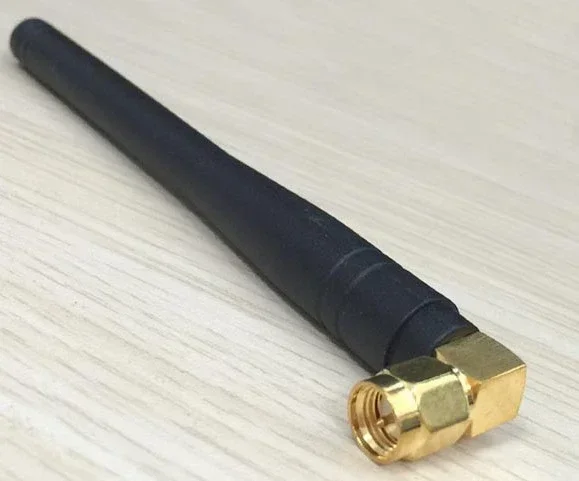
Dust and dirt can block the speaker grilles and affect sound quality. Wipe your speaker with a soft, damp cloth regularly. This keeps the audio clear and the Bluetooth antenna working well.
Use the Speaker Within Range
While Bluetooth can reach about 30 feet, walls and obstacles reduce that range. For the best wireless audio experience, stay in the same room or on the same floor as your speaker.
Charge Before Long Sessions
Nothing kills a good listening session faster than a dead battery. Get in the habit of charging your 2boom speaker after each use. Most models last several hours on a single charge, but heavy use drains the battery faster.
Explore Multi-Speaker Pairing
If you have two compatible 2boom speakers, you can pair them together for stereo sound. This creates a wider soundstage and fills the room better. Check your manual to see if your model supports this feature. It is a great way to upgrade your wireless speaker connection setup.
Can You Use Your 2boom Speaker with Other Bluetooth Devices?
Absolutely. Your 2boom Bluetooth speaker works with any device that supports Bluetooth. This includes gaming consoles, e-readers, and even some smart home devices. The Bluetooth pairing process is universal across all Bluetooth-enabled gadgets.
For example, you can use your speaker with a tablet for a movie night outdoors. Or connect it to a laptop for a work presentation. The versatility of Bluetooth makes your 2boom speaker a valuable tool for many situations.
You might also wonder about using the speaker with a car stereo. While some people use Bluetooth transmitters to add wireless capability to their car, your 2boom speaker works best as a portable standalone device. For car audio upgrades, you might want to explore options like turning your car radio into Bluetooth or making your car radio Bluetooth capable for a more permanent solution.
Similarly, if you want to use Bluetooth headphones alongside your speaker, you can find helpful guides on using Bluetooth headphones with your TV to understand how different Bluetooth devices connect and interact.
How to Disconnect and Reconnect Your Speaker
Disconnecting your 2boom Bluetooth speaker is simple. Turn off Bluetooth on your device, or go to the Bluetooth settings and tap “Forget” or “Disconnect” next to the speaker name. This removes the pairing from your device.
To reconnect, turn the speaker back on and put it in pairing mode. Then go to your device’s Bluetooth settings and select the speaker again. The process takes just a few seconds. You do not need to re-pair every time if you just want to reconnect. Simply turn on Bluetooth on your device and the speaker will appear as a saved device.
If you want to connect the speaker to a different device, you must first disconnect it from the current one. Most speakers remember up to a few previously paired devices, making switching between devices easy.
Final Thoughts
Connecting your 2boom Bluetooth speaker does not have to be complicated. With the steps in this guide, you should be able to pair your speaker with any Bluetooth device quickly and easily. Remember the key steps: power on, enter pairing mode, find the speaker on your device, and connect.
If you run into issues, the troubleshooting tips above will help you solve most problems. Keep your speaker charged, stay within range, and update the firmware for the best performance. A 2boom Bluetooth speaker is a fantastic way to enjoy wireless audio anywhere you go.
Now that you know how to set up and use your speaker, you can focus on what really matters, enjoying your music. Put on your favorite playlist, grab your speaker, and let the good times roll. Happy listening.
Frequently Asked Questions
How do I put my 2boom speaker in pairing mode?
Press and hold the Bluetooth button on your speaker until the light starts flashing. This means the speaker is ready to be found by other devices. If your model does not have a Bluetooth button, try holding the power button for a few seconds instead.
Why won’t my phone find the 2boom speaker?
Make sure the speaker is in pairing mode and Bluetooth is turned on your phone. Move closer to the speaker and make sure no other device is currently connected to it. Restarting both devices often fixes this issue.
Can I connect my 2boom speaker to a TV?
Yes, if your TV has Bluetooth, you can pair the speaker directly. If your TV does not support Bluetooth, use a Bluetooth transmitter to send audio wirelessly to your speaker. This works with most TVs and is an easy upgrade.
How far can I move away from my 2boom speaker while connected?
Bluetooth works best within about 30 feet. Walls and obstacles can reduce this range. For the best experience, stay in the same room or on the same floor as your speaker.
How do I reset my 2boom Bluetooth speaker?
Most 2boom speakers have a reset button or a button combination. Check your user manual for the exact steps. A reset clears stored connections and can fix many pairing problems.
Can I connect two 2boom speakers together for stereo sound?
Some 2boom models support multi-speaker pairing. Check your manual or the 2boom website to see if your model has this feature. If it does, you can pair two speakers for a wider, richer sound experience.
=== META TITLE ===
How Do I Connect My 2boom Bluetooth Speaker Step by Step
=== URL SLUG ===
how-do-i-connect-my-2boom-bluetooth-speaker
=== SEO TITLE ===
How Do I Connect My 2boom Bluetooth Speaker Step by Step