How Do I Change My ATT WiFi Username And Password
Changing your AT&T WiFi username and password is simple once you know where to look. You can update your network name and password directly through the AT&T Smart Home Manager app or by logging into your router’s admin page. This guide walks you through every step, from finding your current credentials to creating a stronger, more secure WiFi network.
Changing your AT&T WiFi username and password might feel intimidating, but it is actually a straightforward process. Whether you want to boost security, update a shared password, or simply personalize your network name, you are in the right place. This guide covers everything you need to know about managing your AT&T WiFi credentials.
Most people never think about their WiFi settings until something goes wrong. Maybe your neighbor is using your network, or you just moved into a place with the previous owner’s credentials still active. Whatever the reason, learning how to change your AT&T WiFi username and password gives you control over your home network.
AT&T WiFi login management is an essential skill for anyone who owns an AT&T gateway or router. The process is quick, and you do not need to be a tech expert. Let us walk through it together.
Key Takeaways
- Access your AT&T router settings through the Smart Home Manager app or by visiting 192.168.1.254 in your browser.
- Your default WiFi username (SSID) and password are printed on the label on the back of your AT&T gateway device.
- Changing your WiFi password takes just a few minutes and significantly improves your network security.
- Use a strong, unique password with a mix of letters, numbers, and symbols to keep unauthorized users out.
- Restart your gateway after changes to ensure all new settings take effect across all connected devices.
- Contact AT&T support if you cannot access your router admin page or forget your new credentials.
- Understanding Your AT&T WiFi Credentials
- How To Find Your Current AT&T WiFi Login Details
- Step-By-Step Guide To Changing Your AT&T WiFi Password
- How To Change Your AT&T WiFi Network Name (SSID)
- Tips For Creating A Strong WiFi Password
- Troubleshooting Common Issues After Changing Your Credentials
- When To Contact AT&T Support
- Keeping Your AT&T WiFi Network Secure
- Conclusion
- Network Name (SSID) – This is your WiFi username.
- WiFi Password – This is your current security key.
- Router Admin Login – This is a separate username and password for accessing your router settings.
- Open the Smart Home Manager app on your phone or tablet.
- Tap on the “WiFi” tab at the bottom of the screen.
- Select “Edit” next to your network name or password field.
- Enter your new password. Make sure it is strong and unique.
- Tap “Save” or “Apply” to confirm your changes.
- Restart your gateway to make sure the new password takes effect.
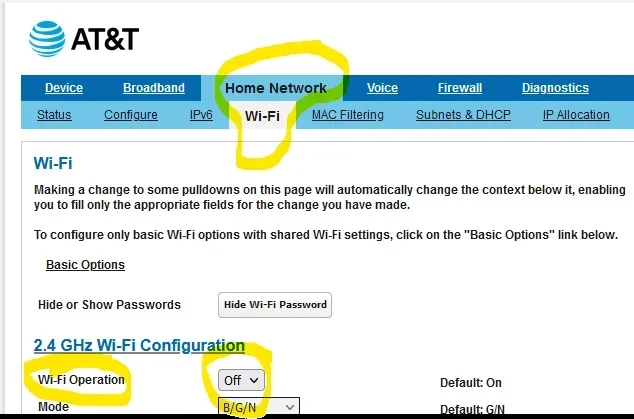
- Open a web browser on a device connected to your AT&T WiFi.
- Type 192.168.1.254 into the address bar and press Enter.
- Log in with your admin username and password.
- Navigate to the “WiFi” or “Wireless Settings” section.
- Find the “WiFi Password” or “Security Key” field.
- Enter your new password and click “Save” or “Apply.”
- Restart your gateway for the changes to take effect.
- Open the Smart Home Manager app.
- Go to the “WiFi” section.
- Tap on the network name field.
- Delete the current name and type in your new name.
- Save your changes and restart your gateway.
- Log in to your router at 192.168.1.254.
- Go to the “Wireless Settings” section.
- Find the “SSID” or “Network Name” field.
- Enter your new name and save the settings.
- Restart your gateway to apply the changes.
- Length: At least 12 characters. Longer is always better.
- Complexity: Use a mix of uppercase letters, lowercase letters, numbers, and symbols.
- Unpredictability: Avoid common words, birthdays, or sequential numbers like “123456.”
- Uniqueness: Do not reuse a password from another account or service.
- Sunshine!Tiger42$Blue – A mix of words, numbers, and symbols.
- Mountain$Bike#99Rain – Easy to remember but hard to guess.
- Coffee22&Ocean!Sky – Uses personal references in a creative way.
- Write it down and keep it in a safe place at home.
- Use a password manager app to store your credentials securely.
- Create a passphrase using a sentence you will remember, like “I love coffee at 8am!”
- Make sure you are connected to your AT&T WiFi network.
- Double-check the URL. It must be 192.168.1.254 exactly.
- Try a different web browser.
- Clear your browser cache and try again.
- If you changed your admin password and forgot it, you may need to reset the gateway to factory settings.
- You cannot access your router admin page after multiple attempts.
- Your gateway will not restart properly after you make changes.
- You forgot both your WiFi password and your admin login credentials.
- You want to change your WiFi settings but the Smart Home Manager app is not working.
- You suspect someone unauthorized is still using your network after changing your password.
- Update your password every few months. This keeps your network safe even if someone somehow obtained your old credentials.
- Use WPA3 or WPA2 encryption. These are the most secure WiFi encryption types available on modern AT&T gateways.
- Disable WPS (Wi-Fi Protected Setup). WPS can be a security vulnerability. Turn it off in your router settings for added protection.
- Keep your gateway firmware updated. AT&T usually pushes updates automatically, but it is worth checking periodically.
- Guest networks are your friend. Set up a separate guest network for visitors so they do not need your main WiFi password.
📑 Table of Contents
Understanding Your AT&T WiFi Credentials
Before you change anything, it helps to understand what you are working with. Your AT&T WiFi setup involves two key pieces of information: the network name and the password. These are also known as your SSID and security key.
What Is Your AT&T WiFi Username?
Your WiFi username is really just the name of your wireless network. It is what you see when you scan for available networks on your phone or laptop. AT&T typically sets a default network name on your gateway device. This name often includes “ATT” followed by a string of numbers and letters.
The AT&T WiFi network name is printed on a sticker on the back or bottom of your gateway. You will also find the default WiFi password there. If you have ever connected a new device to your WiFi for the first time, you have likely used these credentials.
What Is Your AT&T WiFi Password?
Your WiFi password is the security key that keeps strangers from accessing your internet. AT&T sets a default password when you first set up your gateway. This password is usually a mix of letters and numbers printed on the same sticker as your network name.
Over time, you may want to change this password. Perhaps you shared it with a guest and do not want them to have access anymore. Or maybe you just want a password that is easier to remember. Either way, changing it is simple.
How To Find Your Current AT&T WiFi Login Details
Before you can change your credentials, you need to find your current ones. There are a few ways to do this, and none of them require advanced technical skills.
Check The Label On Your Gateway
The easiest way to find your current AT&T WiFi login details is to look at the back of your gateway device. You will see a sticker with the following information:
Keep in mind that the admin login is different from your WiFi password. The admin login lets you change your router settings, while the WiFi password lets devices connect to your network.
Use The AT&T Smart Home Manager App
If you have the AT&T Smart Home Manager app installed on your phone, you can find your WiFi details there. Open the app and look for the “WiFi” or “Network” section. The app will display your current network name and password.
This is especially helpful if you have already changed the sticker label and cannot read it anymore. The app serves as a central hub for managing your AT&T WiFi settings.
Log Into Your Router Admin Page
You can also access your current WiFi settings by logging into your router’s admin page. Open a web browser and type 192.168.1.254 into the address bar. You will be prompted to enter your admin username and password.
If you have never changed these admin credentials, the default username is usually “admin” and the password is printed on the same sticker as your WiFi details. If that does not work, you can try “password” or leave the password field blank.
Step-By-Step Guide To Changing Your AT&T WiFi Password
Now that you know where to find your current credentials, let us change your WiFi password. This process works whether you use the Smart Home Manager app or the router admin page.
Method 1: Using The AT&T Smart Home Manager App
The Smart Home Manager app is the easiest way to change your AT&T WiFi password. Here is how to do it:
Once you save your new password, all your connected devices will disconnect. You will need to reconnect each device using the new password. This is normal and expected.
Method 2: Using The Router Admin Page
If you prefer using a web browser, you can change your WiFi password through the router admin page. Here is what to do:
This method gives you more control over your WiFi settings. You can also change your network name, security type, and other advanced options.
How To Change Your AT&T WiFi Network Name (SSID)
Your network name is what people see when they search for available WiFi networks. Changing it can make your network easier to identify and can also add a layer of privacy. If you want to change your AT&T WiFi network name, you can do so through the same methods described above.
Using The Smart Home Manager App
To change your network name using the app, follow these steps:
Keep your new network name simple and recognizable. Avoid using personal information like your full name or address. A creative name works just as well and keeps your network private.
Using The Router Admin Page
To change your network name through the admin page:
If you want more details on managing your router settings, check out our guide on how to change the SSID on your router. This resource covers SSID changes across different router brands, not just AT&T.
Tips For Creating A Strong WiFi Password
A weak password is the number one reason WiFi networks get compromised. When you create a new password for your AT&T WiFi, you want to make sure it is strong enough to keep intruders out.
What Makes A Password Strong?
A strong WiFi password has several key characteristics:
Examples Of Strong WiFi Passwords
Here are a few examples of strong passwords you could use for your AT&T WiFi:
Avoid using anything that someone who knows you could easily guess. Your pet’s name or your street address might be easy for you to remember, but they are also easy for hackers to figure out.
How To Remember Your New Password
Forgetting your WiFi password is a common problem. Here are a few tips to help you remember:
If you ever need to boost your overall internet performance after changing your password, our guide on how to boost your upload speed offers helpful tips.
Troubleshooting Common Issues After Changing Your Credentials
Sometimes things do not go smoothly after you change your AT&T WiFi password or network name. Here are the most common issues and how to fix them.
Devices Will Not Connect After The Password Change
This is completely normal. When you change your WiFi password, every device that was previously connected will lose access. You need to reconnect each device manually using the new password.
To fix this, go to the WiFi settings on each device, select your network, and enter the new password. If a device still will not connect, try forgetting the network first and then reconnecting.
The Gateway Lights Are Blinking After A Restart
After you restart your AT&T gateway, the lights may blink for a few minutes. This is normal. The gateway is reconnecting to the AT&T network and applying your new settings. Wait about 5 minutes and check if the internet light turns solid green.
If the lights continue to blink after 10 minutes, try unplugging the gateway, waiting 30 seconds, and plugging it back in.
You Cannot Access The Router Admin Page
If you cannot log in to 192.168.1.254, try these steps:
For more on managing your router’s antennas and signal strength, check out our article on adding an antenna to your WiFi router.
When To Contact AT&T Support
Most WiFi credential changes go smoothly, but sometimes you need help. You should contact AT&T support if:
AT&T support can help you reset your gateway to factory settings if needed. They can also walk you through any advanced configuration steps. You can reach them through the Smart Home Manager app, by phone, or by visiting an AT&T store in person.
Keeping Your AT&T WiFi Network Secure
Changing your username and password is just the first step. Keeping your network secure over time requires good habits. Here are a few best practices:
For additional security tips and ways to improve your WiFi signal, you may want to read our article on how to increase your WiFi signal. A stronger signal also means a more stable and secure connection.
Conclusion
Changing your AT&T WiFi username and password is one of the simplest and most effective things you can do to protect your home network. Whether you use the Smart Home Manager app or the router admin page, the process takes just a few minutes. You now know how to find your current credentials, update your password and network name, create a strong password, troubleshoot common issues, and keep your network secure long-term.
Take a few minutes today to update your AT&T WiFi credentials if you have not done so recently. A small effort now can save you from headaches later. Your home network is your digital front door, and keeping it secure is well worth the time it takes to change a password.
Frequently Asked Questions
How do I find my AT&T WiFi username and password?
You can find your AT&T WiFi username and password on the sticker on the back of your gateway device. The network name (SSID) is your WiFi username, and the password is listed right below it. You can also find these details in the AT&T Smart Home Manager app.
Can I change my AT&T WiFi password without restarting the gateway?
It is always recommended to restart your gateway after changing your WiFi password. A restart ensures that all connected devices receive the updated credentials and that the new settings are fully applied across your network.
What should I do if I forget my new AT&T WiFi password?
If you forget your new WiFi password, you can check it in the Smart Home Manager app under the WiFi settings. You can also reset your gateway to factory settings, which will restore the default password printed on the sticker on your device.
How often should I change my AT&T WiFi password?
Security experts recommend changing your WiFi password every three to six months. Regular password changes help protect your network from unauthorized access and keep your internet connection safe.
Will changing my AT&T WiFi password disconnect all my devices?
Yes, changing your WiFi password will disconnect all currently connected devices. You will need to reconnect each device manually by selecting your network and entering the new password.
Can I use the same password for my AT&T WiFi and my AT&T account?
It is best to use different passwords for your WiFi and your AT&T account. Using separate passwords adds an extra layer of security. If one password is compromised, the other account remains protected.